
Lists and tables with data
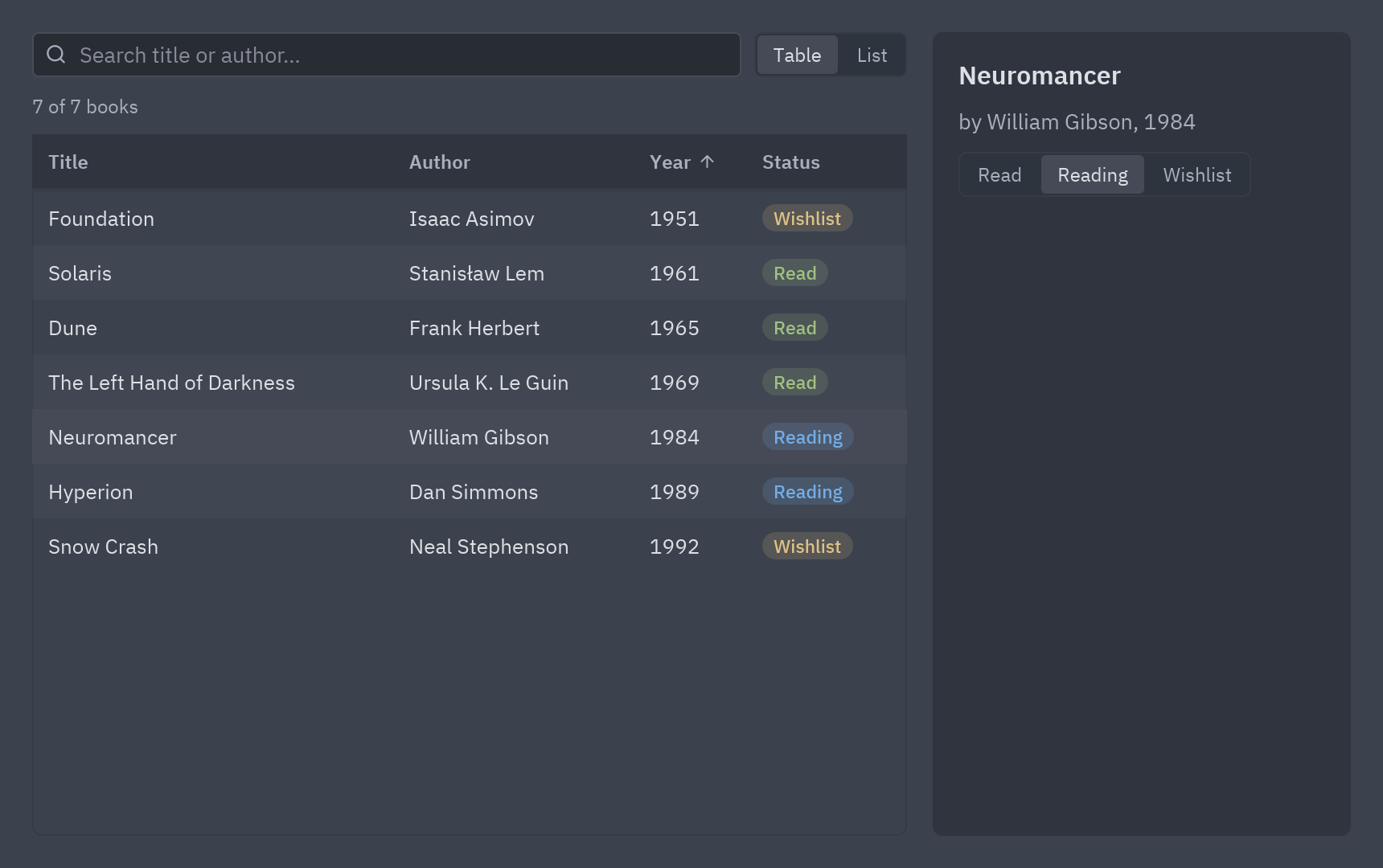
Most apps show data: customers, files, orders, books. This tutorial takes a plain Python list and shows it two ways, as a sortable table and as a simple list, with a search box and a panel with the details of the row you click.
| Goal | Time | Level | You need |
|---|---|---|---|
| A book library with search, sorting and details | 30 minutes | Intermediate · Python | A multi-view app |
What you’ll learn
Section titled “What you’ll learn”- Filter data in
view()from a search box. - Draw a
ui.tablewith columns, sorting by clicking a header, and clickable rows. - Turn a cell into any widget (a colored badge) with
render=. - Show the same data as a list of
ui.list_itemrows. - Keep the selected item and show it in a details panel; change it in place.
-
The data is just Python. A list of dicts (objects or dataclasses work too):
BOOKS = [{"title": "Dune", "author": "Frank Herbert", "year": 1965, "status": "Read"},{"title": "Neuromancer", "author": "William Gibson", "year": 1984, "status": "Reading"},# ...] -
Search. Keep the text in
self.queryand filter on every redraw. No “refresh” is needed: typing changes the state andview()runs again.def visible(self):q = self.query.lower()return [b for b in BOOKS if q in b["title"].lower() or q in b["author"].lower()] -
The columns. A
ui.Columnhas a title, the key it reads and a width (("fill", 3)takes three shares of the free space).render=turns the value into a widget:columns = [ui.Column("Title", "title", width=("fill", 3)),ui.Column("Author", "author", width=("fill", 2)),ui.Column("Year", "year", width=70),ui.Column("Status", "status", width=100, render=lambda s: ui.badge(s, tint=TINTS[s])),] -
Sorting. Give the table the column it sorts by and the direction; clicking a header calls
on_sortwith that column’s title, and you flip the direction when it is the same one:def sort(self, column):self.descending = not self.descending if column == self.sort_by else Falseself.sort_by = columnui.table(columns, books, sort_by=self.sort_by, descending=self.descending, on_sort=self.sort,on_row_press=lambda book: setattr(self, "selected", book), selected=self.selected,striped=True, height="fill") -
The details panel shows
self.selected, or an empty state. Changing the status writes into the same dict, so the table shows it too:ui.segmented(list(TINTS), book["status"], lambda s: book.__setitem__("status", s)) -
A list view. The same data as rows with an icon and a trailing year, switched with a segmented control:
ui.list_item(book["title"], lambda book=book: setattr(self, "selected", book), icon="book",selected=book is self.selected, end=ui.muted(str(book["year"])))
Full code
Section titled “Full code”"""Lists and tables with data: search, sort, select a row and show its details.
python examples/tutorial/lists_tables.py
- The data is a plain Python list of dicts; ``view()`` filters it with the search text.- ``ui.table`` draws it with sortable columns (``sort_by``/``descending``/``on_sort``), clickable rows (``on_row_press``) and a highlighted ``selected`` row.- ``ui.Column(..., render=...)`` turns a cell into any widget (here, a colored badge).- A segmented control switches between the table and a simple list of ``ui.list_item`` rows.
Walkthrough: https://albakore.github.io/pyzed/tutorials/intermediate/lists-tables/"""
import pyzed as pzfrom pyzed import ui
BOOKS = [ {"title": "Dune", "author": "Frank Herbert", "year": 1965, "status": "Read"}, {"title": "Neuromancer", "author": "William Gibson", "year": 1984, "status": "Reading"}, {"title": "The Left Hand of Darkness", "author": "Ursula K. Le Guin", "year": 1969, "status": "Read"}, {"title": "Foundation", "author": "Isaac Asimov", "year": 1951, "status": "Wishlist"}, {"title": "Hyperion", "author": "Dan Simmons", "year": 1989, "status": "Reading"}, {"title": "Snow Crash", "author": "Neal Stephenson", "year": 1992, "status": "Wishlist"}, {"title": "Solaris", "author": "Stanisław Lem", "year": 1961, "status": "Read"},]TINTS = {"Read": "success", "Reading": "accent", "Wishlist": "warning"}
class Library(pz.App): title = "My books" size = (860, 540)
def __init__(self): self.query = "" self.sort_by, self.descending = "Year", False self.selected = None # the book (a dict) shown in the details panel self.mode = "Table"
def visible(self): q = self.query.lower() return [b for b in BOOKS if q in b["title"].lower() or q in b["author"].lower()]
def sort(self, column): # Clicking the same header again flips the order. self.descending = not self.descending if column == self.sort_by else False self.sort_by = column
def table(self, books): columns = [ ui.Column("Title", "title", width=("fill", 3)), ui.Column("Author", "author", width=("fill", 2)), ui.Column("Year", "year", width=70), ui.Column("Status", "status", width=100, render=lambda s: ui.badge(s, tint=TINTS[s])), ] return ui.table(columns, books, sort_by=self.sort_by, descending=self.descending, on_sort=self.sort, on_row_press=lambda book: setattr(self, "selected", book), selected=self.selected, striped=True, row_height=34, height="fill")
def simple_list(self, books): return pz.scrollable(pz.column([ ui.list_item(book["title"], lambda book=book: setattr(self, "selected", book), icon="book", selected=book is self.selected, end=ui.muted(str(book["year"])), height=32) for book in books ], spacing=2), height="fill")
def details(self): book = self.selected if book is None: return ui.empty_state("Pick a book", "Click a row to see its details.", icon="book-open") return pz.column([ ui.heading(book["title"], level=3), ui.label(f"by {book['author']}, {book['year']}", color="text_muted"), ui.segmented(list(TINTS), book["status"], lambda s: book.__setitem__("status", s)), ], spacing=10)
def view(self): t = self.resolved_theme() books = self.visible() left = pz.column([ pz.row([ pz.container(ui.search_input(self.query, lambda v: setattr(self, "query", v), placeholder="Search title or author…"), width="fill"), ui.segmented(["Table", "List"], self.mode, lambda m: setattr(self, "mode", m)), ], spacing=8, align="center"), ui.muted(f"{len(books)} of {len(BOOKS)} books", size="sm"), self.table(books) if self.mode == "Table" else self.simple_list(books), ], spacing=10, width="fill", height="fill") right = pz.container(self.details(), width=260, height="fill", padding=16, bg=t.surface, radius=t.radius) return pz.container(pz.row([left, right], spacing=16), padding=20, width="fill", height="fill", bg=t.background)
if __name__ == "__main__": pz.run(Library)uv run --with pyzed-ui python examples/tutorial/lists_tables.pypython3 -m venv .venvsource .venv/bin/activatepython -m pip install pyzed-uipython examples/tutorial/lists_tables.pypy -m venv .venv.venv\Scripts\Activate.ps1python -m pip install pyzed-uipython examples\tutorial\lists_tables.pypython3 examples/tutorial/lists_tables.pypy examples\tutorial\lists_tables.pyEvents in this tutorial
Section titled “Events in this tutorial”| Widget | Event | Handler gets |
|---|---|---|
ui.table |
on_sort |
The title of the clicked column. |
ui.table |
on_row_press |
The row: the book’s dict. |
ui.list_item |
on_press |
Nothing (the book is bound with book=book). |
ui.search_input, ui.segmented |
on_input, on_select |
The query; the mode. |
Try more events
Section titled “Try more events”The table has two more row events: a double click and a right click.
def table(self, books):    return ui.table(        columns, books, sort_by=self.sort_by, descending=self.descending, on_sort=self.sort,        selected=self.selected,        on_row_press=lambda book: setattr(self, "selected", book),        on_row_double_press=lambda book: setattr(self, "editing", book),   # open an editor        on_row_context=lambda book: setattr(self, "menu_for", book),       # a context menu        striped=True, row_height=34, height="fill",    )
def on_key(self, combo): # arrows move the selection books = self.visible() if combo in ("up", "down") and books: i = books.index(self.selected) if self.selected in books else -1 self.selected = books[max(0, min(len(books) - 1, i + (1 if combo == "down" else -1)))]- Dialogs, notifications and validation.
- The Data table showcase: filters, selection, paging and export.
- Table and List item in the component library.