
Designer
Pyzed Design
A visual editor for desktop interfaces: draw forms and components, design shaders, write their Python code and run them, all in one app.
Pyzed Design is the visual editor of Pyzed, built with Pyzed itself. You draw a window with the mouse, set its properties in a grid, double-click a control to write the Python code of its event, and press F5 to run it with all its logic. The same editor builds reusable components, GPU shaders made of nodes, and edits the Python of your whole project.
It stands on the shoulders of tools many people already know: the form designer of Visual Basic and Qt Designer (draw, set properties, wire events), the scenes and visual shaders of Godot and the details panel and material editor of Unreal Engine, and a clean, keyboard-friendly interface inspired by the Zed code editor. The goal is a frontend framework for desktop apps that you can use without writing code, and extend with code when you want.
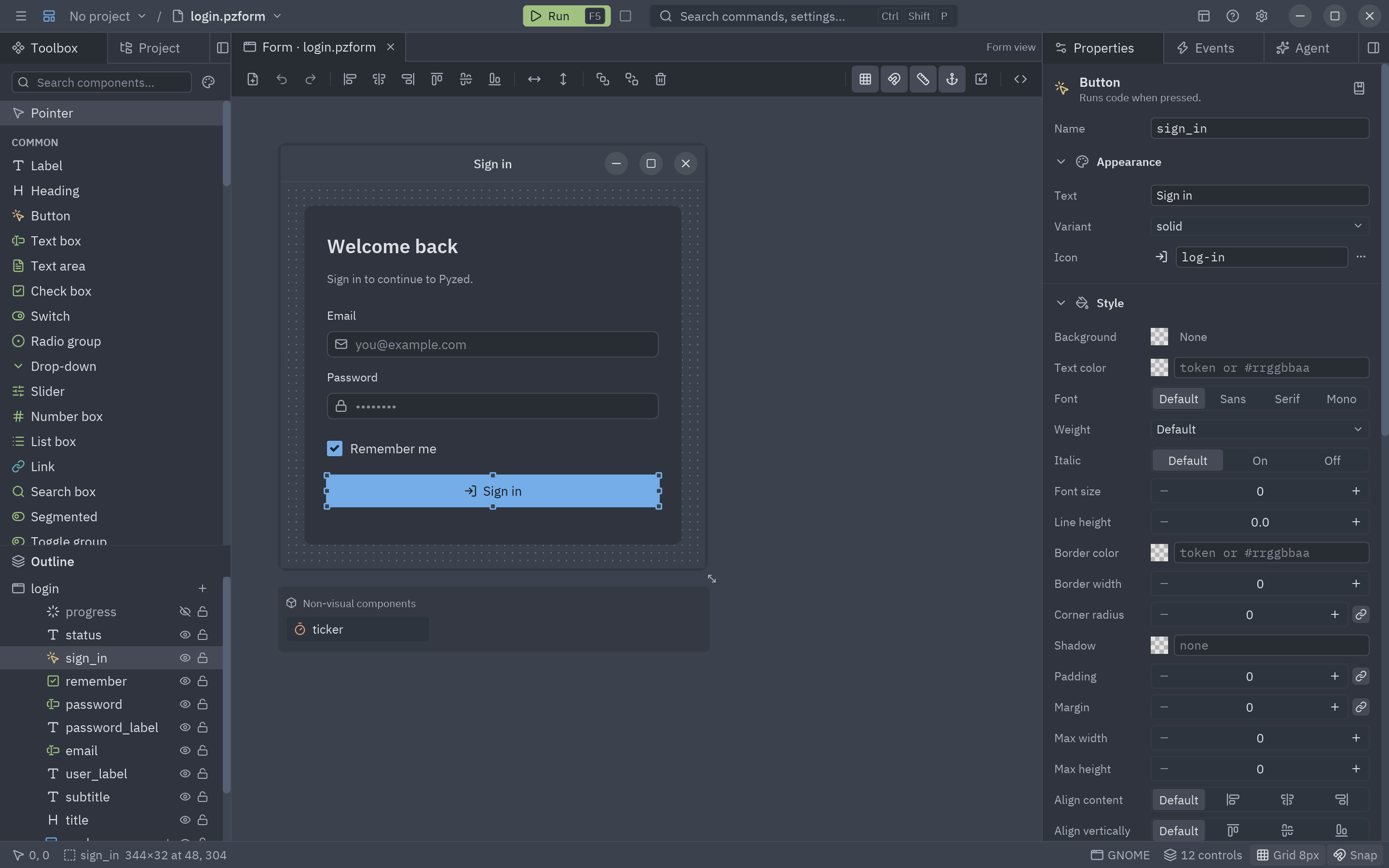
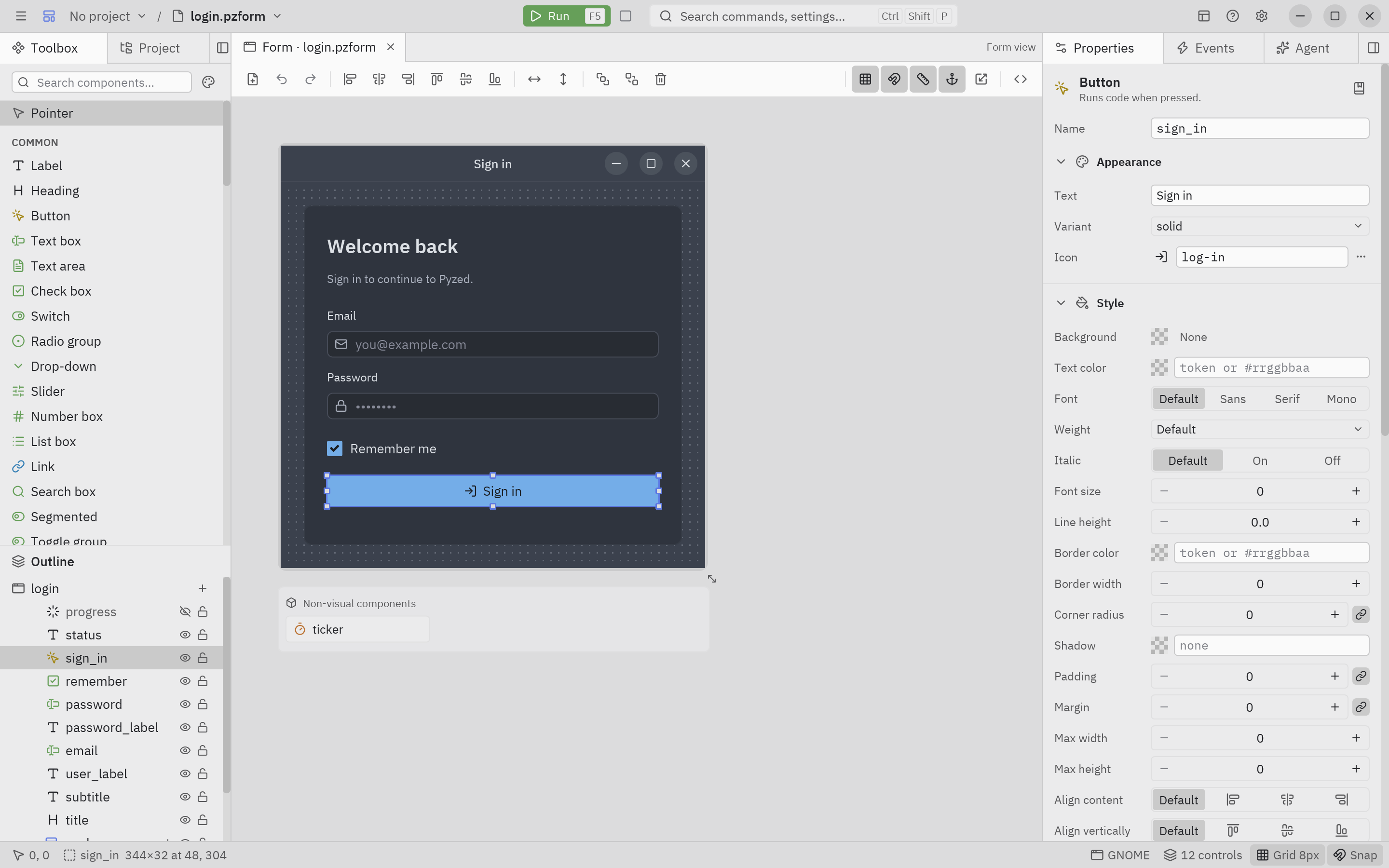
Open it
Section titled “Open it”Download the standalone app (it brings its own Python and uv), or start it from a Python environment:
uv add "pyzed-ui[designer]" # in your project: Pyzed plus the ty and ruff language serversuv run pyzed designpip install "pyzed-ui[designer]"pyzed designpython3 -m pip install "pyzed-ui[designer]"python3 -m pyzed designpy -m pip install "pyzed-ui[designer]"py -m pyzed design| Command | What it opens |
|---|---|
pyzed design |
Inside a project: its main form ([tool.pyzed] main). Elsewhere: the welcome window, or an empty form. |
pyzed design login.pzform |
That form, or a new one with that name that is created on the first save. |
pyzed design ui/rating.pzcomp |
A component (created on the first save if missing). |
pyzed design fx/fire.pzshad |
A shader made of nodes (created on the first save if missing). |
python -m pyzed.designer [file] |
The same, without the pyzed command on PATH. |
The workflow in one picture
Section titled “The workflow in one picture”flowchart LR
TB[Toolbox] -->|drag or click| CV[Canvas]
CV -->|select| PR[Properties]
CV -->|double-click| EV[Events]
EV --> CE[Code editor]
CV -- Ctrl+S --> F[(login.pzform)]
CE -- Ctrl+S --> P[(login.py)]
F --> RUN["F5 · pyzed run"]
P --> RUN
RUN --> W[Native window]
RUN -. prints, events, errors .-> CO[Console]
- Place controls from the toolbox: drag them onto the form, or click one and then click (or drag a rectangle) on the form.
- Arrange them with the mouse, the keyboard, the smart guides, the alignment tools or a layout container.
- Configure them in Properties: text, data, style, anchors.
- Write the logic: double-click a control to open the handler of its main event in the code editor.
- Run with F5. The console shows prints, events and errors; saving updates the running window.
- Reuse and ship: turn repeated pieces into components, and package the app
with
pyzed build(see Distribute).