
Multiple windows
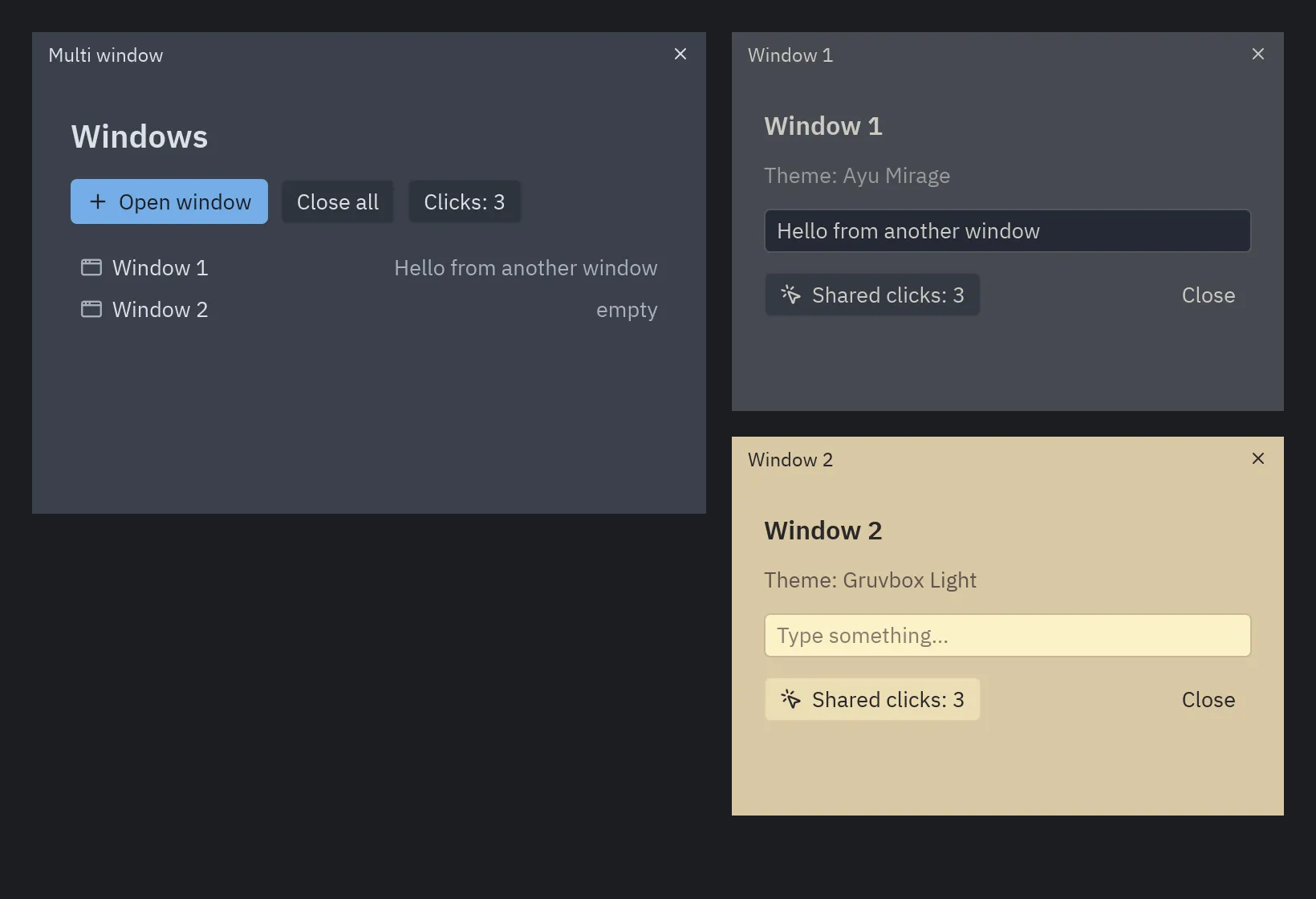
An app can have as many windows as you want. The main window is your App; the others are
subclasses of pz.Window, each with its own view(), title, size and theme.
import pyzed as pzfrom pyzed import ui

class Settings(pz.Window):    title = "Settings"    size = (420, 300)    theme = "One Light"                # optional: defaults to the app's theme
    def view(self):        return pz.container(            pz.column([                ui.heading("Settings", level=2),                ui.field("Autosave", ui.switch(self.app.autosave, self.app.set_autosave)),                ui.button("Close", self.close),            ], spacing=12),            padding=20,        )

class Main(pz.App):    def __init__(self):        self.autosave = True        self.settings = Settings()
    def set_autosave(self, value):        self.autosave = value
    def open_settings(self):        if not self.settings.is_open:            return self.settings.open()        return pz.Command.focus_window(self.settings)
    def view(self):        return pz.center(ui.button("Open settings", self.open_settings, icon="settings"))

pz.run(Main)
How it works
Section titled “How it works”flowchart LR
subgraph APP["App (shared state)"]
ST[("self.*")]
end
M["Main window"] -->|view| ST
W1["Window A"] -->|"view / self.app"| ST
W2["Window B"] -->|"view / self.app"| ST
M -->|"return Window().open()"| W1
W1 -->|"events"| U["update()"]
W2 -->|"events"| U
M -->|"events"| U
U --> ST
window.open()(orCommand.open_window(window)) returns the command that opens it.self.apppoints to the app inside each window, so they share state: callbacks likeself.app.savework directly.- Messages produced in a window go to its
update(), which by default forwards them toapp.update(). window.is_opentells whether it is open. Closing the main window ends the app.
Options
Section titled “Options”Class or instance attributes:
| Attribute | Description |
|---|---|
title |
Text or callable. |
size, min_size, max_size |
Sizes in logical pixels. |
position |
"center" or (x, y). |
resizable, decorations |
decorations=False removes the system frame entirely. |
frame |
"custom" draws the title bar, window buttons and menus in Pyzed (see Window frames). |
transparent, maximized, fullscreen |
Initial state. |
scale |
Interface scale. |
theme |
A Theme, a name or themes.auto(...). None uses the app’s theme. |
transition, exit_transition |
How it animates when it opens and closes: "fade", "zoom", "pop", "slide_up"… a preset or a pz.Animation. See Animation. |
window_size holds the current size and window_position where the window is on the screen (both updated by the runtime; the position is None on Wayland). window_maximized and window_focused say whether it is maximized and has the keyboard focus.
| Method | When it is called |
|---|---|
on_open() |
When it opens. |
on_close() |
When the user asks to close it. Return False to keep it open (for example, to ask whether to save). |
on_resize(width, height) |
When it is resized. |
on_key(combo) |
Key presses while that window is focused. |
Window commands
Section titled “Window commands”They all accept the window as the last argument; without it they act on the window that produced the message.
| Command | Effect |
|---|---|
Command.open_window(w) / w.open() |
Opens the window. |
Command.close_window(w) / w.close() |
Closes it. |
Command.drag_window(w) / w.drag() |
Starts moving it with the mouse (for custom title bars). |
Command.minimize_window(w) / w.minimize() |
Minimizes it. |
Command.toggle_maximize_window(w) / w.toggle_maximize() |
Maximizes or restores it. |
Command.maximize_window(True, w) |
Maximizes it (False restores it). |
Command.drag_resize_window("se", w) |
Starts resizing it from an edge or corner (for custom frames). |
Command.show_window_menu(w) |
Shows the system’s window menu (Windows only). |
Command.set_fullscreen(True, w) |
Fullscreen. |
Command.resize_window(width, height, w) |
Resizes it. |
Command.move_window(x, y, w) |
Moves it. |
Command.focus_window(w) |
Brings it to the front. |
Window frames: your own title bar
Section titled “Window frames: your own title bar”frame = "custom" replaces the system’s frame with one drawn by Pyzed: a title bar that moves
the window (double click maximizes it), the minimize, maximize and close buttons in the style of this system,
menus on the left and borders that resize the window. frame_menus() returns the menus.
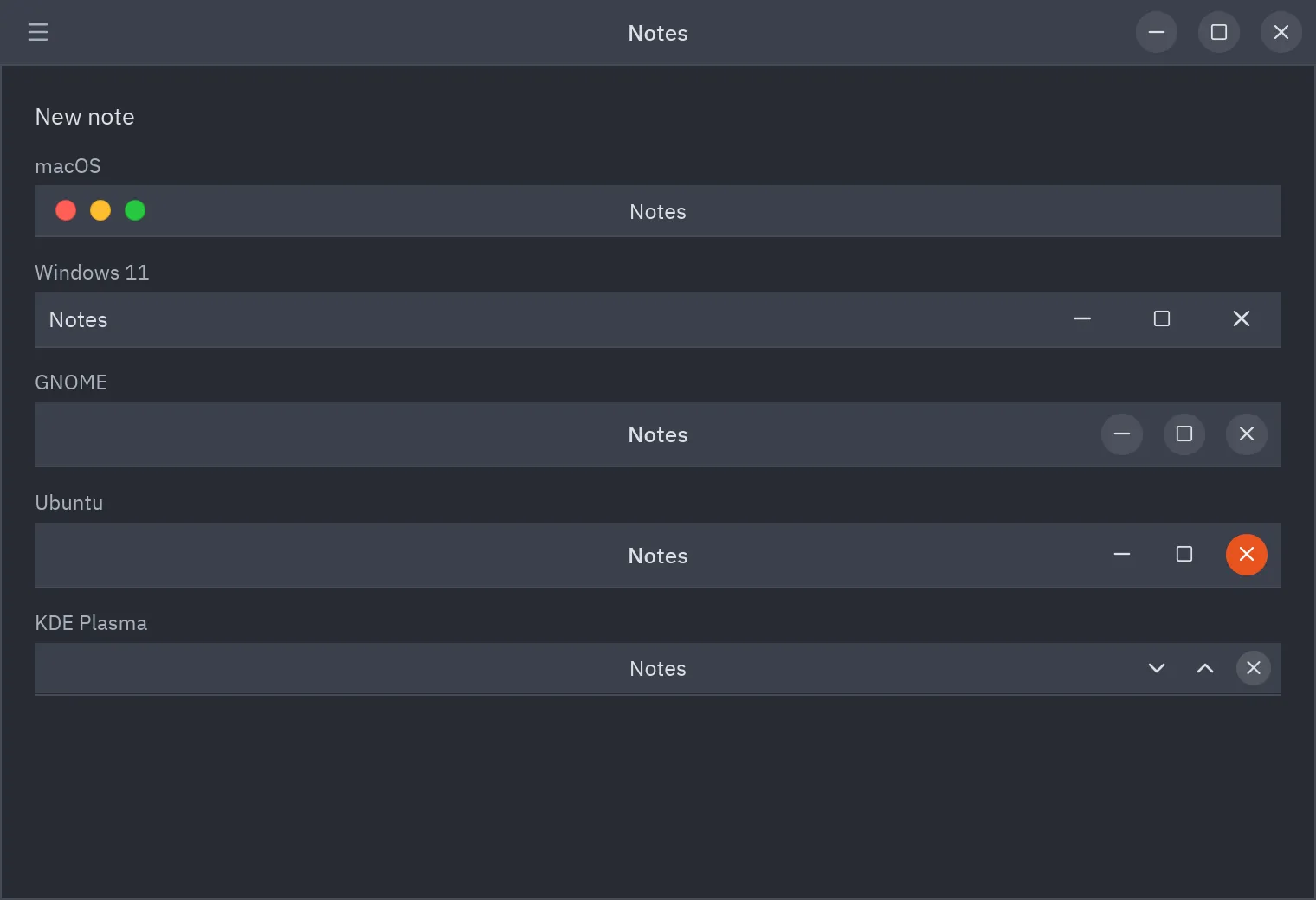
class Notes(pz.App):    title = "Notes"    frame = "custom"          # or "macos", "windows", "gnome", "ubuntu", "kde"
    def frame_menus(self):        return [            ui.Menu("File", [ui.MenuItem("Open…", self.open, keys="ctrl-o"), ui.SEPARATOR,                             ui.MenuItem("Quit", self.close)]),            ui.Menu("Edit", [ui.MenuItem("Undo", self.undo, keys="ctrl-z")]),        ]
    def view(self):        return self.editor()
The menus sit behind a ☰ button: a click opens the first one and shows every menu’s name, and
moving the pointer to another name opens that one. To put more in the bar (a project picker, a Run button),
call ui.window_frame in view() yourself; then the window is not framed twice:
def view(self): return ui.window_frame( self.editor(), menus=self.frame_menus(), start=[ui.title_button("pyzed", chevron=True)], end=[ui.button("Run", self.run, icon="play", size="sm")], )Value of frame |
What you get |
|---|---|
None (default) or "system" |
The system’s frame. |
"custom" or True |
Pyzed’s title bar with this system’s buttons. On macOS the system keeps drawing its own traffic lights over the bar. |
"macos", "windows", "gnome", "ubuntu", "kde" |
That platform’s buttons on every system. |
window_maximized and window_focused say whether the window is maximized and has the focus (the
runtime updates them), so the maximize button shows the restore symbol and the bar dims in the
background. Maximized, the window has no border to resize.
The pieces work on their own too: ui.window_title_bar is the bar alone (with no callbacks it only shows,
which is how Pyzed Design previews forms), ui.window_controls the three buttons and pz.window_edges
the borders that resize a window without decorations. For a bar made from scratch, use the commands
Command.drag_window, Command.drag_resize_window, Command.toggle_maximize_window and
Command.show_window_menu.
Platform notes. On Windows the window keeps the system’s shadow and rounded corners. Wayland moves and
resizes the window as on X11 (the compositor does it). Under WSL Pyzed uses X11, and "custom" draws
Windows buttons, the desktop the window shows up on. ui.system_platform() tells which style "custom" picks.
Draggable tabs and detachable windows
Section titled “Draggable tabs and detachable windows”ui.tab_bar tabs can be dragged. on_drag(id) says a drag started; while dragging names the tab,
on_drag_over(index) reports the insertion point under the pointer (or None off the row) and drop_index
draws the mark there. on_drop(id, event) comes when it is released, with the pointer in the window
(event.window_x, event.window_y, outside it when the tab was dropped outside) and on the screen
(event.screen). Each window’s window_position and window_size say where it is, so you can open the tab
in a new window, or stack it into the window under the pointer:
class Detached(pz.Window):    size = (640, 420)
    def __init__(self, name, position):        self.name = self.title = name        if position is not None:            self.position = position
    def view(self):        return ui.tab_bar([ui.Tab.for_file(self.name)], self.name)

class Editor(pz.App):    def __init__(self):        self.files, self.active = ["main.py", "app.py", "README.md"], "main.py"        self.dragging, self.over = None, None
    def start(self, name):        self.dragging = name
    def hover(self, index):        self.over = index
    def drop(self, name, event):        over, self.dragging, self.over = self.over, None, None        if over is not None:  # released on the row: reorder            i = self.files.index(name)            self.files.insert(over - (over > i), self.files.pop(i))            return None        width, height = self.window_size or self.size        if 0 <= event.window_x < width and 0 <= event.window_y < height:            return None  # released inside the window, off the row        self.files.remove(name)        self.active = self.files[0] if self.files else None        where = (event.screen_x - 80, event.screen_y - 12) if event.screen else None        return Detached(name, where).open()
    def view(self):        return ui.tab_bar([ui.Tab.for_file(f) for f in self.files], self.active,                          on_select=lambda f: setattr(self, "active", f),                          on_drag=self.start, on_drop=self.drop, on_drag_over=self.hover,                          dragging=self.dragging, drop_index=self.over)
To stack a tab into another of your windows, compare event.screen with that window’s window_position and
window_size. Wayland does not tell apps where their windows are: there event.screen and window_position
are None, so offer a menu command too (Pyzed Design has Move tab to new window and Move tab to main
window).