
5-step tutorial
Five short files in examples/tutorial/.
Each one runs on its own and adds one idea to the previous one, so you can stop after any step and still have a
working program.
| Goal | Time | Level | You need |
|---|---|---|---|
| From an empty window to a notes app, in pure Python | 45 minutes | Basic · Python | Pyzed installed (Installation) |
What you’ll learn
Section titled “What you’ll learn”- How a Pyzed app works: an
Appclass, its state and aview()that describes the window. - Two ways to react to the user: messages sent to
update()and plain callbacks. - Layout, ready-made components and themes.
- Slow work with
async defwithout freezing the window. - Keyboard shortcuts, a resizable split and a second window.
uv run --with pyzed-ui python examples/tutorial/step1_hello.pypython3 -m venv .venvsource .venv/bin/activatepython -m pip install pyzed-uipython examples/tutorial/step1_hello.pypy -m venv .venv.venv\Scripts\Activate.ps1python -m pip install pyzed-uipython examples\tutorial\step1_hello.pypython3 examples/tutorial/step1_hello.pypy examples\tutorial\step1_hello.py1. A window
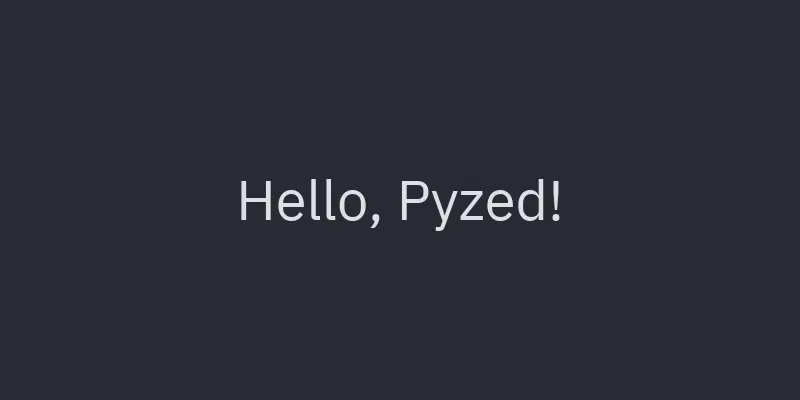
Section titled “1. A window”An app is a class that inherits from pz.App and defines view(). view() returns a tree of
widgets (pz.text, pz.column, pz.row, pz.container…). Pyzed calls it again after every
change, so you never modify widgets: you describe what the current state looks like. Class
attributes such as title and size configure the window.
"""Tutorial, step 1: a window with some text.
    python examples/tutorial/step1_hello.py"""
import pyzed as pz

class Hello(pz.App):    title = "Hello"    size = (400, 200)
    def view(self):        # view() returns a tree of widgets; Pyzed calls it again after every change.        return pz.center(pz.text("Hello, Pyzed!", size=28))

if __name__ == "__main__":    pz.run(Hello)
2. State and messages
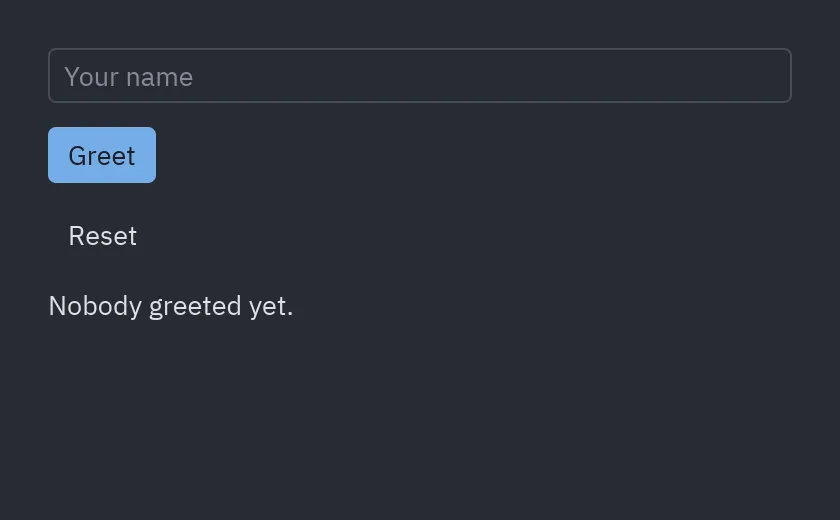
Section titled “2. State and messages”State is plain attributes on your object. Widgets are told what to do in two ways:
- A value (
ui.button("Greet", "greet")): sent toupdate(message). - A callable (
ui.button("Reset", self.reset)): called directly.
Callbacks that carry data receive the new value: on_input=lambda text: ...,
on_toggle=lambda checked: ..., on_change=lambda value: ....
"""Tutorial, step 2: state, messages and callbacks.
    python examples/tutorial/step2_state.py"""
import pyzed as pzfrom pyzed import ui

class Greeter(pz.App):    title = "Greeter"    size = (420, 260)
    def __init__(self):        # State is plain attributes on your object.        self.name = ""        self.greetings = 0
    def update(self, message):        # Widgets given a plain value (here the string "greet") send it to update().        if message == "greet" and self.name:            self.greetings += 1
    def view(self):        return pz.container(            pz.column([                # Callbacks that receive data get the new value: here the input's text.                ui.input(self.name, lambda text: setattr(self, "name", text), placeholder="Your name",                         on_submit="greet"),                ui.button("Greet", "greet", variant="solid"),                # A callable is called directly, no update() needed.                ui.button("Reset", self.reset, variant="ghost"),                ui.label(f"Hello, {self.name}! ({self.greetings})" if self.greetings else "Nobody greeted yet."),            ], spacing=12),            padding=24,        )
    def reset(self):        self.name, self.greetings = "", 0

if __name__ == "__main__":    pz.run(Greeter)
3. Layout, components and themes
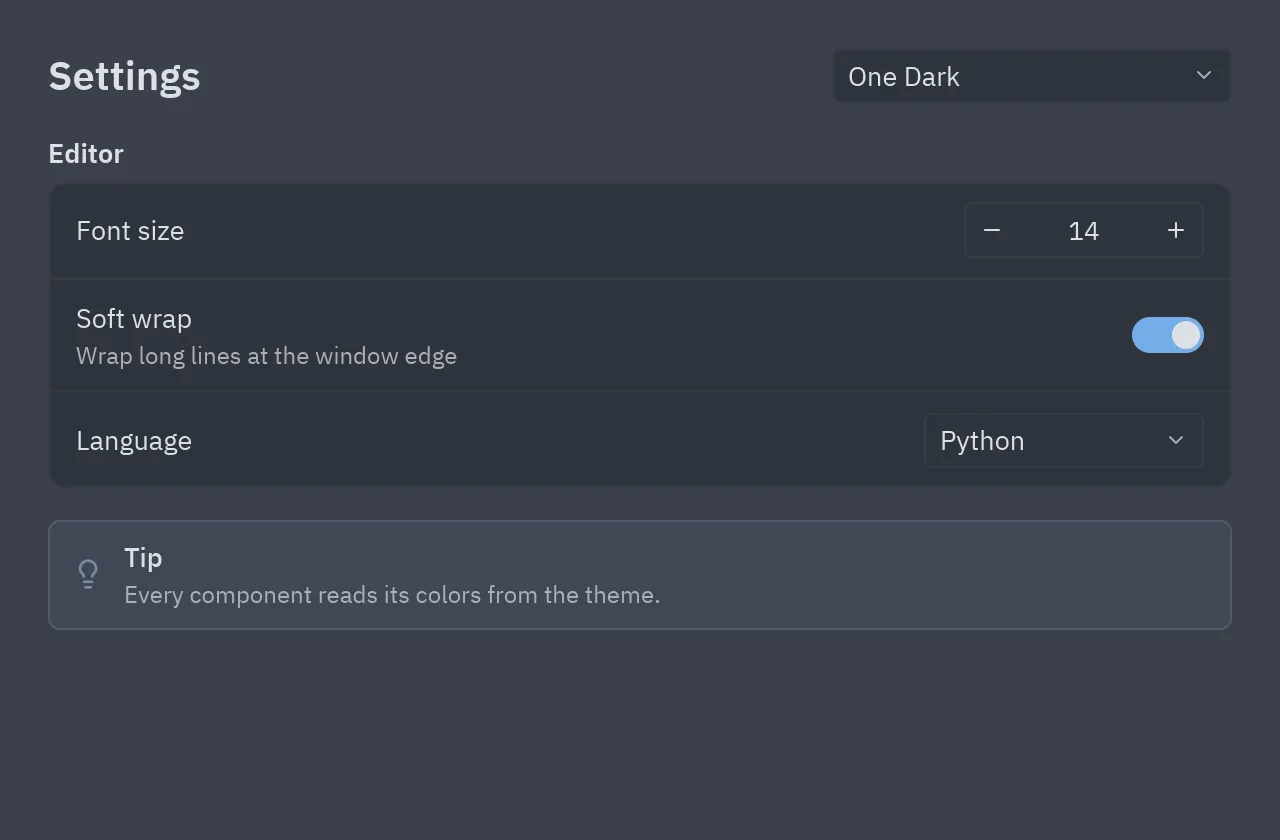
Section titled “3. Layout, components and themes”pyzed.ui ships ready-made components (button, input, select, number_field,
settings_group, callout…) that take their colors from the active theme. theme can be a
Theme, the name of a bundled theme (pz.themes.names()) or pz.themes.auto(...) to follow
the system. self.resolved_theme() returns the Theme in use. More in Theming.
"""Tutorial, step 3: layout, ready-made components and themes.
    python examples/tutorial/step3_layout.py"""
import pyzed as pzfrom pyzed import ui

class Settings(pz.App):    title = "Settings"    size = (640, 420)    theme = "One Dark"  # any name from pz.themes.names(), a Theme, or pz.themes.auto()
    def __init__(self):        self.font_size = 14        self.wrap = True        self.language = "Python"
    def view(self):        t = self.resolved_theme()  # the Theme in use, handy for colors        return pz.container(            pz.column([                pz.row([ui.heading("Settings", level=2), pz.hspace(),                        ui.select(pz.themes.names(), t.name, lambda n: setattr(self, "theme", n), width=200)],                       align="center"),                ui.settings_group("Editor", [                    ui.field("Font size", ui.number_field(self.font_size, lambda v: setattr(self, "font_size", v),                                                          min=8, max=32)),                    ui.field("Soft wrap", ui.switch(self.wrap, lambda v: setattr(self, "wrap", v)),                             description="Wrap long lines at the window edge"),                    ui.field("Language", ui.select(["Python", "Rust", "Go"], self.language,                                                   lambda v: setattr(self, "language", v), width=140)),                ]),                ui.callout("Tip", "Every component reads its colors from the theme.", tint="hint"),            ], spacing=16),            padding=24, width="fill", height="fill", bg=t.background,        )

if __name__ == "__main__":    pz.run(Settings)
4. Async
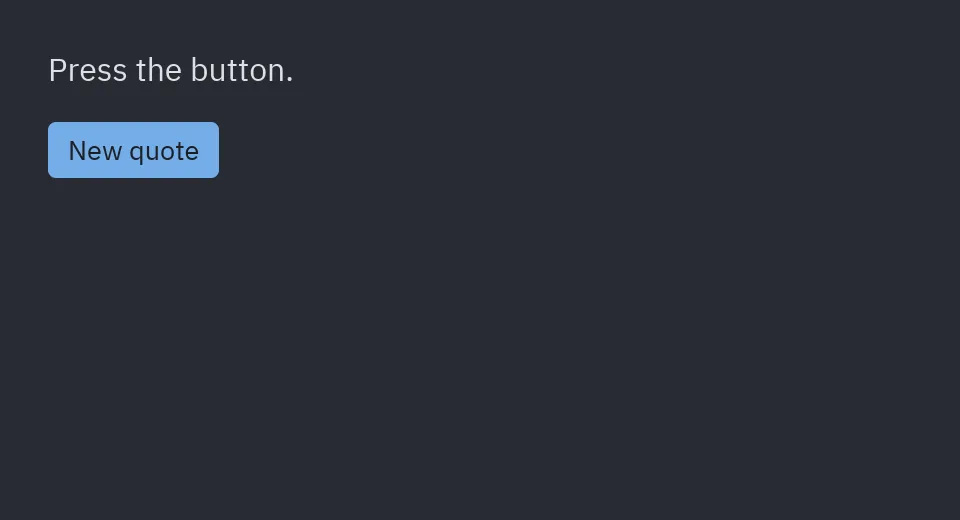
Section titled “4. Async”Slow work must not block the window. Command.perform accepts async def functions, which run
on Pyzed’s asyncio loop; the result reaches your callback on the UI thread. While loading, a
pz.every subscription redraws the window to animate the spinner. You can also return
coroutines or generators from update and callbacks: see the
Async and subscriptions guide.
"""Tutorial, step 4: async work without freezing the window.
    python examples/tutorial/step4_async.py"""
import asyncioimport random
import pyzed as pzfrom pyzed import ui

async def fetch_quote():    await asyncio.sleep(1.2)  # pretend this is a network request (aiohttp, httpx...)    return random.choice(["Simple is better than complex.", "Readability counts.", "Now is better than never."])

class Quotes(pz.App):    title = "Quotes"    size = (480, 260)
    def __init__(self):        self.quote = "Press the button."        self.loading = False
    def load(self):        self.loading = True        # Return a Command.perform: fetch_quote runs on Pyzed's asyncio loop and its        # result is passed to self.loaded on the UI thread.        return pz.Command.perform(fetch_quote, self.loaded)
    def loaded(self, quote):        self.quote, self.loading = quote, False
    def subscriptions(self):        # Redraw ~30 times per second while loading so the spinner turns.        return [pz.every(1 / 30, lambda: None)] if self.loading else []
    def view(self):        return pz.container(            pz.column([                ui.label(self.quote, size="lg"),                pz.row([ui.button("New quote", self.load, disabled=self.loading, variant="solid"),                        ui.spinner() if self.loading else None], spacing=10, align="center"),            ], spacing=16),            padding=24,        )

if __name__ == "__main__":    pz.run(Quotes)
5. Putting it all together
Section titled “5. Putting it all together”A notes app: a sidebar list, an editor with a Markdown preview in a resizable ui.split, a
shortcut (on_key receives combos such as "ctrl-n") and a second window (pz.Window) opened
with return About().open() that shares the app’s state. More in
Multiple windows.
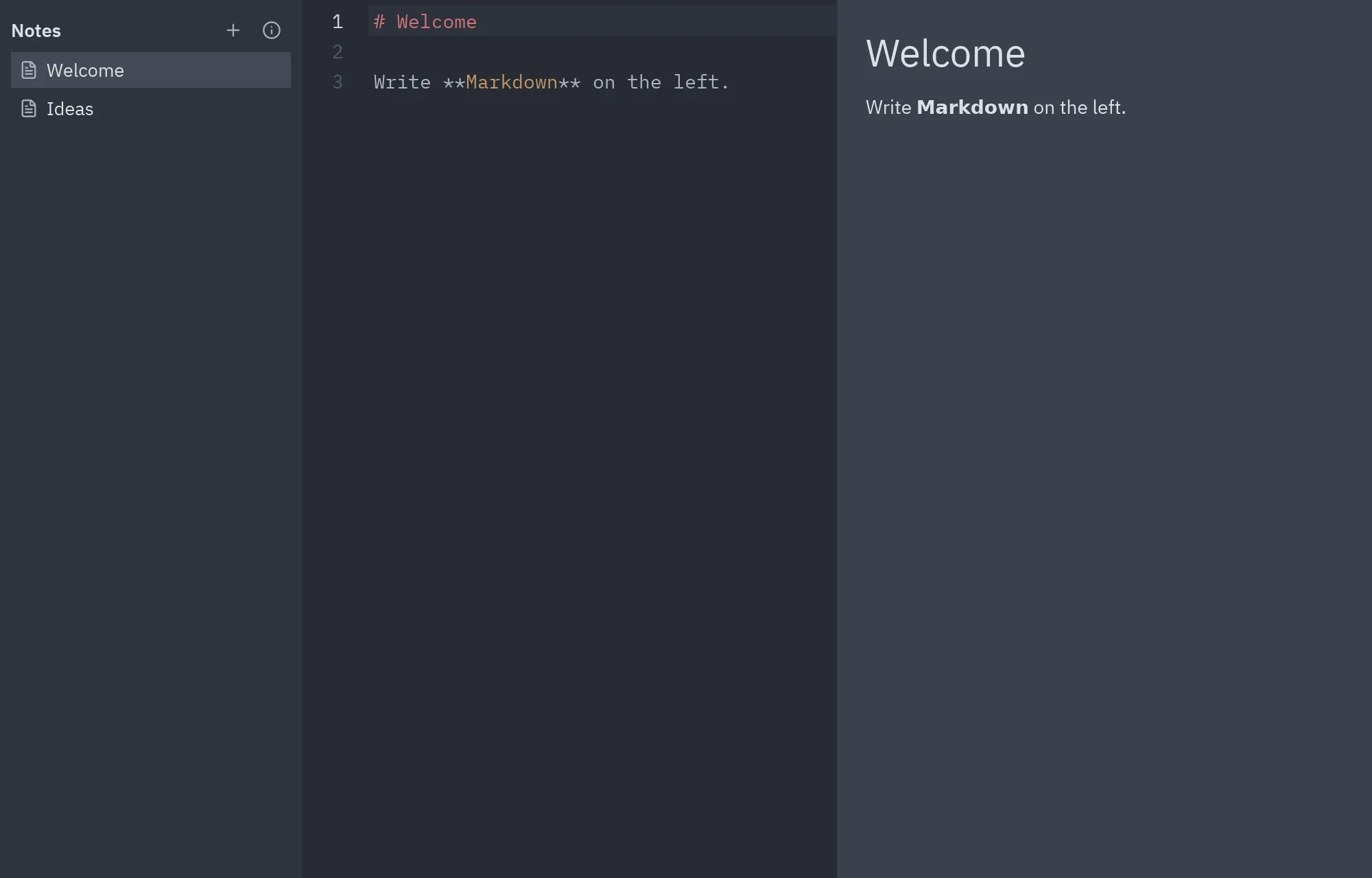
"""Tutorial, step 5: a small notes app that puts it all together.
    python examples/tutorial/step5_notes.py
A list of notes, a code editor with a live Markdown preview in a resizable split,a command (ctrl-n) and a separate "About" window."""
import pyzed as pzfrom pyzed import ui

class About(pz.Window):    title = "About Notes"    size = (320, 180)    resizable = False
    def view(self):        return pz.container(pz.column([ui.heading("Notes", level=3), ui.muted("Built with Pyzed."),                                       ui.button("Close", self.close)], spacing=10),                            padding=20, width="fill", height="fill", bg=self.resolved_theme().background)

class Notes(pz.App):    title = "Notes"    size = (1000, 640)
    def __init__(self):        self.notes = {"Welcome": "# Welcome\n\nWrite **Markdown** on the left.", "Ideas": "- One\n- Two"}        self.current = "Welcome"        self.ratio = 0.5
    def new_note(self):        name = f"Note {len(self.notes) + 1}"        self.notes[name] = f"# {name}\n"        self.current = name
    def on_key(self, combo):        if combo == "ctrl-n":            self.new_note()
    def view(self):        t = self.resolved_theme()        sidebar = pz.container(            pz.column([                pz.row([ui.label("Notes", weight="semibold"), pz.hspace(),                        ui.icon_button("plus", self.new_note, tooltip="New note (ctrl-n)"),                        ui.icon_button("info", lambda: About().open(), tooltip="About")], align="center"),                *[ui.list_item(name, lambda n=name: setattr(self, "current", n), icon="file-text",                               selected=name == self.current) for name in self.notes],            ], spacing=2),            padding=8, width=220, height="fill", bg=t.panel,        )        # The editor's id is the note name, so each note keeps its own cursor and undo history.        editor = ui.editor(self.current, self.notes[self.current], language="md", wrap=True,                           on_change=lambda text: self.notes.__setitem__(self.current, text))        preview = pz.container(pz.scrollable(pz.container(ui.markdown(self.notes[self.current]), padding=20),                                             height="fill"), width="fill", height="fill", bg=t.background)        return pz.row([sidebar, ui.split(editor, preview, ratio=self.ratio,                                         on_resize=lambda r: setattr(self, "ratio", r))])

if __name__ == "__main__":    pz.run(Notes)
Events in this tutorial
Section titled “Events in this tutorial”| Step | Widget | Event | Handler gets |
|---|---|---|---|
| 2 | ui.input |
on_input |
The new text, on every keystroke. |
| 2 | ui.input, ui.button |
on_submit, on_press |
Nothing. Here they are the message "greet", which goes to update. |
| 3 | ui.number_field, ui.switch, ui.select |
on_change, on_toggle, on_select |
The number, True/False, the option. |
| 4 | subscriptions() |
a timer | pz.every(seconds, message) sends the message to update. |
| 5 | on_key(combo) |
every key | The combo, such as "ctrl-n". |
| 5 | ui.editor, ui.split |
on_change, on_resize |
The text; the share of the first pane. |
Step 2 handles its events in two styles at once: the input calls a lambda that changes self (imperative) and the
button sends the message "greet" to update (declarative). The same greeter with only messages:
from dataclasses import dataclass

@dataclassclass Typed:    text: str

class Greeter(pz.App):    def __init__(self):        self.name, self.greetings = "", 0
    def update(self, message):        match message:            case Typed(text):                self.name = text            case "greet" if self.name:                self.greetings += 1
    def view(self):        return pz.column([            ui.input(self.name, Typed, placeholder="Your name", on_submit="greet"),            ui.button("Greet", "greet", variant="solid"),        ], spacing=12, padding=24)
See Imperative, declarative and functional for the third way.
Next steps
Section titled “Next steps”- To-do list and the mini code editor, in more detail.
- Data binding in the designer, if you prefer to draw your forms.
- Examples: recreations of the Iced demos (game of life, clock, stopwatch, multi-window, images, QR codes, styling, pane grid…).