
Build an app with the AI agent
Pyzed Design has an AI agent built in. Describe an app in plain words and it plans the work, creates the project, draws the forms, writes the Python, looks at the result, runs it and fixes what breaks, using the same editor you use. You stay in charge: every change can be undone or rejected in one click.
| Goal | Time | Level | You need |
|---|---|---|---|
| An expense tracker built from a description, then improved by hand | 30 minutes | Advanced · no code needed | Pyzed Design and an AI model (Claude, or any provider in the list) |
What you’ll learn
Section titled “What you’ll learn”- Open the Agent panel and connect a model.
- Write a request that gets a good result the first time.
- Follow the agent’s plan, and keep or reject its changes.
- Point at things with @ (a control, the form, a file) and use / commands.
- Keep improving the app by hand, with the agent at your side.
-
Open the panel. In Pyzed Design press Ctrl+Alt+A (or View → Agent panel). The first time it asks you to connect a model: click a provider to sign in with the browser, or All providers… for the rest. If you installed Pyzed with pip, add the agent’s extras first:
Windows, macOS and Linux uv tool install "pyzed-ui[designer,agents]"Windows, macOS and Linux (inside your environment) python -m pip install "pyzed-ui[designer,agents]"The standalone Pyzed Design app # nothing to install: the agent is included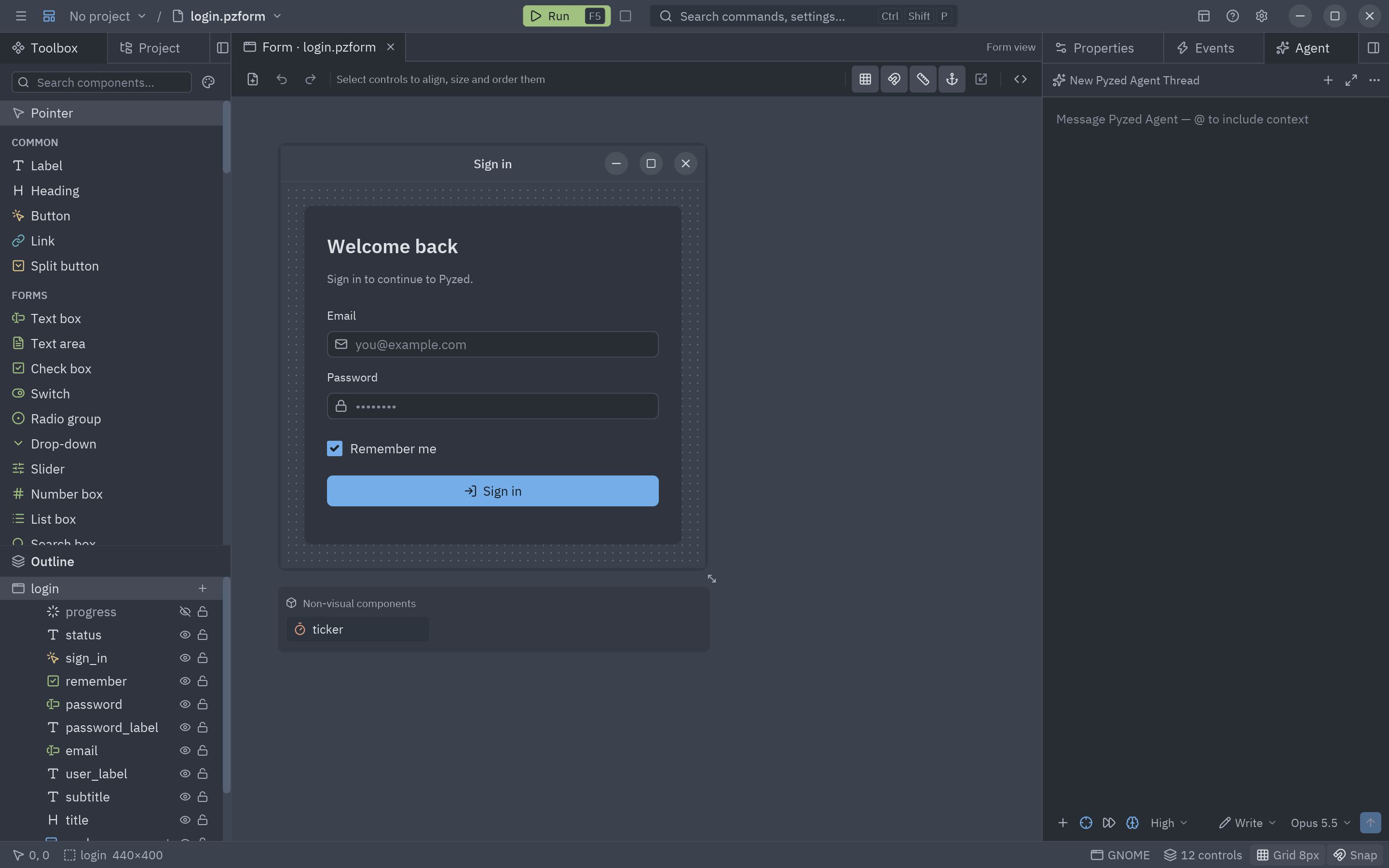
The Agent panel, ready for a request. -
Ask for the app. Type
/appand describe it. Say what it is for, what is on screen and what should happen; leave the “how” to the agent:Create an app to track my expenses. A form with date, amount, a category drop-down (Food, Transport, Home, Fun) and a note. Save adds the expense to a table below and to a JSON file next to the app. Show the total for the month at the top and validate that the amount is a positive number.
-
Follow the plan. The agent writes a Plan card above the message box and ticks the steps off: create the project, add dependencies, draw the forms, wire the events, write the handlers, take a screenshot of each form, run checks and finally run the app. Each tool it uses is a line in the thread; click one to see what it did.
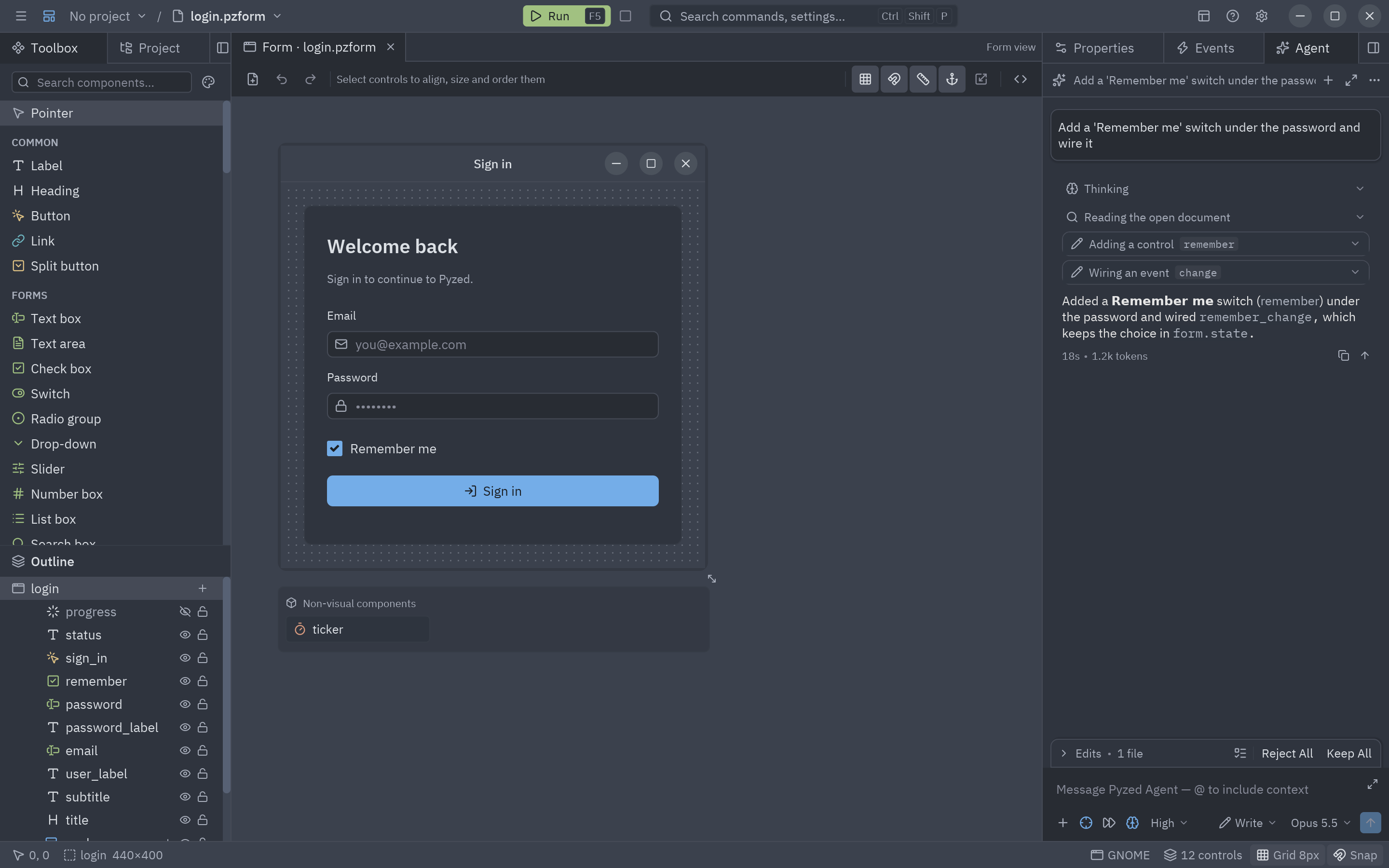
The agent works in the same editor: forms, code and the project update as it goes. -
Review. When it finishes, run the app with F5 and try it. The Agent changes bar offers Reject (put every file it touched back as it was) or Keep. Ctrl+Z still undoes one change at a time.
-
Improve it, pointing at things. Select a control and ask about this, or type @ to attach the form, its code, a control or a file:
@amount should accept a comma as the decimal separator, and the table should show the newest expense first.
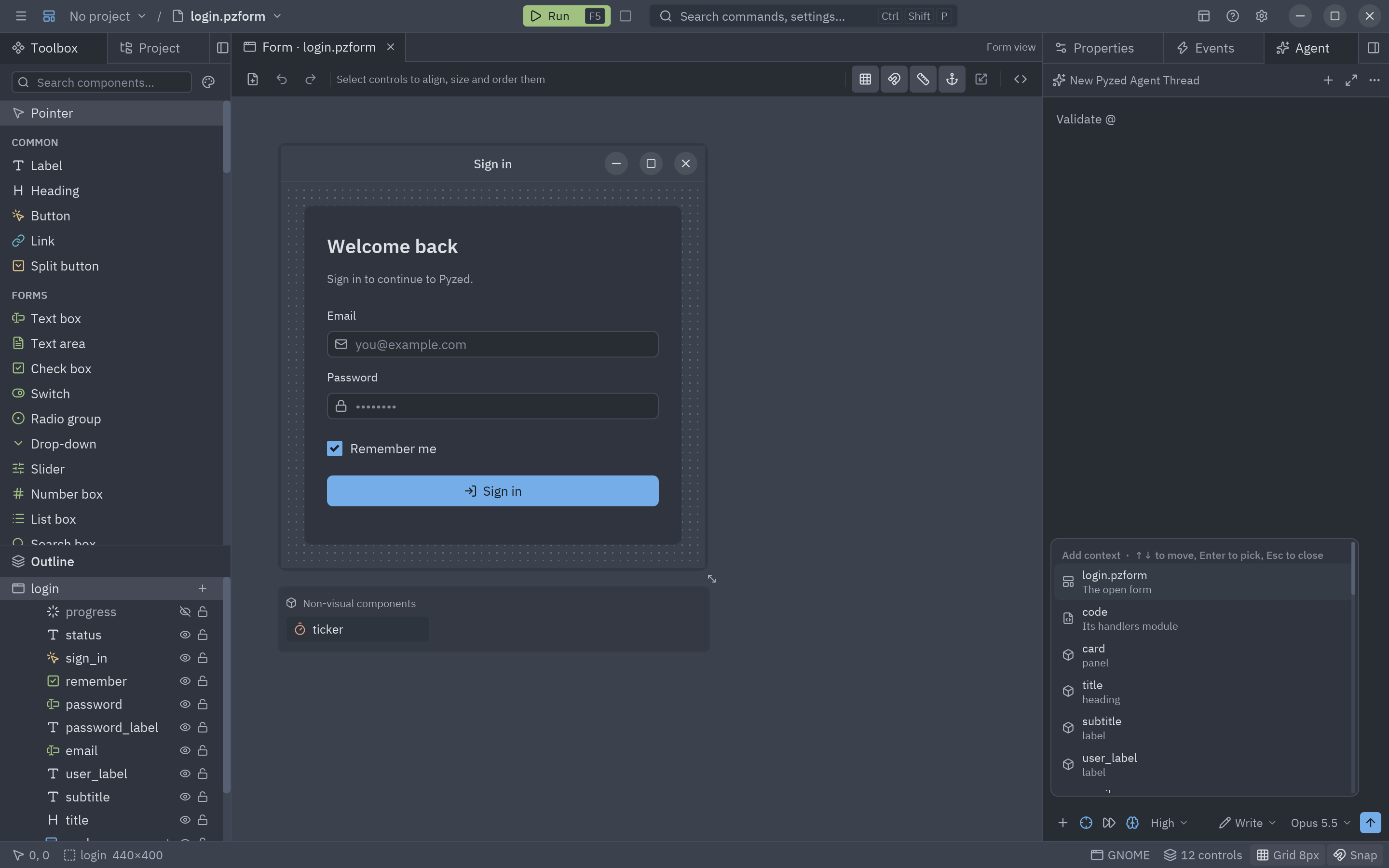
@ adds context: the selection, the form, its code, a control, a file or a screenshot. -
Polish with commands.
/tidyaligns the controls and evens out the margins,/looktakes a screenshot of the form and improves its design,/fixchecks the code and fixes what it finds,/explainwalks you through the form and its handlers. -
Take over. It is your project: open the files, change the layout by hand, write code. The agent reads what you changed in the next message, so you can switch between doing it yourself and asking.
- AI agents in the designer manual: providers, MCP servers, external agents, images.
- The AI section: the MCP server and
llms.txtfor agents outside the editor (Claude Code, Cursor…). - Package your app once it is ready.