
Layout and styling
Rows and columns
Section titled “Rows and columns”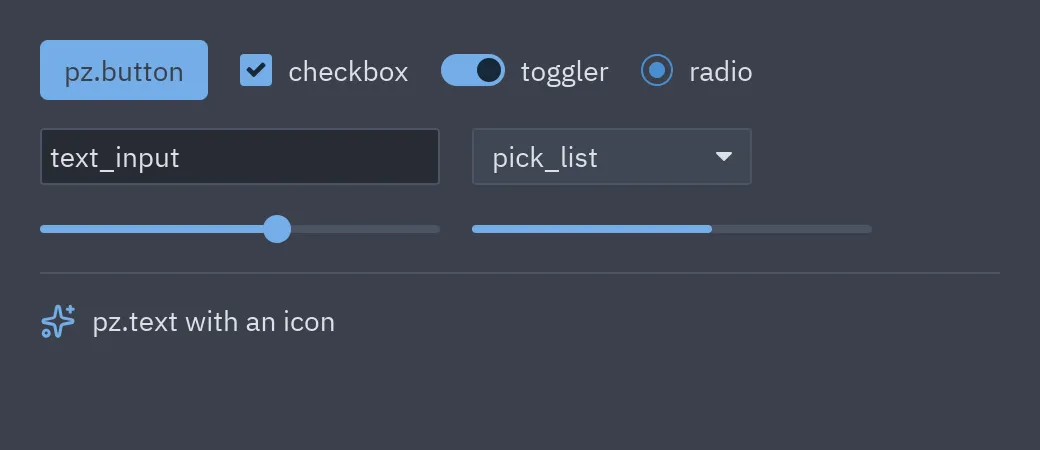
pz.column([a, b, c], spacing=8, padding=16) # verticalpz.row([a, b, c], spacing=8, align="center") # horizontalchildrenaccepts nested lists and skipsNoneandFalse, so you can writeself.error and ui.label(self.error, color="error").- A string or a number as a child becomes a
pz.text. alignaligns children on the cross axis:"start","center","end".
width and height accept:
| Value | Meaning |
|---|---|
240 |
Fixed pixels. |
"shrink" |
Just enough for the content. |
"fill" |
All available space. |
"fill:2" |
A share of the space: two "fill:1" and one "fill:2" split 25/25/50. |
pz.row([ pz.container(sidebar, width=240), pz.container(content, width="fill"),])Push items to the edges with a flexible gap:
pz.row([ui.label("Title"), pz.hspace(), ui.button("Close", self.close)])Padding
Section titled “Padding”padding accepts 8 (all sides), (vertical, horizontal) or (top, right, bottom, left).
Containers
Section titled “Containers”pz.container wraps a child to give it size, alignment and style:
pz.container( content, padding=(12, 16), width="fill", max_width=720, align_x="center", bg="#2f343e", border_color="#464b57", border_width=1, radius=8, shadow=("#00000066", (0, 4), 16), # (color, (dx, dy), blur) clip=True,)pz.center(content) centers it in all the available space. pz.container(None, width=8, height=8, bg=...)
is a colored rectangle.
Colors
Section titled “Colors”Colors accept "#rgb", "#rrggbb", "#rrggbbaa", tuples (r, g, b) / (r, g, b, a) or
"transparent". In pyzed.ui components you can also use a theme token ("accent",
"text_muted"…). For derived colors:
from pyzed.theme import alpha, mix
alpha(self.resolved_theme().accent, 0.2) # 20% opacitymix(self.resolved_theme().editor, "#ffffff", 0.05) # 5% lighterpz.text("Hello", size=16, weight="semibold", color="#dce0e5")pz.text("code", font="mono")pz.text("a very long line…", wrap=False)Bundled fonts: IBM Plex Sans ("sans", the default), IBM Plex Mono ("mono") and Lucide
("icons"). See icons and fonts.
Overlays and scrolling
Section titled “Overlays and scrolling”pz.stack([below, above])layers widgets;pz.opaque(w)stops clicks from passing through.pz.scrollable(content, direction="vertical" | "horizontal" | "both")adds scrolling. Withanchor_bottom=Trueit stays pinned to the end.pz.hover(base, overlay)showsoverlayonly on mouse hover.pz.mouse_area(w, on_right_press=..., on_double_click=..., cursor="pointer")detects mouse events.
pz.grid(children, columns=2) still gives a uniform grid. Pass tracks instead and it
becomes a CSS-like grid: each track is a pixel size, a share of the free space ("1fr",
"2fr") or "auto" (as big as its content). Tracks can be a list or a string.
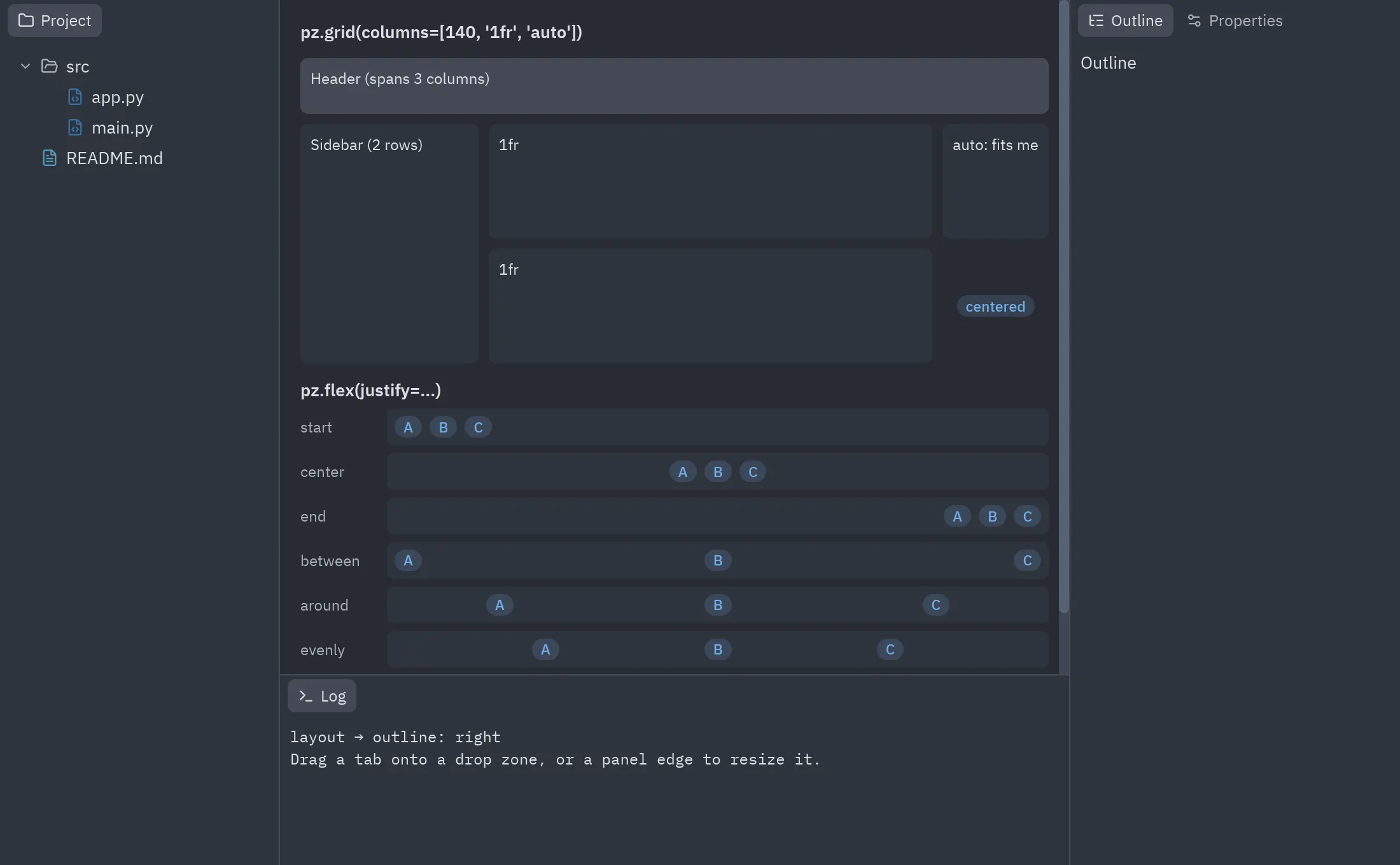
pz.grid( [ pz.cell(header, column=0, row=0, column_span=3), pz.cell(sidebar, column=0, row=1, row_span=2), main, details, pz.cell(pz.text("centered"), align_x="center", align_y="center"), ], columns=[140, "1fr", "auto"], # or "140 1fr auto" rows="44 1fr 1fr", spacing=8, # row_spacing= for a different vertical gap height=240,)pz.cell places a child in a given column/row, makes it span several tracks and aligns it
inside its cell. Children without a position fill the free cells row by row.
pz.flex lays children out along one axis, like CSS flexbox:
pz.flex([a, b, c], justify="between", align="center", gap=6)pz.flex([a, b], direction="column", justify="end")pz.flex([pz.flex_item(a), pz.flex_item(b, grow=2), pz.flex_item(c, basis=120)], gap=6)justify is "start", "center", "end", "between", "around" or "evenly".
pz.flex_item sets how much of the free space a child takes (grow), or a fixed size
(basis). wrap=True wraps a row onto new lines.
pz.box is a container for anything, like an HTML div. It lays out its
children and takes every style property, classes and an id, so a
whole screen can be built from boxes:
pz.box( pz.text("Plans").style(size=20, weight="bold"), pz.box([plan_card(p) for p in plans], display="grid", columns=3, gap=12), pz.box(ui.button("Cancel", cancel), ui.button("Continue", go), display="flex", justify="end", gap=8), ui.badge("New").style(position="absolute", top=8, right=8), class_="page", padding=24, gap=16, overflow="scroll",)display:"block"(the default) puts the children one under another, as wide as the box."flex"lays them alongdirectionwithjustify,align,gapandwrap, likepz.flex."grid"usescolumnsandrows: a count of equal columns or tracks such as"200 1fr auto"."stack"puts them on top of each other.
aligntakes"start","center","end"or"stretch".overflowtakes"visible","hidden"(clips the content) or"scroll"(also"scroll_x"or"scroll_y").- A child styled with
position="absolute"leaves the flow. It is placed bytop/right/bottom/leftinside the box, above the rest, with a higherz_indexon top. class_andidapply the stylesheet rules (a rule for"box"styles every box).style=and the keyword properties go on top, like an inlinestyleattribute.
Anchored layouts
Section titled “Anchored layouts”pz.anchor_layout places children freely, like a form made in Pyzed Design, and each child follows its
anchor when the window is resized: it keeps its distance to the edges it is anchored to, stretches between
opposite edges and stays centered otherwise.
pz.anchor_layout([ pz.anchor(ui.heading("Report"), x=16, y=12, width=368, height=28, anchor="top_wide"), pz.anchor(report_body, x=16, y=48, width=368, height=192, anchor="full", max_width=720), pz.anchor(ui.button("Close", on_close), x=284, y=252, width=100, height=32, anchor="bottom_right"),], design=(400, 300))x, y, width and height are in the design size (by default the smallest size that holds every child).
anchor is one of the 16 presets of pyzed.anchors.PRESETS ("top_left", "top_center", "top_right",
"top_wide", "center_left", "center"… "bottom_wide", "left_tall", "center_tall", "right_tall" and
"full"), words such as "left right bottom", or a tuple of edges. min_width, min_height, max_width and
max_height limit the size when a child stretches; pivot (0 to 1 on each axis) is the point that stays put
when a limit stops it, and that rotate (degrees clockwise) turns around. pyzed.anchors.place does the math
on its own if you place boxes yourself.
Docks and resizable panels
Section titled “Docks and resizable panels”pz.resizable(content, edge="right", size=240) gives a panel a handle on one edge that the
user can drag. min_size/max_size limit it and on_resize(size) reports the new size
when the drag ends. ui.panel and ui.workspace use it, so their side panels can be
resized out of the box, and pz.split keeps the ratio the user drags to.
pz.Dock is an editor-style dock: a center area with panels on its sides. Drag a tab onto a
drop zone (or right-click it) to move a panel to another side, and drag a panel’s inner
edge to resize it.
pz.Dock( center=editor, panels=[ pz.DockPanel("project", "Project", tree, icon="folder", side="left"), pz.DockPanel("outline", "Outline", outline, icon="list-tree", side="left"), pz.DockPanel("log", "Log", log, icon="terminal", side="bottom"), ], layout=self.layout, # restore a saved layout on_layout=lambda e: setattr(self, "layout", e.value),)on_layout receives a plain dict (positions, sizes, active tabs and hidden sides) you can
save and pass back as layout=. See examples/layout.py.