
Your first window in Pyzed Design
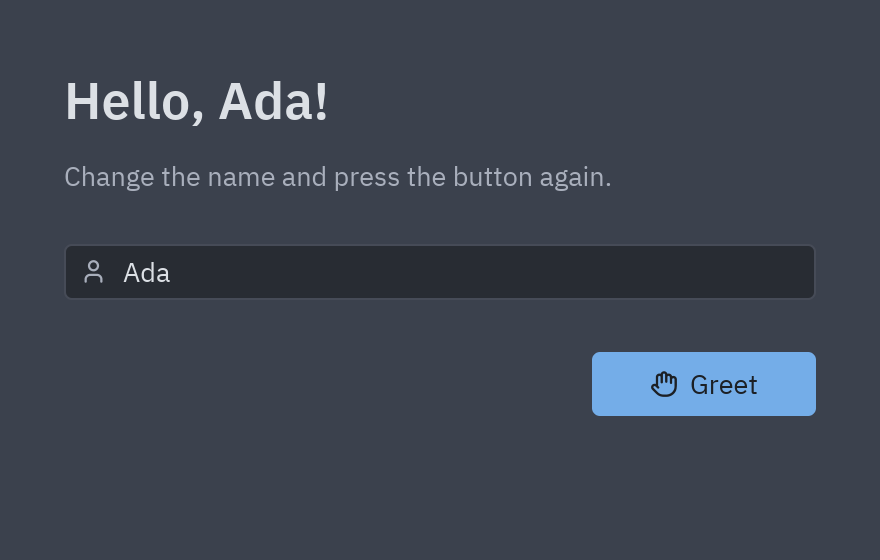
You will build a small window that greets you by name. You will draw it with the mouse, the way you would in Visual Basic or Qt Designer, and run it with one key. There is no code to write until the very last (optional) step, and that step is one line.
| Goal | Time | Level | You need |
|---|---|---|---|
| A window with a title, a text box and a button | 15 minutes | Basic · no code | Pyzed Design (below) |
What you’ll learn
Section titled “What you’ll learn”- Open Pyzed Design and create a form (a window of your app).
- Place controls from the toolbox and change them in the Properties panel.
- Make a control stretch when the window grows, with anchors.
- Save and run the form with F5.
- Wire a button to a Python event handler (optional).
Before you start
Section titled “Before you start”Pyzed Design is the visual editor of Pyzed. Install it in one of these ways:
uv tool install "pyzed-ui[designer]" # installs the pyzed commandpyzed design hello.pzformpython3 -m venv .venvsource .venv/bin/activatepython -m pip install "pyzed-ui[designer]"pyzed design hello.pzformpy -m venv .venv.venv\Scripts\Activate.ps1python -m pip install "pyzed-ui[designer]"pyzed design hello.pzformpython -m pyzed.designer hello.pzform # the same, without the pyzed command on PATH-
Create the form. In Pyzed Design press Ctrl+N (or ☰ → New). Pick the Form card, type
helloas the Name,Helloas the Title, leave the Blank template and press Create. If you started the editor withpyzed design hello.pzform, the empty form is already open.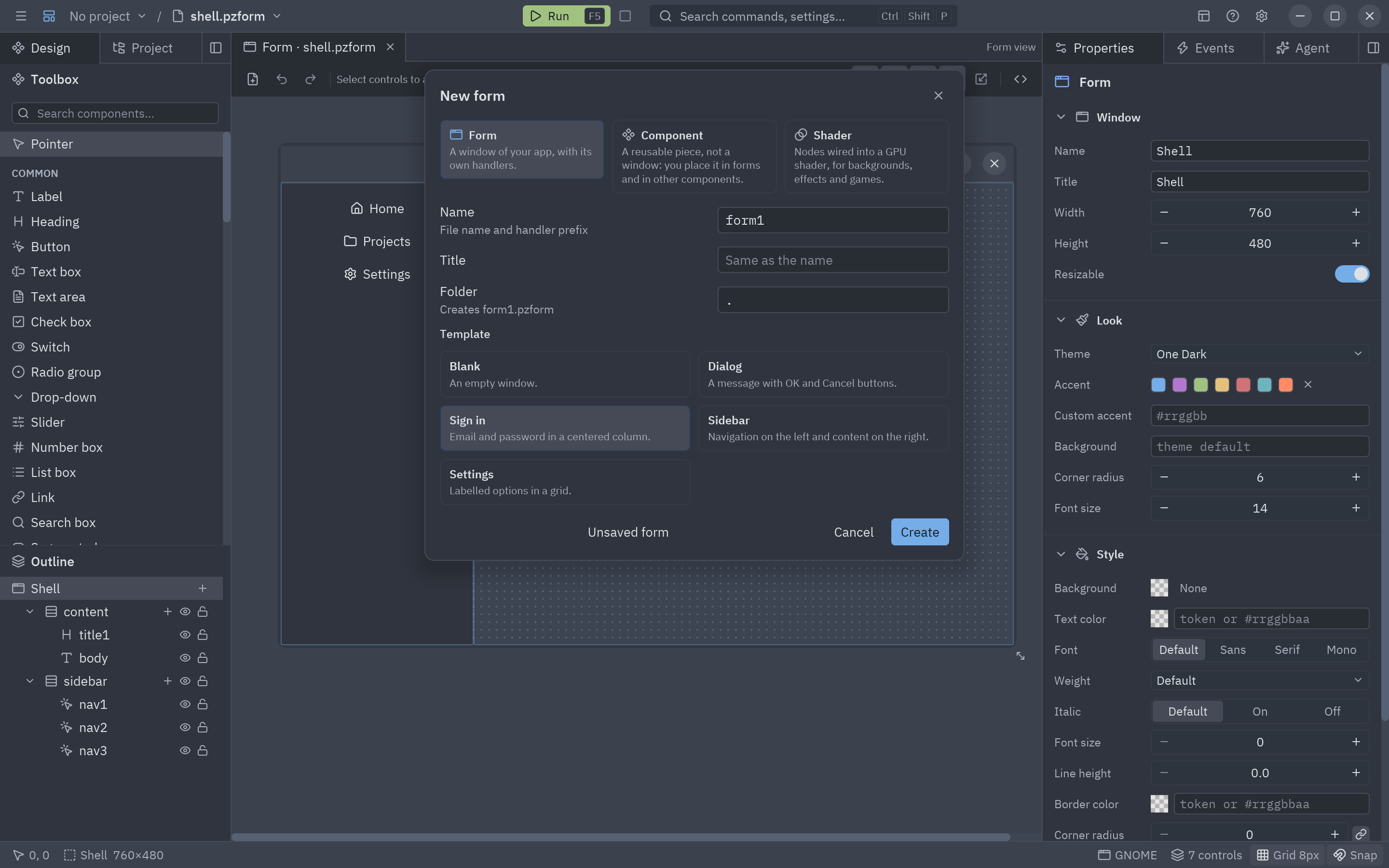
The New dialog: a form, a component or a shader. -
Add a heading. In the Toolbox on the left, find Heading (type it in Search components…) and drag it onto the form. With it selected, look at the Properties panel on the right and change:
- Name:
headline(press Enter). This is how your code will call it later. - Text:
Hello, Pyzed!
- Name:
-
Add a label and a text box. Drag a Label under the heading and set its Text to
Type your name and press the button.and its Color totext_muted(a softer gray that follows the theme). Then drag a Text box under it, name ityour_nameand set its Placeholder toYour nameand its Icon touser.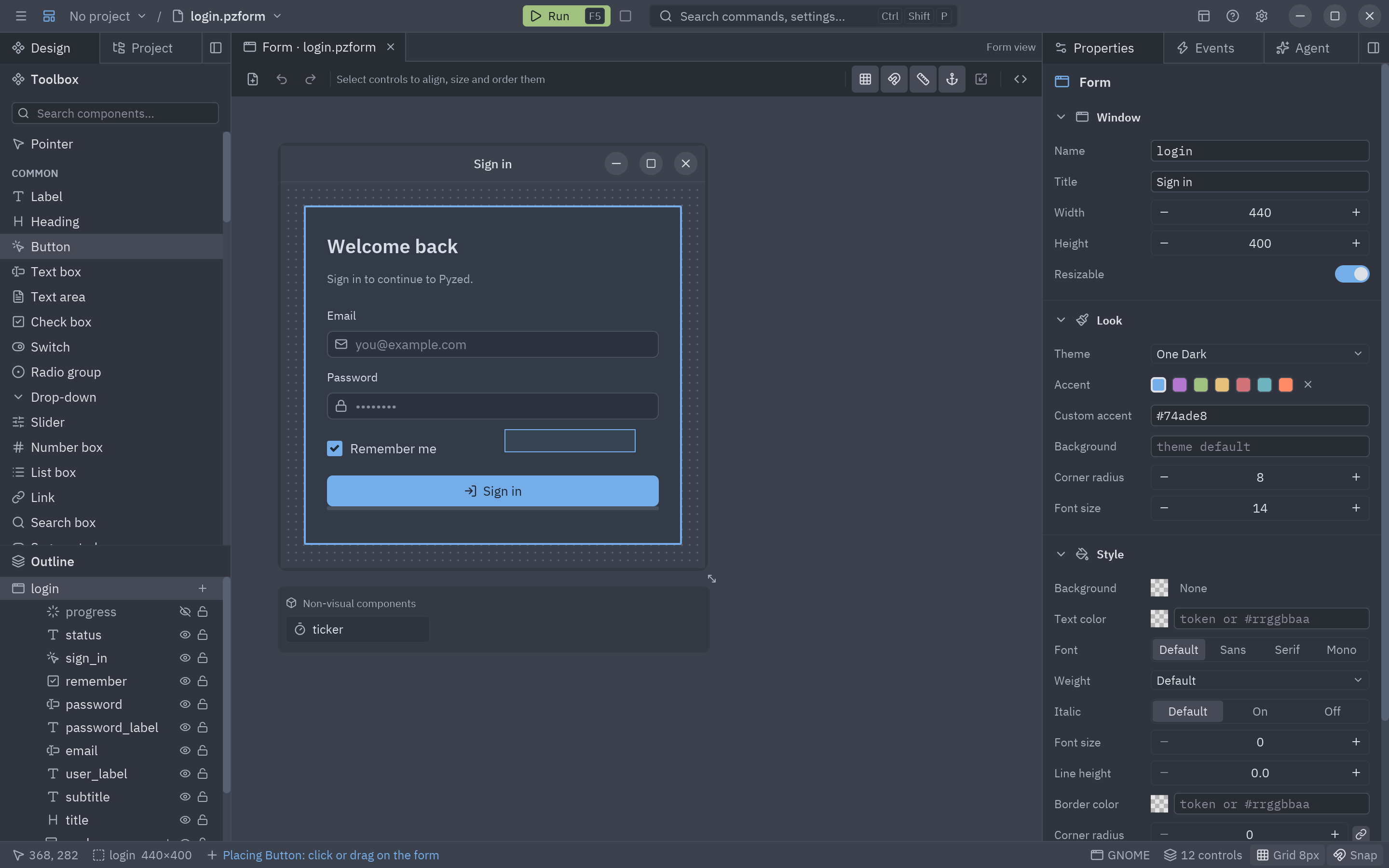
Click a control in the toolbox, then click or drag a rectangle on the form. -
Add the button. Drag a Button below the text box, name it
greet, set its Text toGreet, its Variant tosolidand its Icon tohand. -
Line things up. Drag the controls until the red smart guides show that their left edges line up. Select several (drag a box around them) and use Align left in the toolbar for a perfect line.
-
Make it stretch. Select the text box and open the Position section of Properties. In the grid of anchor presets pick the one that stretches left and right. Do the same for the heading and the label. Pick top · right for the button, so it follows the right edge.
-
Save and run. Press Ctrl+S: the editor writes
hello.pzform(the layout) andhello.py(its code, still empty). Press F5: your form opens as a real window. Resize it and watch the text box stretch.

Bonus: make the button do something
Section titled “Bonus: make the button do something”-
Double-click the button on the canvas. The Events panel wires its
clickevent to a new function,greet_click, and opens it in the code editor at the bottom.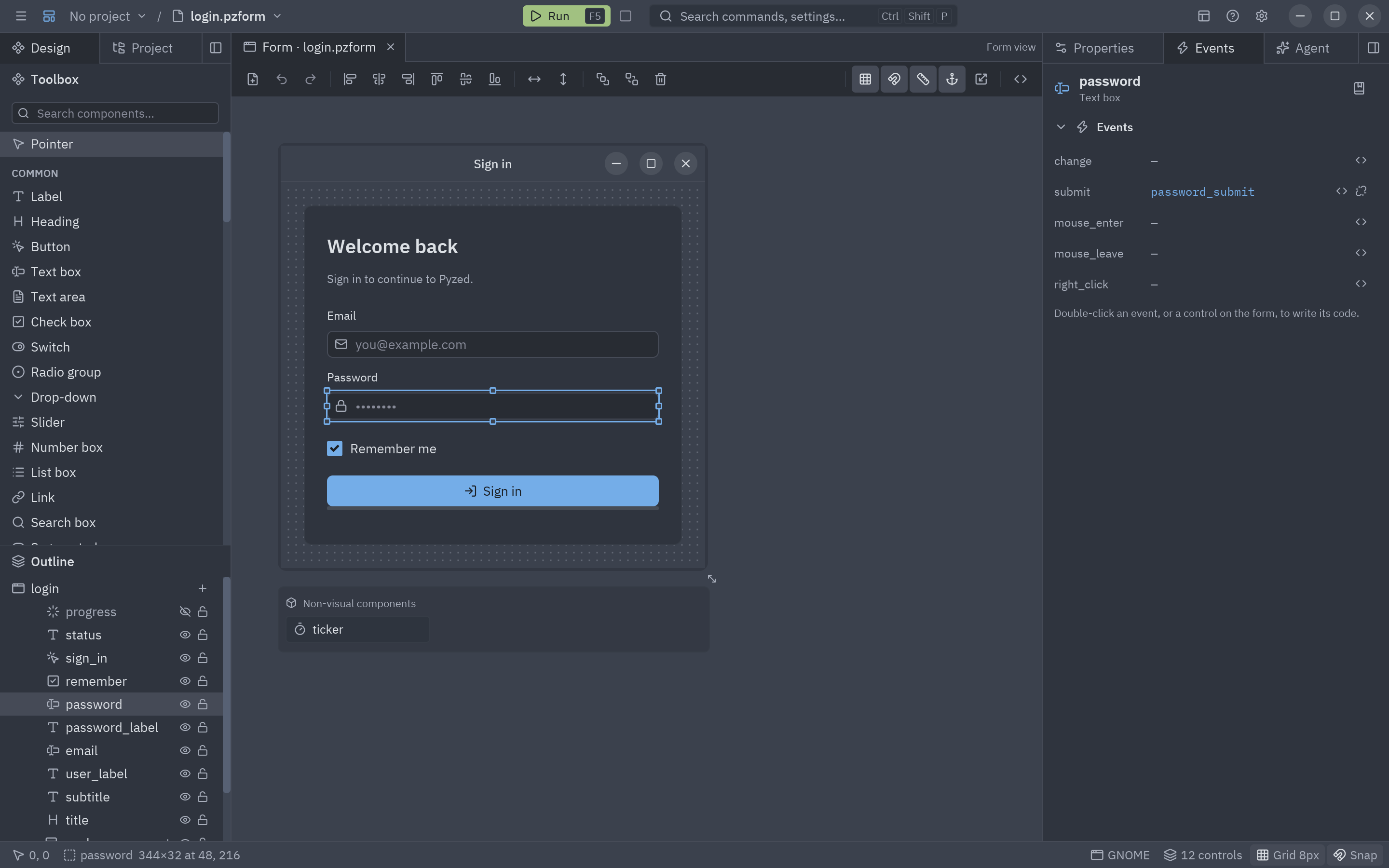
Events panel: double-click an event (or the control) to write its code. -
Write one line (two, if you like) inside the function:
def greet_click(form, event):form.headline.text = f"Hello, {form.your_name.text}!"formis the running window: every control is an attribute (form.your_name), and changing a property (.text) redraws it at once. Typeform.and the editor lists your controls. -
Wire Enter too. Select the text box, open Events and double-click its
submitevent (pressing Enter). In the newyour_name_submitfunction, call the button’s handler:def your_name_submit(form, event):return greet_click(form, event) -
Save (Ctrl+S). If the form is still running it updates in place; otherwise press F5 again. Type your name and press Greet.
The finished files
Section titled “The finished files”The form is two files side by side: hello.pzform (JSON describing the window, made by the designer) and
hello.py (your code). Both are in
examples/tutorial/designer.
"""Event handlers for the hello form (tutorial: Your first window in Pyzed Design).
    pyzed run examples/tutorial/designer/hello.pzform      # run it    pyzed design examples/tutorial/designer/hello.pzform   # open it in the designer
Each function receives the running ``form`` (controls are attributes: ``form.your_name.text``)and an ``event`` with ``event.sender``, ``event.name`` and ``event.value``."""

def greet_click(form, event):    """Runs when greet is clicked."""    name = form.your_name.text.strip() or "stranger"    form.headline.text = f"Hello, {name}!"    form.subtitle.text = "Change the name and press the button again."

def your_name_submit(form, event):    """Runs when Enter is pressed in your_name: the same as clicking the button."""    return greet_click(form, event)
Run the finished example without opening the designer:
uv run --with pyzed-ui pyzed run examples/tutorial/designer/hello.pzformpython3 -m venv .venvsource .venv/bin/activatepython -m pip install pyzed-uipyzed run examples/tutorial/designer/hello.pzformpy -m venv .venv.venv\Scripts\Activate.ps1python -m pip install pyzed-uipyzed run examples\tutorial\designer\hello.pzformpython3 -m pyzed run examples/tutorial/designer/hello.pzformpy -m pyzed run examples\tutorial\designer\hello.pzformEvents in this tutorial
Section titled “Events in this tutorial”| Control | Event | Handler | What it does here |
|---|---|---|---|
greet (Button) |
click |
greet_click |
Writes the greeting in headline. |
your_name (Text box) |
submit |
your_name_submit |
Enter does the same as the button. |
Try more events
Section titled “Try more events”Double-click an event in the Events panel to create its handler, then paste the body:
def your_name_change(form, event):          # every keystroke: event.value is the text    form.greet.enabled = bool(event.value.strip())

def headline_double_click(form, event):     # a label has click and double_click    form.headline.text = "Hello!"    form.your_name.text = ""

def form_key(form, event):                  # any key in the window: event.value is the combo    if event.value == "escape":        return form.close()
Every control has mouse_enter, mouse_leave and right_click too. The full list of each control is in
Events and handlers, and how forms, apps and components get their events in
Apps, windows, forms and components.
- A form that does something: several inputs, validation and the console.
- The Pyzed Design manual: every panel of the editor in detail.
- Toolbox and canvas: all the ways to place, select and align controls.