
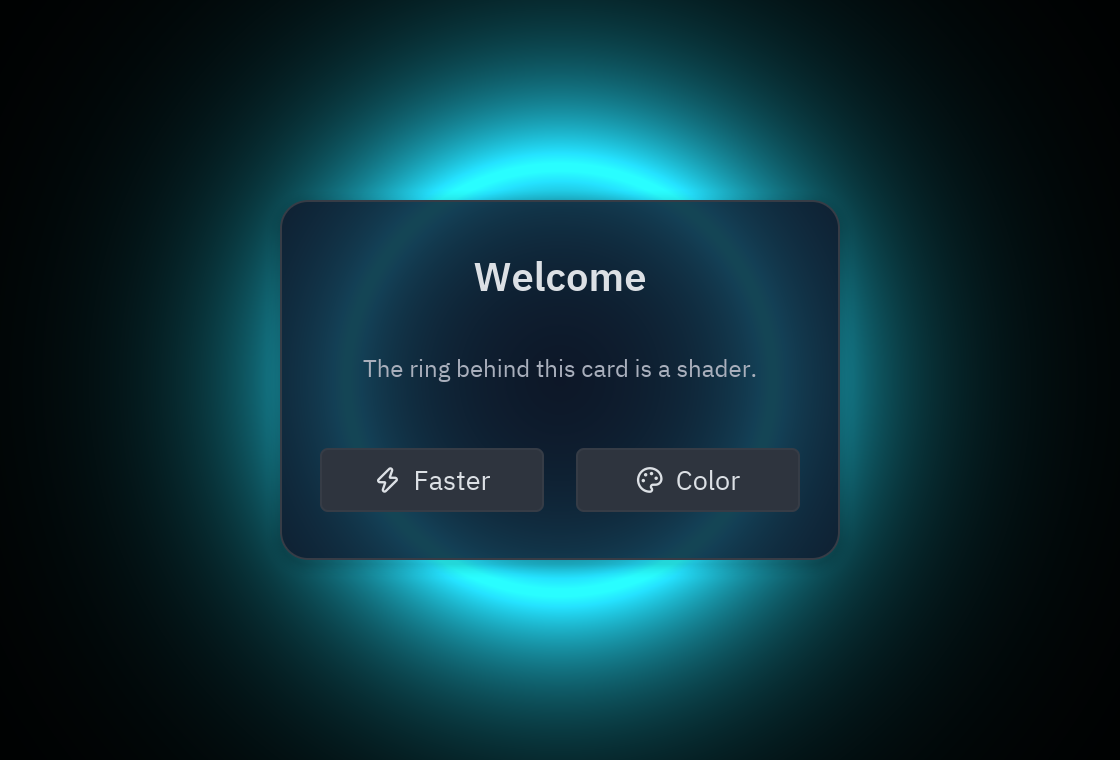
A shader effect from the Shader view
A shader is a tiny program the graphics card runs for every pixel, every frame: that is how games draw glowing rings, clouds and fire without slowing down. In Pyzed you do not have to write that program. You wire nodes in the Shader view (like Godot’s visual shaders or Unreal’s material editor), and the designer turns them into GPU code for you.
| Goal | Time | Level | You need |
|---|---|---|---|
| A pulsing neon ring behind a welcome card | 25 minutes | Intermediate · little code | Your first window |
What you’ll learn
Section titled “What you’ll learn”- Create a shader from a template and find your way around the Graph, Preview and WGSL tabs.
- Change a node’s input, wire a new node, and read the live preview on every node.
- Use variables: values your Python code changes while the shader runs.
- Draw the shader on a form with the Shader control, and change its variables from a button.
-
Create the shader. Ctrl+N → Shader, name it
glow, pick the Glow ring template and press Create shader.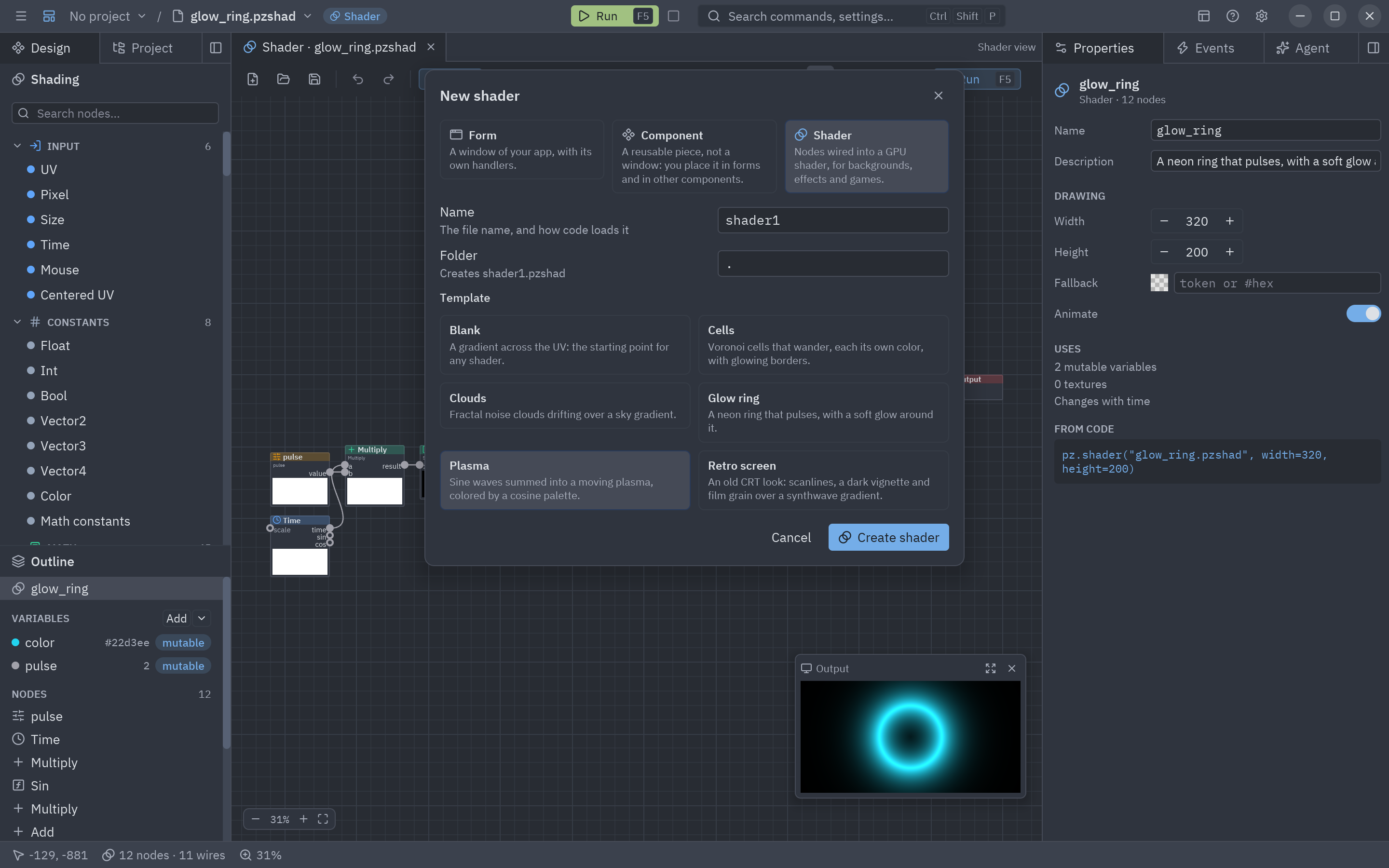
Templates: Blank, Plasma, Clouds, Glow ring, Cells and Retro screen. -
Look around. The Graph tab shows the nodes, left to right: Time and the variables feed some math, a Ring shape gives the distance to a ring, Glow turns it into light and Output is the final color. Each node draws a small preview of what it makes, so you can follow the picture as it is built.
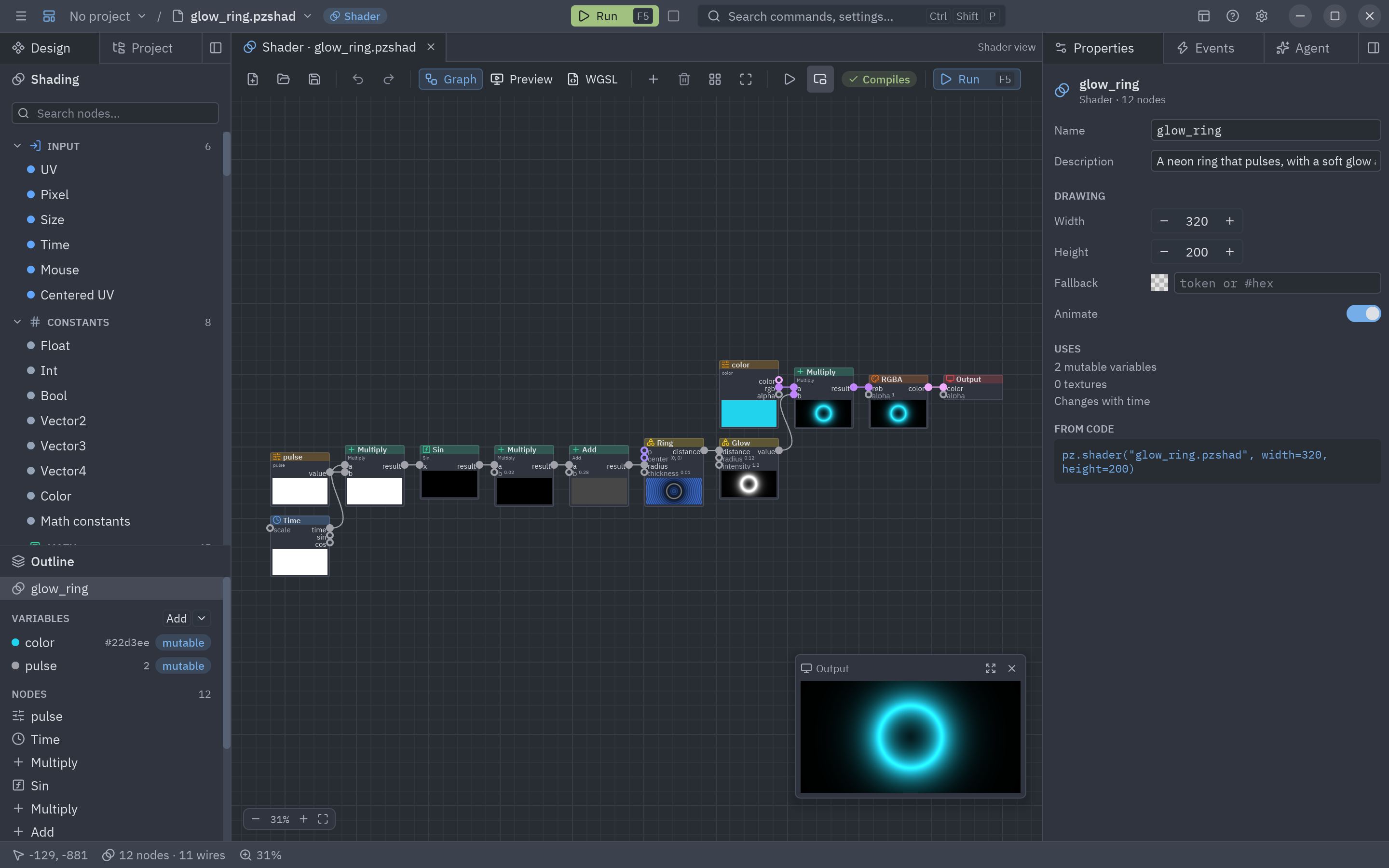
The Shader view: nodes on the left sidebar, the graph in the middle, the result in the Output window. -
Change a value. Inputs that are not wired show their value right on the node. On the Glow node change radius from 0.12 to 0.3: the glow grows, and the preview of every node after it updates at once. (The ring’s own radius is wired: it comes from the pulse math, which is what makes it breathe.)
-
Wire a new node. Near the end, a Multiply node mixes the
colorvariable with the glow and feeds the RGBA node. From the Shading sidebar drag a Hue shift node (category Color) next to them. Wire the Multiply’s result into its rgb input and its rgb output into RGBA’s rgb, then wire Time into shift: the ring now cycles through every color. Press Ctrl+Z to go back. -
Meet the variables. The Outline lists the shader’s variables:
color(the neon color) andpulse(pulses per second). They are mutable: your app can change them every frame for free. The Preview tab has a slider for each.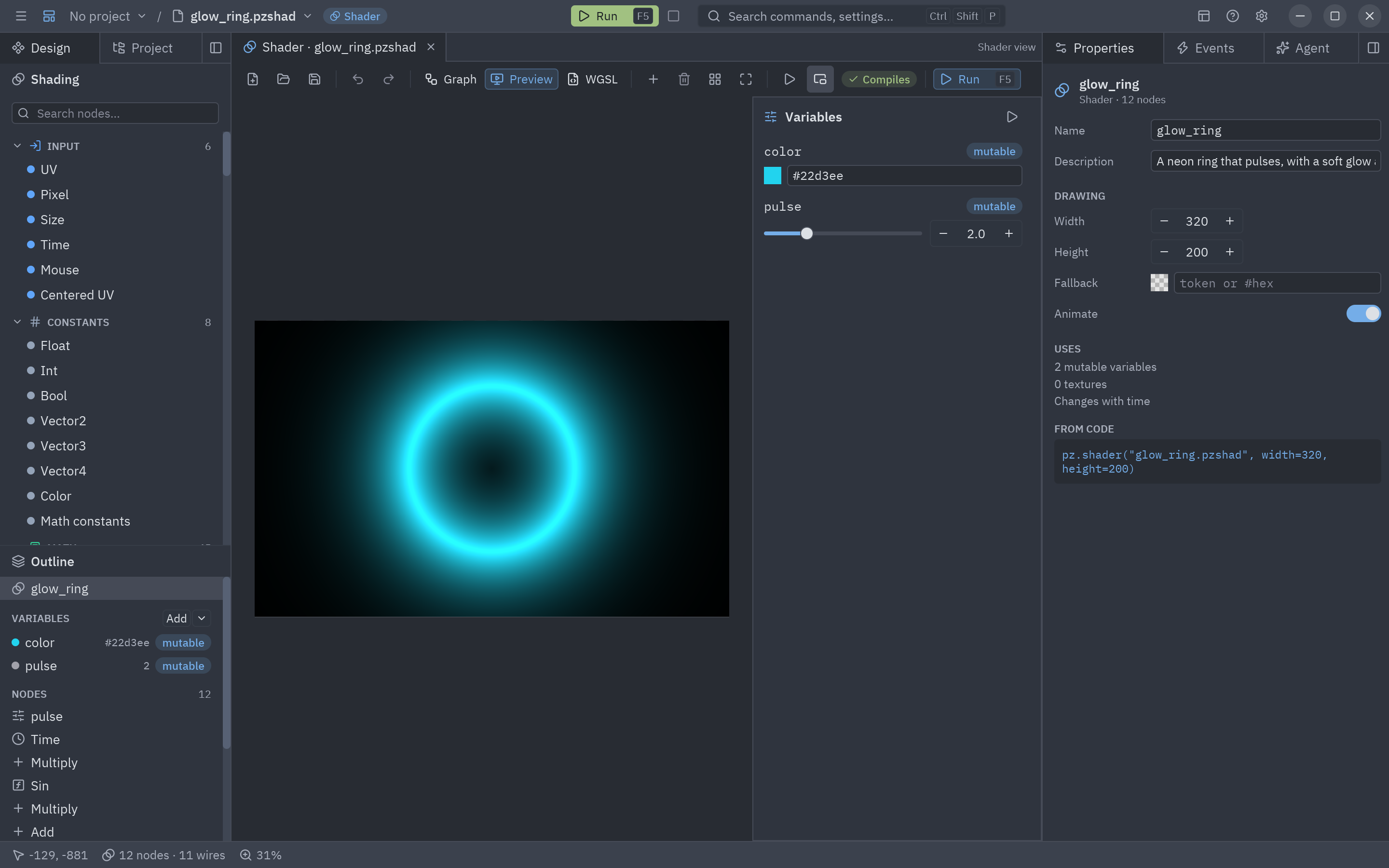
Preview: the finished shader, large, with a slider per variable. -
Save (Ctrl+S). The shader is the file
glow.pzshad. Press F5 to see it fill a window of its own. -
Put it behind a form. Create a form
welcome(560 × 380). From Display in the toolbox drag a Shader control, make it cover the whole form and anchor it on all four sides; name itbackdropand set its Shader file toglow.pzshad. Then add a Card in the middle (no anchors, so it stays centered) with a heading, a label namedhintand two buttons,fasterandcolor. Give the card a translucent background in its Style section (#0f172acc) so the glow shows through. -
Drive it from Python. The control’s
variablesproperty is a dict of the shader’s variables. Double-click faster and color:def faster_click(form, event):variables = dict(form.backdrop.variables)variables["pulse"] = variables.get("pulse", 2.0) + 1.5form.backdrop.variables = variablesdef color_click(form, event):variables = dict(form.backdrop.variables)variables["color"] = "#a78bfa"form.backdrop.variables = variables -
Run the form (F5) and press the buttons.
Full code
Section titled “Full code”"""Event handlers for the welcome form (tutorial: A shader behind a form).
pyzed run examples/tutorial/designer/welcome.pzform
``backdrop`` is a Shader control that draws ``glow.pzshad``, a shader made of nodes in theShader view. Its ``variables`` property sets the shader's variables by name."""
from pathlib import Path
COLORS = ["#22d3ee", "#a78bfa", "#f472b6", "#fbbf24"]
def form_load(form, event): """Runs once when welcome opens: point the Shader control at the file next to this one.
(A relative path in the Shader file property is read from the folder you run the app from; building it from ``__file__`` works from anywhere.) """ form.backdrop.file = str(Path(__file__).with_name("glow.pzshad"))
def faster_click(form, event): """Runs when faster is clicked: more pulses per second, back to 1 after 8.""" variables = dict(form.backdrop.variables) pulse = variables.get("pulse", 2.0) variables["pulse"] = 1.0 if pulse >= 8 else pulse + 1.5 form.backdrop.variables = variables form.hint.text = f"{variables['pulse']:.1f} pulses per second"
def color_click(form, event): """Runs when color is clicked: the next neon color.""" variables = dict(form.backdrop.variables) current = variables.get("color", COLORS[0]) variables["color"] = COLORS[(COLORS.index(current) + 1) % len(COLORS)] if current in COLORS else COLORS[1] form.backdrop.variables = variablesThe same shader in pure Python, without the designer, is one widget:
pz.stack([ pz.shader("glow.pzshad", uniforms={"pulse": 4, "color": "#a78bfa"}, width="fill", height="fill"), card,])uv run --with pyzed-ui pyzed run examples/tutorial/designer/welcome.pzformpython3 -m venv .venvsource .venv/bin/activatepython -m pip install pyzed-uipyzed run examples/tutorial/designer/welcome.pzformpy -m venv .venv.venv\Scripts\Activate.ps1python -m pip install pyzed-uipyzed run examples\tutorial\designer\welcome.pzformpython3 -m pyzed run examples/tutorial/designer/welcome.pzformpy -m pyzed run examples\tutorial\designer\welcome.pzformEvents in this tutorial
Section titled “Events in this tutorial”| Control | Event | Handler |
|---|---|---|
| The form | load |
form_load: points the Shader control at glow.pzshad. |
faster (Button) |
click |
faster_click: changes the pulse variable. |
color (Button) |
click |
color_click: the next neon color. |
Try more events
Section titled “Try more events”def color_right_click(form, event): # every control has right_click: back to the first color variables = dict(form.backdrop.variables) variables["color"] = COLORS[0] form.backdrop.variables = variables
def backdrop_mouse_enter(form, event): # the Shader control has the mouse events too form.hint.text = "Move the pointer away to calm it down"
def backdrop_mouse_leave(form, event): form.hint.text = ""- A custom shader graph: build a graph in Python, node by node.
- The Shading section: every node, the Shader view and WGSL shaders.
- The shader showcase: eleven
.pzshadfiles to open and study.