
Events and handlers
Controls raise events (a click, a change of text, a timer tick) and each event can be wired to a Python
function, its handler, in the form’s code file (login.py next to login.pzform).
The Events panel
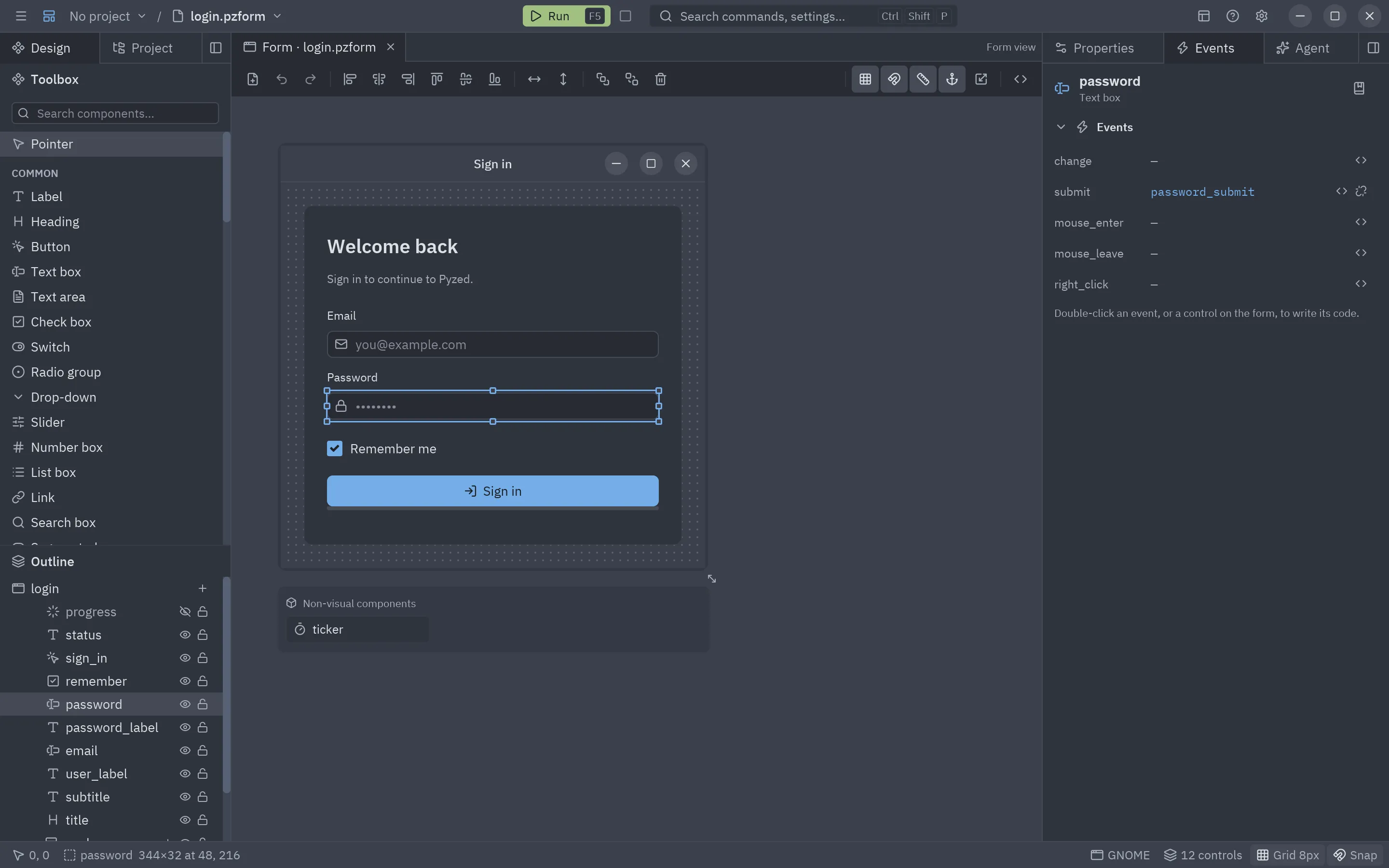
Section titled “The Events panel”The Events panel (right dock, next to Properties) lists the events of the selected control, or of the form
when nothing is selected, with the handler wired to each one (— when there is none).
| Action | Result |
|---|---|
Double-click an event, or press its <> button |
Wires it if needed (creating the handler stub) and opens the handler in the code editor. |
| Unlink button (wired events only) | Disconnects the event and deletes its handler’s code. |
| Hover an event | A tooltip says when it runs and what event.value holds. |
| The book button in the header | Opens the control’s page in the reference, with every event and its handler name (Shift+F1). |
The event being edited is highlighted. With several controls selected, the panel asks you to pick one: events belong to a single control.
Faster ways in
Section titled “Faster ways in”- Double-click a control on the canvas: opens the handler of its main event (the first one:
clickfor a button,changefor a text box,tickfor a timer). - Enter with a control selected does the same.
- View code in the control’s context menu.
- F7 (Edit code file) opens the whole file.
Handlers are named <control>_<event> (sign_in_click), or form_<event> for the form, and the stub carries a
docstring saying when it runs. Renaming a control renames the handlers that follow this convention.
Every event
Section titled “Every event”Every visible control has three common events on top of its own:
| Event | Runs when | event.value |
|---|---|---|
mouse_enter |
The pointer enters the control. | None |
mouse_leave |
The pointer leaves the control. | None |
right_click |
The control is right-clicked. | None |
| Component | Own events |
|---|---|
| Label, Image, Icon, Avatar, Counter badge, Status dot, Facepile, QR code, SVG image | click, double_click |
| Button, Link | click |
| Chip | click, remove (its x, when Removable is on) |
| Split button | click (the main part), choose (an item of its menu: its text), menu (the menu opens) |
| Text box, Search box | change (the new text), submit (Enter pressed) |
| Text area | change (the new text) |
| Check box, Switch | change (True or False) |
| Radio group, Drop-down, Segmented | change (the selected option) |
| Tab bar | change (the selected tab), close (a tab closed with its x when Closable is on: its name) |
| Toggle group | change (the pressed value, or the list of pressed values when Multiple is on) |
| Slider | change (the new number while dragging), release (the drag ended: save or apply here) |
| Number box | change (the new number) |
| List box | change (the selected item), open (an item double-clicked) |
| Table | change (the selected row’s index), open (a row double-clicked: its index), sort (a header clicked when Sortable is on: its title) |
| Tree view | change (the selected item’s path, such as "Docs/README.md"), toggle (an item folded or unfolded), open (an item without children double-clicked) |
| Breadcrumbs | click (the index of the part, 0 for the first) |
| Markdown | link (the address of the clicked link; without a handler the link opens in the browser) |
| Color picker, Icon picker | change (the new color or icon name) |
| Dock | layout (a panel was moved, resized or switched: the layout dict, also kept in Saved layout) |
| Timer, Shortcut, File watcher, Process, Background worker, Web request, Clipboard, Settings, File dialog, Notification | Their own (tick, activate, change, output, done, response…): see Non-visual components. They have no mouse events. |
| Heading, Progress bar, Badge, Spinner, Callout, Key binding, Stat, Chart, Empty state, Diff stat, Image viewer, Terminal output, containers, Spacer, Divider | Only the common ones |
The form itself:
| Event | Runs when | event.value |
|---|---|---|
load |
Once, when the window opens. | None |
close |
The window is closing. Return False to keep it open. |
None |
key |
On every key press. | The combo, such as "ctrl-s" |
resize |
The window is resized. | (width, height) |
Designed components and pz.Component classes add their own custom
events when you place them on a form. The Events tab lists them in a Custom events section, apart from the
Built-in events of the control.
Writing handlers
Section titled “Writing handlers”A handler receives the running form and an event. Controls are attributes of the form and their properties
are attributes of the control; changing them updates the window.
def sign_in_click(form, event): if "@" not in form.email.text: form.status.text = "Enter a valid email address." return form.email.focus() # handlers may return commands form.sign_in.enabled = False form.progress.show() form.ticker.running = True # a Timer control starts ticking| Name | What it is |
|---|---|
event.sender |
The control (or form) that raised the event. |
event.name |
The event ("click", "change"…). |
event.value |
Its value: new text, checked state, key combo… |
form.<control> |
A control; read and write its properties (form.email.text). |
form.<control>.visible, .enabled, .x, .y, .width, .height, .anchor |
Its layout and behavior fields. |
form.<control>.show(), .hide() |
Shows or hides it. |
form.<control>.focus() |
A command that focuses it (text boxes and text areas). |
form.title, form.name, form.size |
The window’s title (assigning it renames the window), the form’s name and the current size. |
form.close() |
A command that closes the window. |
form.open("details", data=...) |
A command that opens another form in a new window; it gets data as form.data. |
form.window |
The Pyzed window running this form. |
Handlers can return anything a Pyzed callback can: a Command, a list of commands, a coroutine (for async work)
or a generator. Helpers at the top of the file, imports and other modules of the project all work as usual.
sequenceDiagram
    actor User
    participant Iced as Iced (Rust)
    participant RT as FormRuntime
    participant H as login.py
    User->>Iced: clicks "Sign in"
    Iced->>RT: callback for sign_in.click
    RT->>H: sign_in_click(form, event)
    H->>RT: form.status.text = "..."
    RT->>Iced: view() with the new properties
    Iced->>User: redraws the window
When a handler fails
Section titled “When a handler fails”If a handler raises, the running window does not close: an Event handler error callout appears at the bottom of it with the last line of the error (dismiss it with its ×), and the full traceback goes to the console. If an event is wired to a function that is not in the code file, the callout says so.
Opening other windows
Section titled “Opening other windows”def details_button_click(form, event): return form.open("details", data=form.order_id.text)
def form_load(form, event): form.title = f"Order {form.data}"The name is looked up next to the current form, then in the project’s ui/ folder. Create the second form with
New form (Ctrl+N); the dialog template comes with OK and Cancel already wired to
form.close().