
Toolbox and canvas
The Toolbox panel (left dock) holds the components on top and the Outline below; drag the bar between them to give one more room. The canvas in the center shows the document exactly as it will run, but inert: buttons do not click and text boxes do not type, so the mouse is free to edit.
The toolbox
Section titled “The toolbox”Every component you can place, by category: Common, Forms (everything the user types or picks in), Date & time, Display, Containers, Layout, Navigation, System (what talks to the operating system), Components (the other non-visual ones, which go to the tray under the form) and one category per group of designed components of your project. Hover a row for the component’s role and description.
| Category | Components |
|---|---|
| Common | Label, Heading, Button, Link, Split button |
| Forms | Text box, Text area, Check box, Switch, Radio group, Drop-down, Slider, Number box, List box, Search box, Segmented, Toggle group, Color picker, Icon picker |
| Date & time | Date picker, Date range, Time picker, Calendar |
| Display | Progress bar, Badge, Image, SVG image, Image viewer, Shader, Icon, Markdown, Spinner, Chip, Callout, Avatar, Facepile, Counter badge, Status dot, Key binding, Stat, Chart, Table, Diff stat, Empty state, QR code, Terminal output |
| Navigation | Tab bar, Tree view, Breadcrumbs |
| Containers and Layout | Panel, Group box, Card, Divider, Flex row, Flex column, Grid, Dock, Dock panel, Spacer |
| System | File picker, Drop zone, and in the tray: Shortcut, File watcher, Process, Clipboard, File dialog, Notification, System info, Launcher, Network monitor, Battery monitor |
| Components | Timer, Background worker, Web request, Settings |
| Media and Audio | Webcam, and the audio controls: knobs, faders, pads, piano, meters, waveforms, spectrum… |
The Project explorer example puts most of them on one form, with a handler for each of their events.
- Search components… filters the list by name (in English or in the editor’s language) or by type.
- Pointer (first row) is the normal selection tool. It is highlighted when no component is picked.
Icon colors
Section titled “Icon colors”Every component has a role, and its icon takes the role’s color wherever it appears: the toolbox, the outline, the tray of non-visual components, the header of the Properties and Events panels and the chip that follows the pointer while you drag. A form’s structure reads at a glance: blue boxes hold the rest, green fields take what the user types, yellow buttons run your code. The palette icon next to the search box shows the same legend.
| Color | Role | What it is |
|---|---|---|
| Blue | Layout | Holds and arranges other controls: panels, cards, group boxes, rows, columns, grids, docks, dividers, spacers. |
| Green | Input | Takes a value from the user: text boxes, check boxes, switches, drop-downs, sliders, number boxes, pickers. |
| Yellow | Action | Runs something when pressed: buttons and split buttons. |
| Cyan | Navigation | Moves between views: tab bars, tree views, breadcrumbs, links. |
| Neutral | Display | Shows content: labels, headings, images, tables, charts, badges. |
| Red | Media | Sound and video: the audio controls and the webcam. |
| Orange | System | Non-visual components: timers, processes, file watchers, web requests, the clipboard. |
| Purple | Custom | Your own components, made with the component designer or pz.Component. |
The colors come from the theme’s terminal palette, so they change with the theme and stay readable in light and
dark themes. The role is worked out from the component (whether it holds controls, its category and its events);
a component registered from Python can name its own with Component(..., role="input").
Placing a control
Section titled “Placing a control”There are four ways, pick the one that fits:
| Gesture | Result |
|---|---|
| Drag a toolbox row onto the form | The control lands where you drop it, at its default size, inside the container under the pointer (it lights up while you drag). |
| Click a row, then click on the form | Same, at the point you clicked. |
| Click a row, then drag a rectangle on the form | The control takes the rectangle’s size (at least 6×6 px); its corners snap to the grid. |
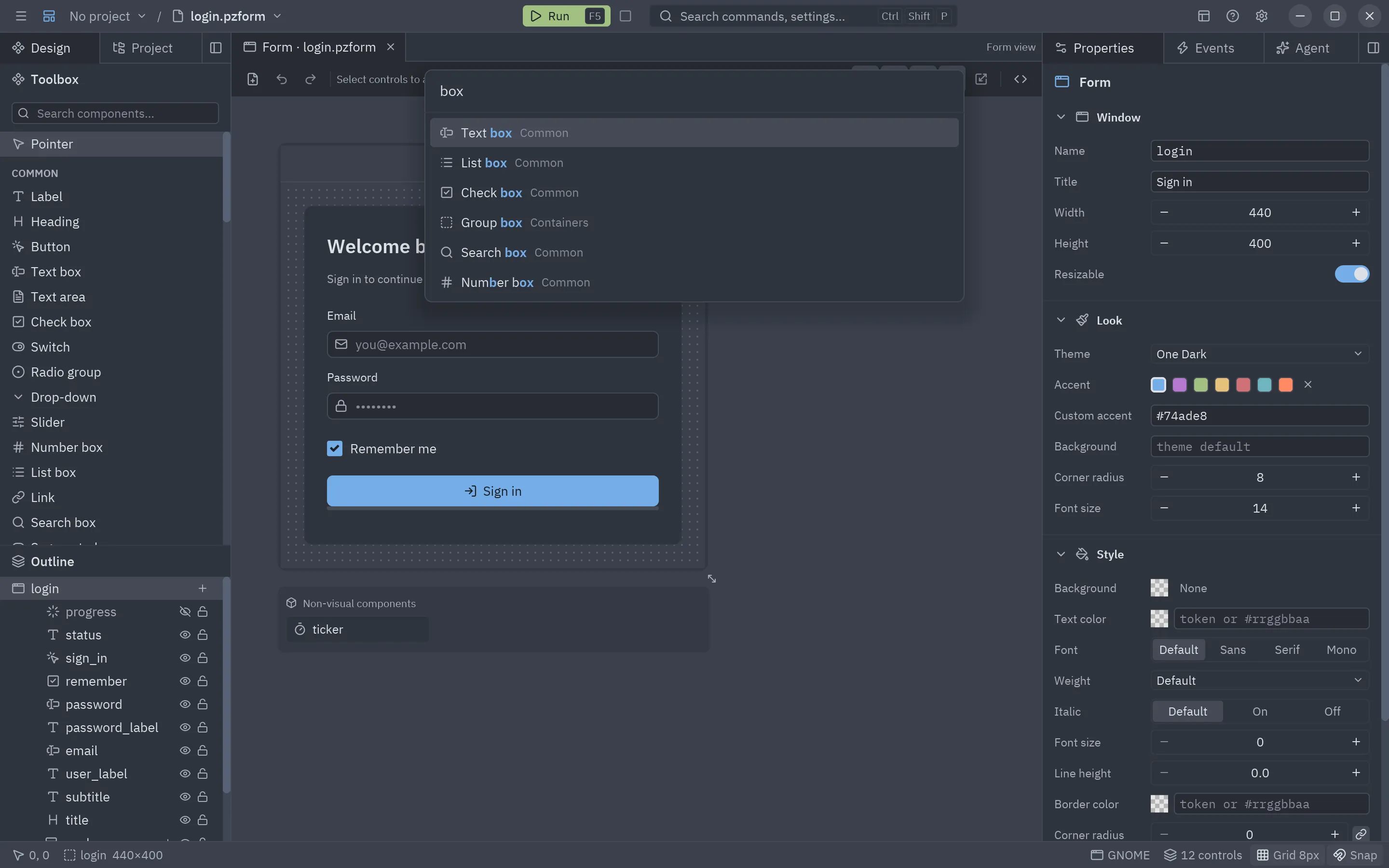
| Ctrl+Shift+A (Add control…) | A searchable list; Enter adds the highlighted component centered on the form. |
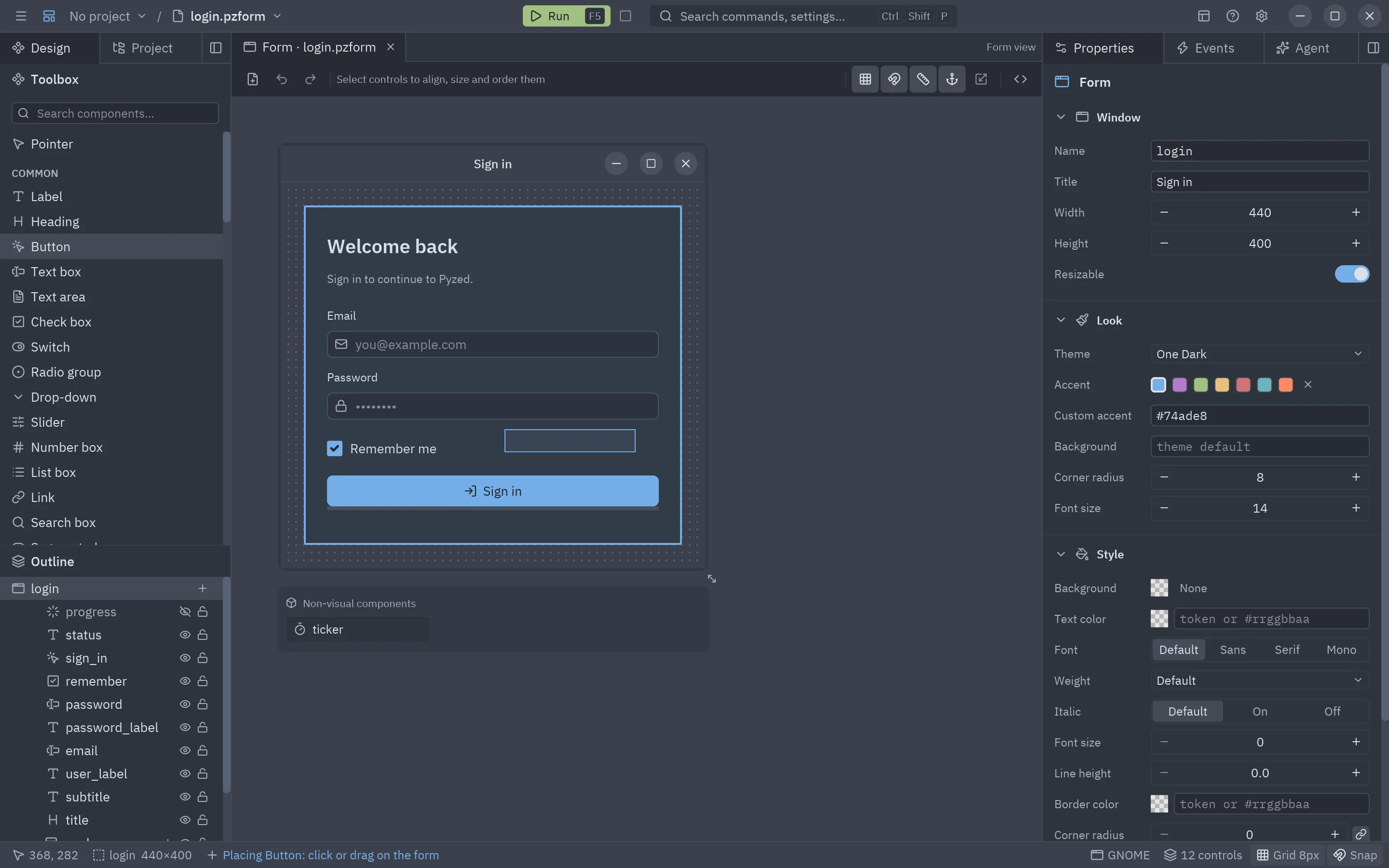
While a component is picked, the pointer is a crosshair and the status bar says
Placing Button: click or drag on the form. Esc (or clicking Pointer, or the same row again) drops
the tool. New controls get a free name from their type (button1, button2…) and are selected, with the
Properties panel in front.
Selecting
Section titled “Selecting”| Gesture | Selects |
|---|---|
| Click a control | That control (the others are deselected). |
| Click an already selected control | Keeps the selection and makes that control the primary one: the reference for alignment and same size, drawn with a thicker outline. |
| Drag on an empty spot | A rubber band: every control it touches. A container and the controls inside it count once (the container). |
| Ctrl+A | Every control. |
| Click an empty spot | Nothing: the Properties panel then shows the form itself. |
| A row in the outline | That control, even if it is hidden behind others. |
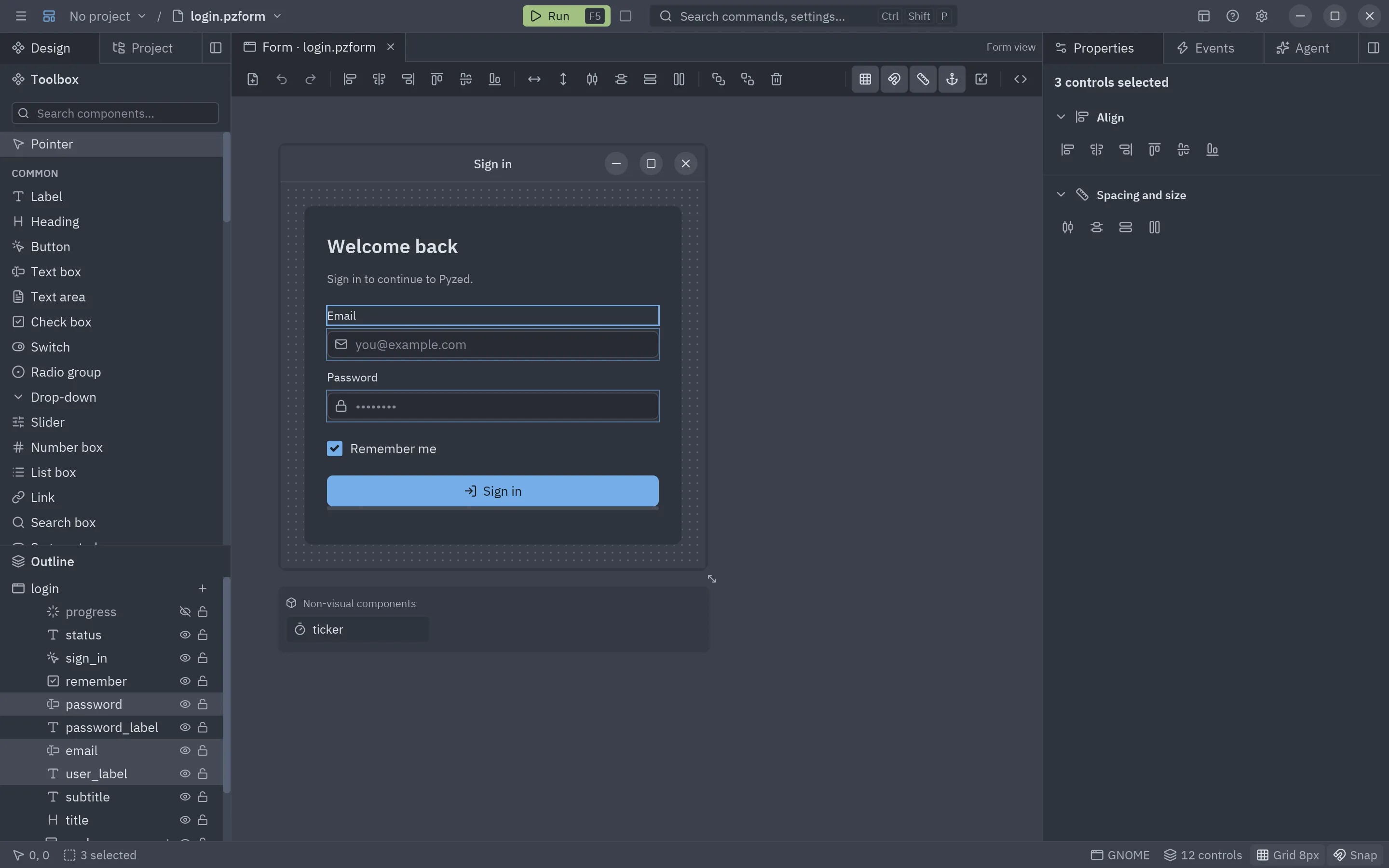
With several controls selected, the Properties panel shows the alignment and spacing tools instead of properties, and the Events panel asks you to pick one control.
Moving and resizing
Section titled “Moving and resizing”- Drag a selected control to move the whole selection. Positions snap to the grid (when snapping is on) and the group stays inside the form.
- Drop it on a container to put it inside, or on the bare form to take it out of its container. The target lights up with an accent frame while you drag.
- The eight handles of a single selected control resize it from that edge or corner; the opposite edge stays put. Controls are never smaller than the minimum size and stay inside their container.
- The grip under the form’s bottom-right corner resizes the form (at least 120×80, snapped to the grid).
- Esc during any drag cancels it and puts everything back.
- Arrow keys nudge the selection by 1 px; Shift+arrows move it by one grid step (1 px when snapping is off). Consecutive nudges are a single undo step.
Locked controls do not move or resize (they show a small lock above their corner), and alignment tools skip them.
Containers and their grip
Section titled “Containers and their grip”A container’s children cover most of it, so a press there picks a child. To pick or drag the container itself, use the grip tab with its name above its top-left corner: it shows while the pointer is over the container and while the container, or a control inside it, is selected. Right-click the grip for the container’s context menu. See Layouts and containers.
Snapping, grid and smart guides
Section titled “Snapping, grid and smart guides”| Tool | Where | What it does |
|---|---|---|
| Show grid | Toolbar, status bar, View → Grid, G | Shows or hides the dots of the grid. |
| Snap to grid | Toolbar (magnet), status bar, View | Rounds positions and sizes to the grid step while you drag, place and resize. |
| Smart guides | Toolbar (ruler), View | Snaps a moving control to the edges and centers of the other controls and of the form, and draws a red guide line while they line up. |
| Resize contents with their anchors | Toolbar (anchor) | Resizing the form, a component or a free container moves and stretches what is inside by its anchors, as the running window does. On by default. |
| Fit selection to grid | Toolbar | Moves and resizes the selected controls (all of them when nothing is selected) onto the grid. |
| Grid size | Properties of the form (Designer section) | The grid step of this form (2 to 64 px, 8 by default). New forms take the default from Settings. |
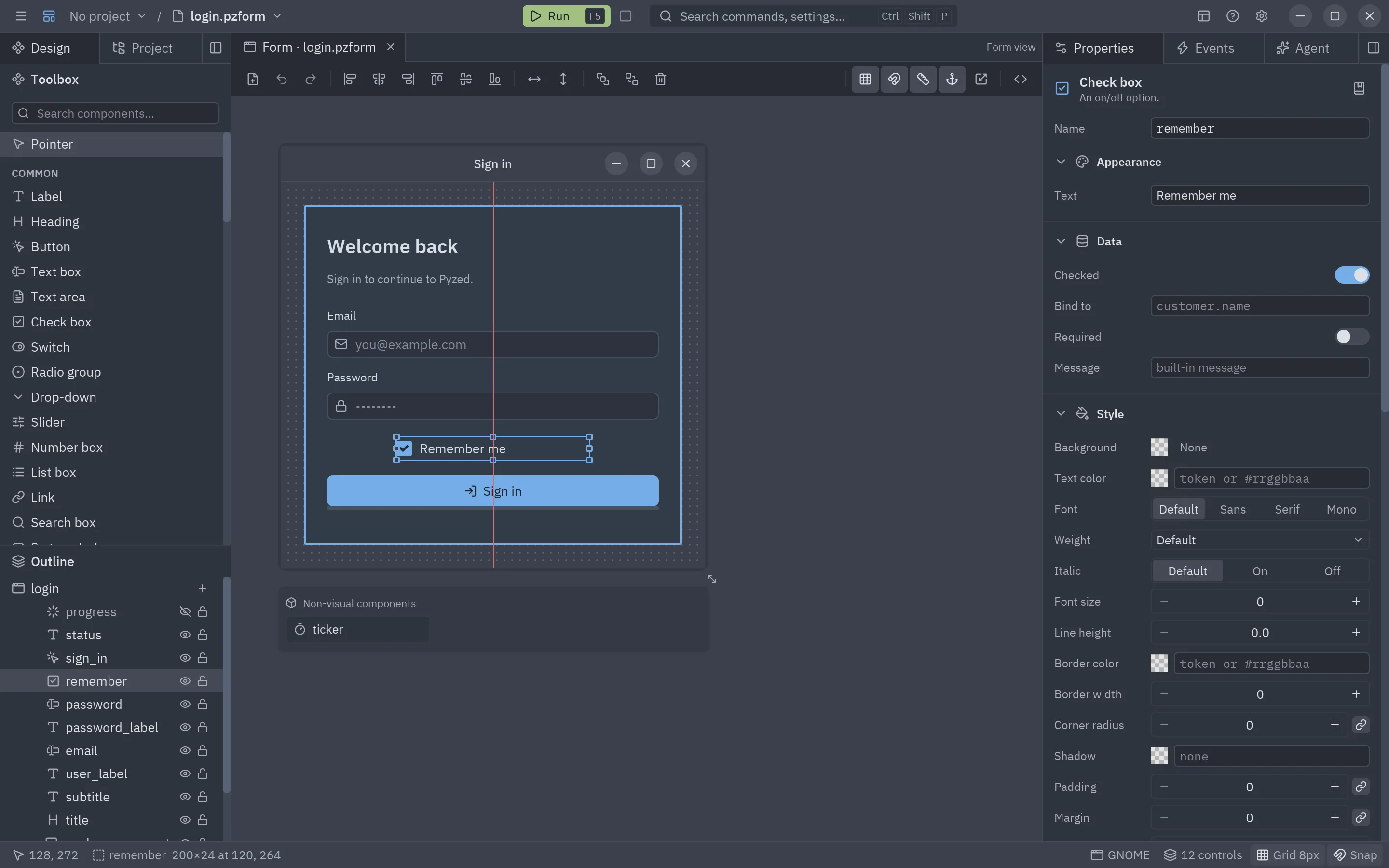
Smart guides snap within 4 px of a target, on both axes at once, so a control can line up with one control’s left edge and another’s middle in the same drag.
Align, distribute and size
Section titled “Align, distribute and size”The toolbar acts on the selection:
| Button | Effect |
|---|---|
| Align left / centers / right | Lines up the left edges, the horizontal centers or the right edges. |
| Align top / middles / bottom | Lines up the top edges, the vertical centers or the bottom edges. |
| Distribute horizontally / vertically | Spaces three or more controls evenly between the first and the last. |
| Same width / height | Gives every selected control the primary control’s width or height. |
| Center in form horizontally / vertically | Centers the selection in the form. |
| Bring to front / Send to back | Changes the z-order (what is drawn on top). |
| Delete | Deletes the selection (Delete or Backspace). |
With several controls selected, alignment uses the bounds of the selection; with a single control it aligns to the form. The Properties panel shows the same tools while several controls are selected.
Clipboard and history
Section titled “Clipboard and history”- Ctrl+C, Ctrl+X, Ctrl+V: copy, cut and paste. Pasted controls are shifted a little so you can see them; a container is copied with everything inside it. Pasted controls are not wired: their events start empty, so they do not share handlers with the originals.
- Copies go to the system clipboard, so you can paste controls into another form: another tab, another Pyzed Design window, or the same form after restarting. In another form a pasted control keeps its name when it is free there (fresh names otherwise), along with its properties, style, binding and rules. Pasting text that is not Pyzed controls pastes the last copy made in this window.
- Ctrl+D duplicates the selection without touching the clipboard.
- Ctrl+Z undoes, Ctrl+Shift+Z (or Ctrl+Y) redoes. Each document keeps its own history; repeated edits of one field (typing a title, nudging) merge into one step.
The context menu
Section titled “The context menu”Right-click a control on the canvas, its row in the outline or a container’s grip:
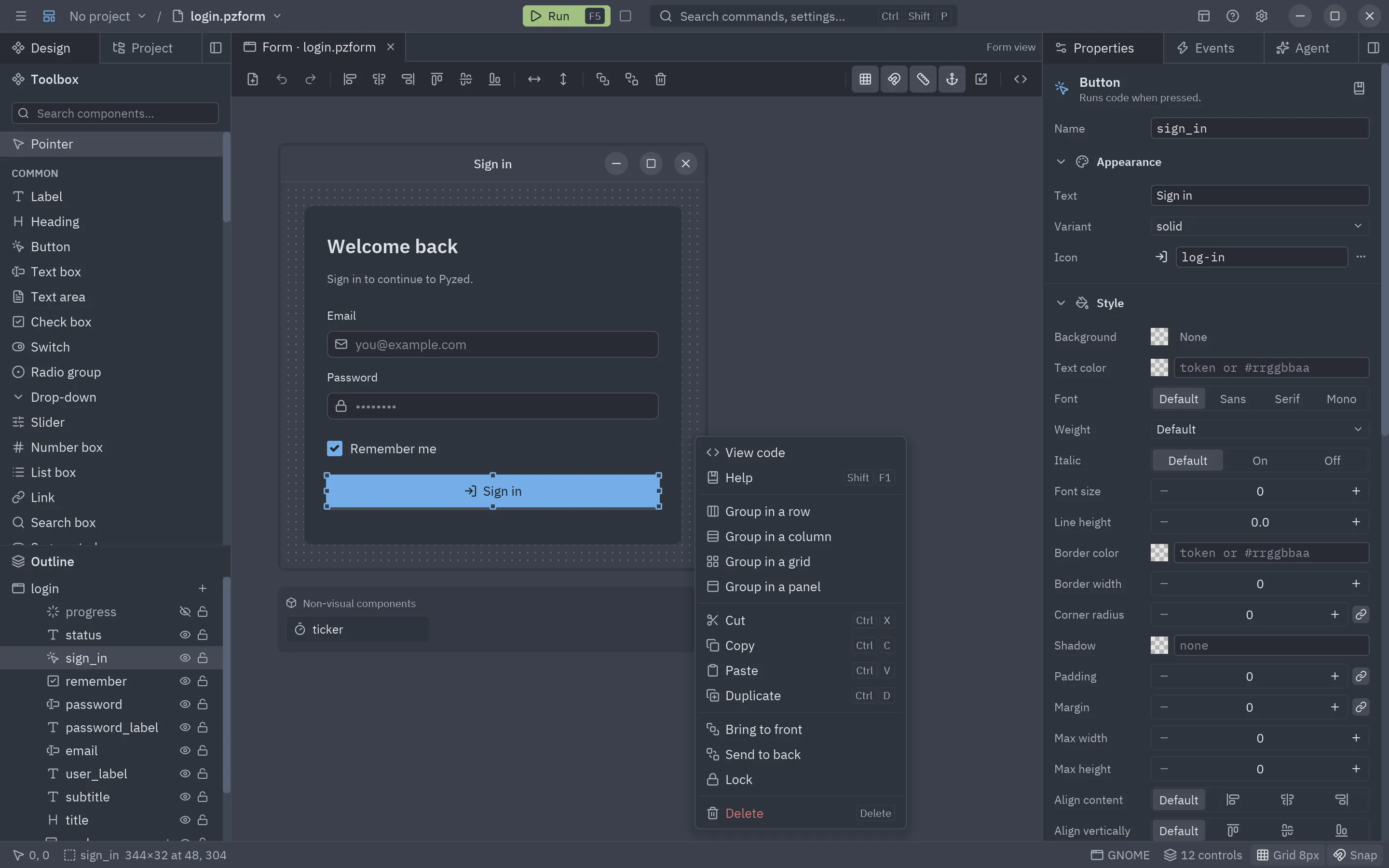
| Entry | Does |
|---|---|
| View code | Opens the handler of the control’s main event (or opens a designed component in its own tab). |
| Help | Opens the control’s page in the reference (Shift+F1). |
| Add inside… | Containers only: the Add control list, adding inside this container. |
| Group in a row / column / grid / panel | Wraps the selection in a new flex row, flex column, grid or panel. |
| Move out of container | Takes the control out of its container, into the container’s parent. |
| Cut, Copy, Paste, Duplicate | As the shortcuts. |
| Bring to front, Send to back | Z-order. |
| Lock / Unlock | Locks the control in place. |
| Delete | Deletes the selection. |
The menu opens at the pointer and stays inside the window. Esc or a click elsewhere closes it.
The outline
Section titled “The outline”The Outline lists every control of the document as a tree. The first row is the form (or the component) itself: click it to select it, + adds a control to it.
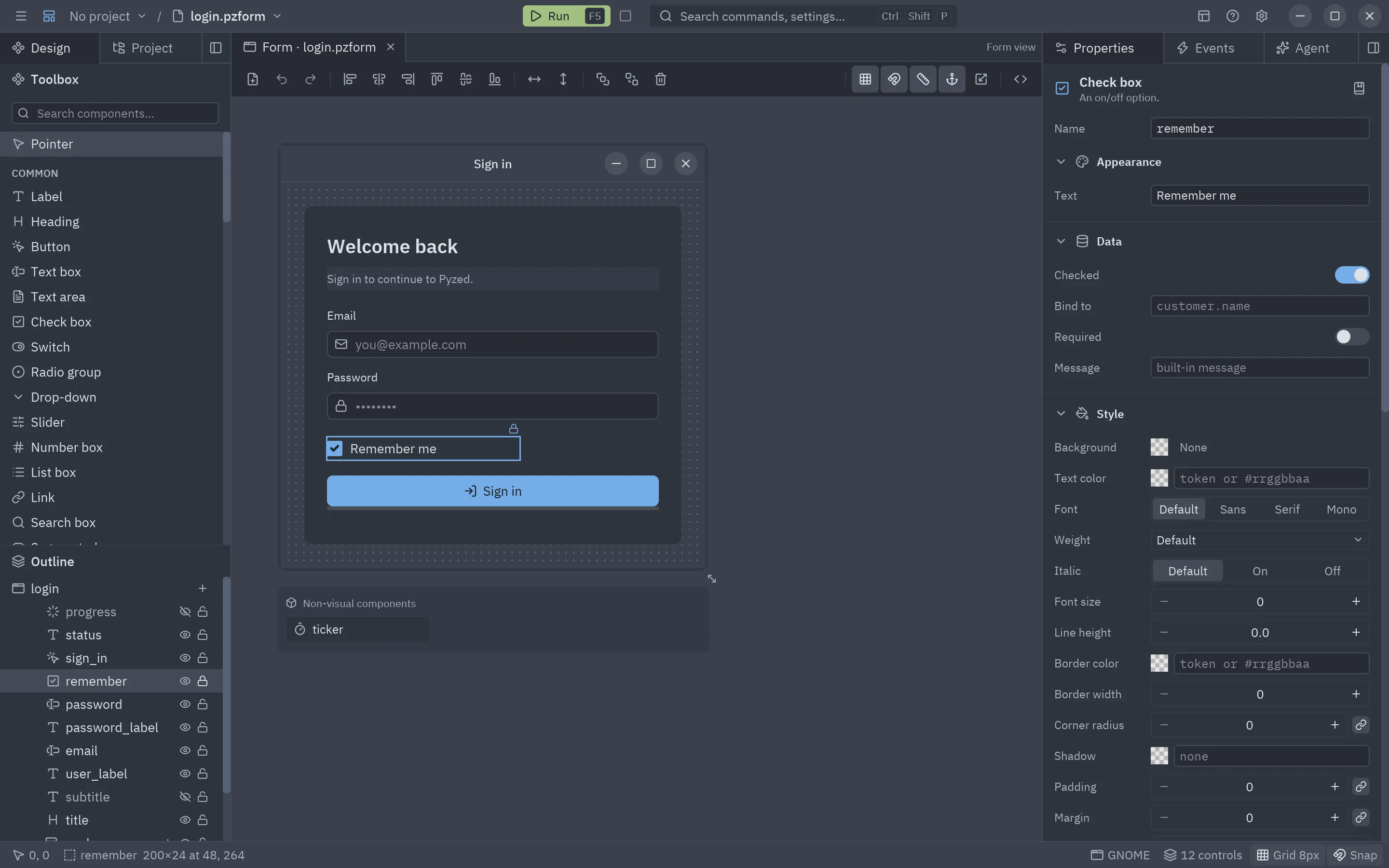
- Order: top-most first, like layers in a drawing app. Children of a flex row, a flex column or a grid are listed in their layout order instead.
- Chevron: folds or unfolds a container’s children. On a placed designed component, it lists the component’s
public properties and methods; click one to insert
form.ada.rate()(orself.stars.pick()in a component) at the code editor’s cursor, or to copy it when no code is open. - Eye: hides the control. Hidden controls are invisible when the form runs and their names are grayed in the outline. See Dialogs, drawers and other hidden controls.
- Lock: locks the control so it cannot be moved or resized by accident.
- + (containers): adds a control inside.
- Drag a row to reorder it: a line shows where it goes (before or after a row), and a frame when it would go inside a container. Drop it on the canvas to move it into the container under the pointer, or onto the form.
- Right-click a row for the context menu.

Dialogs, drawers and other hidden controls
Section titled “Dialogs, drawers and other hidden controls”A dialog, a drawer or a page that only appears when a button is pressed is a container with Visible off,
shown from code with form.status_dialog.show() (and .hide() to close it). The canvas leaves hidden controls
out, so a form with many of them does not turn into a pile of overlapping panels:
- Select it in the outline (or anything inside it). It comes up in front of the form, which is dimmed behind it, as it will look when the form runs. A chip at the top names it.
- Edit it as usual: move, resize, drop new controls into it from the toolbox, change its properties.
- Go back with Esc, the chip’s ×, or a click on the dimmed form.
To see every hidden control at once, dimmed in its place, turn on View → Show all hidden controls.
Hide a control in the editor only
Section titled “Hide a control in the editor only”If you would rather keep every control on the canvas and hide some just while you work, like layers in a drawing app, set Settings → Form canvas → Outline eye to Hidden in the editor only. The eye then hides the control (and what is inside it) on the canvas only: it stays hidden even when selected, the running form still shows it, and Visible is set in the Properties panel. Controls whose Visible is off are drawn normally in this mode. What the eye hides is saved with the form.
The status bar
Section titled “The status bar”From left to right: the pointer’s position on the form, what is selected (sign_in 344×32 at 48, 304, or
3 selected, or the form and its size) and, while a component is picked, the placing hint. On the right: the
window frame shown around the form (GNOME, macOS…: click to preview another platform’s), the
number of controls, Grid 8px (click to show or hide the grid) and Snap (click to toggle snapping). While
the code editor is open it also shows the cursor’s line and column and the state of the language servers. Hide it
with View → Status bar.