
AI agents
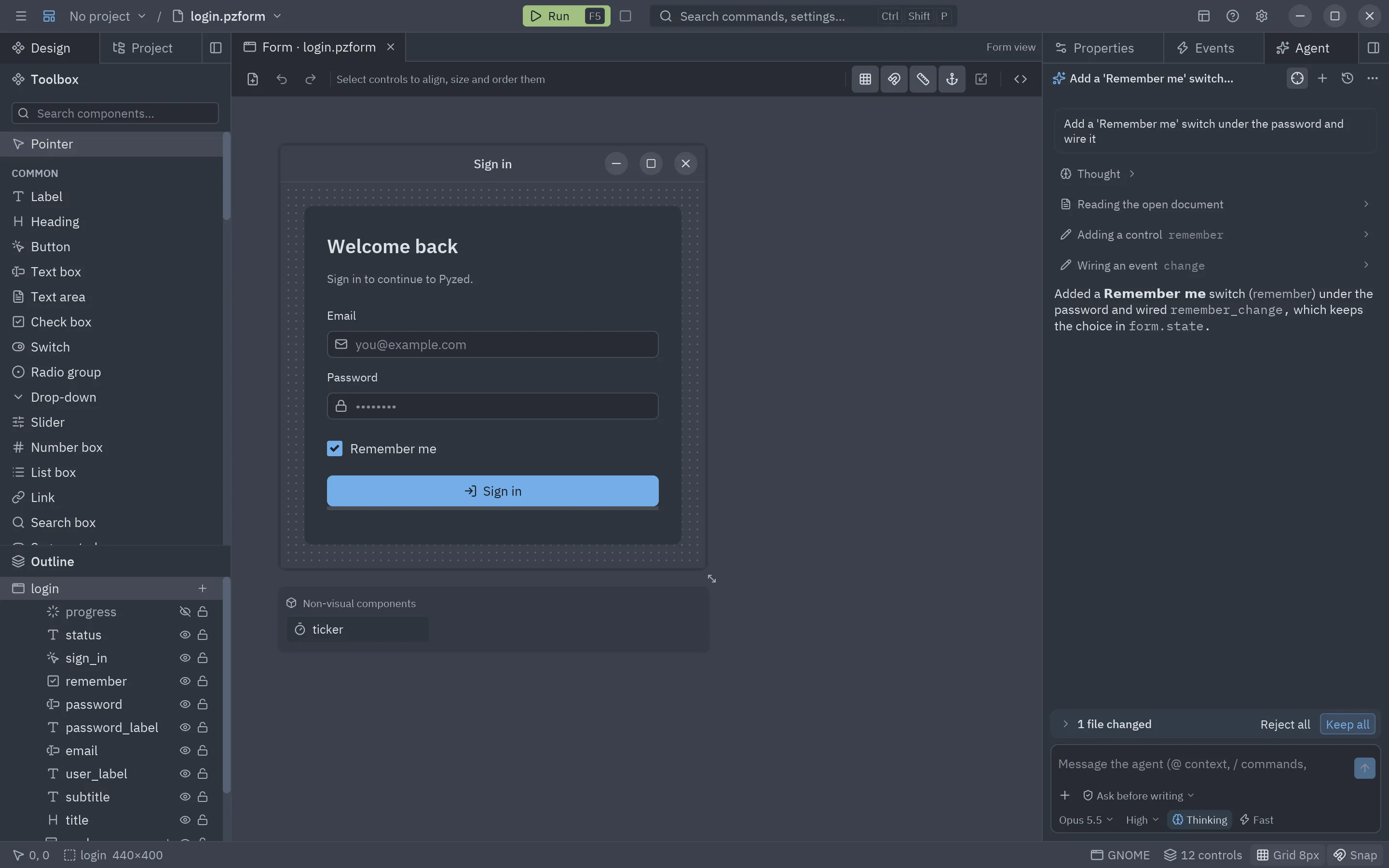
The Agent panel (right dock, next to Properties and Events) is an AI agent. Describe what you want and it reads the open form, adds and arranges controls, wires events, writes the handlers, creates new forms and components, and checks its own code. Every change it makes is an ordinary undo step, and you can reject the whole run at once.
Getting started
Section titled “Getting started”- Open the panel: the Agent tab in the right dock, View → Agent panel, or Ctrl+Alt+A.
- The first time, the panel asks you to connect a model and lists the main providers. Click one to sign in with the browser, or All providers… for the rest.
- Type what you want and press Enter, or click one of the suggestions.
Claude needs the optional dependencies (anthropic and keyring); the compiled Pyzed Design already has them:
pip install "pyzed-ui[agents]" # or: uv add "pyzed-ui[agents]"
Signing in
Section titled “Signing in”Signing in happens inside Pyzed Design; no other program is needed.
- Anthropic (Claude), OpenAI, Gemini, xAI, Mistral, DeepSeek, Groq: these providers don’t let other apps
sign in with OAuth (Anthropic’s subscription sign-in is only for its own apps), so Pyzed signs in through a
page of its own. Your browser opens a Connect … to Pyzed Design page served by Pyzed on this computer
(
127.0.0.1, a one-time address); it links to the provider’s API keys page. Create a key there and paste it on Pyzed’s page, or just click the key’s Copy button: Pyzed notices the copied key too. Pyzed checks the key with the provider, saves it in the system keychain, loads the provider’s models and comes back to the front, so you can close the tab and keep working. While it waits, a Signing in card offers Paste key (read the clipboard now), Open the key page and Cancel. The clipboard is read only while that card is showing (at most five minutes), and only a text that looks like that provider’s key is used. The local page only accepts a key sent from itself: other sites and other host names can’t reach it. To use your Claude Pro or Max plan instead of a key, see Your Claude subscription. - OpenRouter: real OAuth with PKCE. You approve Pyzed on OpenRouter’s page and the key it issues comes back to Pyzed directly; nothing to copy.
- GitHub Copilot: Sign in with GitHub uses GitHub’s device flow. Pyzed opens
github.com/login/deviceand shows a short code; type it there, approve Pyzed, and the token comes back on its own (the card has a button to copy the code, and Cancel). It reaches the models of your GitHub account and Copilot plan through GitHub Models. Signing in needs a GitHub App client ID in the provider’s settings; without one, Sign in with a token takes a fine-grained personal access token with the Models permission. - Google Vertex AI: Sign in with Google opens Google’s consent page (OAuth with PKCE) and the token comes
back to Pyzed; it is refreshed on its own. If you already ran
gcloud auth application-default login, those credentials are used and nothing else is needed. Pick the Google Cloud project (with Vertex AI enabled) in the provider’s settings, or click List my projects. - Anthropic without a key: workload identity federation exchanges a token from your identity provider for a short-lived Claude token.
- Ollama, LM Studio: nothing to sign in to. Clicking them asks the local server for its models.
You can always paste a key by hand in the settings or set the provider’s environment variable.

The panel
Section titled “The panel”| Part | What it does |
|---|---|
| Header | The thread’s title, Follow the agent (the crosshair: see Watching the agent work), + (a new thread with Pyzed Agent or with any external agent, plus Add more agents…), History and ⋯: Agent settings, Rules…, Show thinking, Copy thread as Markdown and Expand the panel (it fills the window; pick it again to put it back in its dock). |
| Thread | Your messages, the agent’s answers (Markdown), its reasoning (Thought, folded) and one line per step, as it happens: what the agent does (Adding controls, Read file…) and what it works on (the control, the file, the command). A spinner while it runs, a check when it worked, a red cross when it failed. While the model is still writing a long call, the line shows preparing…; an edit shows its diff and a command its last lines while they run. Click a line to see the tool’s input, its result and the whole diff. With nothing on screen yet, the panel says what the agent is doing (thinking, running a tool, waiting for your answer) and for how long. |
| Agent changes | After a run that changed something: the files it touched, with the lines added and removed. Keep or Reject each one, or all of them at once; Reject puts the form or code file back as it was before the run. Click a file to open it. Undo (Ctrl+Z) still steps back one change at a time. |
| Message box | Grows with the text. Enter sends and Shift+Enter starts a new line. Type @ to add context and / for commands; in their list ↑ ↓ move, Enter picks and Esc closes. While the agent works the send button becomes Stop. |
| + | Files, the form, its code, controls (an @ mention), Attach images…, Paste image and Screenshot of the form. See Images. |
| Permission mode | What the agent may do without asking (see below). With an external agent that has modes of its own (Claude Code’s Default, Accept edits, Plan mode…), its modes show here instead. |
| Model | Every provider with its models, and the external agents. A provider that is not set up shows Connect…, which signs in right there. Next to it, a small ring shows how full the model’s context window is (48k / 1M); it turns yellow past 80% and red past 95%. |
| Effort | How much the model thinks before answering: Low, Medium, High, Extra high, Max. Claude models only. |
| Thinking | Lets Claude think before answering (as deep as the effort says). Off, it answers sooner. Claude models only. |
| Fast | Fast mode: faster answers at a higher price, on Claude Opus 5.5 and Opus 5 through the Claude API. |
| Agent options | With an external agent, the options it offers, as in Zed: its models (Claude Code’s Fable 5.1, Opus 5.5, Sonnet 5.5 and Haiku 5.5), its effort (Low to Max) or reasoning level and anything else it lists. Claude Code and Codex run the latest version of their adapter, so new models show up on their own. Pyzed remembers what you pick for the next threads with that agent. |
| Permission mode | What the agent may do |
|---|---|
| Ask before writing | Edits the open form and its code freely (every change can be undone); asks before creating documents or writing files. The default. |
| Bypass permissions | Never asks. |
| Read only | Reads only: answers questions and suggests code without changing anything. |
| Chat only | No tools: a plain conversation with the model. |

Each message carries a short note of where you are (the project and its environment, the open document with its
controls and code, the selected controls, the handler in the code editor), so “align these” or “validate this
field” refer to what you are looking at. Pyzed Agent also starts out knowing the toolbox (every type with its
props and events), the themes, the pz.ui components and Pyzed’s best practices, so it builds right away instead
of looking them up first.
Adding context with @
Section titled “Adding context with @”Type @ (or click +) and pick what to attach: the selection, the open form, its code,
one of its controls, a file of the project (an image file goes as an image), or a screenshot of the
open form. Keep typing to filter the list; Enter picks the
highlighted row. What you pick shows as a chip above the message and its content goes with the message, so the
agent doesn’t have to look for it. Files that may hold secrets (.env, keys…) are never offered.

Commands with /
Section titled “Commands with /”Type / at the start of the message:
| Command | Does |
|---|---|
/new |
Starts a new thread. |
/app |
Starts a request to build a whole application. |
/history |
Shows the past threads. |
/settings |
Opens the AI agents settings. |
/form, /component |
Starts a request to generate a form or a component. |
/explain |
Explains the open form and its handlers. |
/fix |
Checks the form’s code with validate_code and fixes what it finds. |
/tidy |
Aligns the controls and evens out the margins. |
/look |
Takes a screenshot of the form, looks at it and improves its layout and design. |
What the agent can do
Section titled “What the agent can do”| Tool | Does |
|---|---|
get_document |
Reads the open form or component: settings, every control with its rect, props, events and style, the selection and the code. |
add_controls, add_control, update_control, remove_controls |
Place a whole layout in one step, or one control; change, move into a container, rename and delete controls. Types and props are checked against the toolbox. |
set_form, select_controls |
Change the form’s title, size, theme or style; select controls so you see them. |
wire_event, set_handler, set_code |
Connect events and write one handler or the whole module (it must parse). |
new_document, save_document |
Create a new form or component next to the open one and open it in a tab; save. |
list_components, describe_component, search_icons, list_themes, read_docs… |
The same knowledge as the MCP server: components, icons, themes and this documentation. |
validate_code, validate_form |
Check code and forms before handing them back. |
list_files, read_file, search_text, write_file |
Work with files of the project, never outside its folder. |
screenshot_form |
Renders the open form to a picture and looks at it, to check the layout as you see it. |
run_app |
Runs the app (the project’s main form, or another form) in the project’s own environment without showing a window, and returns what it printed (errors and tracebacks included) and a picture of its window. |
update_plan |
Shows the agent’s plan as a checklist above the message box and keeps it current. |
get_project, create_project, add_dependency, check_project, open_document |
Read the open project (forms, components, dependencies, entry point), create a new one and open it, add a package with uv, run the project’s checks and open any of its files in a tab. |
list_examples, read_example, new_form |
Pyzed’s examples to learn from, and a starting form written for a description. |
mcp_<server>_<tool> |
The tools of the MCP servers you added. |
Tools that create or write files ask first in the Ask before writing mode: a card shows Allow, Always allow and Deny. Always allow is remembered: Settings → Permissions lists those tools, and Ask again undoes it. Bypass permissions skips the question. Changes to the open document never ask, since they can be undone.
Images
Section titled “Images”The agent can look at pictures: a mock-up to rebuild, a screenshot of a bug, the form as it looks now. Add them with +:
- Attach images… opens the system’s file dialog (PNG, JPEG, GIF or WebP, up to 5 MB each).
- Paste image takes the picture you copied (a screenshot, an image from the browser).
- Screenshot of the form renders the open form and attaches it.
They show as thumbnails above the message and in the thread. Tools can answer with images too: screenshot_form
and the tools of MCP servers that return pictures. The model must take images (Claude, GPT-4.1 and later, Gemini,
most vision models of Ollama…).
Building an application
Section titled “Building an application”/app, the Create a notes app… suggestion or a plain request (“Create an app to track my expenses”) start a
whole application, not only a form. The agent knows the editor (projects, forms, components, styles, data
binding, the MCP server and these docs) and, in each message, what is open: the project
and its files, the form, the selection and the other tabs. It then:
- Makes a plan with
update_plan: a Plan card above the message box shows each step, ticks it off as it goes and folds away when everything is done (click its header to fold it yourself). - Creates a project with
create_project(or uses the open one) and adds the packages it needs withadd_dependency. - Writes the forms and components, places their controls, wires the events and writes the code, reading Pyzed’s examples and docs when it needs them, and saves them.
- Looks at each form with
screenshot_form, and runscheck_projectandvalidate_codeuntil they pass. - Runs the app with
run_app, reads its errors and the picture of its window, fixes what is wrong and runs it again until it starts cleanly. Then it tells you what it built and how to run it (F5).
It works on its own from start to end, for up to 150 model answers per message. For no interruptions, pick Bypass permissions in the mode menu; with Ask before writing it asks before writing files and before running the app.
Generating forms and components
Section titled “Generating forms and components”View → Generate a form with AI… and Generate a component with AI… (also in the command palette) open the panel with the start of the request written for you: finish the sentence and press Enter. For example:
Create a new form for a customer: name, email, a country drop-down and Save / Cancel buttons; Save validates the email and shows a toast.
The agent creates customer.pzform and customer.py, opens them, places and aligns the controls, wires the
buttons and writes the handlers. With a component it creates the .pzcomp and its class, which then shows up
in the toolbox like any component.
Inline assist
Section titled “Inline assist”In the code editor, Ctrl+Alt+I (or the ✦ button in its header) opens a bar over the code. Describe the change and press Enter: the model rewrites the handler (or the whole file, in whole-file mode) and the editor shows the result. Undo puts the previous code back, Keep closes the bar. Nothing is applied to the form until you click Apply, as with your own edits.

Settings
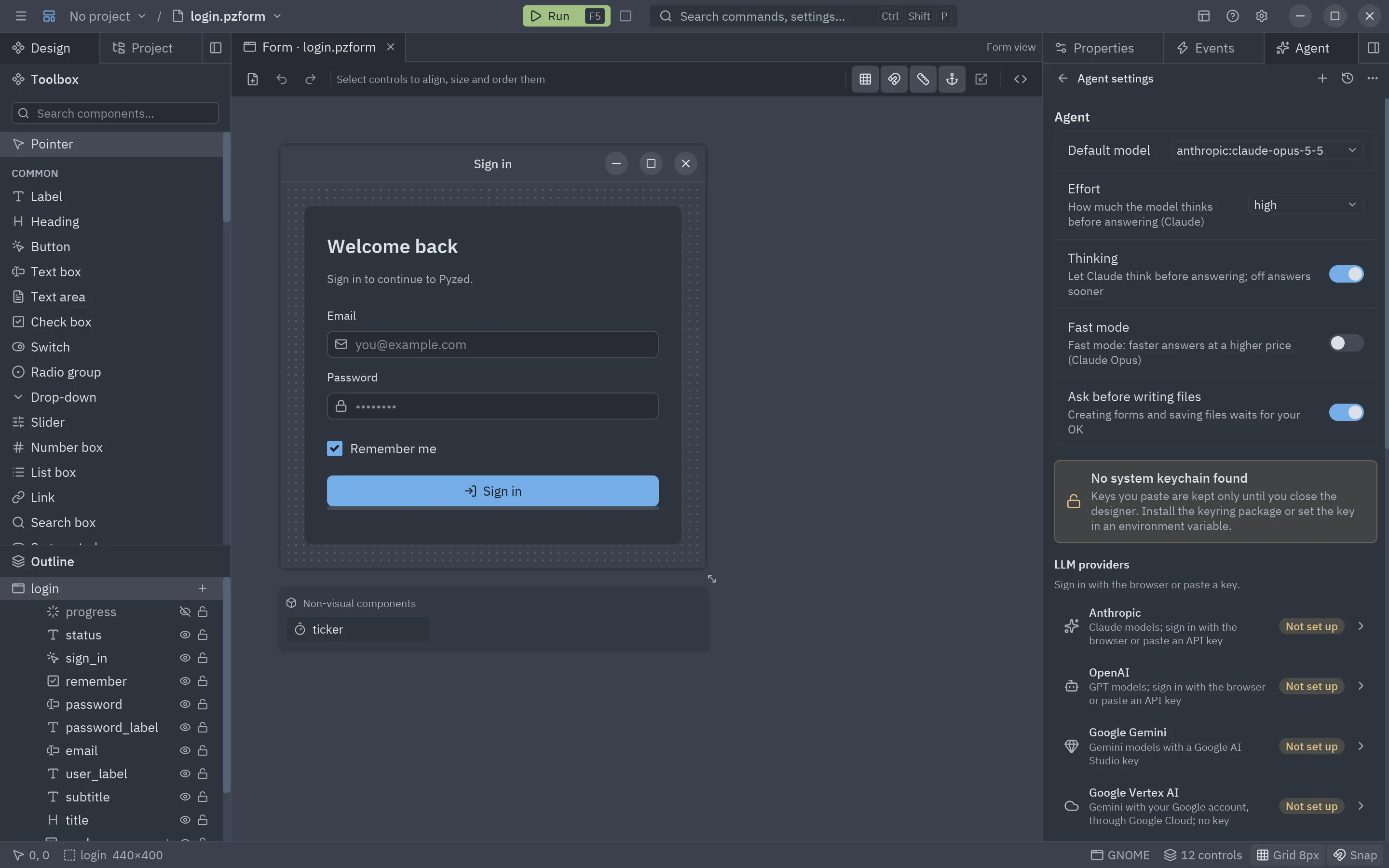
Section titled “Settings”The settings open inside the panel, as in Zed: ⋯ → Agent settings, Settings → AI agents → AI agents settings… or AI agents settings… in the command palette. The arrow in the header goes back to the thread. First come the everyday ones: the default model (with Claude’s Effort, Thinking and Fast mode when Pyzed Agent answers with Claude; an external agent’s own options are in the message box), the model providers and the permissions. Advanced unfolds the external agents, the MCP servers, the skills, the rules, Pyzed’s MCP in your agents and more options.
Providers
Section titled “Providers”| Provider | How to connect | Notes |
|---|---|---|
| Anthropic | Sign in with the browser, API key, ANTHROPIC_API_KEY or identity federation |
Claude models stream their reasoning summaries, use adaptive thinking and take effort and fast mode. An existing Anthropic CLI profile (ant auth login) is also used, but the CLI is not needed. |
| OpenAI | Sign in with the browser, API key or OPENAI_API_KEY |
|
| Google Gemini | Sign in with the browser, AI Studio key or GEMINI_API_KEY |
Through Gemini’s OpenAI-compatible endpoint. |
| OpenRouter | Sign in with the browser (OAuth), API key or OPENROUTER_API_KEY |
OAuth with PKCE: the key OpenRouter issues for Pyzed goes to the keychain. |
| xAI, Mistral, DeepSeek, Groq | Sign in with the browser, API key or XAI_API_KEY, MISTRAL_API_KEY, DEEPSEEK_API_KEY, GROQ_API_KEY |
Their models are listed after signing in. |
| GitHub Copilot | Sign in with GitHub (device flow), a fine-grained token with the Models permission or GITHUB_TOKEN |
The models of GitHub Models (openai/gpt-4.1, …) with your account’s limits. Signing in needs a GitHub App client ID (or PYZED_GITHUB_CLIENT_ID). |
| Google Vertex AI | Sign in with Google, or the Google Cloud credentials of this computer (gcloud auth application-default login) |
Gemini through Vertex AI’s OpenAI-compatible endpoint, with no key. Needs a Google Cloud project and a Location (global by default); signing in with Google needs an OAuth client (Desktop app) whose secret goes to the keychain. |
| Ollama, LM Studio | Nothing: they run on your computer | Change the Server URL if they run elsewhere. |
| OpenAI-compatible | Server URL, and a key if the server needs one | vLLM, llama.cpp, a company gateway… |
Click a provider to open it: Sign in with the browser (see Signing in), paste a key and Save, Get a key (opens the provider’s key page), Remove key, and Refresh models, which asks the provider for its list of models so they show up in the model picker.
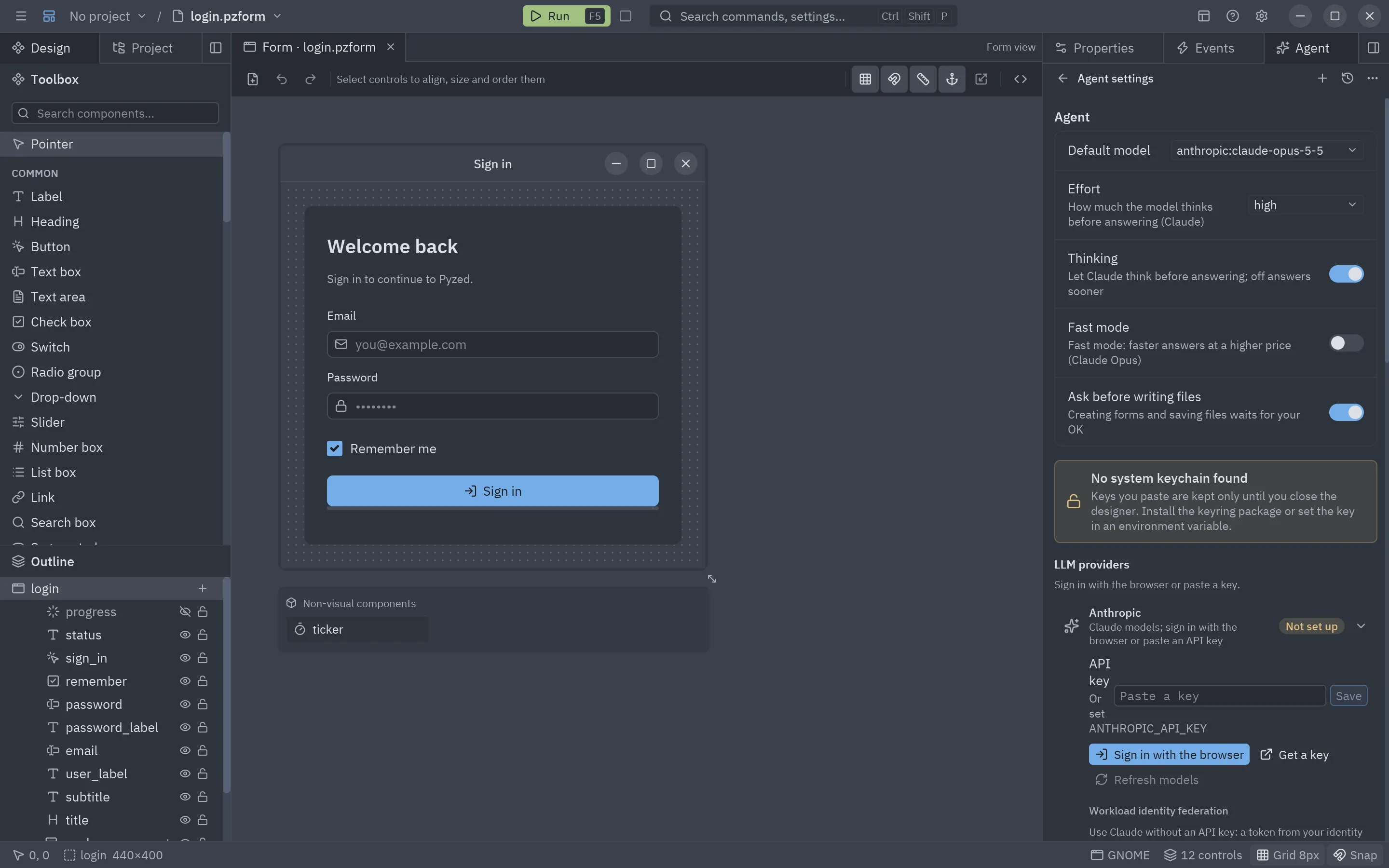
Test the connection checks the provider with what is set up and shows where the credentials come from.
Claude without an API key
Section titled “Claude without an API key”Open Anthropic and fill in Workload identity federation. A token from your identity provider (GitHub Actions, Google Cloud, Azure, Okta, Kubernetes…) is exchanged for a short-lived Claude token, so no API key is stored anywhere. First create the issuer and the federation rule in the Claude Console, then fill in:
| Field | What goes there |
|---|---|
| Federation rule | The rule’s ID, fdrl_…. |
| Organization ID | Your organization’s UUID. |
| Service account | svac_…, when the rule doesn’t name one. Optional. |
| Workspace | wrkspc_… or default. Optional. |
| Identity token | Where the token comes from: a File (the path of the JWT, or ANTHROPIC_IDENTITY_TOKEN_FILE), a Command that prints a fresh one (for example gcloud auth print-identity-token) or a Variable (ANTHROPIC_IDENTITY_TOKEN). |
A saved API key wins over federation; remove it to use federation. The ANTHROPIC_FEDERATION_RULE_ID,
ANTHROPIC_ORGANIZATION_ID and ANTHROPIC_IDENTITY_TOKEN_FILE variables work too.
MCP servers
Section titled “MCP servers”MCP servers adds the tools of any Model Context Protocol server to the agent’s. Add an MCP server asks for:
- a Name;
- the Command, as you would type it in a terminal (
npx -y @modelcontextprotocol/server-github,uvx mcp-server-fetch…), or the URL of a remote server (Streamable HTTP); - Secrets:
NAME=valuepairs separated by;, passed as environment variables (or as headers for a URL). They go to the system keychain, never toagents.json.
Test starts the server and lists its tools; the switch turns it off without removing it. Their tools show
up as mcp_<server>_<tool>. Tools the server doesn’t mark as read-only ask first in Ask before writing, like
file writes; in Read only they are left out.
External agents
Section titled “External agents”External agents run Claude Code, Gemini CLI, Codex or any agent that speaks the Agent Client Protocol inside the panel, as in Zed:
- Install from registry lists the agents of the ACP registry
with a search box. Install downloads the agent for your system (a program, or a package run with
npxoruvx) into Pyzed’s settings folder and adds it. When the registry has a newer version, its row offers Update; Uninstall removes it and its files. - Add custom agent takes any command, its arguments and its secrets.
Start a thread with an agent from the + menu, or pick it in the model picker under External agents. The switch on each row hides it without removing it.
The agent runs as its own program in the project folder and signs in its own way. When it needs a sign-in, the thread shows Sign in to … with one button per way the agent offers, as in Zed:
- In the browser (a globe): the agent opens its sign-in page and the panel waits; once you approve, Pyzed comes back to the front and sends your message.
- In a terminal: the agent’s login (for example
claude /loginorgeminiwith its login option) opens in a terminal; the panel checks every few seconds and goes on by itself when you are signed in. - With a key: the agent reads a key from a variable; Pyzed opens the page to get one and the agent’s Secrets, where it is kept in the keychain.
Under WSL the browser and the terminal are the ones of Windows. Pyzed answers its requests: it reads and writes files only inside the project and never the ones that may hold secrets, and asks before acting according to the permission mode (Read only allows only reads, Chat only refuses every tool).
With Let external agents control the editor on (the default), the agent gets the built-in agent’s tools over
MCP: it reads and changes the open form and its code, creates forms and components, runs the app with run_app,
keeps a plan and knows Pyzed’s components and docs. Its changes show up live in the editor, and Keep and
Reject work as with the built-in agent. Pyzed serves these tools on 127.0.0.1 at a one-time address with a
token only that agent receives (agents that only start local servers get a small bridge program). Its own file
and shell tools stay its own. The plan the agent follows shows in the Plan card.
Pyzed’s MCP in your agents
Section titled “Pyzed’s MCP in your agents”When Pyzed Design starts, it looks for the AI agents installed on this computer (Claude Code, Claude Desktop, Cursor, Windsurf, Gemini CLI, Codex, VS Code and Zed) and adds Pyzed’s MCP server to the ones that do not have it yet, so they know Pyzed’s components, docs and checks wherever you use them. A message then asks you to restart them: an agent reads its MCP servers when it starts. Restart agents restarts the external agents running in Pyzed; close and open the others.
Settings → Pyzed’s MCP in your agents lists each agent with Add or Remove. Pyzed adds the server once
to each agent: if you take it out, Pyzed leaves it out. Only the pyzed entry of each agent’s settings changes, a
copy of the file is kept next to it (.pyzed-backup), and comments in settings files (Zed’s and VS Code’s have
them) are kept. Turn Add it to new agents on start off to stop it. The agents start the server with
uv (uvx --from "pyzed-ui[mcp]" pyzed mcp; Pyzed Design brings its own uv).
Watching the agent work
Section titled “Watching the agent work”With Follow the agent on (the crosshair in the header, on by default), the files the agent writes open as it works: forms and components in their tab, code and other text files in the code editor, and for an external agent, the file it is editing. A file that is already open shows the new text right away, unless it has changes of yours that are not saved. The message box keeps the keyboard, so you can keep typing.
When the agent finishes, stops with an error, asks for your OK or waits for a sign-in while Pyzed Design is in the background, a desktop notification tells you. Turn it off with Notify when the agent finishes in the settings.
Your Claude subscription
Section titled “Your Claude subscription”Use my Claude subscription (first in an empty panel, and in the model picker under External agents) uses your Claude Pro or Max plan through Claude Code, Anthropic’s own agent, since Anthropic only lets its own apps sign in with a subscription:
- It needs Node.js 22 or later; without it, Pyzed opens the download page.
Pyzed finds Node also when it was installed with nvm, volta, fnm or in
~/.local/bin, even if Pyzed Design was opened from the desktop’s menu. If an answer fails because Node.js is missing, Install Node.js opens the download page and Use Pyzed Agent sends the message to Pyzed’s own agent instead. - It adds Claude Code as an external agent, picks it and lets it control the editor.
- If Claude Code is not signed in yet, it opens in a terminal: choose to sign in with your Claude account and finish in the browser. Pyzed notices the sign-in, comes back to the front and is ready.
Claude Code keeps its own sign-in; Pyzed never sees it. Usage counts toward your plan. When an answer fails because Claude Code is signed out, Sign in to Claude opens the terminal again.
Skills
Section titled “Skills”A skill is a folder with a SKILL.md file (a name and a description in its header, then instructions) and any
files it needs, the same format Claude Code and other agents use. The agent sees the name and the description of
each skill and reads the rest when a task needs it.
Pyzed finds skills in the project (.claude/skills/ and .agents/skills/), in your home folder
(~/.claude/skills/ and ~/.agents/skills/) and in its own settings folder. Skills lists them with a switch to
turn each one off. Paste the address of a Git repository and click Install, or From a folder…, to add
skills; skills installed from Git offer Update. Show in folder opens the skill’s folder.
Claude Code reads its own skills; the switches apply to Pyzed Agent.
Where keys are stored
Section titled “Where keys are stored”Keys and tokens go to the operating system’s keychain: Keychain on macOS, Credential Manager on Windows,
Secret Service (GNOME Keyring, KWallet) on Linux, under the service pyzed. They are never written to Pyzed’s
settings files, to threads, or to the project. If no keychain is available, a key you paste is kept in memory until
the designer closes, and the settings say so; use an environment variable instead in that case.
Environment variables, apps opened from the Finder or the Start menu, MCP secrets and good practices are covered in API keys and credentials.
The rest stays on your computer too: the settings in agents.json and the threads in agents/threads/, both in
Pyzed’s settings folder. Nothing is sent anywhere except the
requests to the provider you picked.
Agent options
Section titled “Agent options”| Setting | What it does |
|---|---|
| Default model | The model new threads start with. |
| Effort | How much the model thinks before answering (low … max). Claude only; high by default. |
| Thinking | Lets Claude think before answering. Off, it answers sooner. Also in the message box. |
| Fast mode | Faster answers at a higher price (Claude Opus 5.5 and Opus 5). Also in the message box. |
| Ask before writing files | Creating forms and components and saving files wait for your OK. On by default; the same as the Ask before writing / Bypass permissions modes. |
| Show thinking | Shows the model’s reasoning summaries in the thread. |
| Follow the agent | Opens the files the agent writes as it works. |
| Notify when the agent finishes | A desktop notification while the window is in the background. |
| Rules | Instructions added to every thread: “Answer in Spanish”, “Name buttons with a _button suffix”… |
| Project rules | The project’s own rules file, as in Zed: the first of .rules, .cursorrules, .windsurfrules, .clinerules, .github/copilot-instructions.md, AGENT.md, AGENTS.md, CLAUDE.md or GEMINI.md at its root. Pyzed Agent reads it in every thread of that project; Open edits it, Create AGENTS.md starts one. External agents read their own (Claude Code reads CLAUDE.md). |
Getting good results
Section titled “Getting good results”- Start from the screen, not the widgets. “A customer form: name, email, a country drop-down and Save / Cancel; Save validates the email and shows a toast” gives the agent the goal and the rules at once.
- Select, then ask. Select a group of controls and say “put these in a row with 8 px spacing”.
- Use @ for precision.
@email_inputplus “only accept company addresses” leaves no doubt about which control. - Show it a picture. Attach a mock-up or a screenshot of the bug, or ask for
/lookto have it check the form. - Let it check itself. Finish requests with “then run /fix”, or ask it to validate before it answers.
- Keep rules in the settings. Rules are added to every thread: “Answer in Spanish”, “Use the Gruvbox Dark theme”.
- Review, then keep. After a run, Agent changes offers Keep or Reject for the whole run.
More prompts that work well are in the prompting guide.
History
Section titled “History”History in the header lists your threads grouped by date (today, yesterday, this week…), with a search box and the agent of each thread. Click one to continue it (the agent remembers the whole conversation), or delete it. The last 200 threads are kept.
Working on the active project
Section titled “Working on the active project”The agents work on the project you have open: its folder is where they read and write files, where external agents and MCP servers start, and where skills and project rules are looked up. Each message also tells them where the project lives (this computer, or a WSL distribution such as Ubuntu, where commands run in Linux), its Git branch and the other projects of the window, so a project in WSL is treated as Linux from the start.
Each project has its own threads, like in Zed: switching to another project (the project picker in the title bar) opens a new thread there and the history shows that project’s threads. The thread you were in stays in its own project’s history. A run that is still going finishes on the project where it started.
Using agents in your own app
Section titled “Using agents in your own app”The agent is not tied to the designer: pyzed.agents gives any app the same providers, keychain storage and
agent loop. See AI agents in your app.