Recording screenshots and clips
pyzed record films your app off-screen: no window, display or GPU needed. The pointer, the
keyboard and the clock are simulated, so hover and press states, tooltips, typing and animations show up
as they do in a window, and a clip comes out the same on every machine. Every image and animation in this
documentation is made this way.
One screenshot or one clip
Section titled “One screenshot or one clip”uv run pyzed record shot app.py -o app.png --size 800x600uv run pyzed record clip app.py --steps "hover('Save'); press(); wait(600)" -f webp,gif,mp4pyzed record shot app.py -o app.png --size 800x600pyzed record clip app.py --steps "hover('Save'); press(); wait(600)" -f webp,gif,mp4python3 -m pyzed.recording shot app.py -o app.png --size 800x600python3 -m pyzed.recording clip app.py --steps "hover('Save'); press(); wait(600)" -f webp,gif,mp4py -m pyzed.recording shot app.py -o app.png --size 800x600py -m pyzed.recording clip app.py --steps "hover('Save'); press(); wait(600)" -f webp,gif,mp4What to record (the target):
app.pyorapp.py:MyApp: apz.Appin a file (without a name, the file’sappor the last App it defines).package.module:MyApp: the same, from an importable module.login.pzform/card.pzcomp: a form or component made with the designer.code:ui.button('Save', None): a snippet whose last line is the widget.
Options separated by commas record every combination: --theme "Pyzed Dark,Pyzed Light" --scale 1,2 makes
four files, named app.pyzed-dark.1x.png, app.pyzed-dark.2x.png… (-o takes {name}, {variant},
{theme}, {size}, {scale}, {fps} and {ext}).
| Option | |
|---|---|
-f, --formats |
webp (animated), png (a still), gif, apng, mp4, webm (the last two need ffmpeg) |
--size, --scale, --theme, --fps |
the canvas in logical pixels, pixels per logical pixel, themes, frames per second |
--steps, --duration |
what happens (below) and milliseconds to film after it |
--crop |
trim the clip to what is drawn, plus --margin pixels |
--max-bytes, --max-width |
lower the quality until each file fits, scale wide clips down |
--poster |
also write the first frame as a still .still.webp (for “reduce motion”) |
--renderer |
auto, gpu or cpu (see Speed) |
Steps move the pointer and the keyboard while the frames are filmed, one per line or separated by ;:
hover("Save") # glide to the text "Save" and staypress() # click where the pointer is (or press("Save"))drag("@0.2,0.5", "@0.8,0.5") # points relative to what is drawntype_text("Ada", cps=12) # type into the focused fieldkey("Enter") # or key("s", "ctrl")scroll(3) # the wheel, three lines downwait(600) # time passes: animations and spinners moveleave() # the pointer leavestheme("Pyzed Light") # switch themes mid-clipA target is a text on screen ("Save"; "1#1" is the second text "1", in reading order), a point
(x, y), "@0.25,0.5" (relative to what is drawn), "input" / "input:1", "center", or
("Save", 0, 30) to aim beside a text. Only these steps and plain values are allowed, so a job file never
runs other code.
Many at once: job files
Section titled “Many at once: job files”A job file lists recordings in TOML (or JSON). Lists in a job record every combination, and formats
writes one recording in several formats:
out_dir = "media"              # next to this file
[defaults]theme = ["Pyzed Dark", "Pyzed Light"]formats = ["webp", "png"]
[[job]]name = "counter"target = "../counter.py"steps = """hover('1#1')press()wait(500)"""
[[job]]name = "login"target = "../designer/login.pzform"size = "640x420"scale = [1, 2]formats = ["png"]
uv run pyzed record batch examples/recording/jobs.toml # every jobuv run pyzed record batch examples/recording/jobs.toml counter # only someuv run pyzed record batch examples/recording/jobs.toml --dry-run # list the files it would writepyzed record batch examples/recording/jobs.toml # every jobpyzed record batch examples/recording/jobs.toml counter # only somepyzed record batch examples/recording/jobs.toml --dry-run # list the files it would writepython3 -m pyzed.recording batch examples/recording/jobs.toml # every jobpython3 -m pyzed.recording batch examples/recording/jobs.toml counter # only somepython3 -m pyzed.recording batch examples/recording/jobs.toml --dry-run # list the files it would writepy -m pyzed.recording batch examples/recording/jobs.toml # every jobpy -m pyzed.recording batch examples/recording/jobs.toml counter # only somepy -m pyzed.recording batch examples/recording/jobs.toml --dry-run # list the files it would writeThe batch runs one process per CPU core (--jobs N to choose) and skips what didn’t change: a cache
in out_dir remembers the settings and the target file behind each output. --force records everything
again (do it when a module the app imports changed). A job that fails is reported and the rest go on;
--json prints one line per recording for other tools.
The whole list of settings is in the docstring of pyzed.recording.batch, and
examples/recording/jobs.toml
is a complete example.
The recorder window
Section titled “The recorder window”uv run pyzed record gui examples/recording/jobs.tomlpyzed record gui examples/recording/jobs.tomlpython3 -m pyzed.recording gui examples/recording/jobs.tomlpy -m pyzed.recording gui examples/recording/jobs.toml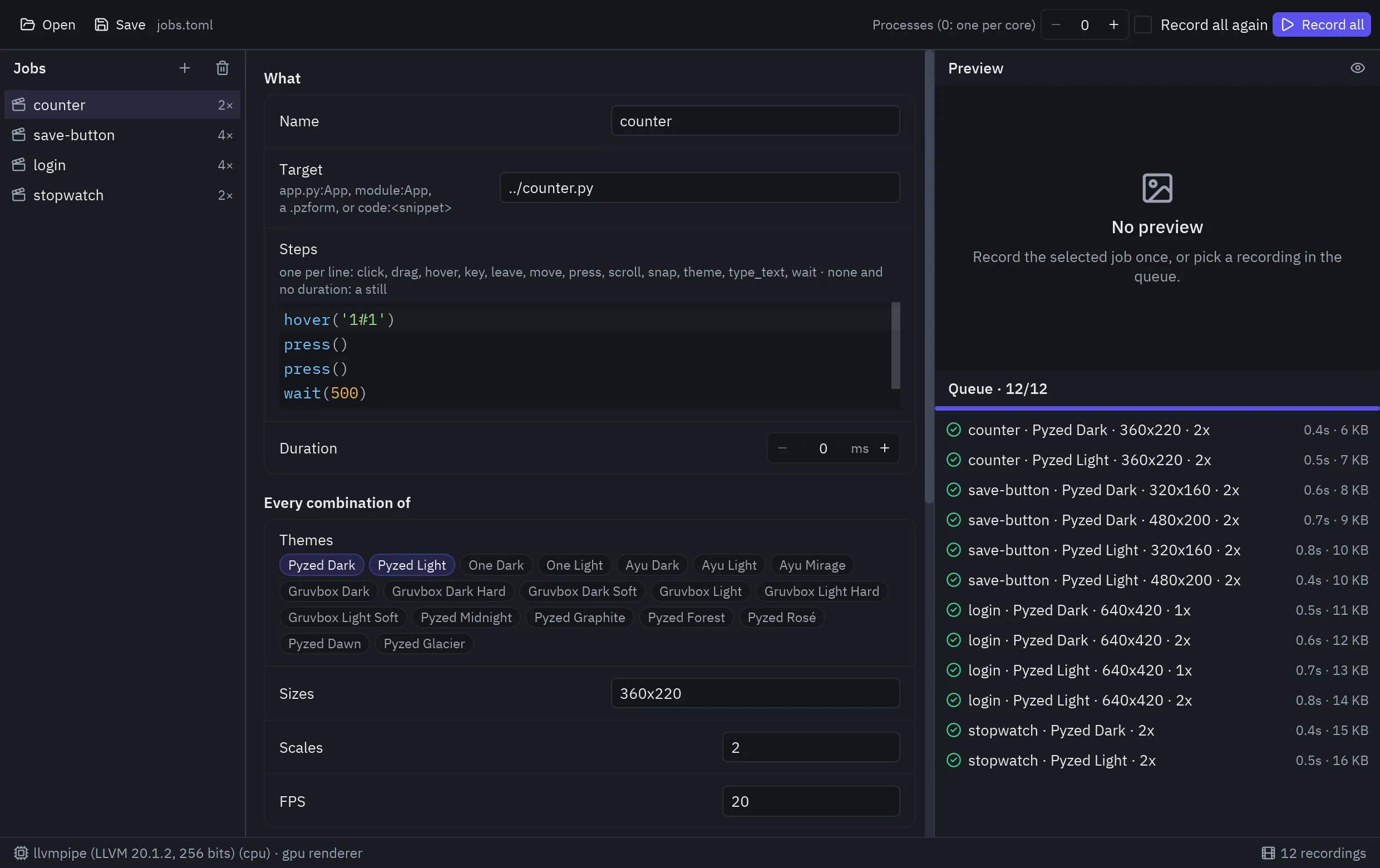
The jobs are on the left, the selected job’s settings in the middle (themes and formats are toggles), and the preview and the queue on the right. Preview records the selected job once; Record all runs the batch in other processes, so the window keeps responding and Stop ends it. Click a finished recording to see it. Save writes the job file the command line reads.
From Python
Section titled “From Python”from pyzed import recording as rec
take = rec.record(MyApp, [rec.hover("Save"), rec.press(), rec.wait(600)], size=(480, 270), fps=20)rec.encode(take.images(), "save.webp", "webp", fps=take.fps, target=200_000)rec.screenshot(MyApp, size=(800, 600)).save("app.png")take.images(pointer=False) leaves the pointer out, and rec.crop_box(...) finds what is drawn.
- Each process keeps its renderer (a GPU device and its pipelines) between recordings, so a batch pays for it once. A clip’s frame builds the view twice, not three times, and goes to the encoder as pixels, with no PNG in between.
- WebP is encoded with effort 4: effort 6 takes ten times as long for files about 2 % smaller. The quality
that fits
max_bytesis found by bisection, in three or four tries. --renderer autodraws with the GPU when there is one, a software Vulkan driver (lavapipe) included, so recordings look the same everywhere. On a machine whose GPU is a software one (pyzed record infosays so),--renderer cpuis two to three times faster for drafts, but blur, glow and glass come out a little different andpz.shadershows its fallback color.
On a 4-core machine with lavapipe, the docs’ animation clip overview (120 frames at 1520×720) went from
162 s to 26 s.