
The Shader view
The third kind of document of Pyzed Design is a shader: a GPU effect built by wiring nodes, saved as a .pzshad
file. It opens in the Shader view, a node editor in the spirit of Godot’s visual shaders and Unreal Engine’s
material editor. This page shows how the view fits in the editor; the Shading section teaches
shaders themselves and lists every node.
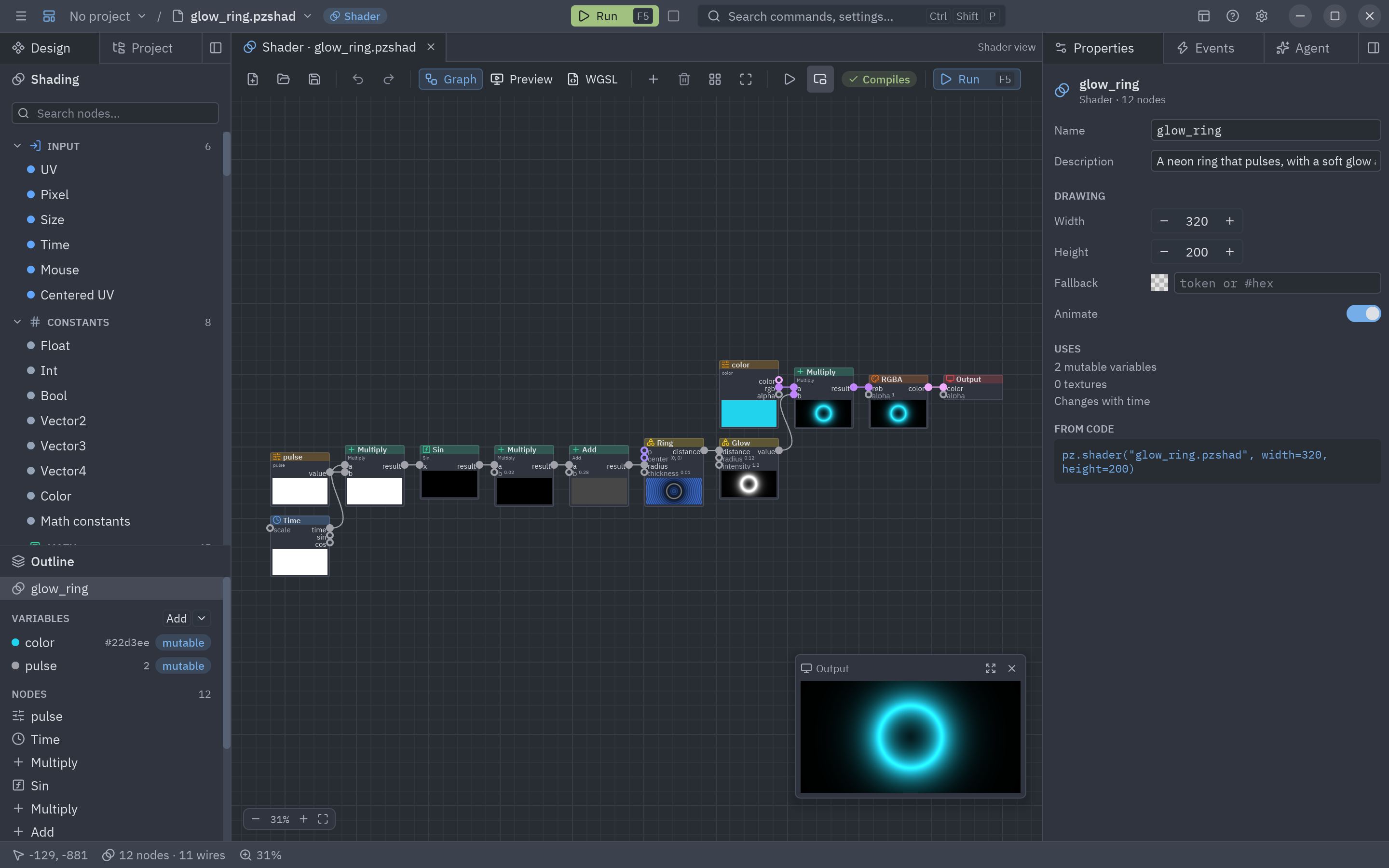
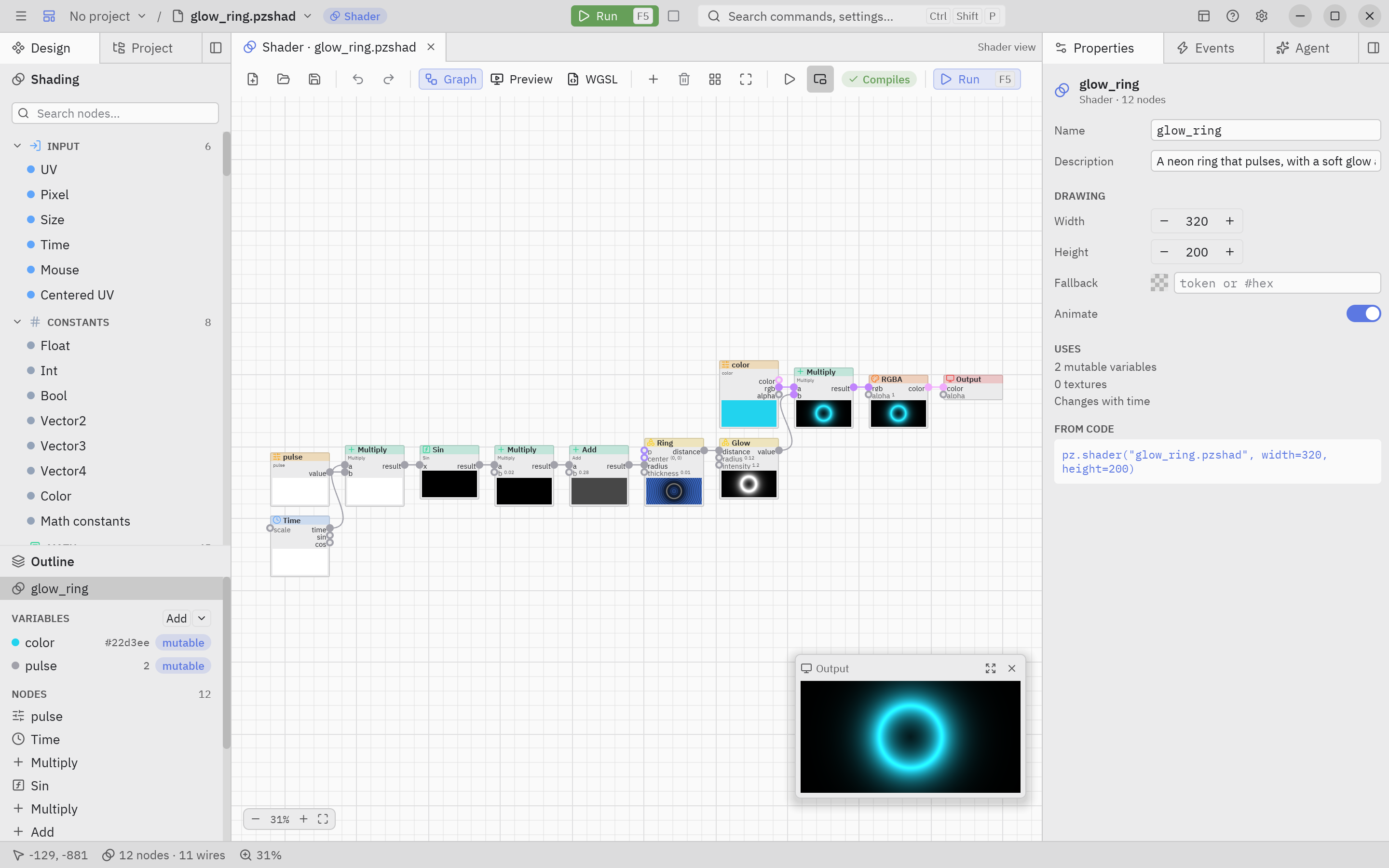
How the editor changes in a shader
Section titled “How the editor changes in a shader”| Area | In the Shader view |
|---|---|
| Title bar | A Shader badge after the file name. Run opens the shader in a window that follows your edits. |
| Left dock: Design | The Shading sidebar (every node by category, with a search box) and the Outline: the shader’s variables, its named values and its nodes. |
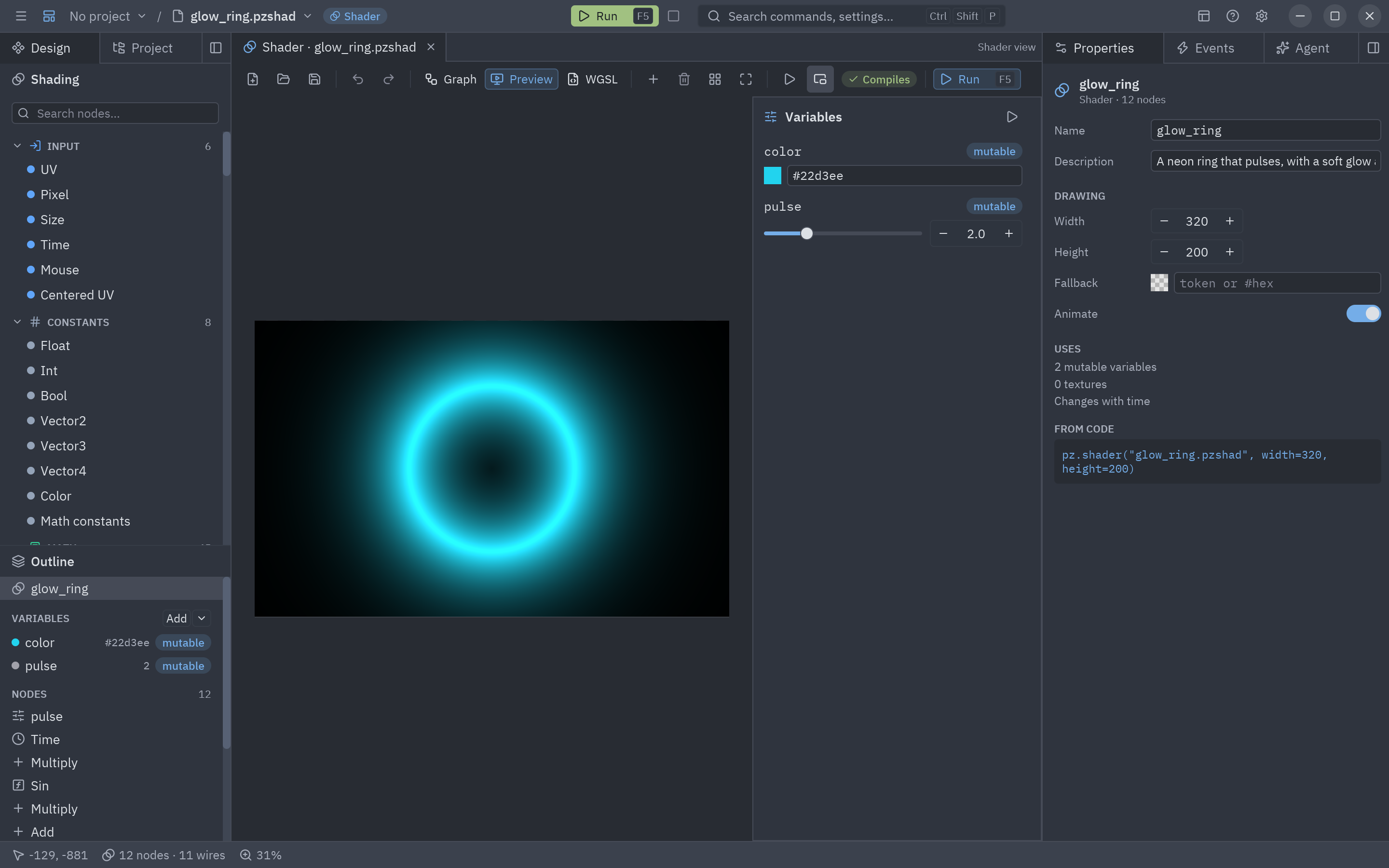
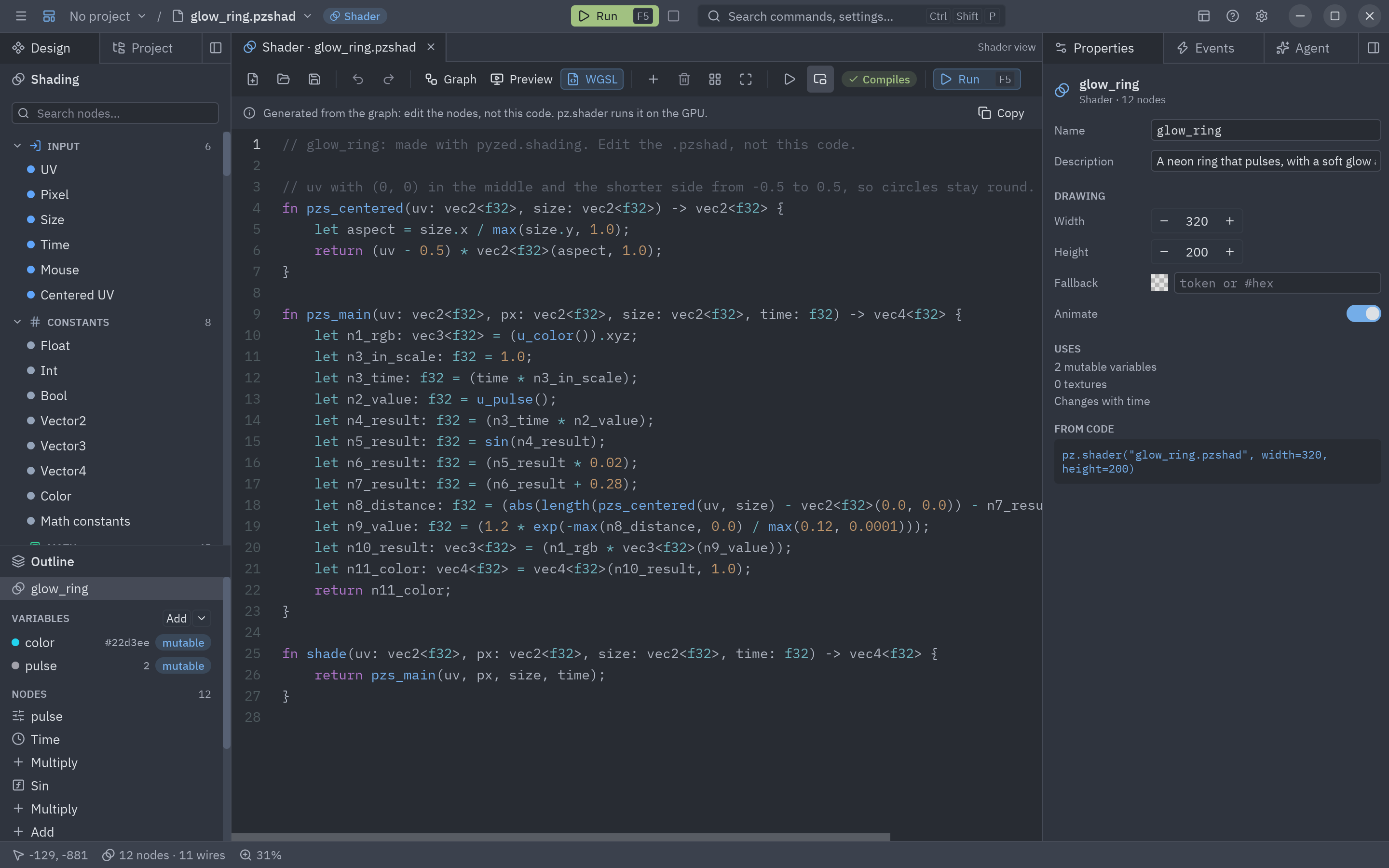
| Center | Three tabs: Graph, Preview and WGSL, with the shader’s own toolbar. |
| Right dock: Properties | The selected node (its settings, inputs and outputs), the selected variable, or the shader itself when nothing is selected. |
| Events | Says that shaders have no events, and how to use this one: pz.shader("fire.pzshad") or a Shader control on a form. Its variables are what your code changes. |
| Status bar | The pointer’s position on the graph, how many nodes and wires there are (or how many are selected), and the zoom (click it for 100%). |
The three tabs of the center:
The toolbar
Section titled “The toolbar”| Button | Keys | Does |
|---|---|---|
| New shader, Open, Save | Ctrl+O, Ctrl+S | File commands. |
| Undo, Redo | Ctrl+Z, Ctrl+Shift+Z | Every change to the graph. |
| Graph, Preview, WGSL | The three tabs of the view. | |
| Add a node | Shift+A | Opens the node search where the pointer is. |
| Delete | Delete | Removes the selected nodes. |
| Arrange nodes in columns | Ctrl+L | Tidies the graph from inputs (left) to Output (right). |
| Fit everything | F | Zooms to show the whole graph. |
| Stop time / Start time | Freezes every preview at one moment, to study a frame, and starts it again. | |
| Small preview | Shows or hides the Output preview in the corner of the graph. | |
| Compiles / N problems | Hover to read the problems; the node at fault turns red. | |
| Run | F5 | The shader in a window of its own. |
Three quick gestures
Section titled “Three quick gestures”- Add a node: double-click the canvas and type its name, or drag it from the Shading sidebar.
- Wire: drag from an output (right side of a node) to an input (left side). Drop a wire on empty space to add a node already connected to it.
- Change a value: an input with no wire shows its value on the node; type a number or pick a color there.
Every gesture and shortcut is in the full Shader view reference.