
Views and documents
Pyzed Design edits four kinds of document. Each opens in its own view: the same window, but the left dock, the toolbar, the center and the Properties panel change to fit what you are making. The tab row tells you which view is in front, and the title bar shows a Component or Shader badge when it is not a form.
| Document | File | Opens in | Think of it as |
|---|---|---|---|
| Form | login.pzform + login.py |
Form view | A window of your app, like a Visual Basic form or a Qt Designer .ui. |
| Component | rating.pzcomp + rating.py |
Component view | A reusable piece placed in forms, like a Godot scene or an Unreal widget blueprint. |
| Shader | fire.pzshad |
Shader view | A GPU effect made of nodes, like Godot’s visual shaders or Unreal’s material editor. |
| Code and text | *.py, *.toml, *.md… |
Code editor | The Python behind everything, with completion and diagnostics. |
All files are plain text (JSON or Python), so they diff well in git and you can open them in any other editor.
flowchart LR
    N["New (Ctrl+N)"] --> F[Form] & C[Component] & S[Shader]
    F -->|"place it"| C
    F -->|"Shader control"| S
    C -->|"Shader control"| S
    F & C -->|"double-click a control"| K[Code editor]
Form view
Section titled “Form view”For: the windows of your app: a login, a settings page, a dashboard, a dialog.
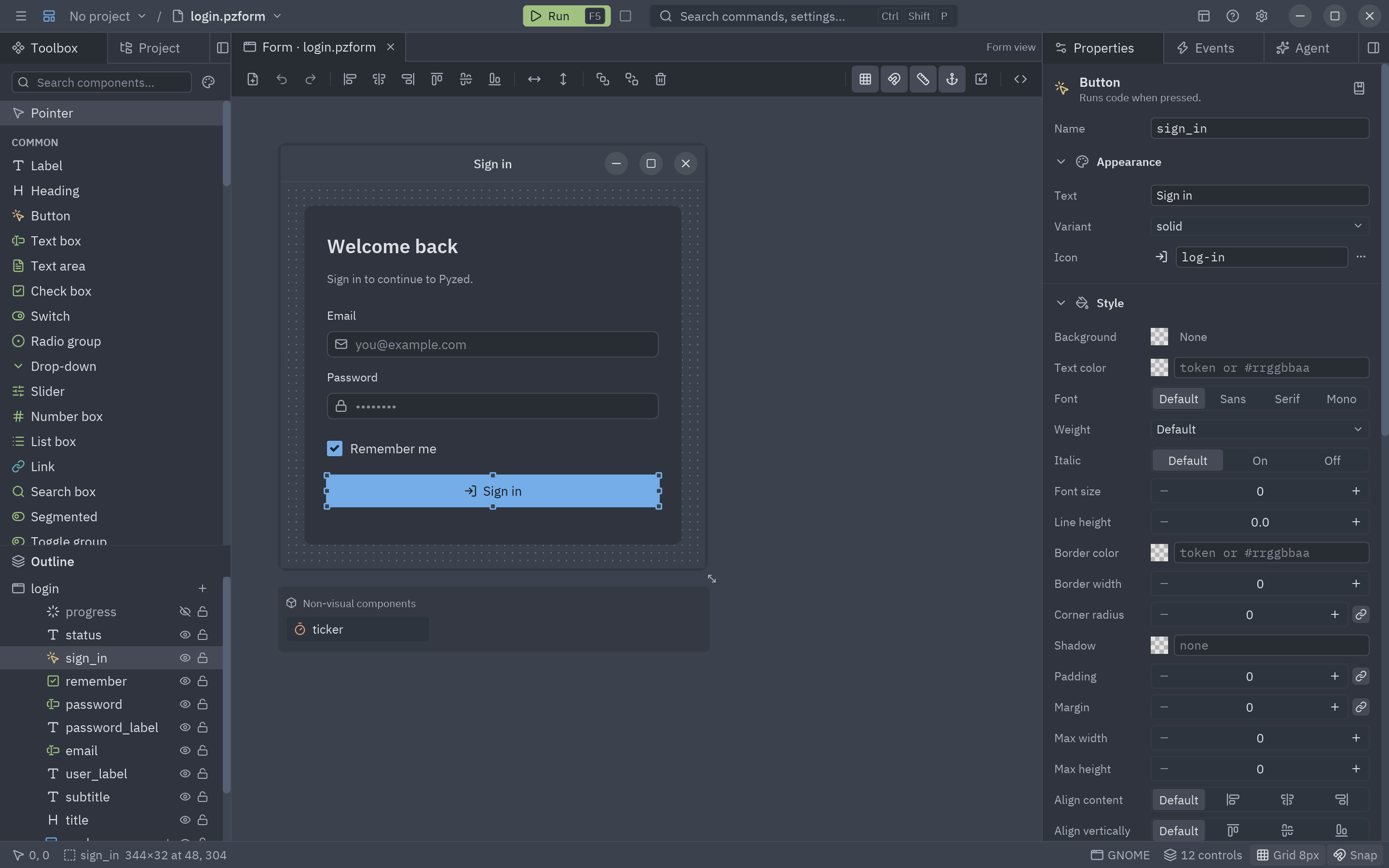
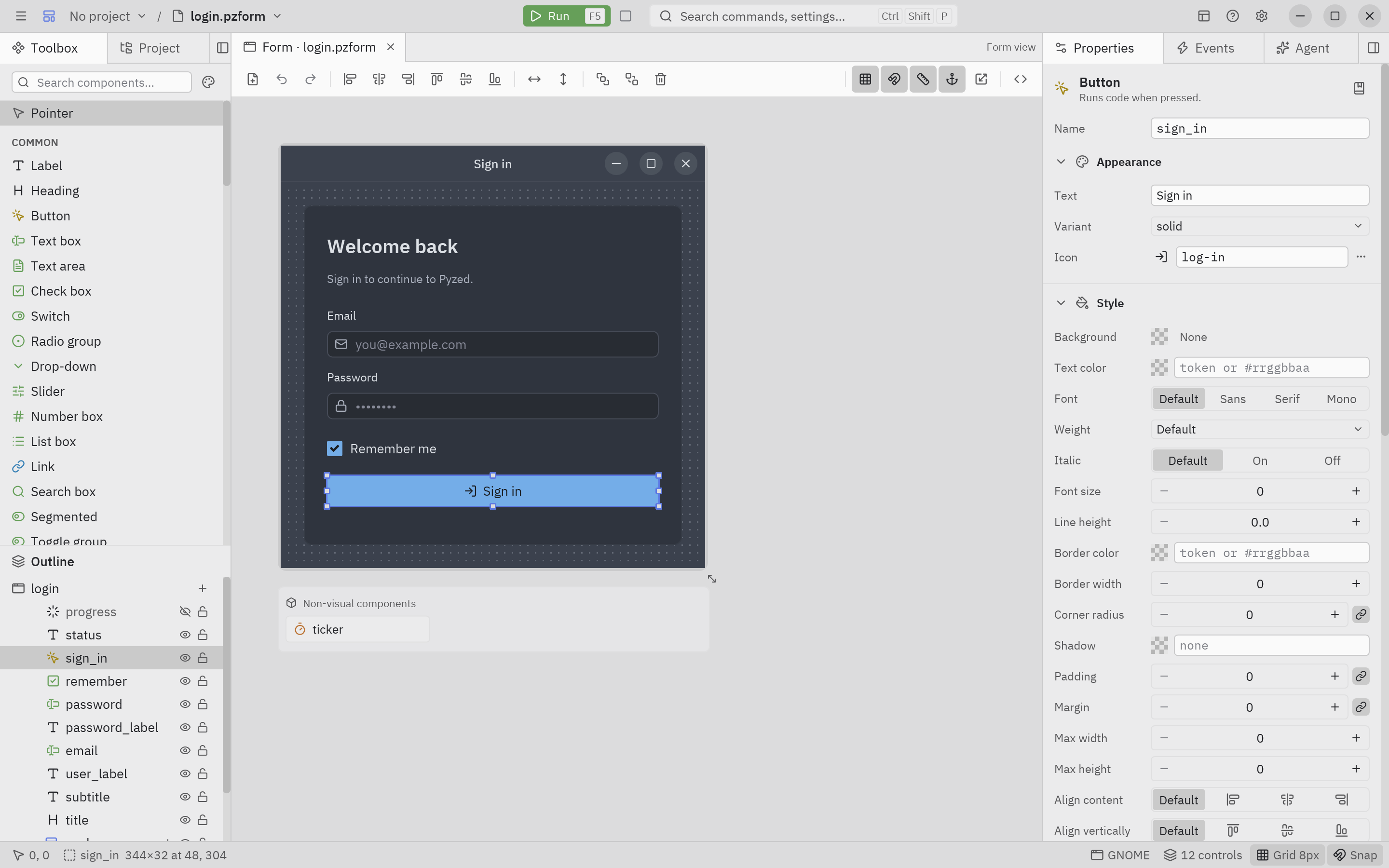
- Left dock: the Toolbox with every control, and the Outline of the form.
- Center: the form drawn in a window frame, with a dot grid, handles and smart guides.
- Right dock: Properties and Events of the selection (or of the form when nothing is selected).
- Run (F5) opens the form as a real window with its Python handlers.
Read The Form view for a guided first form.
Component view
Section titled “Component view”For: pieces you use many times: a star rating, a profile card, a product tile. A component has no window; it lives inside forms and other components.
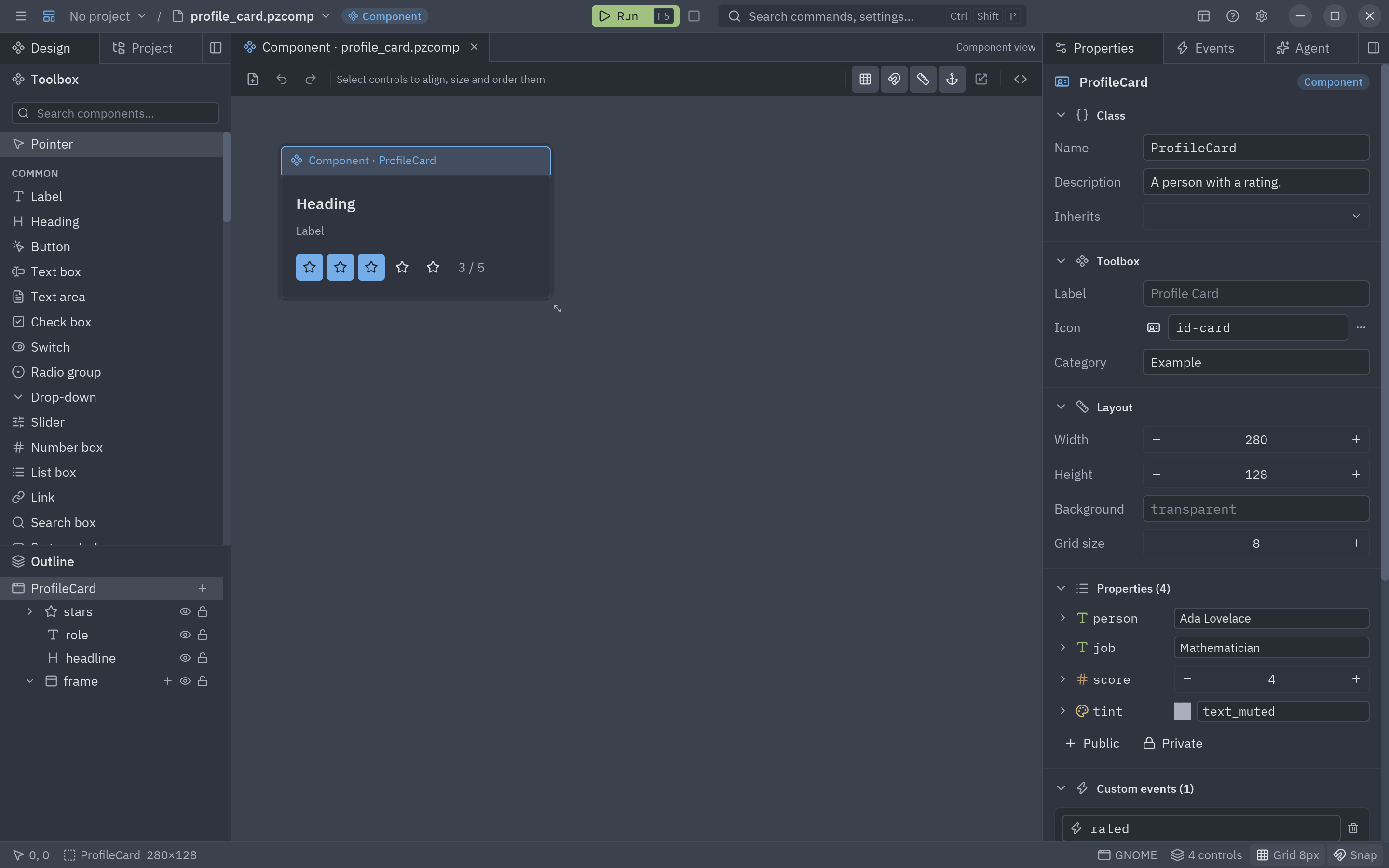
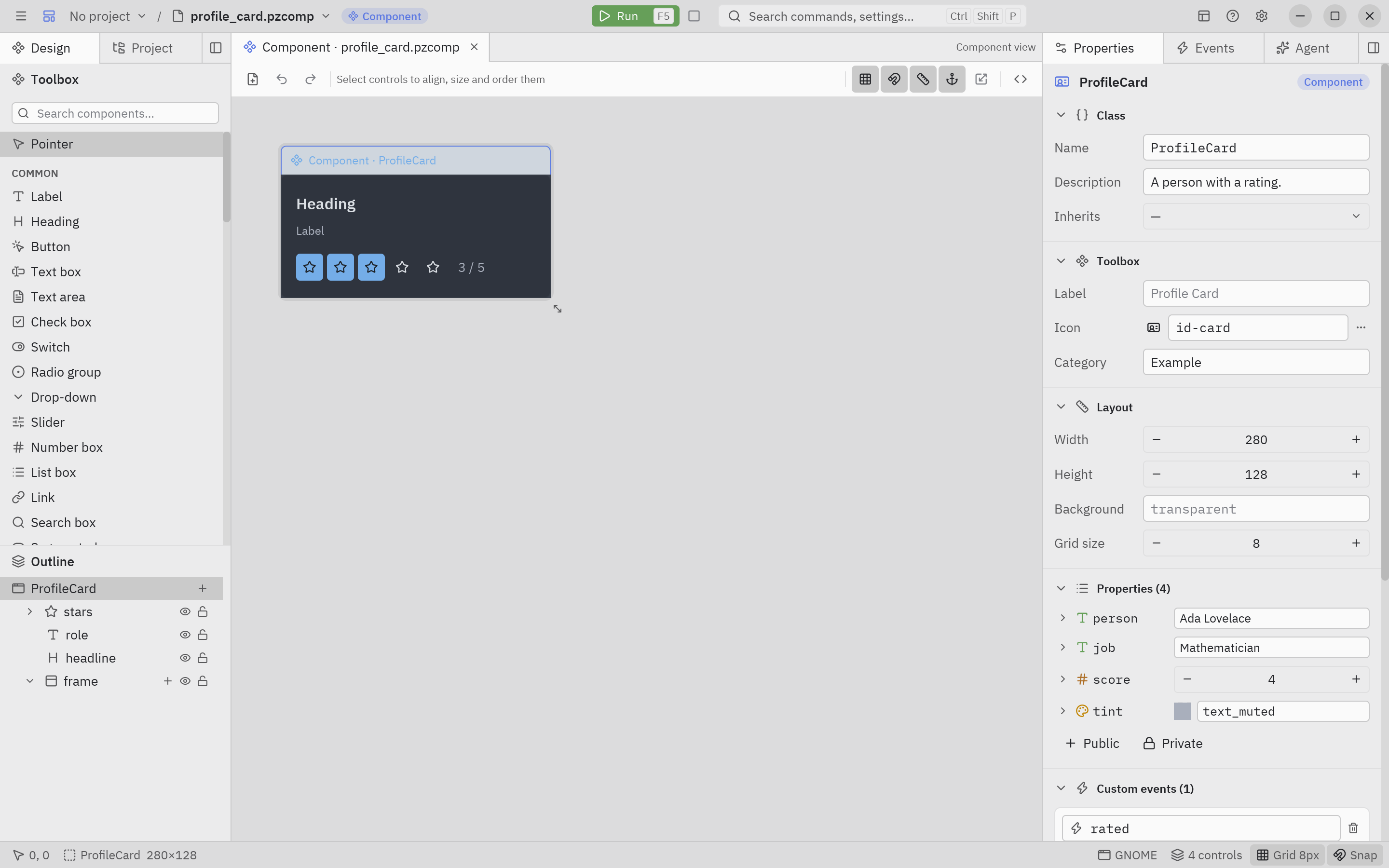
- The same toolbox and canvas as a form, but the canvas shows an accent frame with the class name instead of a window, and the title bar a Component badge.
- With nothing selected, Properties shows the Component panel: the class name, how it shows in the toolbox, its typed properties and its methods. Its custom events are in the Events tab, below the built-in ones.
- Run previews the component alone in a window.
- Double-click a component placed on a form to open it in its own tab.
Everything is in The Component view.
Shader view
Section titled “Shader view”For: animated backgrounds, glows, transitions and game visuals drawn by the graphics card.
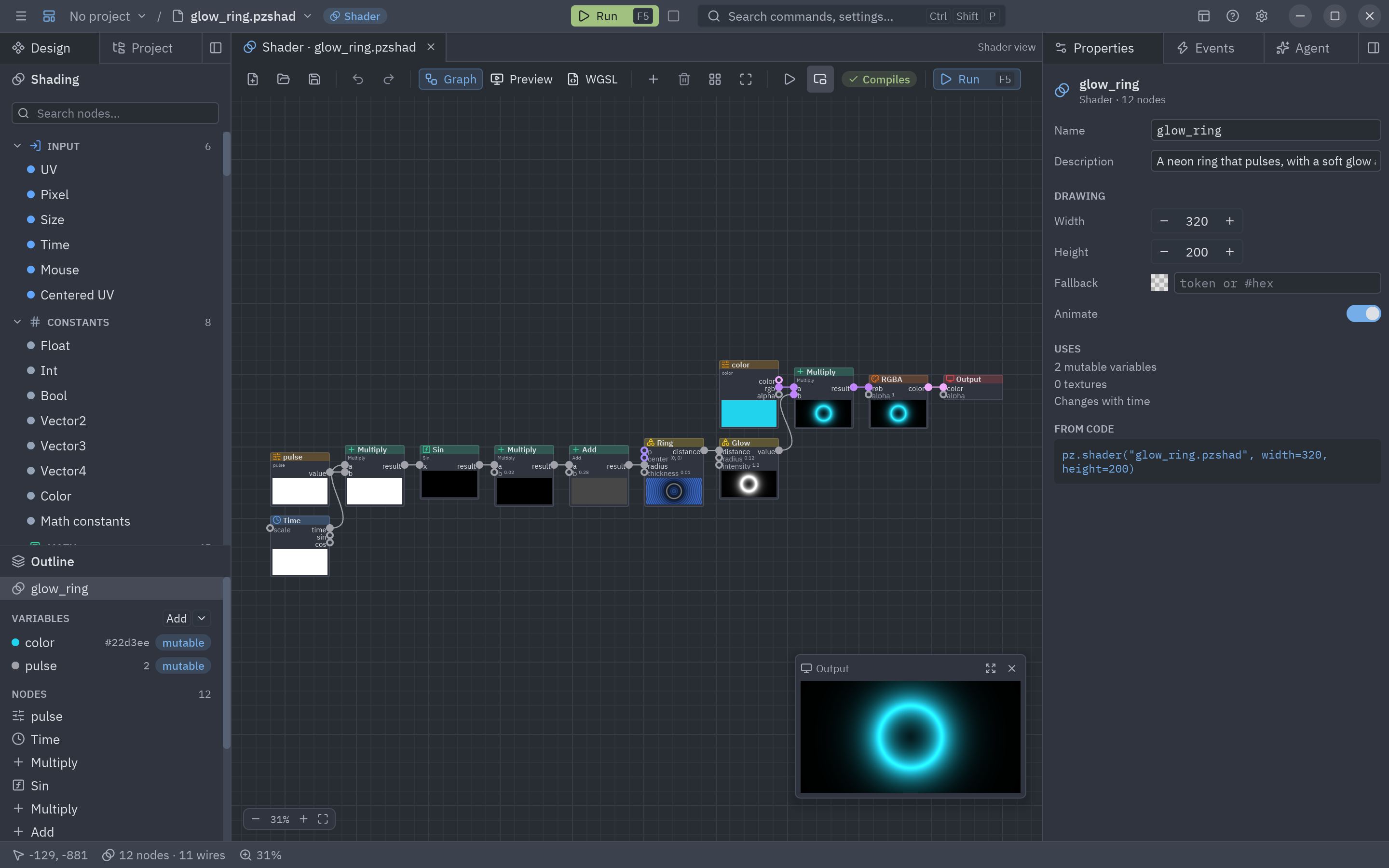
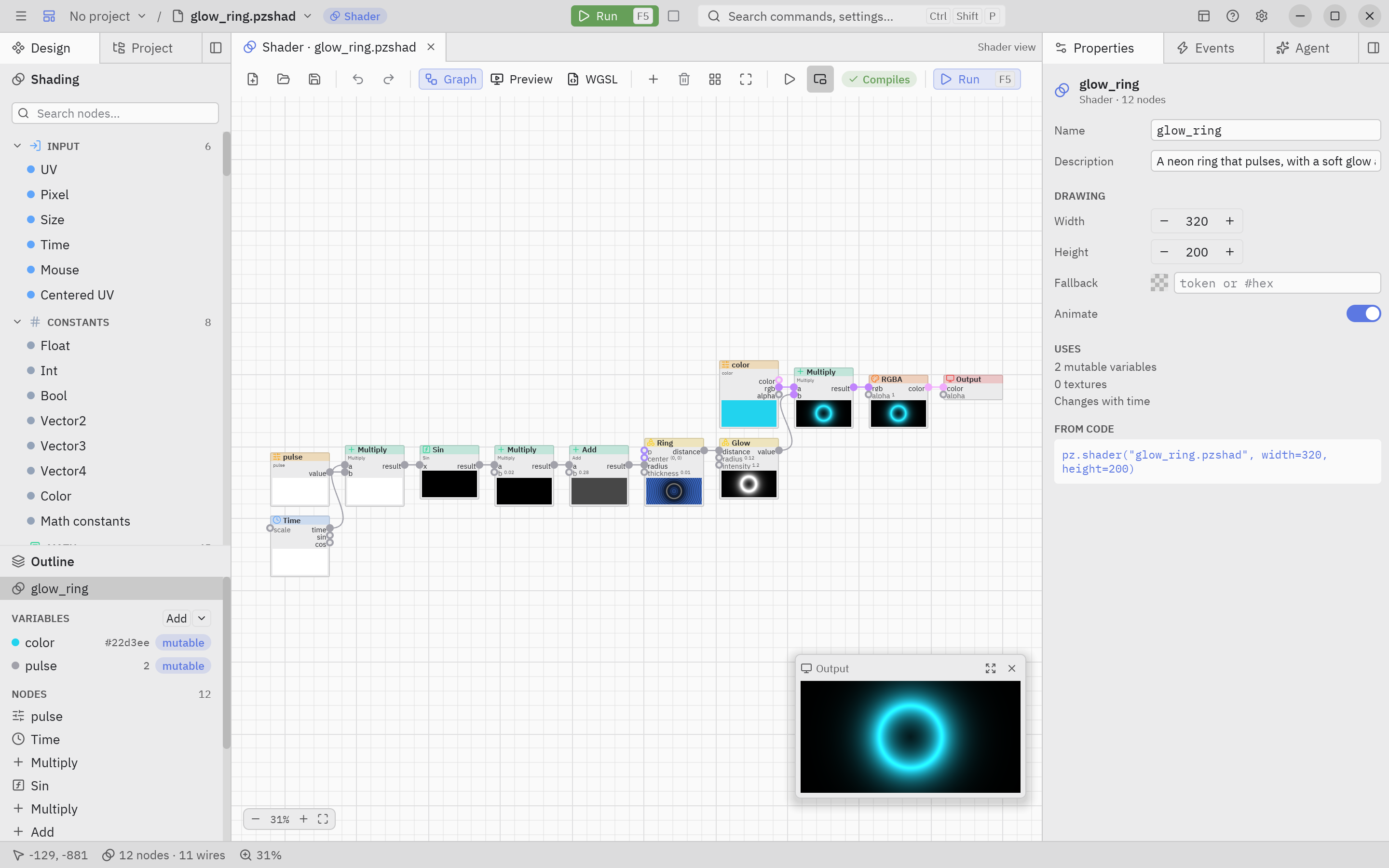
- Left dock: the Shading sidebar (every node, by category) and the Outline of variables, named values and nodes.
- Center: three tabs: Graph (the nodes), Preview (the result large, with a control per variable) and WGSL (the generated code, read only).
- Properties: the settings and inputs of the selected node, of a variable, or of the shader itself.
- Run opens the shader in a window that follows your edits.
Start with The Shader view in this manual, or go straight to the Shading section.
Code editor
Section titled “Code editor”For: the Python of every form and component (their event handlers and methods) and any text file of the project.
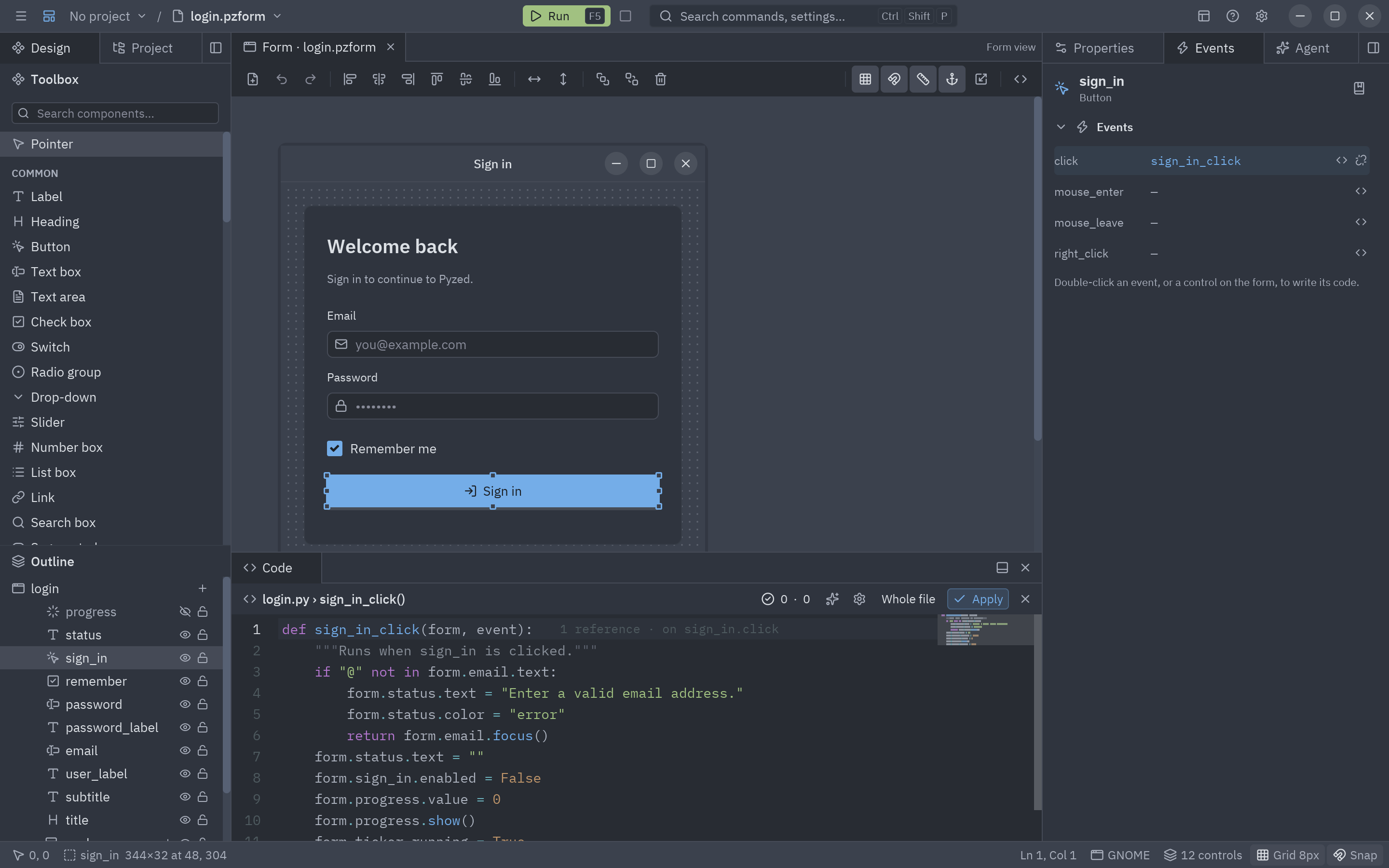
- Opens in the bottom dock when you double-click a control or an event, press F7 for the whole file, or click a file in the Project panel. Each file is a tab of the Code panel.
- Completion, diagnostics, code lens, folding, a minimap, multiple cursors, find and replace, and key bindings you can change.
See Code editor.
Switching between views
Section titled “Switching between views”- Every open document is a tab; click one to switch. Each keeps its own selection and undo history.
- Opening a file that is already open switches to its tab.
- Drag a tab out of the window to work on two documents side by side (see The interface).
From the command line
Section titled “From the command line”Pass a file to open it in the right view (it is created on the first save if it doesn’t exist):
uv run pyzed design ui/login.pzformuv run pyzed design ui/rating.pzcompuv run pyzed design shaders/fire.pzshadpyzed design ui/login.pzformpyzed design ui/rating.pzcomppyzed design shaders/fire.pzshadpython3 -m pyzed design ui/login.pzformpy -m pyzed design ui\login.pzform