
Properties
The Properties panel (right dock) edits whatever is selected. Its content changes with the selection:
| Selection | The panel shows |
|---|---|
| Nothing | The form itself: window, look, global style and designer settings. In a component, the Component panel. |
| One control | Its name, Position first, then its own properties by group, Behavior, its style (Text, Fill, Border, Spacing), Effects and Animation. |
| Several controls | Alignment, distribution and same-size tools. |
Every section is collapsible: click its header to fold it. The folded sections are remembered while the editor is open, so you can keep only the ones you use. Every change is one undo step, and typing in a field merges into a single step.
Number fields
Section titled “Number fields”Every number in the panel works like in Figma:
- Drag it sideways: press on the number and move the mouse left or right to lower or raise it. Small steps (opacity, line height) move slowly, so you can aim.
- Double-click it to type a value; Enter keeps it. A single click puts the cursor in the field, and ↑ / ↓ add or take one step.
- The letter or unit inside the field (X, W, px, °) says what the number is.
In your own apps the same field is ui.number_field: drag=False turns dragging
off, steppers=False hides the −/+ buttons.
A control
Section titled “A control”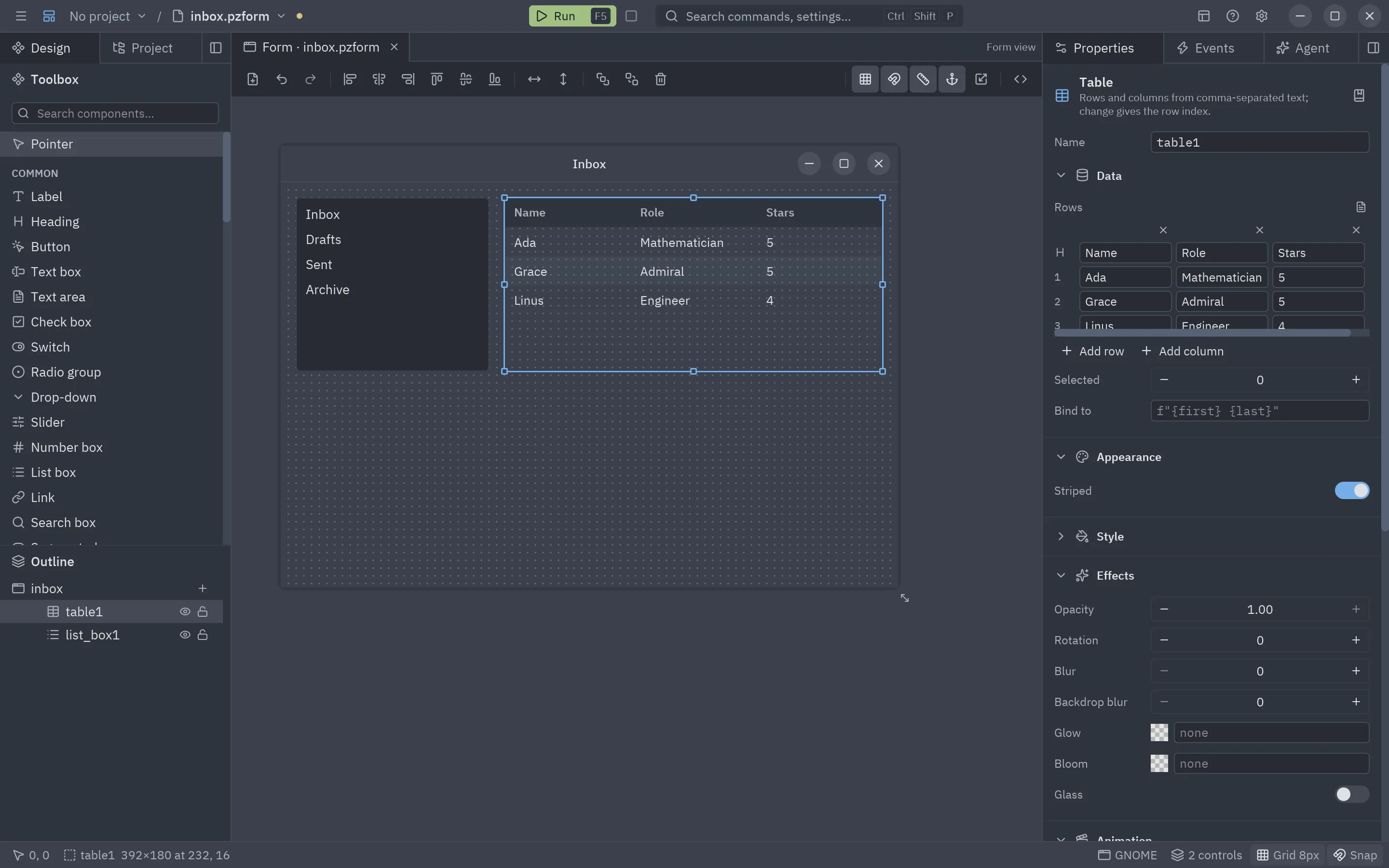
Header and name
Section titled “Header and name”The top of the panel shows the component’s icon, its kind and a one-line description. Under it, Name is the
control’s identifier: the attribute you use in code (form.email) and the prefix of its handlers. Type a new name
and press Enter to rename it; handlers that follow the naming convention (email_change) are renamed
in the code file too. Names are made valid and unique for you.
The book button at the right of the header (Shift+F1) opens the control’s page in the built-in reference: every property with its type and default, its events and its methods. Hover a property’s label for a one-line description.
The component’s own sections
Section titled “The component’s own sections”Each component groups its properties in Appearance, Data, Layout or Behavior sections (a section with the same name as one of the panel’s own, like Behavior, is merged into it). The kind of a property decides its editor:
| Kind | Editor | Example |
|---|---|---|
| Text | A text field. | A button’s text, a text box’s placeholder. |
| Multiline | A small code editor with wrapping. | A text area’s text, a markdown’s text. |
| Number | A number field you drag or type in, with limits. | A slider’s min, max, step. |
| File, folder | A field and a folder button that opens the system’s file dialog (see below). | An image’s source, a shader’s file, a file watcher’s path. |
| Switch | An on/off switch. | checked, secure, wrap. |
| Choice | Up to four short choices side by side as a segmented control; longer lists as a drop-down. | A button’s variant, a label’s size. |
| Color | A swatch and a field for a theme token (accent, text_muted) or #hex. |
A label’s color. |
| Icon | A preview, a field for a Lucide icon name and a … button: click the preview or … to pick from the icon dialog (see below). | A button’s icon. |
| List | One field per item (see below). | A drop-down’s options, a list box’s items, a tab bar’s tabs. |
| Rows | A small spreadsheet (see below). | A table’s data. |
Hover a property’s name to read what it does, when it has a tip. The component library documents every property of every component.
Controls that hold a value also show Bind to and their validation rules (Required, Minimum length, Pattern…) in the Data section: see Data binding and validation.
Files and folders
Section titled “Files and folders”Every property that holds a file or a folder has a folder button at its end. It opens the system’s dialog
(filtered by kind: images, sounds, fonts, shaders, data files…) and writes the path for you. A file inside your
project is written relative to the project (assets/logo.png), so the project still works when you move it.
Typing the path by hand still works.
This covers the components’ own properties (source, file, path, directory…), any text property whose name
says it is a path (icon_path, output_dir, cwd…), the properties of your own components
typed pz.FilePath or pz.FolderPath, and the folder fields of the editor’s dialogs. In your own apps the same
field is ui.path_input.
The icon dialog
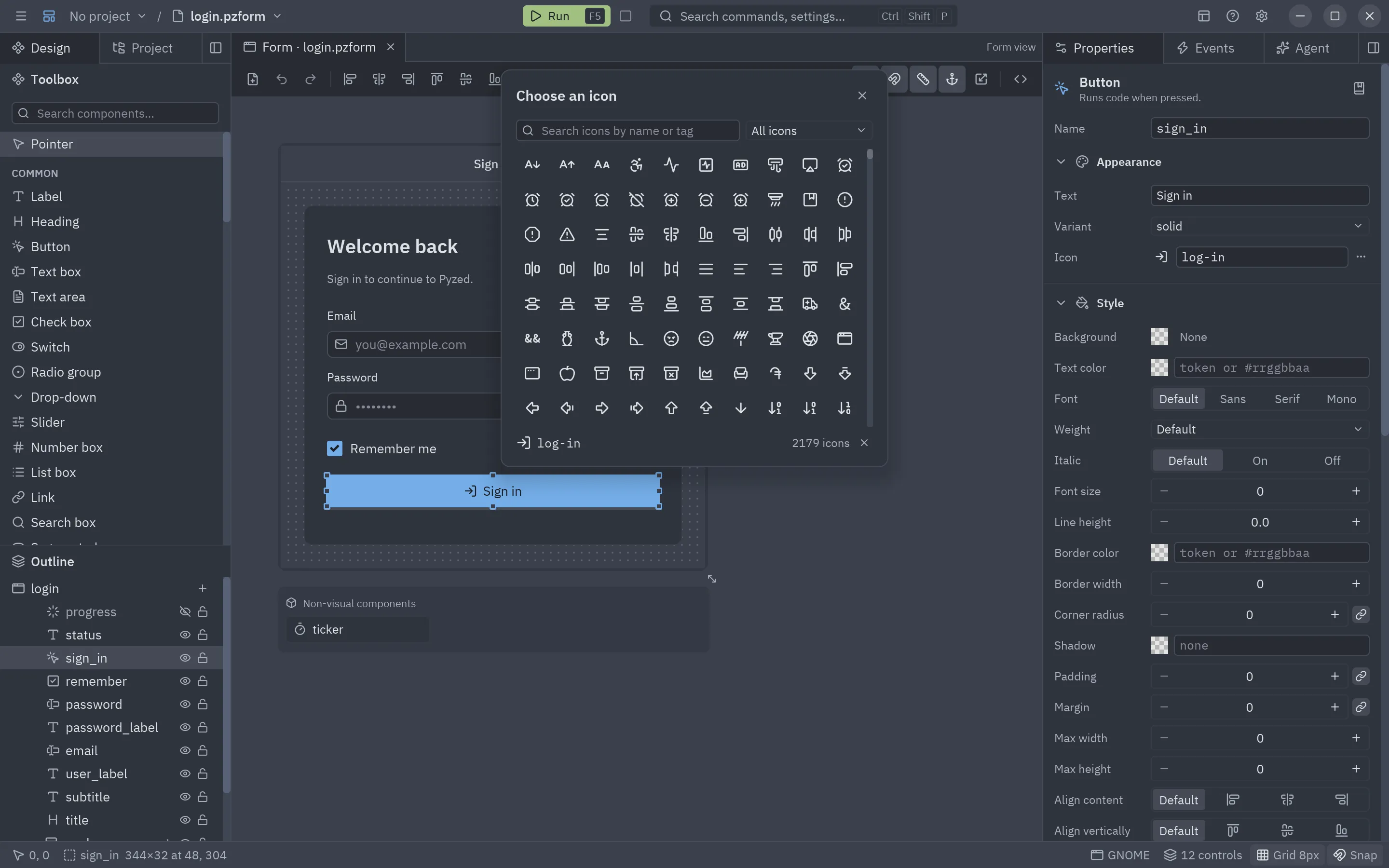
Section titled “The icon dialog”Clicking an icon property’s preview or its … button opens Choose an icon: a search box, a category
drop-down and a grid of every bundled icon. The search matches names and Lucide’s tags (“person” finds user,
“trash” finds trash-2), Enter picks the first match, and a click on an icon sets the property and closes the dialog.
The icon in use is highlighted and shown at the bottom, next to the number of matches; × clears the property.
The same dialog picks the Icon of a designed component and the default of
its icon properties. In your own apps it is ui.IconPicker.
The list editor
Section titled “The list editor”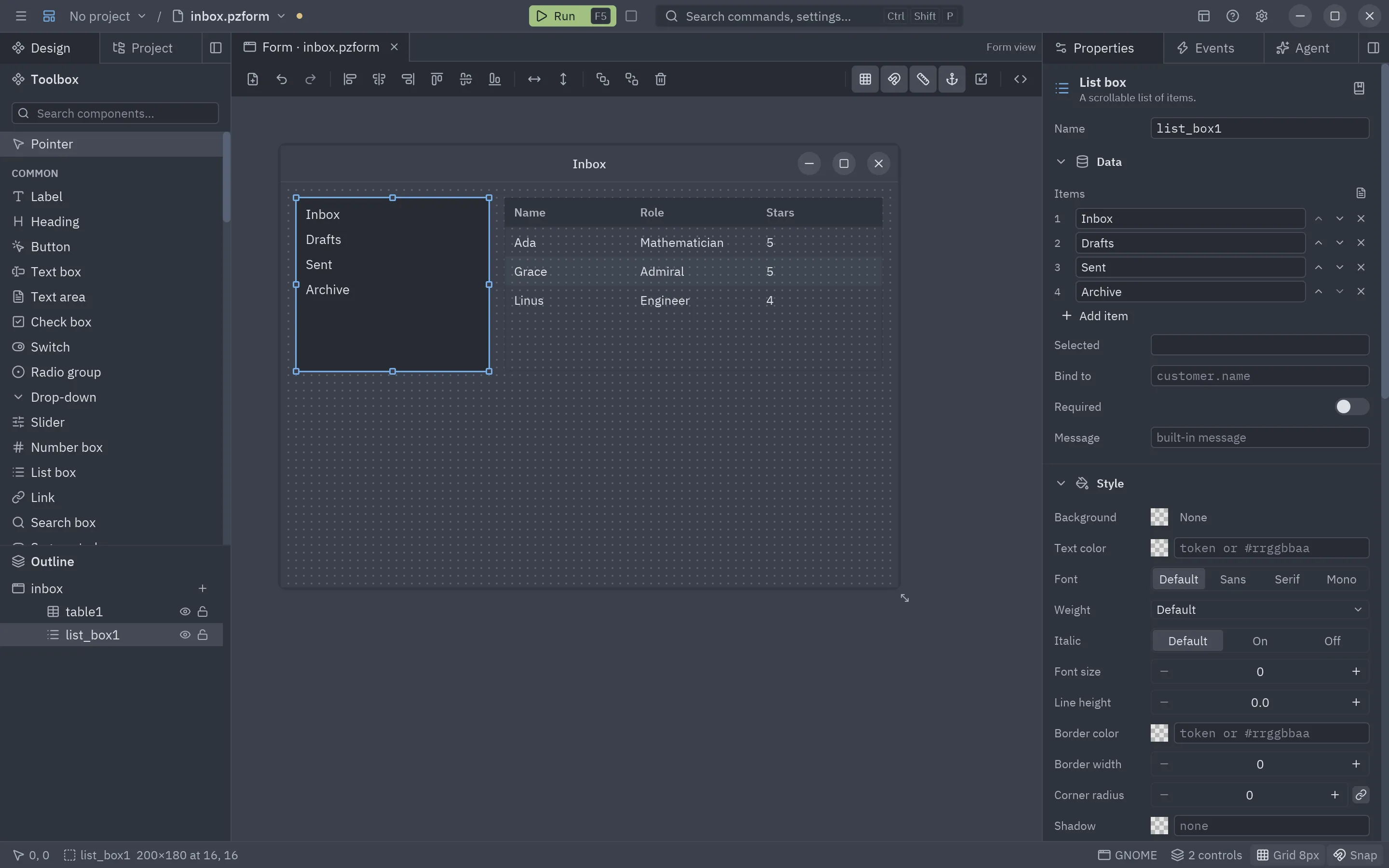
Lists get one numbered field per item, with buttons to move it up, move it down and remove it, and Add item at the end. The page icon at the right of the property’s title switches to Edit as text: one item per line in a small editor, handy for pasting a long list. The list icon switches back (Edit item by item).
The rows editor
Section titled “The rows editor”A table’s data is a small spreadsheet. The first row (marked H) is the header; the others are numbered. Add row and Add column grow it, the × at the end of a row removes the row and the × above a column removes the column (a table keeps at least one). It scrolls sideways when the table is wider than the panel. As with lists, the page icon switches to plain text: one row per line, cells separated by commas.
Style: Text, Fill, Border, Spacing
Section titled “Style: Text, Fill, Border, Spacing”The control’s style is split in four short sections, the same properties as pz.Style.
Empty fields keep the component’s own look, and Reset style at the end clears them all. See
Styles and themes.
| Section | Fields |
|---|---|
| Text | Font (family and weight), Size (font size and line height), Color, Italic. |
| Fill | The background: a color, a gradient or a mask. |
| Border | Color, Width and Corners (one radius, or one per corner with the link button). |
| Spacing | The box model, Align content, Max size and Clip content. |
The box model is drawn like the browser’s: an outer amber ring for the margin (space outside the control) and an inner green ring for the padding (space between its border and its content), with one number per side. Drag or double-click any of them. Align content is a 3×3 box: click a dot to put the content in that corner, side or the center.
The shadow lives in Effects, next to opacity, glow, bloom and glass; Effects and Animation are covered in Animations and effects.
Position
Section titled “Position”Position is always the first section. For a control placed freely (on the form, or in a panel, group box or card):
| Field | Meaning |
|---|---|
| Inside | Only inside a container: the container’s name (click it to select the container) and a button to move out of it. |
| Align | Six buttons that put the control against the left edge, the center, the right edge, the top, the middle or the bottom of its container (or the form). |
| Position | X and Y, relative to the form or the container. |
| Size | W and H in pixels. |
| L · T, R · B | Shown in Position and Size instead of X and W (or Y and H) when the control stretches on that axis: its distances to the sides of the container. Changing one keeps the opposite side where it is. |
| Rotation | Degrees clockwise, around the pivot (the same value as the style’s rotate). |
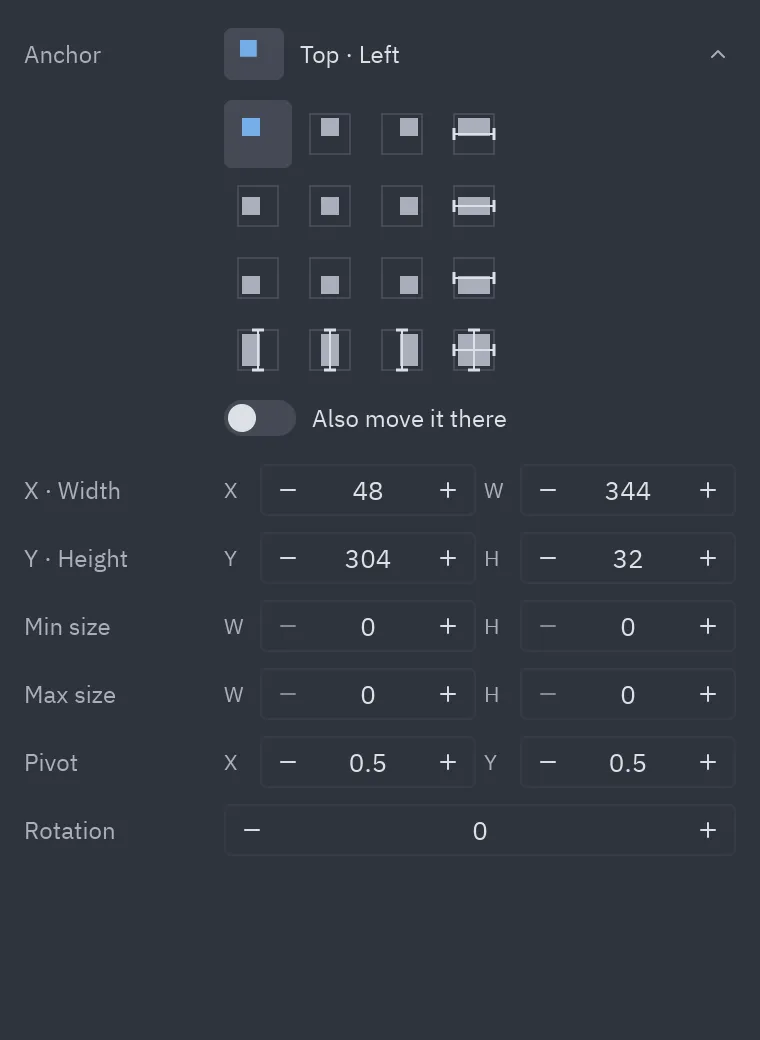
| Anchor | The anchor preset, drawn as a box in a frame, and its name (Top · Left). Click it to open the 4×4 grid of presets (see below). |
More options at the end shows the fields you need less often:
| Field | Meaning |
|---|---|
| Min size, Max size | Limits for the width and height when the control stretches (0: no limit), so a stretched panel stops at a readable width. |
| Pivot | The point the control turns and scales around, and that stays put when a size limit stops it from stretching: 0 0 is the top-left corner, 0.5 0.5 (the default) the center, 1 1 the bottom-right corner. |
For a child of an auto layout (a flex row or column, or a grid) the section is different, because its container places it: Width and Height each say Fixed (keep this size) or Fill (take the room the container leaves), Grow shares the free space between children that fill, and in a grid Column span says how many cells it takes. These children have no X and Y: drag them to reorder them. See Layouts and containers.
Auto layout
Section titled “Auto layout”A flex row, column or grid shows an Auto layout section, as in Figma:
| Field | Meaning |
|---|---|
| Direction | Side by side (row) or one under the other (column). A grid shows Columns instead. |
| Align | A 3×3 box: click where the children sit inside the container (left, center or right; top, middle or bottom). |
| Gap | Space between the children, or Space between, Space around or Space evenly to spread them over the free space. A grid has a gap and a row height. |
| Padding | Space between the container’s border and its children: horizontal and vertical, or one per side with the square button. |
| Fill across | Children stretch to the container’s height (in a row) or width (in a column). |
Select some controls and press Shift+A (Add auto layout) to wrap them in a row or a column, guessed from how they are placed. Ctrl+G groups them in an invisible panel without moving them, and Ctrl+Shift+G takes the children out of a group or layout and removes it, keeping their place and size.
The presets are the anchors of Unity, Unreal and Godot. The columns say how the control follows the width (Left, Center, Right or Stretch) and the rows how it follows the height (Top, Middle, Bottom or Stretch); the last cell, Stretch · Stretch, fills the container. Picking a preset only changes how the control follows a resize; turn on Also move it there to also put it against the edges it is anchored to (centered, or filling the container on stretched axes). Under the hood a preset is a set of edges, as in WinForms:
| Anchors | When the window grows |
|---|---|
| Left + Top (default) | The control stays where it is. |
| Left + Right | It stretches horizontally. |
| Right only | It moves with the right edge. |
| Neither left nor right | It stays centered horizontally. |
| Top + Bottom, Bottom only, neither | The same, vertically. |
Behavior
Section titled “Behavior”| Field | Meaning |
|---|---|
| Visible | Hidden controls are not shown when the form runs (form.status.show() brings them back). |
| Enabled | Disabled controls are drawn grayed and ignore the user. |
| Locked | Design-time only: the control cannot be moved or resized on the canvas. |
Several controls
Section titled “Several controls”With two or more controls selected the panel shows Align (left edges, centers, right edges, top edges, middles, bottom edges) and Spacing and size (distribute horizontally or vertically, same width, same height). They work as the toolbar buttons.
The form
Section titled “The form”Click an empty spot of the canvas, or the first row of the outline, to edit the form itself.
| Section | Field | Meaning |
|---|---|---|
| Window | Name | The form’s name: the file name and the prefix of the form’s handlers. |
| Title | The window title. | |
| Width, Height | The window’s size (also the grip under the canvas). | |
| Resizable | Whether the user can resize the running window. | |
| Look | Theme | Any registered theme: One Dark, One Light, Ayu, Gruvbox… or your own. |
| Accent | Seven preset accent colors and × for the theme’s own. | |
| Custom accent | Any #rrggbb accent. |
|
| Background | A color for the window background (theme default when empty). |
|
| Corner radius | The radius of every control (0 to 24). | |
| Font size | The base text size of the window. | |
| Style | The window’s global style: font, text color, weight, size and line height for every text that does not set its own; background, border color, radius and padding of the window. | |
| Designer | Grid size | The grid step of this form. |
The form’s look is independent of the editor’s own theme: a form can be light while you design in a dark editor.