
Menus and commands
Every command of the editor lives in one table, so the menus, the command palette, the keyboard and the shortcut list always agree. This page lists them all.
The title bar
Section titled “The title bar”From left to right: the ☰ menu, the environment under WSL, the project’s name (click it for the project picker: the projects of this window and the recent ones), the git branch (click it to switch), the file name (click it to open another file), a dot when there are unsaved changes and a Component or Shader badge in those views. In the middle: Run (F5), Stop and the search field, which opens the command palette. At the right: the View menu, the Help menu and the Settings gear, followed by the window buttons when Pyzed Design draws its own frame (see The interface).
☰ File menu
Section titled “☰ File menu”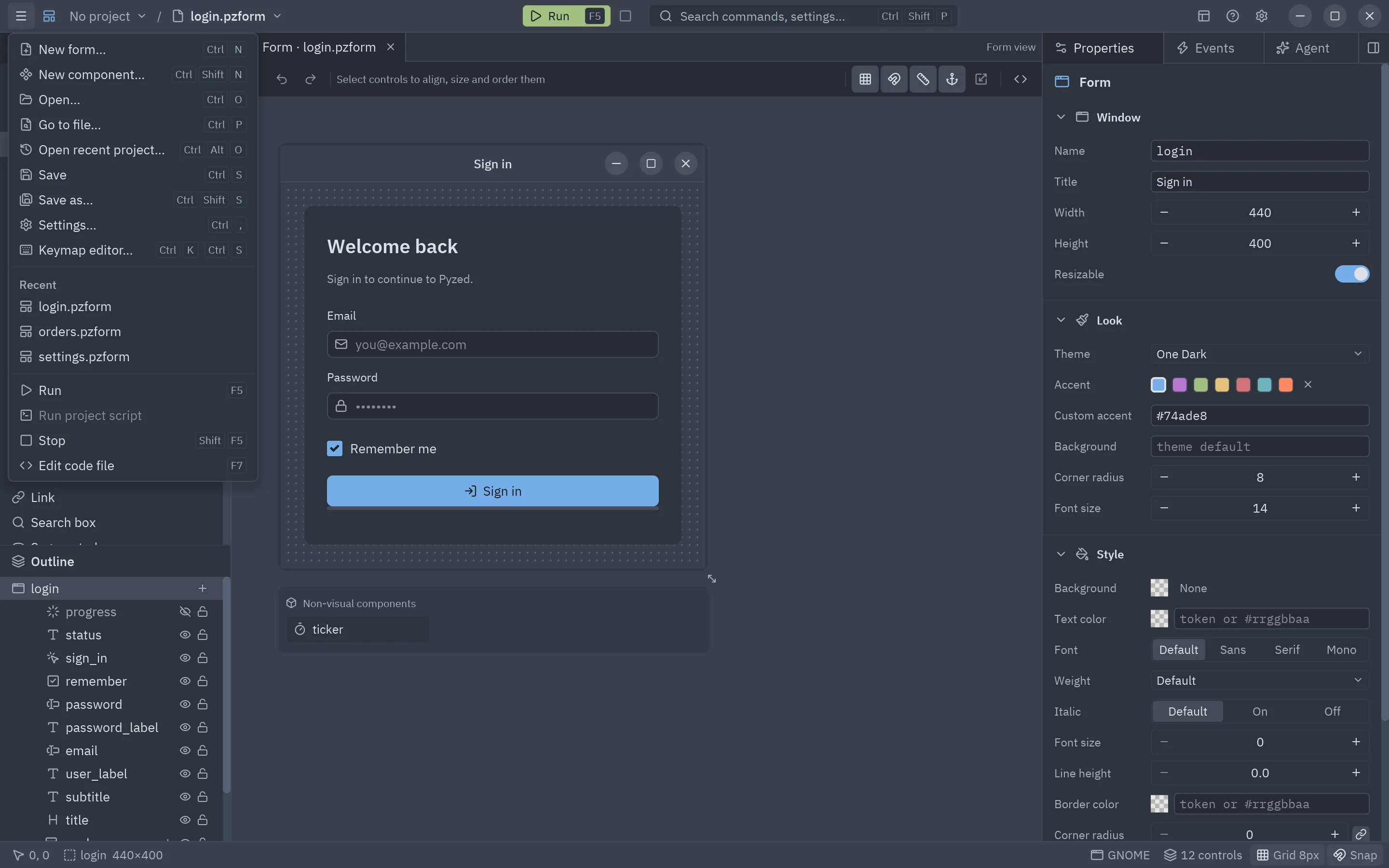
| Entry | Keys | Does |
|---|---|---|
| New form… | Ctrl+N | The New dialog, on Form. |
| New component… | Ctrl+Shift+N | The New dialog, on Component. |
| Open… | Ctrl+O | Lists the project’s forms, components, shaders and animation libraries; Browse… for any file. |
| Go to file… | Ctrl+P | Finds a project file by name and opens it; see Go to file. |
| Open recent project… | Ctrl+Alt+O | The project picker of the title bar; see Several projects in one window. |
| Save | Ctrl+S | Saves the document and its code. |
| Save as… | Ctrl+Shift+S | Saves under a new path. |
| Settings… | Ctrl+, | The settings. |
| Recent | The last five files opened. | |
| Run | F5 | Runs the form or previews the component. |
| Stop | Shift+F5 | Closes the running form. |
| Run project script | Starts the project’s [tool.pyzed] script with uv run (see Welcome and examples). |
|
| Choose startup file… | Picks the form or script the app starts from (see The startup file). | |
| Use this form as startup file | Makes the open form the startup file. | |
| Edit code file | F7 | Opens the whole code file in the code editor. |
Edit commands
Section titled “Edit commands”The Edit commands have no menu of their own: they are on the toolbar, in the control’s context menu, on the keyboard and in the command palette.
| Command | Keys |
|---|---|
| Undo / Redo | Ctrl+Z / Ctrl+Shift+Z |
| Cut / Copy / Paste | Ctrl+X / Ctrl+C / Ctrl+V |
| Duplicate | Ctrl+D |
| Delete | Delete |
| Select all | Ctrl+A |
| Add control… | Ctrl+Shift+A |
| Group in a row / in a column / in a grid | |
| Convert indentation to tabs / to spaces | (palette) the file in the code editor; see Tabs or spaces |
View menu
Section titled “View menu”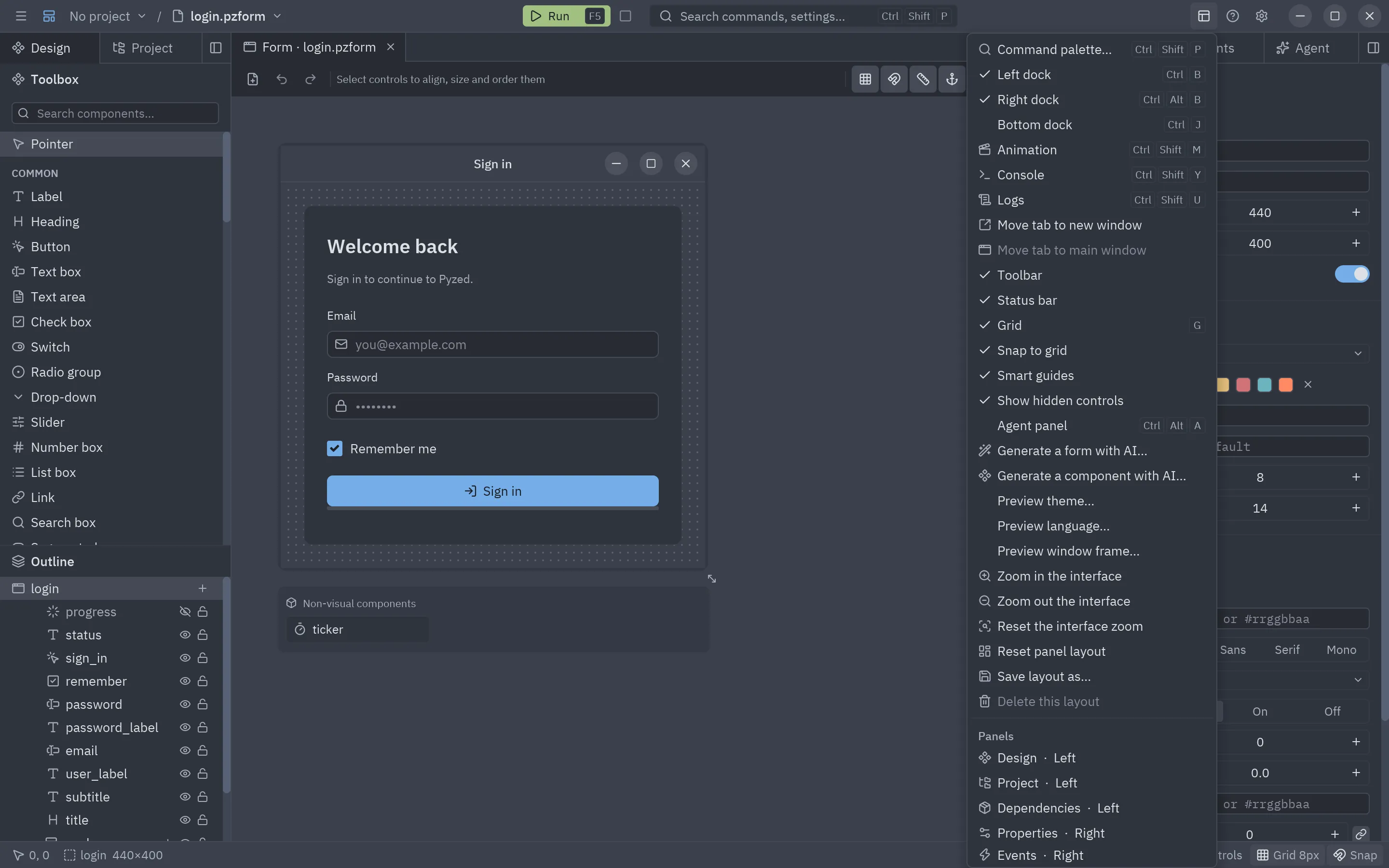
| Entry | Keys | Does |
|---|---|---|
| Command palette… | Ctrl+Shift+P | Runs any command by name. |
| Left dock / Right dock / Bottom dock | Ctrl+B / Ctrl+Alt+B / Ctrl+J | Shows or hides each dock (checked when shown). |
| Console | Ctrl+Shift+Y | Shows the console and keeps it open. |
| Logs | Ctrl+Shift+U | Shows the Logs panel: the editor’s events and errors. |
| Agent panel | Ctrl+Alt+A | Shows or hides the AI agent (checked when shown). |
| Generate a form with AI… / Generate a component with AI… | Opens the agent with the start of a request (“Create a new form for…”) for you to finish. | |
| Move tab to new window / Move tab to main window | Gives the document in front a window of its own, or brings it back among the main window’s tabs. See Document tabs. | |
| Toolbar, Status bar | Shows or hides them. | |
| Grid | G | Shows or hides the dot grid. |
| Snap to grid | Toggles snapping. | |
| Smart guides | Toggles the alignment guides. | |
| Show all hidden controls | Draws every hidden control dimmed on the canvas. Off, a hidden one appears only while it is selected. | |
| Preview window frame… | Shows the form on the canvas in the window frame of another platform: macOS, Windows 11, GNOME, Ubuntu or KDE Plasma (checked while it is not this system’s). | |
| Preview theme…, Preview language… | Shows the canvas (and the next run) in another theme or language without changing the form (checked while on). See Preview in another theme or language. | |
| Reset panel layout | Puts every panel back in its default dock and size, and closes the panel windows. | |
| Save layout as… | Saves where every panel is, the dock sizes and the panel windows under a name. | |
| Delete this layout | Removes the saved layout in use. | |
| Panels | One entry per panel, with the dock it is in (Properties · Right, or Window when it floats): click to bring it to the front. |
|
| Layouts | The work layouts (Default, Coding, Focus, Events and code, Code with the forms, and yours); the one in use is checked. |
The toggles are remembered between sessions.
Help menu
Section titled “Help menu”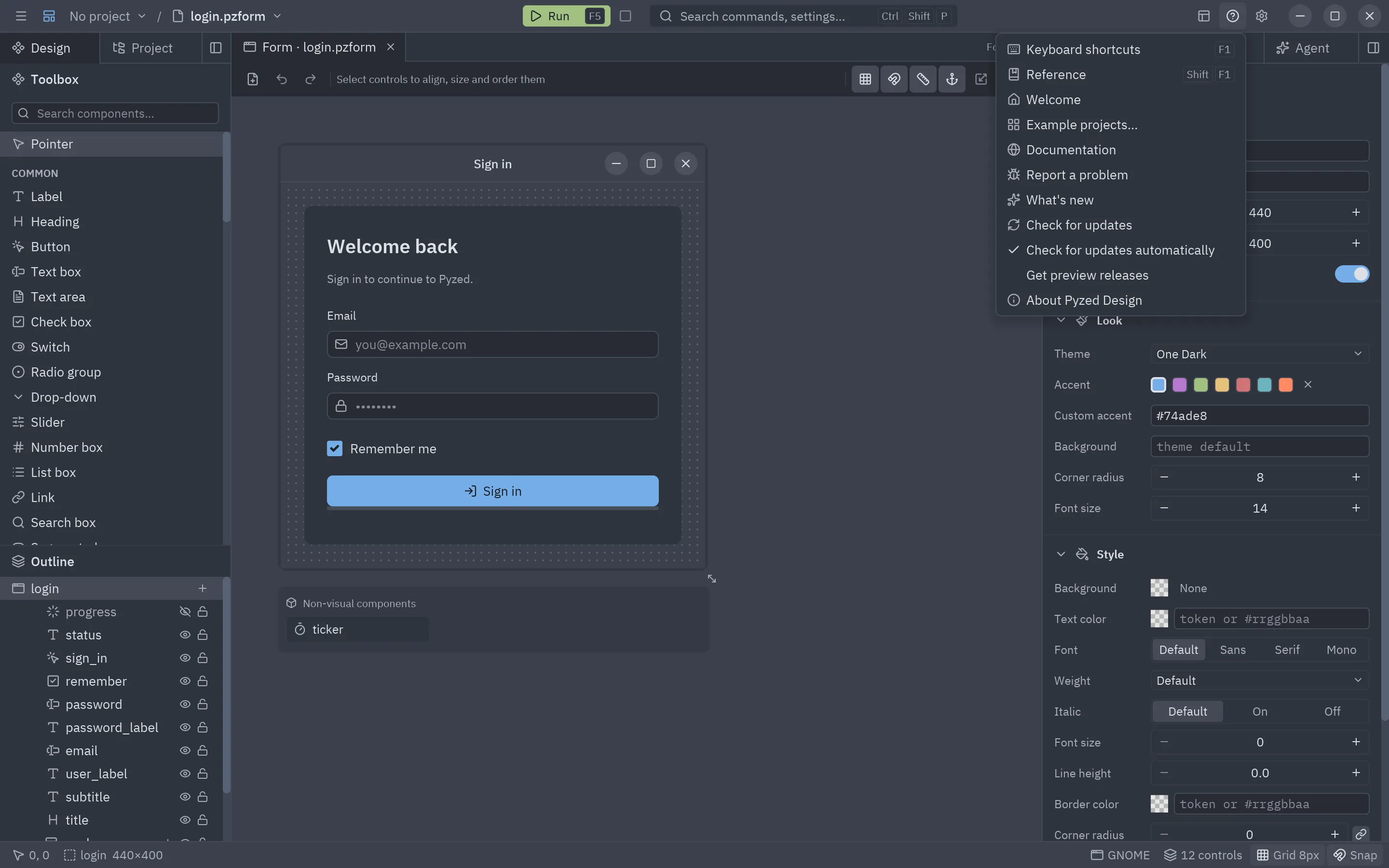
| Entry | Keys | Does |
|---|---|---|
| Keyboard shortcuts | F1 | A searchable list of every shortcut. |
| Reference | Shift+F1 | The built-in reference, on the page of the selected control or of the name under the cursor. |
| Welcome | The welcome window: start or open a project, recent projects and the example gallery. | |
| Example projects… | The welcome window with every example. | |
| Documentation | Opens this documentation in the browser. | |
| Report a problem | Opens the issue tracker. | |
| What’s new | A tab with the release notes of this version (or of the update waiting to install). | |
| Check for updates | Looks for a newer release on GitHub now; see Updates. | |
| Check for updates automatically | Toggles the daily check (on by default). | |
| Get preview releases | Also offers pre-releases (X.Y.Z-rc.N): the preview channel. See Updates. |
|
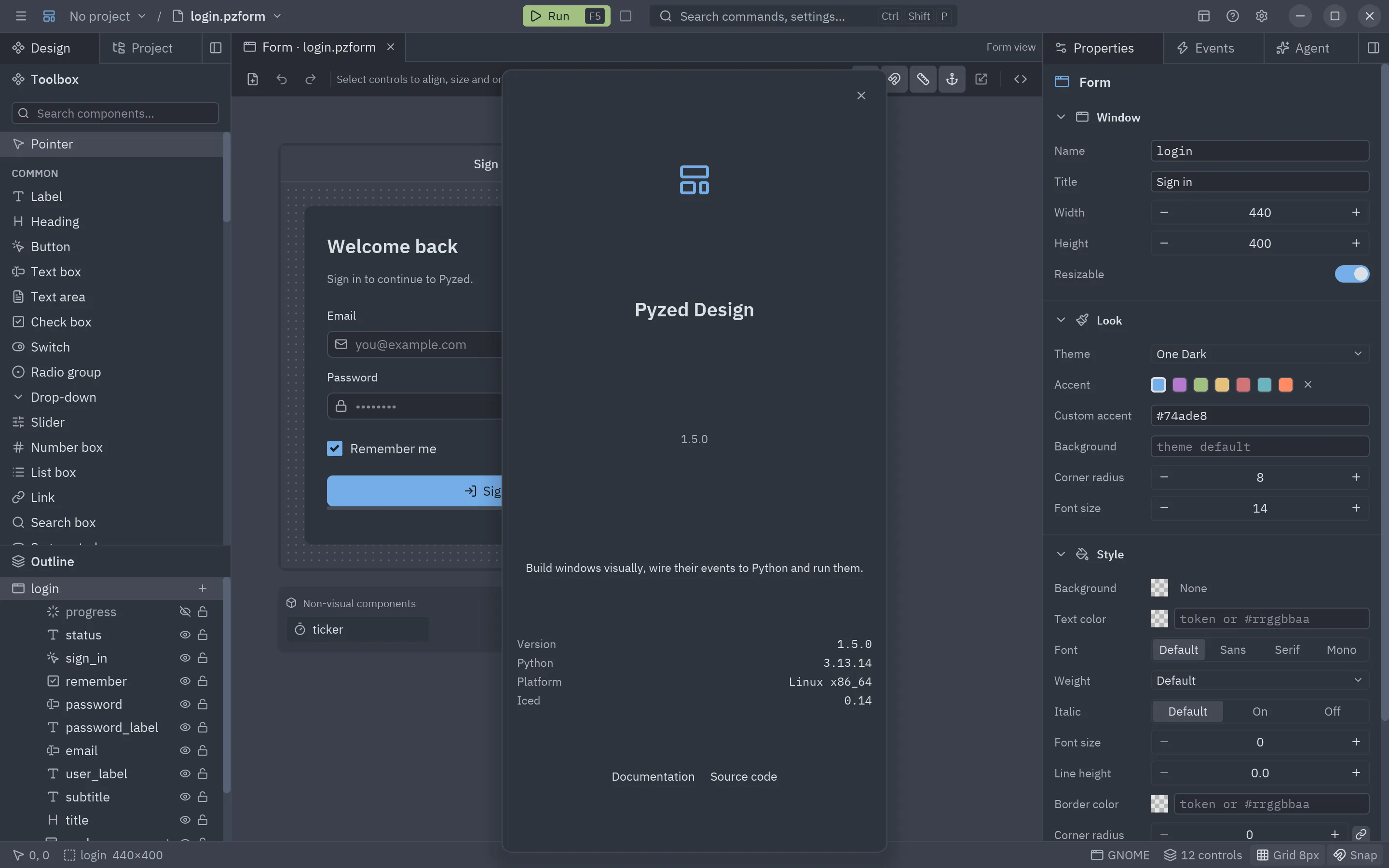
| About Pyzed Design | The versions of Pyzed, Python and Iced, the platform, and links. |
The toolbar
Section titled “The toolbar”Under the document tabs, in groups from left to right:
- New… (a form, a component or a shader, picked in the New dialog), Undo and Redo.
- While something is selected: Align left, centers, right, top, middles, bottom; Center in form horizontally, vertically, then Distribute (three or more controls) and Same width, height (two or more); Bring to front, Send to back and Delete. With nothing selected a hint takes their place.
- At the end, how the canvas behaves: Show grid, Snap to grid, Smart guides, Resize contents with their anchors, Fit selection to grid, and Edit code file.
Open and Save are in the ☰ menu and on Ctrl+O and Ctrl+S. Every button has a tooltip with its shortcut, and the editing tools scroll sideways when the window is narrow. Hide it with View → Toolbar. See Toolbox and canvas.
Command palette
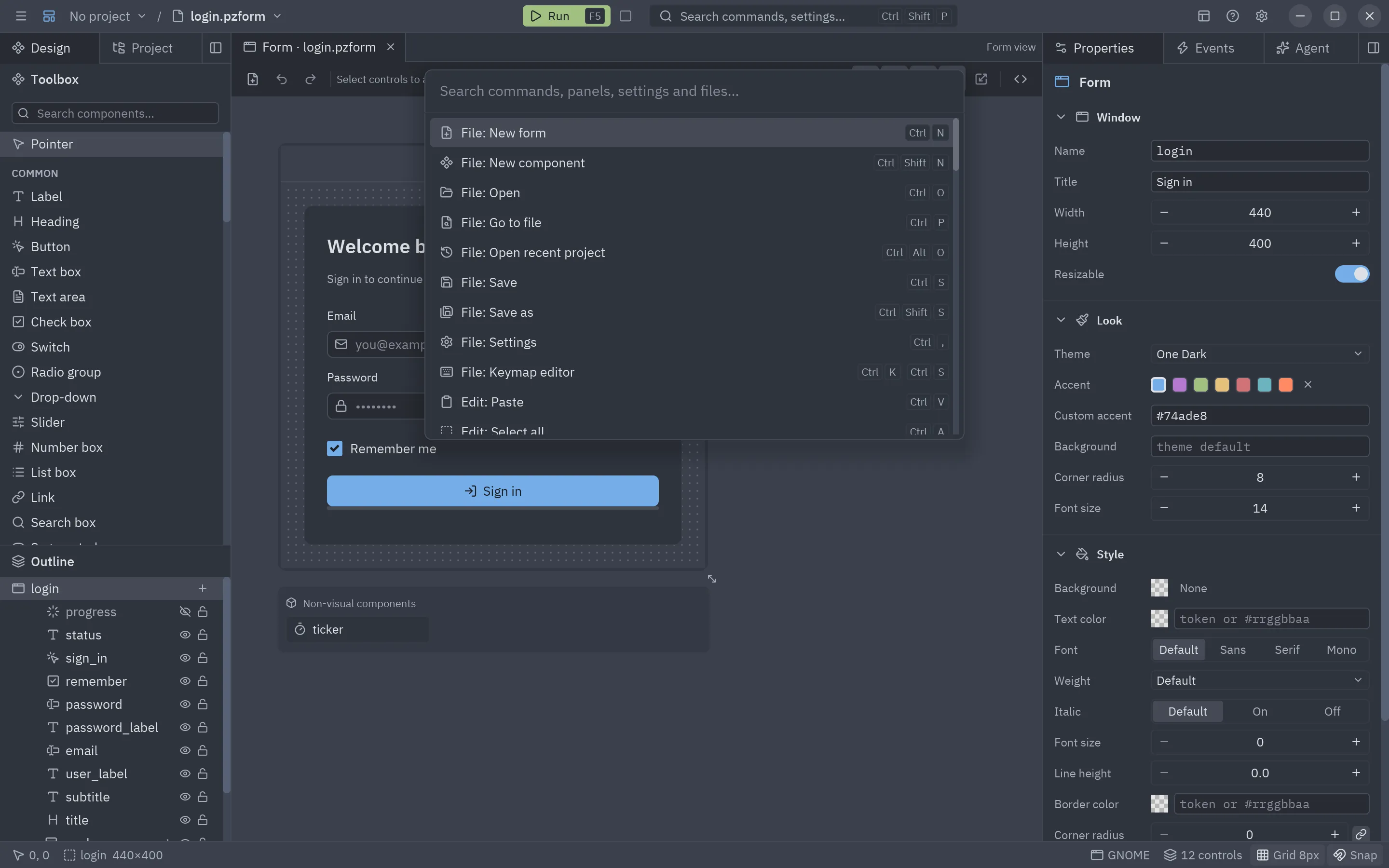
Section titled “Command palette”The search field in the middle of the title bar, or Ctrl+Shift+P, opens a search box
over every command that can run right now, as Group: Command with its shortcut, and over the places of the editor:
Panel: Properties shows a panel, Editor settings: Cursor opens that page of the
editor settings (the keys are in File: Keymap editor), and Recent: login.pzform opens a recent file. Type a few letters (the search is fuzzy: vgr finds View: Grid),
↑/↓ to move, Enter to run, Esc to close. It also reaches commands that
have no menu, such as the Edit ones.
Add control
Section titled “Add control”Ctrl+Shift+A is the palette for components: a fuzzy-searchable list of every component with its category. Enter adds the highlighted one, centered on the form, and selects it. From a container (its + in the outline, or Add inside…), it adds inside that container instead.
Keyboard shortcuts dialog
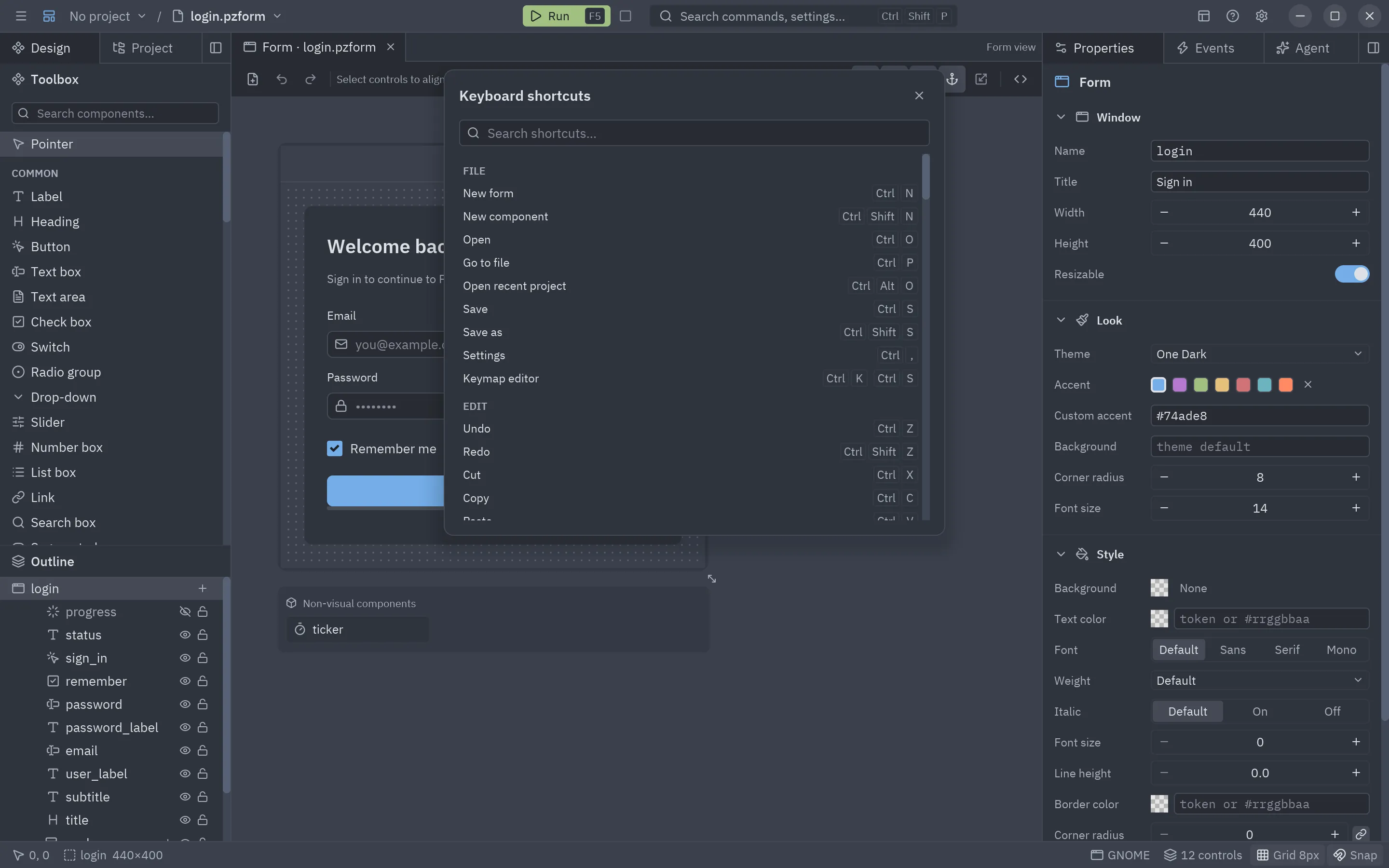
Section titled “Keyboard shortcuts dialog”F1 lists every shortcut by group (File, Edit, View, Run, Help, Canvas, Code) with a search box. See the complete table.
Panels and docks
Section titled “Panels and docks”Eight panels live in four docks around the canvas:
| Panel | Default dock | Shows |
|---|---|---|
| Toolbox | Left | The toolbox and the outline. |
| Project | Left | The project’s files. |
| Dependencies | Left | Dependencies, ruff and ty (only with a project open). |
| Properties | Right | The property grid. |
| Events | Right | The events of the selection. |
| Agent | Right | The AI agent. |
| Code | Bottom | The code editor (only while a handler or the file is open). |
| Console | Bottom | The console (once it has something to show). |
Each dock shows one tab at a time. At the end of the tab bar:
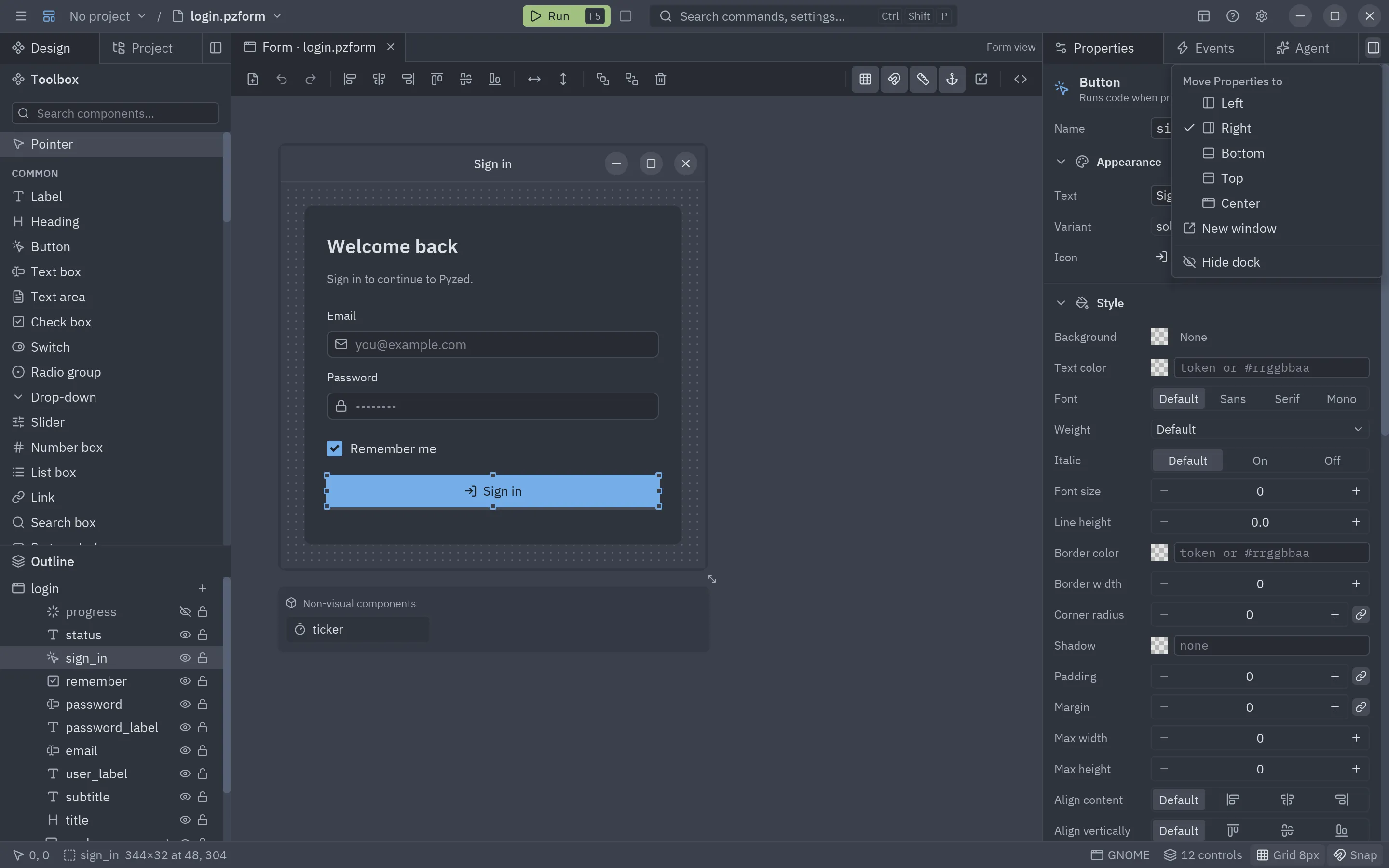
- the dock button opens a menu to Move panel to the left, right, bottom or top dock, the Center (next to the form tabs), a New window, or Hide dock;
- the × hides the dock (bring it back with its shortcut or the View menu).
Any tab goes anywhere: drag a panel’s or a form’s tab to reorder it, onto another row or over a dock or the center to move it there, or out of the window to float it in a window of its own; drop more tabs on a window to stack them. The place a tab would land in lights up while you drag. In a window of its own the dock button offers Dock everything here back and the × does the same.
Drag the edge of a dock that faces the canvas to resize it (each dock has a minimum size). Where every panel is, which docks are hidden, their sizes and the panel windows are saved with your settings, and View → Save layout as… keeps them as a work layout to switch to later; View → Reset panel layout (or Settings → Panels → Reset) restores the default.
flowchart LR
    subgraph Left
        Toolbox
        Project
        Dependencies
    end
    subgraph Center
        Top["Top dock (empty by default)"]
        Canvas
        subgraph Bottom
            Code
            Console
        end
    end
    subgraph Right
        Properties
        Events
        Agent
    end
Notifications
Section titled “Notifications”Short messages appear in a corner for a few seconds: saved, copied, opened, a command that failed… Click the × to dismiss one; at most four are shown at once.