
Keymap
Every key in Pyzed Design comes from one keymap, like Zed’s: the menus, the command palette, the canvas, the project tree, the code panel and the code editor itself. You can change any of them, add more keys to an action, take keys away and put the defaults back, from a window or by editing a file.
The keymap editor
Section titled “The keymap editor”Open it with File → Keymap editor, Ctrl+K Ctrl+S (press both in turn), Settings → Key bindings or Editor settings → Key bindings.
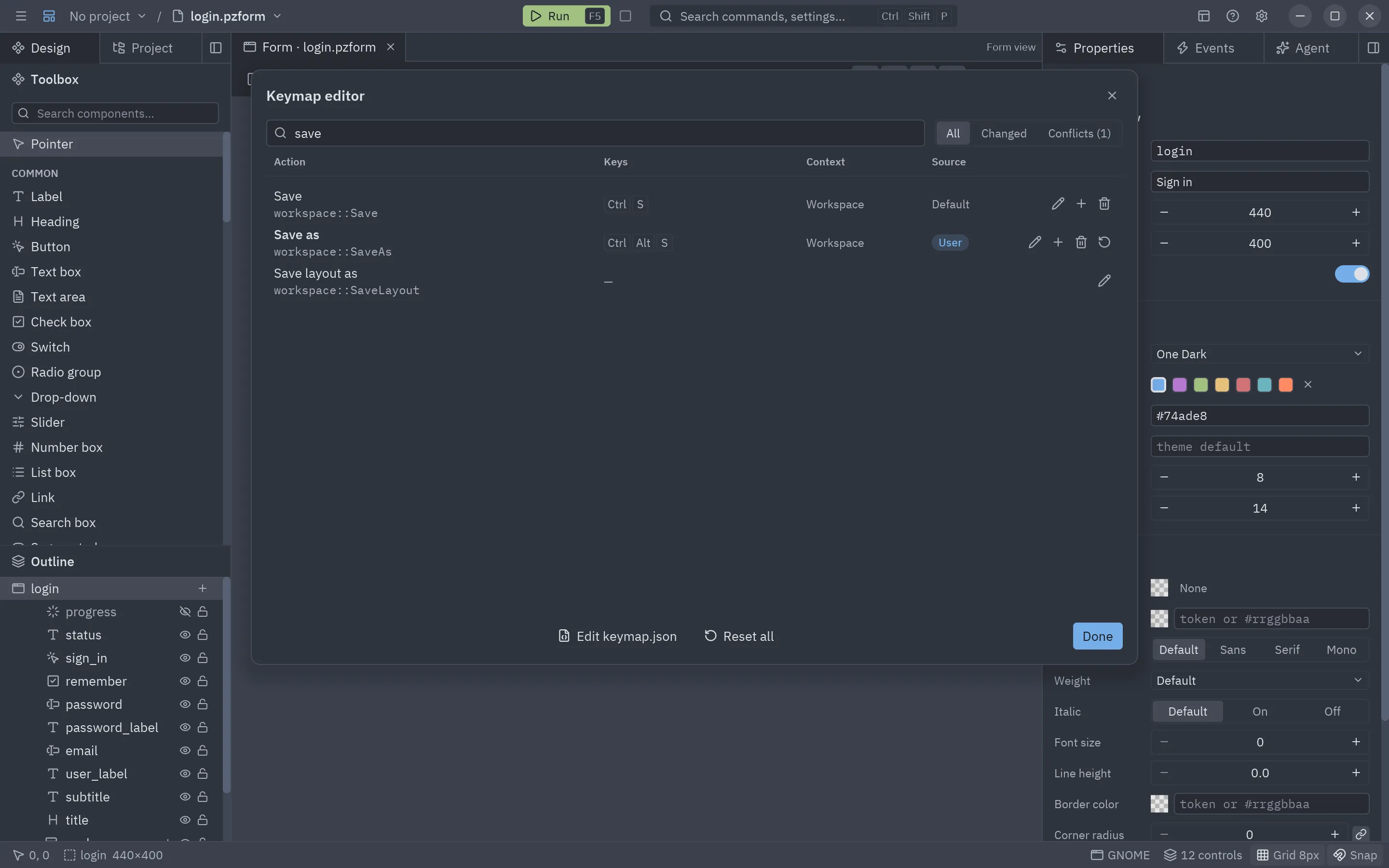
Each row is an action with one of its keys:
- Action: its name and the name it has in
keymap.json(workspace::SaveAs). - Keys: the keys that run it, or a dash when it has none.
- Context: where the keys work (see Contexts).
- Source: Default, or User for the keys you set.
Type in the search field to filter by name, keys or context. Changed shows only the actions you changed and Conflicts the keys that run two actions in the same place.
Change keys
Section titled “Change keys”- Click the pencil of a row (or + to give the action one more key).
- Press the new keys. For a chord, press two in turn, such as Ctrl+K then Ctrl+G.
- Choose the context if it should work somewhere else.
- Press Enter (or the check mark) to save, or Escape to cancel.
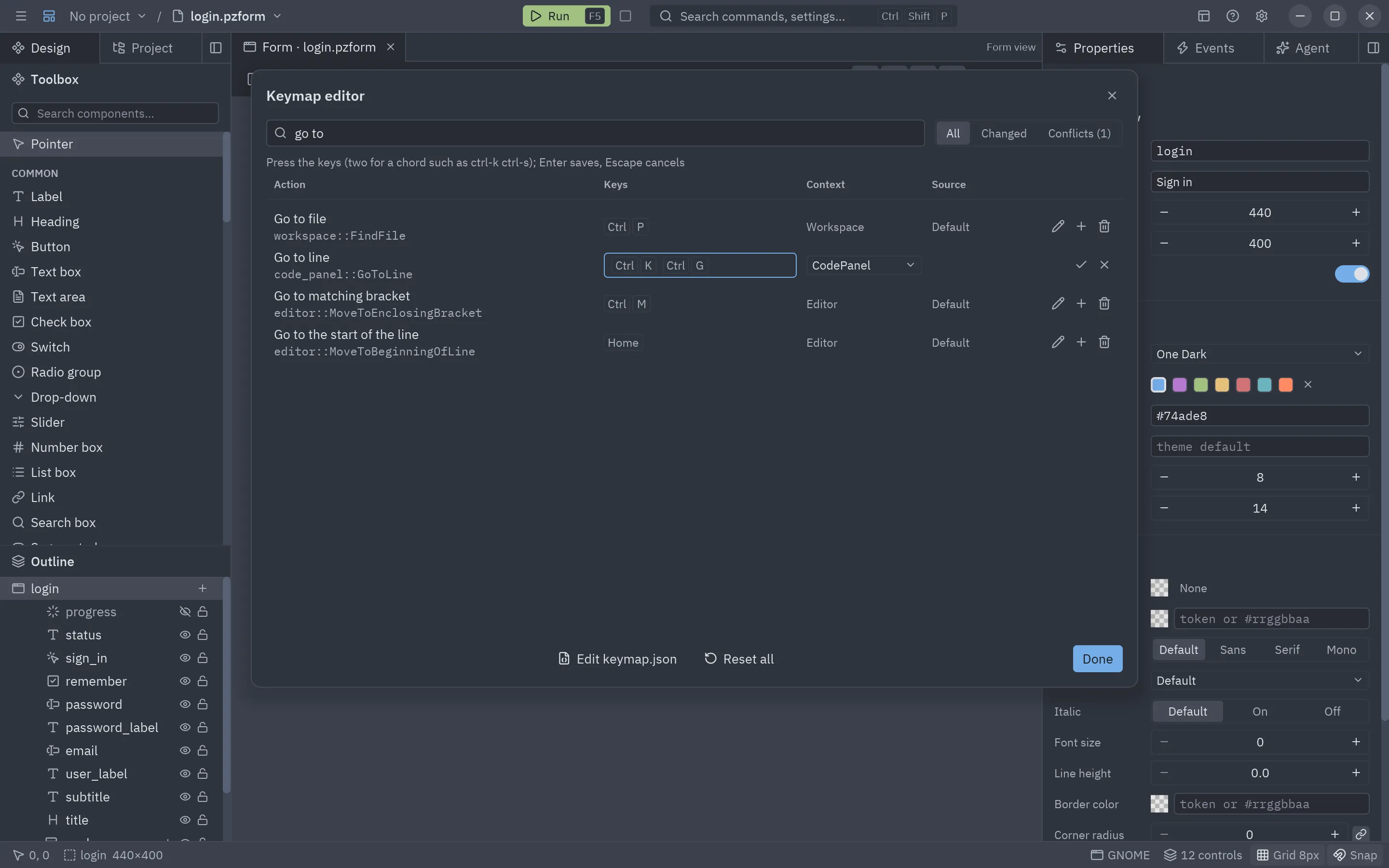
While you record, the line above the list warns you when those keys already run another action in that context.
Conflicts
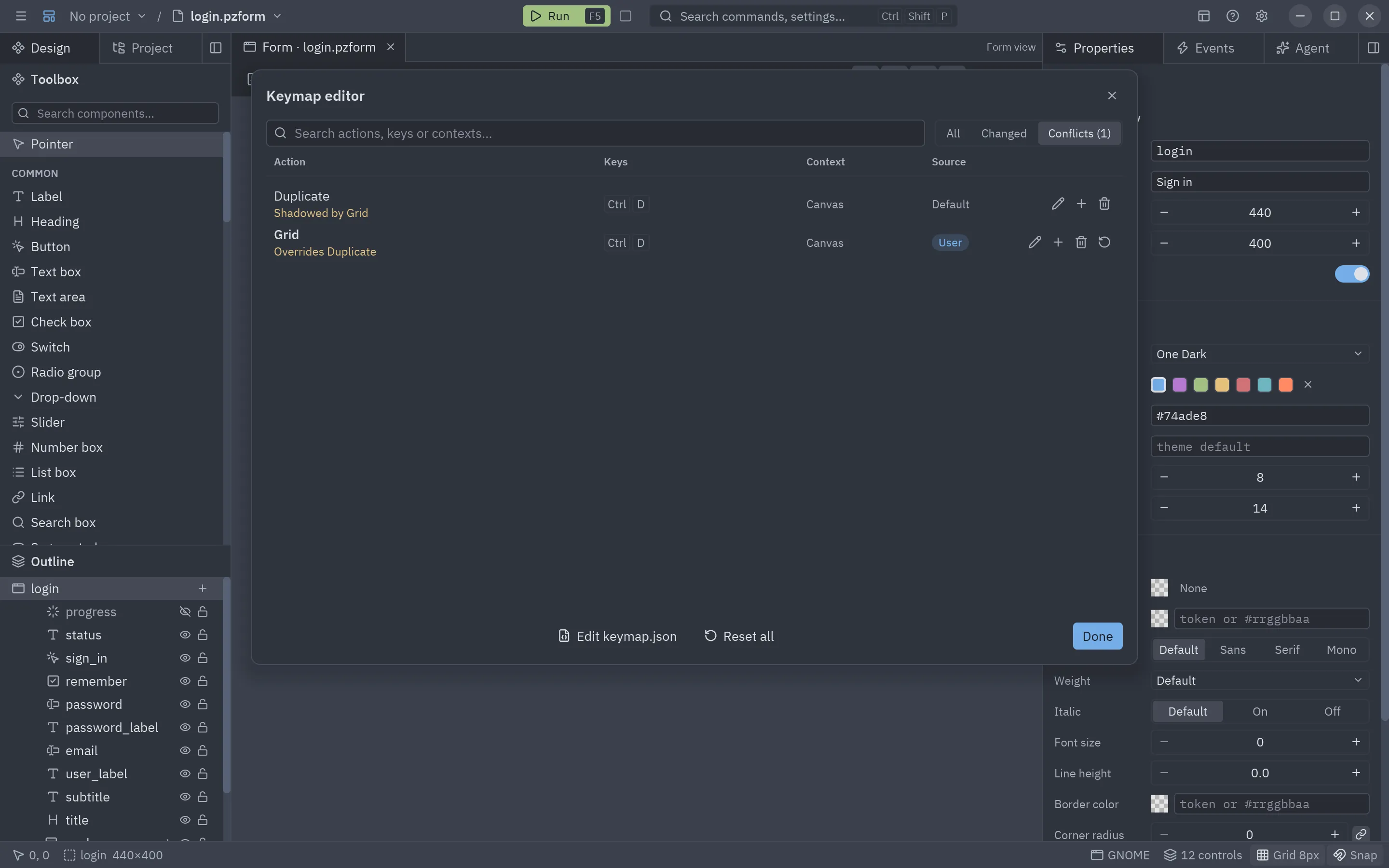
Section titled “Conflicts”When the same keys run two actions in the same context, both rows say so. The last binding wins: yours over the defaults. The row of the action that runs says Overrides, and the other says Shadowed by.
Contexts
Section titled “Contexts”A context is the part of the designer that has the keyboard. Keys are looked up from the innermost context to Workspace, so the same keys can do different things in different places: Ctrl+N is New form anywhere, but New file in the project tree.
| Context | Where | Inside |
|---|---|---|
Workspace |
Anywhere in the designer | (outermost) |
Canvas |
The form canvas, after you click the form or a control | Workspace |
ProjectPanel |
The project tree | Workspace |
CodePanel |
The code panel: completions, find, go to line, wrapping | Workspace |
Editor |
The text of the code editor | CodePanel |
The keymap.json file
Section titled “The keymap.json file”Your changes are saved in keymap.json, next to the designer’s settings:
| System | Folder |
|---|---|
| Windows | %APPDATA%\pyzed |
| macOS | ~/Library/Application Support/pyzed |
| Linux | ~/.config/pyzed (or $XDG_CONFIG_HOME/pyzed) |
PYZED_CONFIG_DIR changes the folder. Edit keymap.json in the keymap editor opens it in the code panel, and it
applies as soon as you save it.
It uses Zed’s format: a list of blocks, each with a context and its bindings from keys to an action. null takes
a default key away. Comments (//) and trailing commas are allowed.
// Pyzed Design key bindings[ { "context": "Workspace", "bindings": { "ctrl-alt-s": "workspace::SaveAs", "ctrl-shift-s": null } }, { "context": "Editor", "bindings": { "ctrl-alt-d": "editor::DuplicateLineDown", "ctrl-d": null } }, { "context": "Canvas", "bindings": { "ctrl-k ctrl-g": "workspace::Grid" } }]- Keys are written like Zed’s: modifiers
ctrl,alt,shift(cmdandsupercount asctrl) joined with-to a key (a,f2,enter,space,up,pageup…). A chord is two keys separated by a space. - Actions are written
namespace::Action:workspace::for the commands of the menus,canvas::,project_panel::,code_panel::andeditor::. The keymap editor shows each action’s name.
In earlier versions, the code editor’s keys were saved under "keymap" in designer.json. The designer moves them
to keymap.json the first time it starts.
In your own apps
Section titled “In your own apps”The code editor component takes the same kind of keymap: ui.editor(keymap={"ctrl-alt-d": "duplicate_line_down", "ctrl-d": None}). See the code editor component.