
Animations and effects
Every visual control has two sections at the end of the Properties panel, after its style: Effects and
Animation. What you set there is saved in the .pzform and plays when the form runs. It is the same
system as widget.animate() and the style effects of the library.
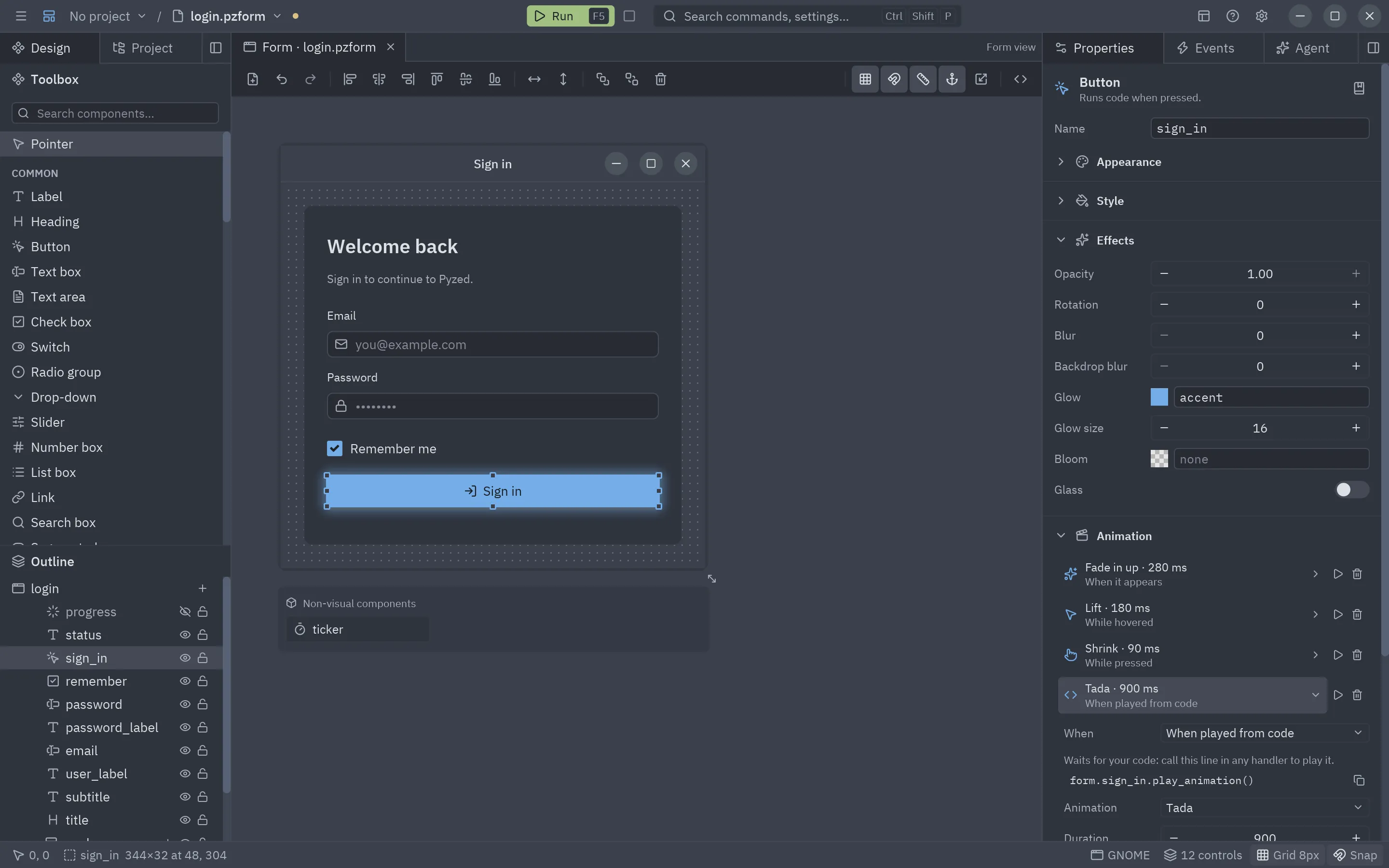
Effects
Section titled “Effects”| Field | What it does |
|---|---|
| Opacity | How visible the control and everything inside it is (1 is opaque). |
| Shadow | A drop shadow: pick a color, then Offset (X and Y) and Blur. |
| Blur | Blurs the control and everything inside it, in pixels. |
| Backdrop blur | Blurs what is behind the box, in pixels. |
| Glow | A soft halo around the box. Pick a color (or a theme token such as accent); Glow size sets how far it spreads. |
| Bloom | Light that spills from the bright parts of the control. Intensity goes from 0 to 1. |
| Glass | A translucent panel that blurs what is behind it, with a light edge. Tint colors it and Strength sets how much of the tint shows. |
Rotation is in the Position section. Sub-fields only show while the effect is on. Clear the color (or turn Glass off) to remove it.
Effects are style properties (opacity, shadow, blur, backdrop_blur, glow, bloom, glass), so they also show in code as
control.style and work with Reset style. Glass looks best over a colorful background, such as a
panel with a gradient.
Animation
Section titled “Animation”An animation is two choices: when it plays and what plays (a preset such as Fade in up, Pulse or Shake). A control without animations shows a few ready-made ones to add with one click (Fade in when it appears, Lift on hover, Pulse on click, Shake when the value is invalid…), only those that suit the control, and Add animation for any other.
Each row is one animation: an icon for what plays it, a summary (Fade in up · 280 ms, with +delay and ×repeat when set) and the trigger under it. The ▶ button previews it and the trash can removes it. Click a row to open its editor:
| Field | Meaning |
|---|---|
| When | What plays it (see the table below). Under the field, a line says how the chosen one starts. |
| Control, Event | Only for On another control’s event: which control (or the form) and which of its events. |
| Animation | The preset. The ones that suit the trigger come first (entrances for appears, interactions for hover and press, attention seekers for clicks and events); the tooltip describes the selected one. |
| Duration, Delay | Milliseconds. Empty keeps the preset’s own timing. |
| Easing | How the speed changes along the way (ease, linear, ease out cubic, spring…). |
| Repeat | 1, 2, 3, 5 or infinite. |
| When | Plays |
|---|---|
| When it appears | Once, when the form opens or the control is shown. |
| While hovered, While pressed, While focused | Forward while the condition holds, and back when it ends. |
| On click, On double click, On right click | Once on each click. |
| When the pointer enters, When the pointer leaves | Once each time the mouse comes in or goes out. |
| When its value changes | Once on each new value (typing, a new choice, a toggled switch…). |
| When Enter is pressed | Once when the user submits a text box. |
| When its value is invalid | Once each time a validation rule fails: a classic shake on a wrong password. |
| On another control’s event | Once on each event of another control or the form: a label that pulses when Save is clicked, a card that fades in when the form loads. |
| When played from code | Only when a handler calls play_animation() (see below). |
The triggers that play on an event work even if the control has no handler for it, and they play before the handler runs. Add animation adds a row (a Fade in up when it appears) and opens it. Picking another preset resets the row’s timing to the new preset’s. Every change can be undone.
Playing it from your code
Section titled “Playing it from your code”Choose When played from code and the animation waits for your handlers: it doesn’t play when the form opens. The open row shows the line that plays it, with a copy button. Paste it in any handler (a button’s click, a timer’s tick, a failed validation):
def sign_in_click(form, event): if not form.password.validate(): form.password.play_animation() # plays the password box's "When played from code" animationsplay_animation() also replays the control’s When it appears animations. Give it a preset name,
a pz.Animation or property values to play something the control has no row for, and use
stop_animation() to stop what it started (a loop, for example):
| Call | What plays |
|---|---|
form.title.play_animation() |
Its own rows set to When played from code (and replays When it appears). |
form.title.play_animation("tada") |
That preset, once. |
form.badge.play_animation("pulse", repeat=3, duration=400) |
A preset with other timing (any animate() option). |
form.card.play_animation(scale=1.05, duration=200) |
To these values and back. |
form.spinner.stop_animation() |
Stops what play_animation started. |
Start here: apply and play compares this with pz.Trigger, the way a
code-only app does the same.
Previewing
Section titled “Previewing”The canvas stays still while you edit, so controls don’t move under the mouse. Preview (at the bottom of the section, or ▶ on a row) plays the control’s animations once on the canvas, as if it had just appeared; Stop ends the preview. Run the form (F5) to see every animation with its real trigger.
In code
Section titled “In code”Animations are saved as plain data on the control:
"animations": [ {"preset": "fade_in_up"}, {"preset": "lift", "on": "hover", "duration": 180}]The "on" values are mount (the default), hover, press, focus, click, double_click, right_click,
enter, leave, change, submit, invalid, event and manual (When played from code). An event
entry also names its source and event: {"preset": "tada", "on": "event", "source": "save", "event": "click"}
(an empty source is the form). Document.set_animations(name, animations) changes them
from a script and Control.animations reads them. To play one from a handler, call
form.<control>.play_animation(...) (see above); to make your own presets, use the library’s
pz.Animation and define_animation (see the preset list).
Timeline animations
Section titled “Timeline animations”For animations that move several controls together (an intro, a transition between states), open the
Animation panel from View → Animation (Ctrl+Shift+M). It edits clips: timelines saved in the
.pzform that play the same way as pz.AnimationPlayer does in code.

An empty panel lists the three steps (add a track, add keys, play it) and has a New animation button.
| Action | Result |
|---|---|
| Add track for … | Adds a track for a property of the selected control (opacity, position, scale, colors, size…) or any of its properties, such as a label’s text. |
| Click anywhere on the ruler or the lanes, or drag | Moves the playhead; the canvas shows the form at that time. It snaps to keys nearby. |
| Double-click a lane | Adds a key at that time with the value the track has there. |
| Drag a key | Moves it in time. You can grab it from a few pixels away (the pointer becomes a hand) and it snaps to the keys of the other tracks, the start and the end. A label shows its time and value while you drag or hover it. |
| Click a key | Selects it: edit its time, value and easing below the tracks. |
| Right-click a key | Deletes it. |
| Calls lane | Type a handler name and press Enter (or double-click the lane) to call that method of the form’s code file at the playhead. Drag a call to move it; right-click it to remove it. |
| Length, loop, autoplay | Set how long the clip lasts, whether it repeats, and whether it plays when the form opens. |
With the pointer over the panel, the keyboard edits the timeline:
| Key | Does |
|---|---|
Delete / Backspace |
Deletes the selected key. |
Space |
Plays or pauses the preview. |
← / → |
Moves the selected key (or the playhead) by 0.01 s; with Shift, by 0.1 s. |
Home / End |
Jumps to the start or the end. |

Controls inside an animated container follow its opacity, position and blur. Every change can be undone.
How a clip starts
Section titled “How a clip starts”A clip plays in one of two ways, and the bar under the tracks says which one applies to the clip you are editing:
- ⚡ Play when the form opens (in the toolbar) makes it the form’s autoplay clip: “Plays when the form opens.”
- Otherwise it waits for a handler. The bar shows the line to call, with a copy button:
def replay_click(form, event): form.animations.play("intro", restart=True) # from the start, even if it is playing # also: form.animations.pause(), .resume(), .seek(0.5), .play_backwards("intro"), .queue("outro")form.animations is the form’s pz.AnimationPlayer: it can also pause,
seek, queue clips and say when one ends. The Animation section explains clips,
tracks, keys, easing and the player in depth.