
Your first shader
In this page you build a glowing circle that pulses, in about ten minutes, by connecting boxes with the mouse.
You don’t need to know math or WGSL. At the end you will have a .pzshad file you can drop into any Pyzed app,
and you will know the handful of ideas every shader is built on.
Three ideas, in plain words
Section titled “Three ideas, in plain words”- A shader is a recipe that runs for every pixel. The graphics card asks “what color is this pixel?” for every pixel of the widget, sixty times per second, all at the same time. Your graph is the answer.
- Each pixel knows where it is. The UV node says where:
xgoes from 0 (left) to 1 (right) andyfrom 0 (top) to 1 (bottom). Shapes, gradients and patterns are just math on that position. - Colors are numbers from 0 to 1. Red is
(1, 0, 0), white(1, 1, 1), a mid gray(0.5, 0.5, 0.5). Multiplying a color by a number from 0 to 1 darkens it; that is how masks work.
Build it in the Shader view
Section titled “Build it in the Shader view”-
Open Pyzed Design. Start the app you downloaded, or launch it from Python:
Terminal window uv run pyzed design # inside a uv project with pyzed-uiuvx --from "pyzed-ui[designer]" pyzed design # without a projectTerminal window pip install "pyzed-ui[designer]"pyzed designmacOS / Linux python3 -m pyzed designWindows (PowerShell) py -m pyzed design -
Create a shader. Press New (Ctrl+N), pick the Shader card, name it
pulseand choose the Blank template. Create shader savespulse.pzshadand opens it.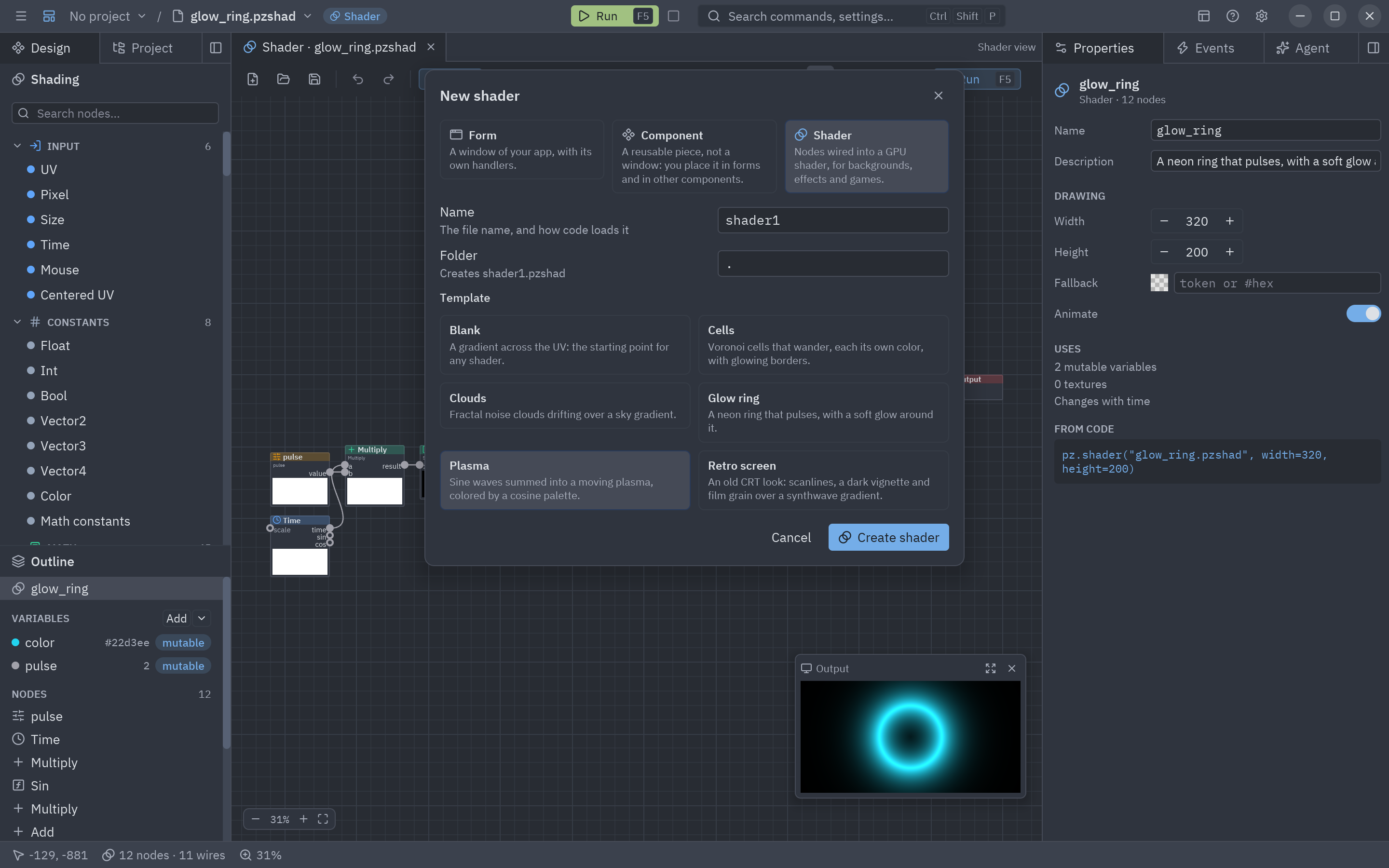
The New dialog: Shader, a name, a folder and a template. -
Look around. The Blank template is three nodes: UV → Gradient → Output. Each node shows a small preview of what it makes, and the Output preview in the corner is the finished shader. The left dock now holds the Shading sidebar (every node, by category) and the Outline (variables and nodes).
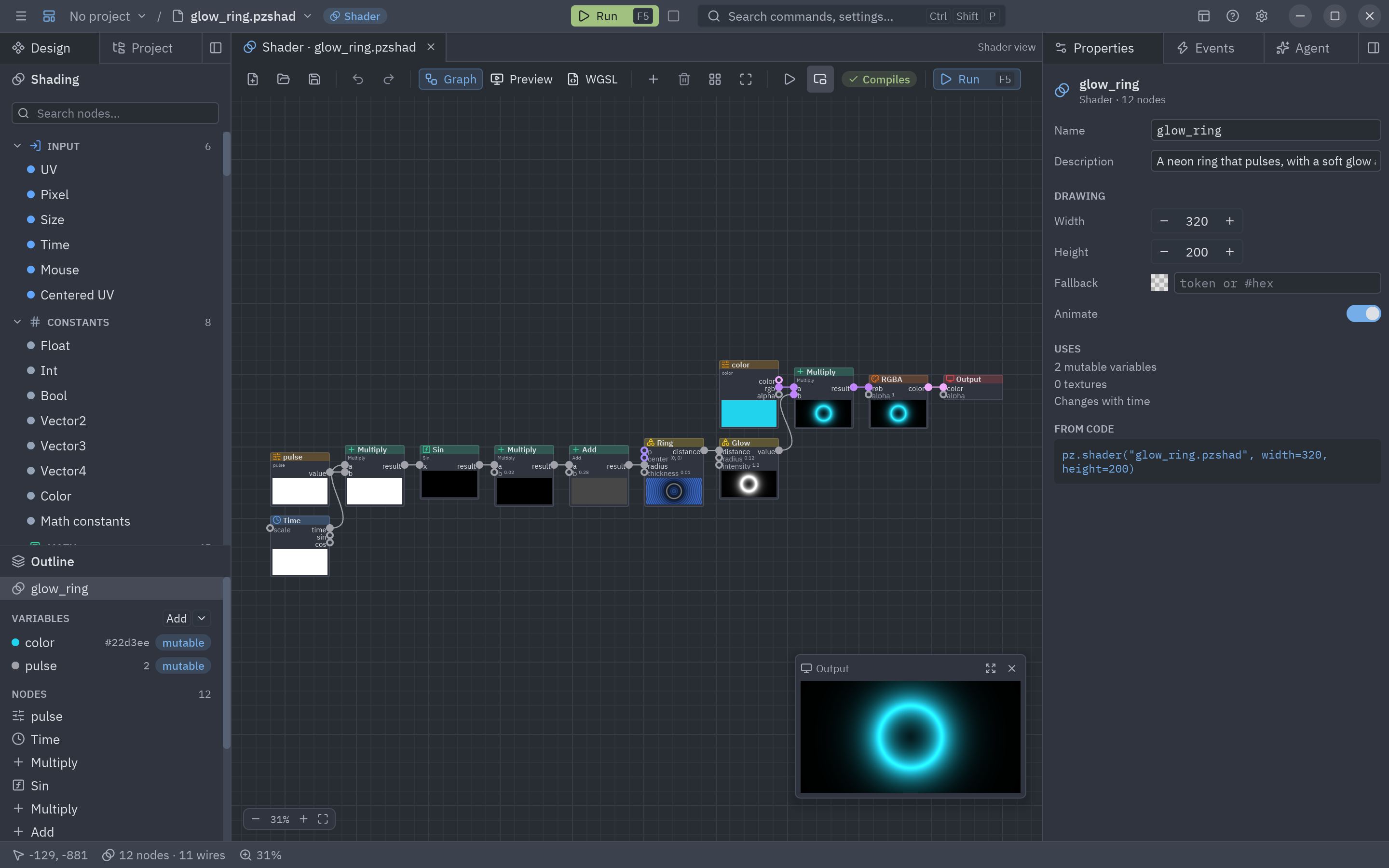
The Shader view: sidebar on the left, the graph in the middle, Properties on the right. -
Draw a circle. Double-click an empty spot of the canvas (or press Shift+A) and type
circle; press Enter to add the Circle node. Do the same for Fill. Drag from the Circle’sdistanceoutput to the Fill’sdistanceinput: the Fill preview shows a white disc on black.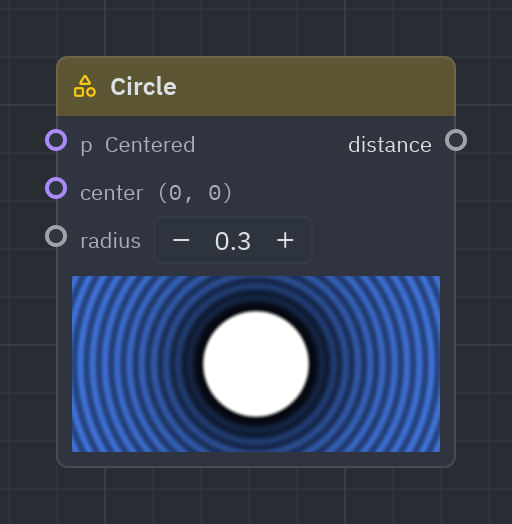
The Circle node. Its preview shows the distance: the disc in the middle and rings growing outward. -
Color it. Add an RGBA node. Wire Fill’s
maskinto RGBA’srgb(one number fills red, green and blue: white) and RGBA’scolorinto the Output’scolor. The old Gradient is no longer used: select it and press Delete. -
Make it pulse. Add a Time node and a Multiply add node. Wire Time’s
sin(a value that swings between −1 and 1) into Multiply add’sa, and type0.05inband0.3inc: the result swings between 0.25 and 0.35. Wire it into the Circle’sradius. Every preview starts to breathe. -
Add a glow. Add a Glow node, wire the Circle’s
distanceinto it, and an Add node that sums Fill’smaskand Glow’svalue. Wire the sum into RGBA’srgbinstead of the mask. -
Give it a color you can change. In the Outline, press the arrow of Add and pick color variable; name it
tintand pick a pink. Dragtintfrom the Outline onto the graph: it becomes a Parameter node. Add a Multiply node:tint’srgbtimes the sum, into RGBA’srgb. -
Try it. Open the Preview tab: the shader large, with a slider or a color swatch for every variable. The WGSL tab shows the code the graph compiles to. Press F5 to open it in a window of its own that follows your edits. Save with Ctrl+S.
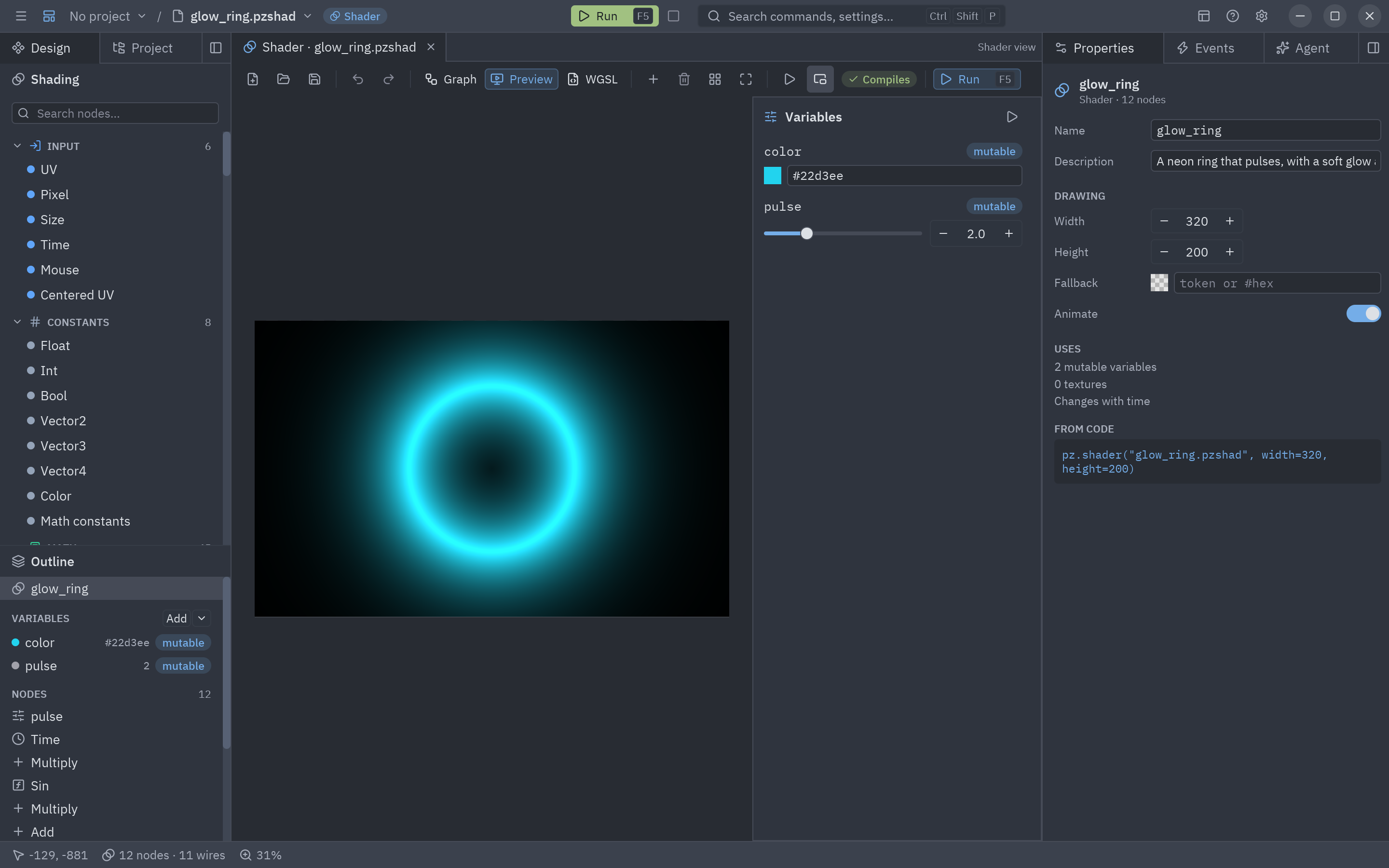
The Preview tab: every mutable variable gets a control.
Use it in an app
Section titled “Use it in an app”A .pzshad file is used like an image: give its path to pz.shader. uniforms sets its mutable variables by
name, so your code can change the color while the app runs, at no cost.
from pathlib import Path
import pyzed as pz
HERE = Path(__file__).parent

class Pulse(pz.App):    title = "My first shader"    size = (420, 320)
    def view(self):        return pz.shader(HERE / "pulse.pzshad", uniforms={"tint": "#22d3ee"}, width="fill", height="fill",                         fallback="#1e1b4b")

if __name__ == "__main__":    pz.run(Pulse)
Run the app, or look at the shader alone (press V in that window for a slider per variable):
uv run app.pyuv run pyzed run pulse.pzshadpython app.pypyzed run pulse.pzshadpython3 app.pypython3 -m pyzed run pulse.pzshadpy app.pypy -m pyzed run pulse.pzshadThe same shader in Python
Section titled “The same shader in Python”Everything the Shader view does is also a Python API. This builds the same graph and saves it; open the file in Pyzed Design to keep editing it with the mouse.
from pyzed import shading
g = shading.Graph("pulse")tint = g.uniform("tint", "color", "#f472b6")          # a variable and a Parameter node
radius = g.time()["sin"] * 0.05 + 0.3                  # Math nodes, added for youcircle = g.circle(radius=radius)light = g.fill(circle) + g.glow(circle, radius=0.1)g.output(g.rgba(tint["rgb"] * light, 1.0))
g.arrange()                                            # tidy columns, like the toolbar's Arrangeg.save("pulse.pzshad")