
The Form view
A form is one window of your app. The Form view is where you draw it: you pick controls from a box, drop them on the window, change their look in a list of properties, and write a few lines of Python for what happens when the user clicks or types. If you have used Visual Basic, the WinForms designer or Qt Designer, you already know the idea; if you haven’t, the walkthrough below takes ten minutes.
What you see
Section titled “What you see”| Area | In the Form view |
|---|---|
| Toolbox (left, top) | Every control you can place, grouped (Common, Display, Containers, Layout, Navigation…), with a search box. |
| Outline (left, bottom) | The controls of the form as a tree: select, rename, nest, hide and lock them. |
| Toolbar (center, top) | Save, undo, align, distribute, same size, center, order, grid, snap and guides. |
| Canvas (center) | The form inside a window frame, as it will run. |
| Properties (right) | The selected control, or the form when nothing is selected. |
| Events (right) | What the selected control can react to, and the Python function wired to each event. |
| Code (bottom) | The Python of the form, opened when you wire an event. |
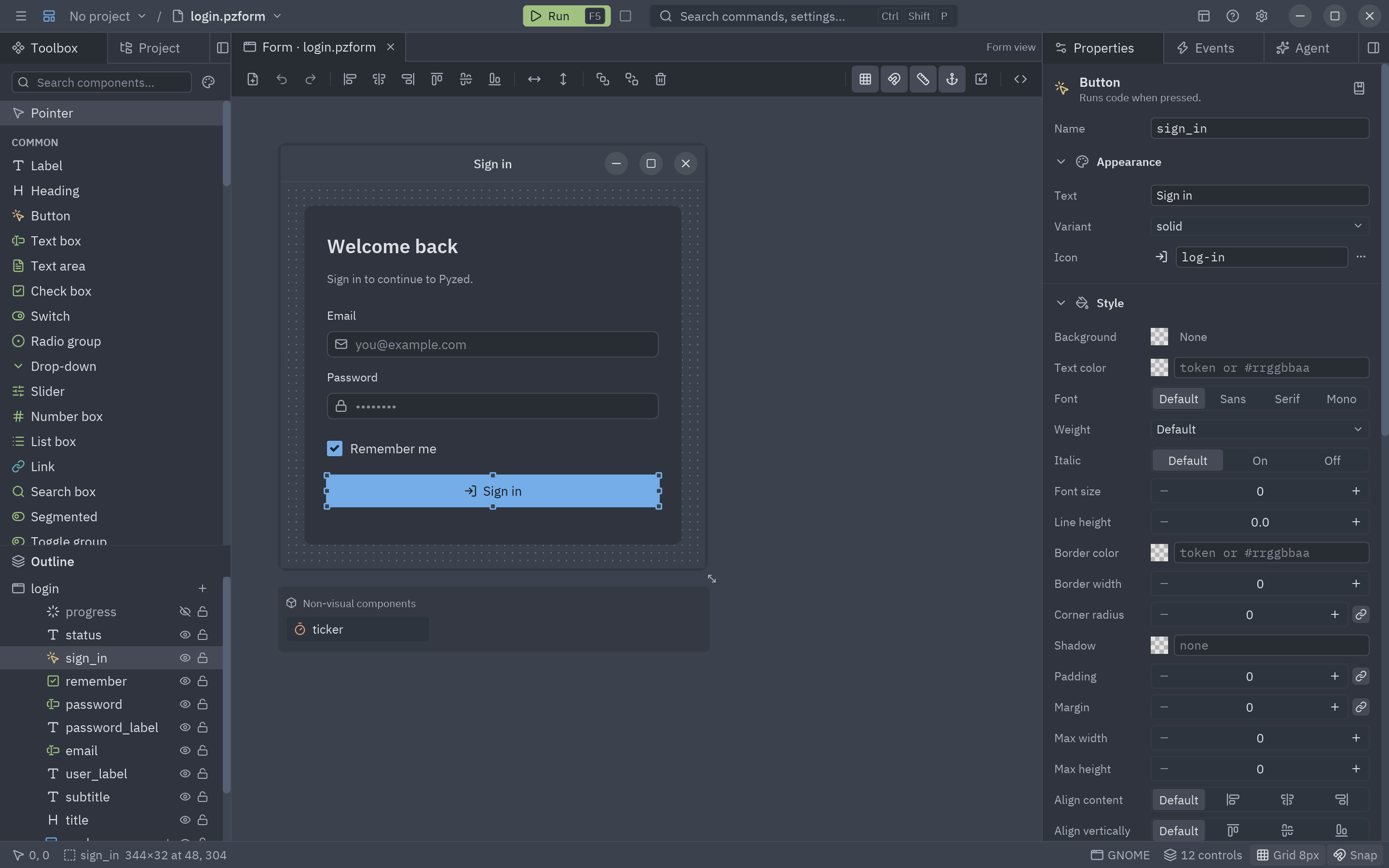
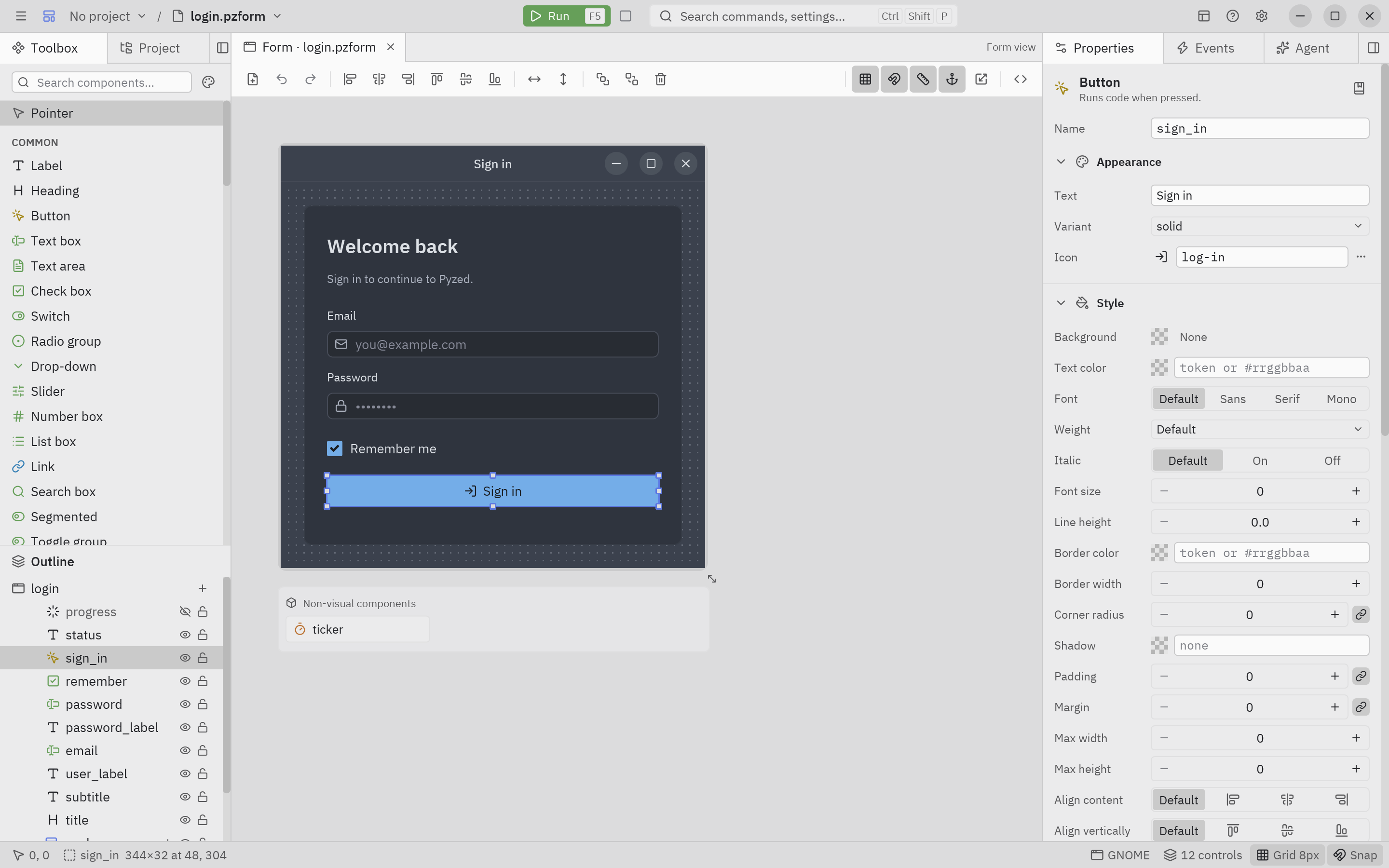
Every area is described in detail in its own page: Toolbox and canvas, Properties, Events and Code editor.
Your first form: a greeter
Section titled “Your first form: a greeter”You will build a window with a text box, a button and a label. Typing a name and clicking the button shows “Hello, name!”.

-
Create the form. Press Ctrl+N. In the New dialog keep Form, type
helloas the Name andGreeteras the Title, pick the Blank template and press Create. Two files appear:hello.pzform(the layout) andhello.py(the code).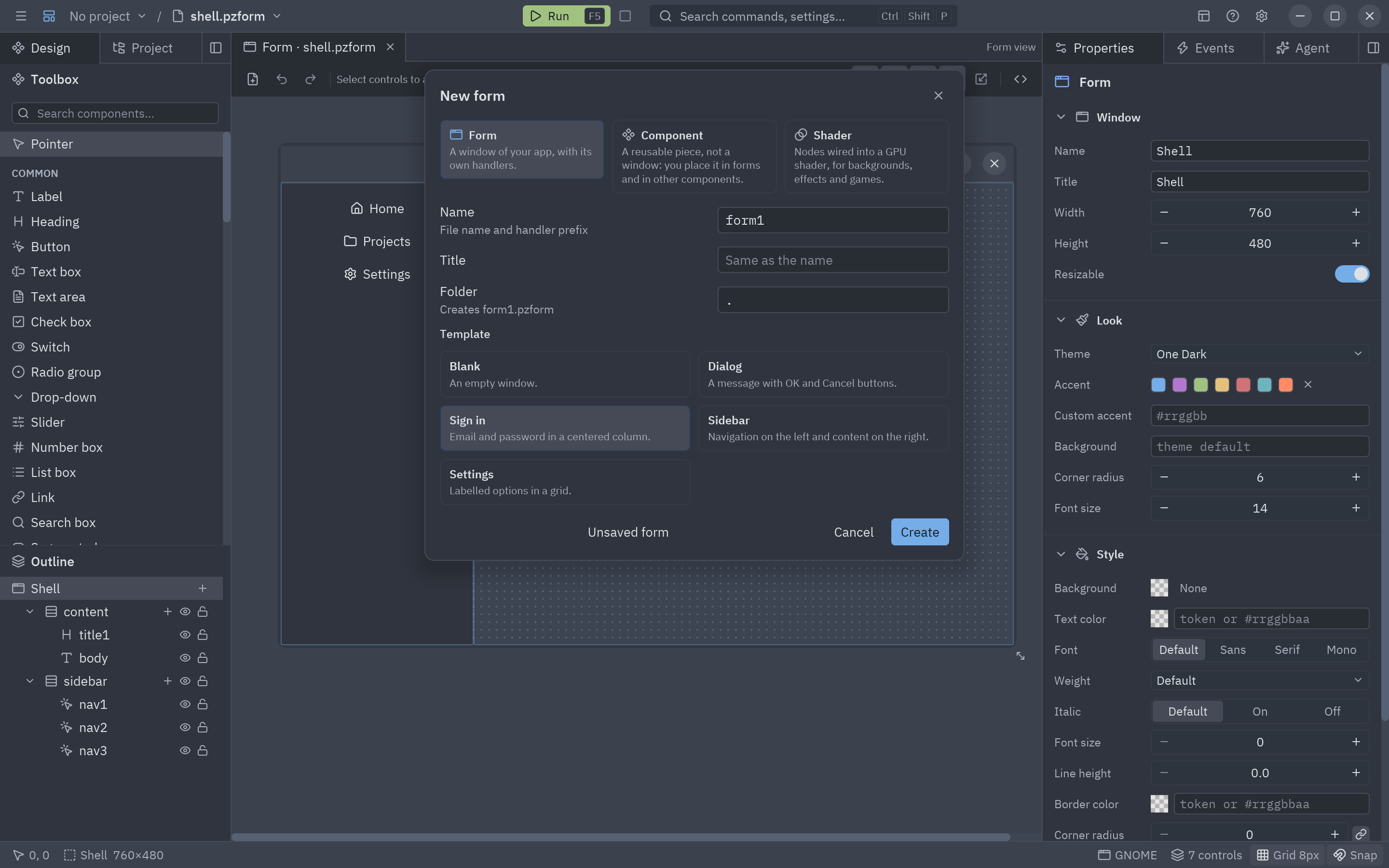
The New dialog: name, title, folder and a template to start from. -
Place a text box. In the toolbox, drag Text box onto the form. It is selected and the Properties panel shows it. Change its Name to
your_nameand its Placeholder toYour name. -
Place a button. Click Button in the toolbox, then drag a rectangle on the form under the text box: the button takes that size. Name it
greetand set its Text toSay hello.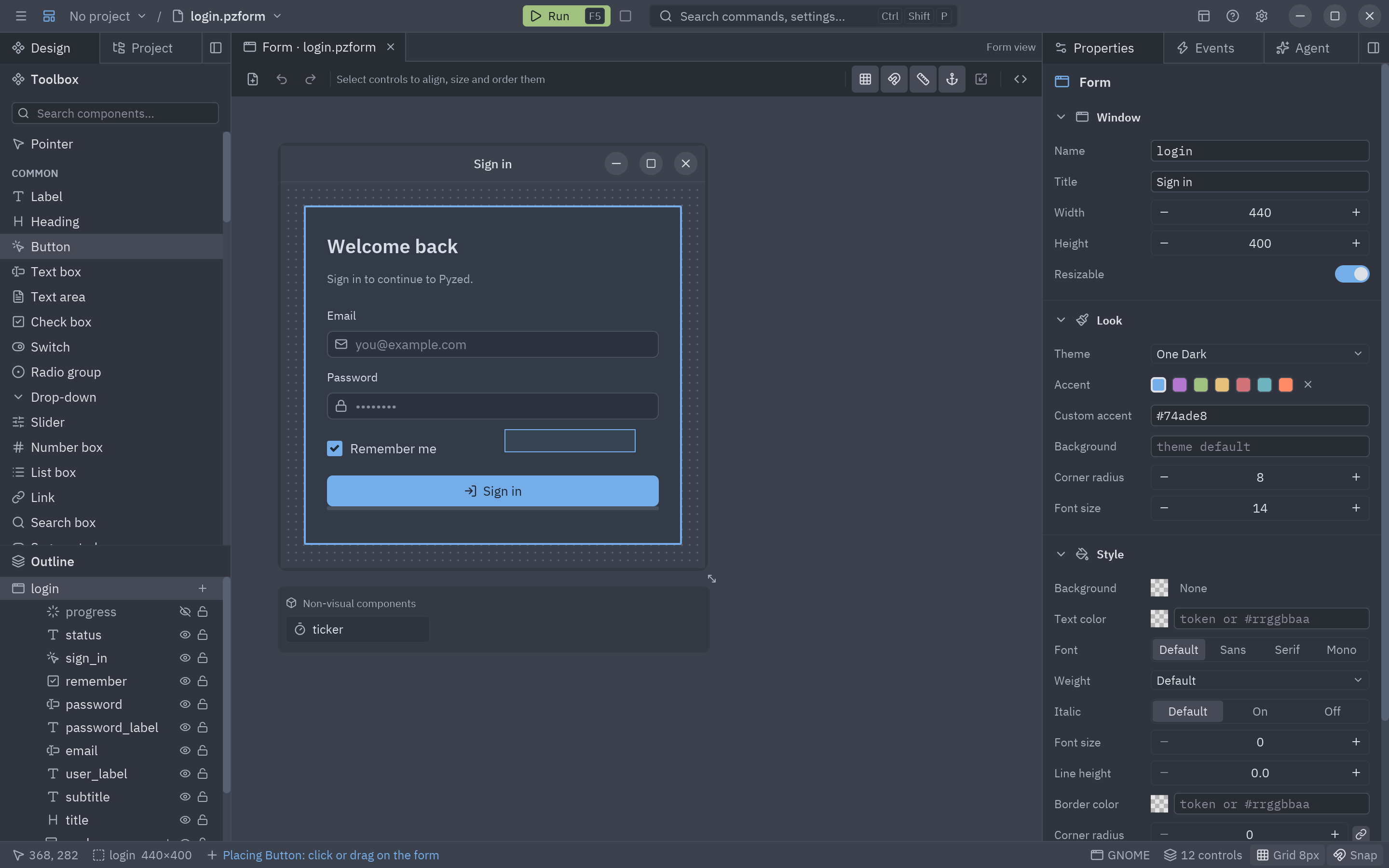
With a control picked, drag a rectangle to give it a size. -
Place a label. Add a Label under the button, name it
messageand clear its text. -
Line them up. Select the three controls (drag a rubber band around them) and press Align left in the toolbar. Smart guides show pink lines when edges line up while you drag.
-
Wire the click. Double-click the button. The Events panel wires its click event to a new function,
greet_click, and opens it in the code editor. Write one line:hello.py def greet_click(form, event):"""Runs when greet is clicked."""form.message.text = f"Hello, {form.your_name.text}!"formis the running window: each control is an attribute with its name (form.message), and its properties are attributes of the control (form.message.text). Changing them updates the window.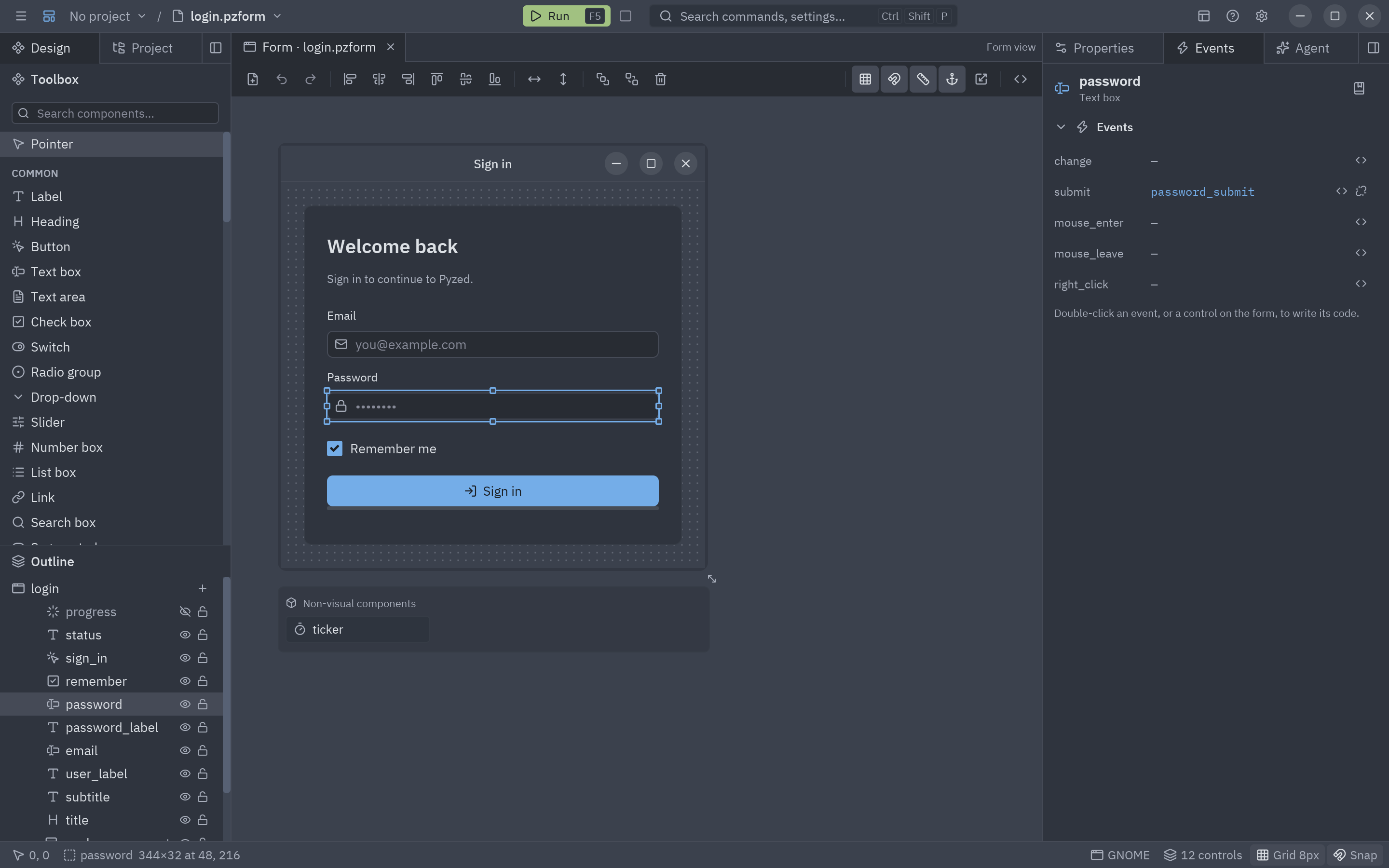
The Events panel: double-click an event to wire it and jump to its code. -
Run it. Press F5 (it saves first). Your form opens as a real window; type a name and click the button. The console at the bottom shows what the form prints and any error. Keep it open, change the label’s color in Properties and save: the running window updates.
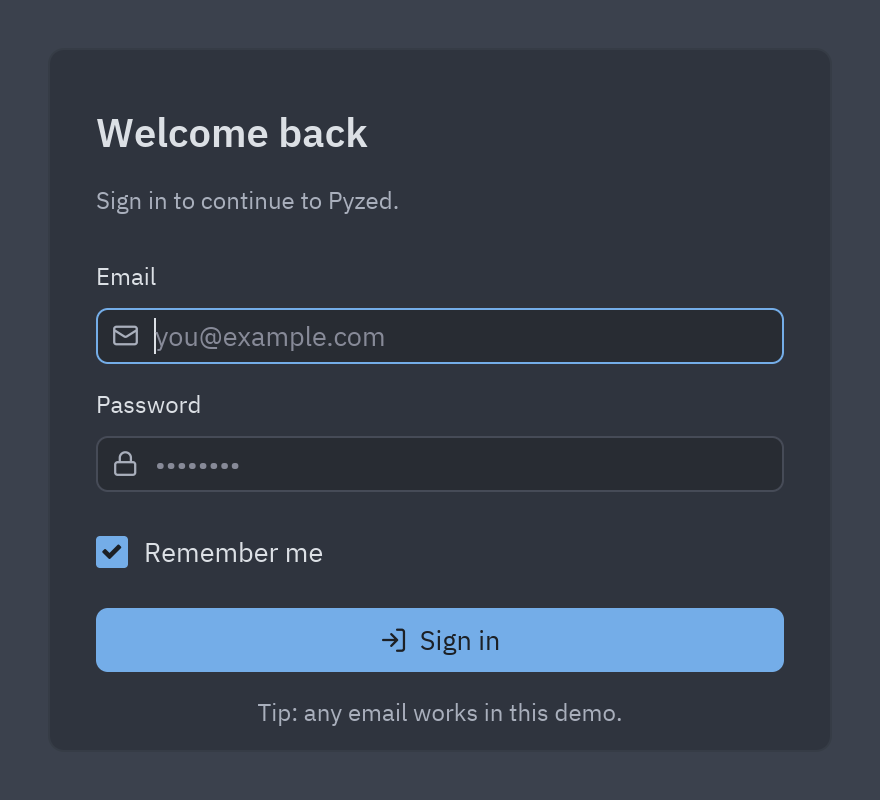
F5 runs the form with its code; saving updates it live.
Run the form outside the designer
Section titled “Run the form outside the designer”The form and its code are ordinary files of your project. Run them from a terminal:
uv run pyzed run hello.pzformuv run pyzed run hello.pzform --reload # updates on every savepyzed run hello.pzformpyzed run hello.pzform --reloadpython3 -m pyzed run hello.pzformpy -m pyzed run hello.pzformOr from your own Python code:
from pyzed import designer
designer.run("hello.pzform")
What else the Form view does
Section titled “What else the Form view does”| Task | How | More |
|---|---|---|
| Arrange controls in rows, columns and grids that adapt to the window | Select them, right-click → Group in a row / column / grid, or use a container from the toolbox | Layouts |
| Keep a control glued to an edge when the window grows | Position → Anchors in Properties | Properties |
| Change colors, fonts, borders and shadows | Style in Properties; the whole window in the form’s Style | Styles and themes |
| Animate on hover or click, add glow, blur or glass | Effects and Motion in Properties | Animations and effects |
| Fill fields from data and validate them | Data section: binding and rules | Data binding |
| See the form in another theme, language or OS frame | View → Preview theme / language / window frame | Interface |
| Reuse a group of controls in many forms | Turn it into a component | Component view |
| Paint a background with a GPU effect | The Shader control in Display, with a .pzshad |
Shading |
The .pzform file
Section titled “The .pzform file”A form is JSON: its size and look, and every control with its type, position and properties. Its handlers live next to it in a Python module with the same name. Both are yours to version, review and edit by hand.
{ "format": "pyzed.form/1", "form": {"name": "hello", "title": "Greeter", "width": 360, "height": 220, "theme": "One Dark"}, "controls": [ {"name": "your_name", "type": "input", "x": 24, "y": 24, "width": 312, "height": 32, "props": {"placeholder": "Your name"}, "events": {}}, {"name": "greet", "type": "button", "x": 24, "y": 72, "width": 120, "height": 32, "props": {"text": "Say hello"}, "events": {"click": "greet_click"}} ]}