
Layouts and containers
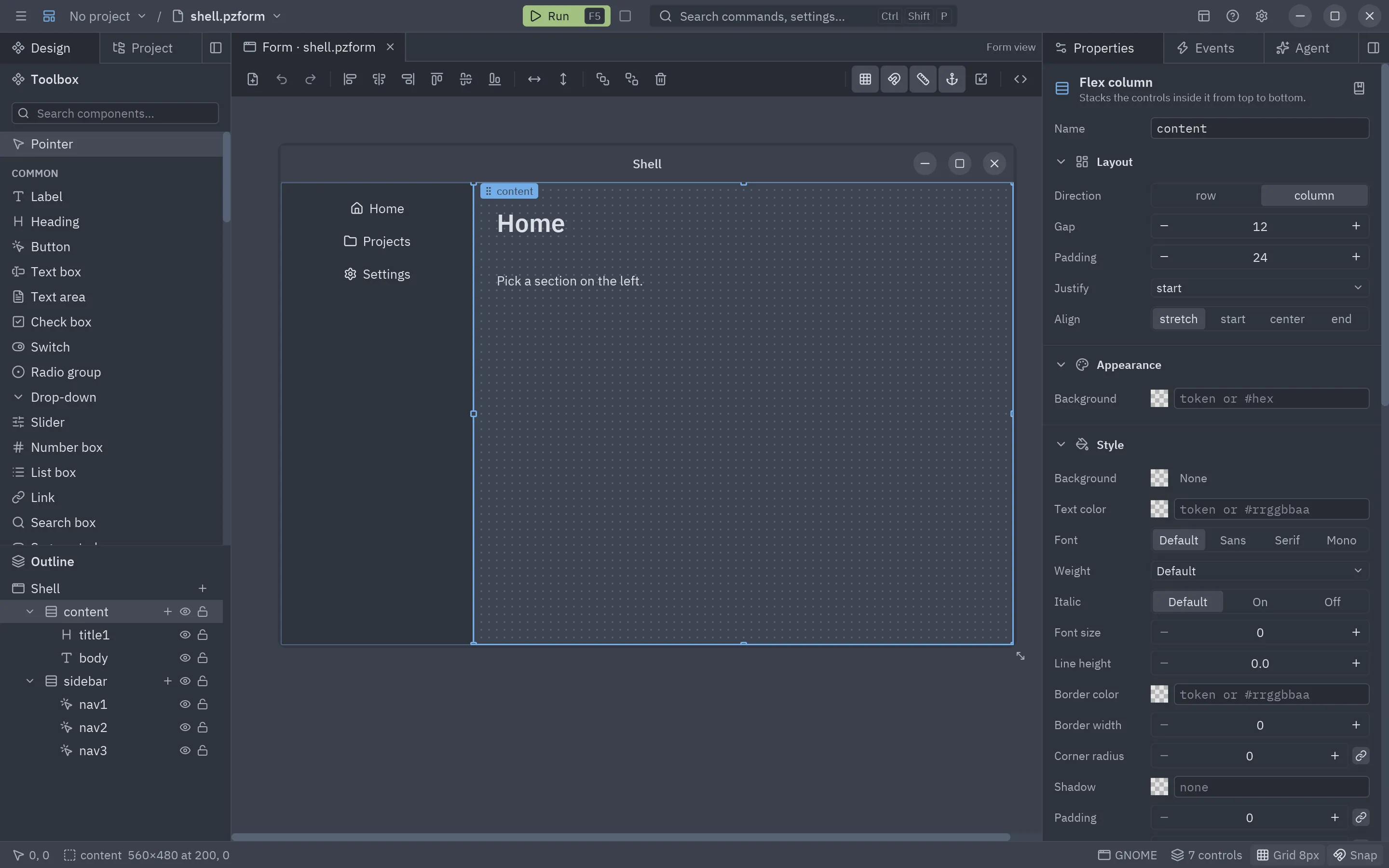
Controls can live directly on the form, at fixed positions, or inside containers that place them for you. The same layout code runs in the editor and in the running app, so what you see while designing is what you get.
The three kinds of container
Section titled “The three kinds of container”| Kind | Components | How children are placed |
|---|---|---|
| Free | Panel, Group box, Card | Where you drop them, in coordinates relative to the container. Their anchors follow the container’s edges. |
| Flex | Flex row, Flex column | One after another, like CSS flexbox. |
| Grid | Grid | In cells, left to right and top to bottom. |
| Dock | Dock | Dock panels only, on their side under a row of tabs (see Dock). |
flowchart TB
    F[Form] --> P["Panel (free)"]
    F --> R["Flex row"]
    F --> G["Grid"]
    P --> A["button at x=16, y=8"]
    R --> B1["button · grow 1"]
    R --> S["spacer"]
    R --> B2["button"]
    G --> L1["label"] & I1["text box · span 2"]
Putting controls in a container
Section titled “Putting controls in a container”- Drop a control on a container (it lights up with an accent frame while you drag): from the toolbox, from the canvas or from the outline.
- Draw a new control inside it: pick a component and click or drag inside the container.
- Add inside…: the + on the container’s outline row, or its context menu, opens the Add control list.
- Group: select some controls and press Ctrl+G to put them in an invisible panel that wraps them exactly, without moving them. Shift+A (Add auto layout) wraps them in a flex row or column instead, guessed from how they are placed. Edit → Group in a row / column / grid (palette) and the context menu offer every kind, including Group in a panel.
- Ungroup: Ctrl+Shift+G on a container takes its children out and removes it. They keep the place and size they had on the canvas, even the ones a flex row stretched.
- Take out: drag the control onto the bare form, use Move out of container in its context menu, or the arrow next to Inside in its Position section.
Moving or resizing a container moves its children with it, and copy, cut, paste, duplicate and delete take them along. A container cannot be dropped inside itself or its own children.
Flex row and flex column
Section titled “Flex row and flex column”| Property | Meaning |
|---|---|
| Direction | row (left to right) or column (top to bottom). A flex row and a flex column are the same container with a different default. |
| Gap | Space between children, in pixels. |
| Padding | Space between the container’s edge and its children: one number for every side, two (vertical and horizontal) or four (top, right, bottom, left). |
| Justify | Where children go along the main axis when there is room left: start, center, end, space-between, space-around, space-evenly. |
| Align | Across the main axis: stretch (fill), start, center, end. |
| Background | A color behind the children. |
The Auto layout section of the Properties panel edits all of these the way Figma does: a direction, a 3×3 Align box (click where the children sit), the gap (or a way to spread them), the padding and Fill across. See Properties.
Each child says in its Position section whether its Width and Height are Fixed (its own size) or
Fill (the room the container leaves); a child that fills across overrides the container’s Align for itself
(align_self in the .pzform). Each child also gets a Grow field: the share of the free space it takes (0 keeps its own
size). Two children with grow 1 split the free space in halves; 2 and 1 in thirds. When the children do not fit,
they all shrink in proportion to their size, like CSS flex-shrink.
A Spacer is an empty control with grow 1: put one between two buttons and the second one is pushed to the end of the row.
| Property | Meaning |
|---|---|
| Columns | Number of columns of equal width. |
| Gap | Space between cells, both ways. |
| Padding | Space inside the container’s edge. |
| Row height | Height of every row; 0 shares the container’s height between the rows. |
| Align | How a child sits in its cell: stretch fills it, otherwise start, center or end at its own size. |
| Background | A color behind the cells. |
Each child gets a Column span: how many columns it takes (1 to 24). A child that does not fit in the rest of a row starts a new one.
A Dock (Layout category) is the layout of Zed and of Pyzed Design itself: a center area with panels on its left, right, top and bottom. A new Dock comes with three Dock panels: Explorer on the left, Terminal at the bottom and Editor in the center. Drop controls on a panel as on any free container (anchors work inside it).
| Where | Property | Meaning |
|---|---|---|
| Dock panel | Title, Icon | What its tab shows. |
| Dock panel | Side | left, right, top, bottom or center (no tab, between the others). |
| Dock | Left width, Right width, Top height, Bottom height | The size of each side, tabs included. |
| Dock | Saved layout | Where the user left the panels (filled in at run time; save it with a Settings component). |
Panels on the same side share its place as tabs; the top-most one (last in the outline order) is the tab shown,
so use Bring to front or the outline to edit the others. When the form runs, the tabs switch panels,
dragging a tab onto another side moves it there, right-clicking a tab offers the same moves, and dragging a
side’s inner edge resizes it. Each change raises the dock’s layout event with the new layout.
def dock1_layout(form, event): """Runs when a panel of dock1 is moved, resized or switched.""" form.status.text = f"Left side: {event.value['sizes'].get('left', 220):.0f} px"Order of children
Section titled “Order of children”In a flex or grid container, order matters, position does not: children have no X and Y. To reorder them, drag a child within the container on the canvas (it drops at the place under the pointer) or drag its row in the outline, which lists them in layout order.
Anchors: responsive free layouts
Section titled “Anchors: responsive free layouts”On the form and in free containers, anchors decide what happens when the running window (or the container) is resized, like in WinForms. Anchored to left and right, a control stretches; anchored only to the right, it follows that edge; anchored to neither, it stays centered. The same applies vertically with top and bottom.
Pick them in the Position section of Properties from a grid of 16
presets, as in Unity, Unreal or Godot, and give a stretched control a minimum and maximum size so it
stops growing at a readable width (its pivot says which side it keeps then). The running form applies all
of them; in code without the designer, pz.anchor_layout does the same.
Anchors work while you design too: resizing the form (or a component) with its corner grip or its Width and Height, or resizing a free container, moves and stretches what is inside exactly as the running window would, size limits and pivot included. Turn it off with the anchor button of the toolbar (Resize contents with their anchors) to change the size without touching the controls.
A common recipe for a resizable window:
- A flex column anchored on all four sides fills the window.
- Rows inside it with grow on the part that should take the extra space (a text area, a list).
- A flex row at the bottom with a spacer and the buttons, so they stay on the right.