
Data binding and validation
A form can show and edit data without a line of glue code: bind each control to a field of form.data, give
the input controls rules, and call form.validate() before you use the data.
Binding a control
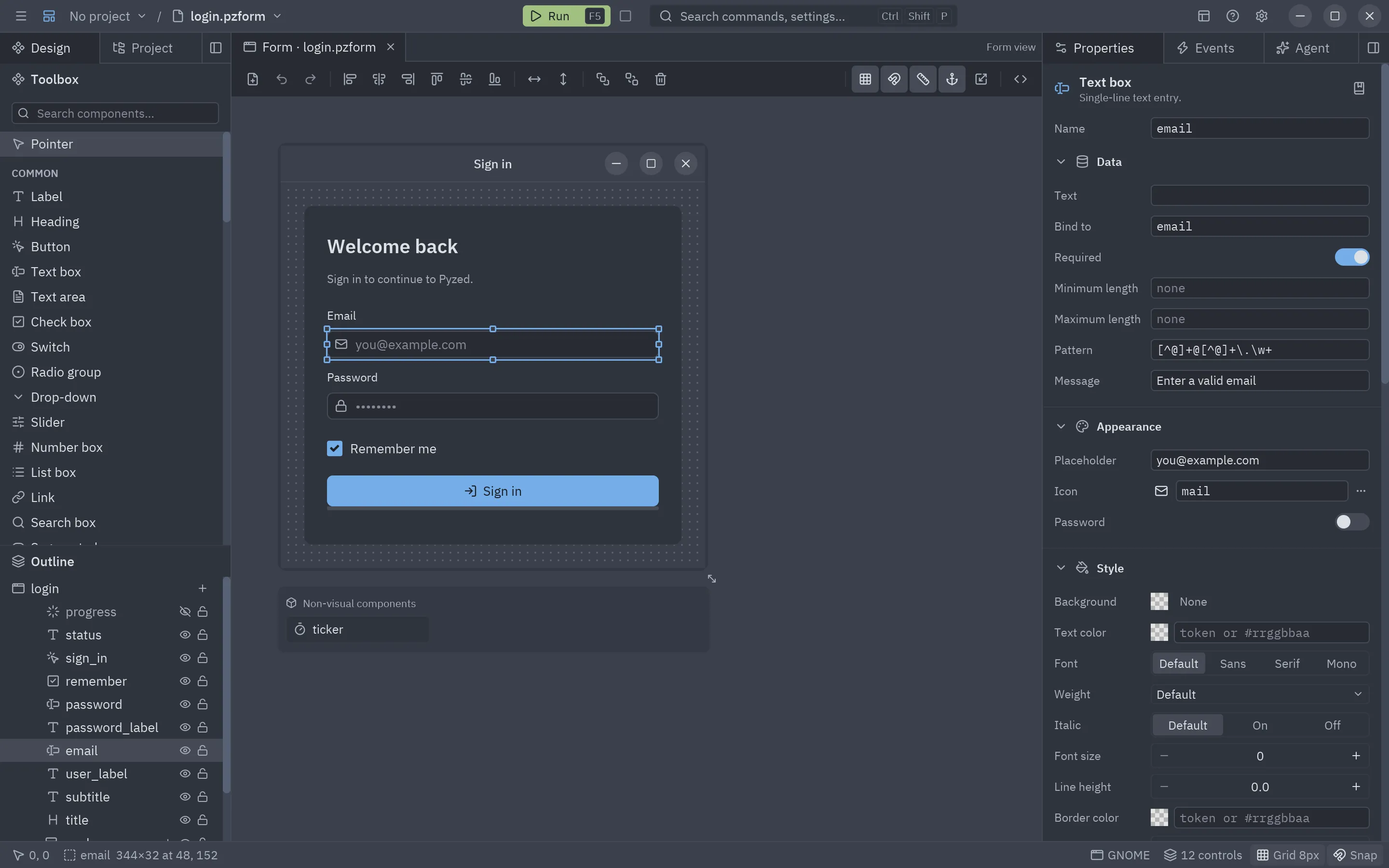
Section titled “Binding a control”Select a control and fill Bind to in the Data section of Properties. The field
is a name (email) or a path into nested data (customer.address.city, items.0.title).
-
Input controls bind in both directions: they show the field and write back what the user types or picks. Text boxes, text areas and search boxes bind
text; check boxes and switcheschecked; radio groups, drop-downs, segmented controls, tab bars and list boxesselected; sliders and number boxesvalue. -
Display controls only show it: labels, headings, badges, links, chips, markdown and callouts bind
text, stats and progress barsvalue, imagessource, chartsvaluesand tablesdata. -
A display control’s Bind to can also be a Python expression over the data’s fields, re-evaluated on every render:
f"Signing in as {email}" if email else ""f"{len(items)} items, {sum(i.price for i in items):.2f} €"Nested dicts read with dots (
customer.city);datais the whole object andformthe running form. A path to a field that is still missing leaves the control’s designed value; an expression that raises leaves it too and shows the error in the window.
The form’s data
Section titled “The form’s data”form.data is whatever the form that opened this one passed, or a dict the form makes itself:
def edit_click(form): return form.open("customer", data=selected_customer) # a dict, a dataclass, any object| Opened with | form.data is |
|---|---|
data= a dict or an object |
That same object: the user’s edits change it in place. |
| Nothing, with bound controls | A new dict, filled with the controls’ designed values ({"email": "", "remember": False}). |
Assigning form.data = {...} replaces it and refreshes every bound control, which is the way to load a record:
def form_load(form): form.data = database.load_customer(42)Validation rules
Section titled “Validation rules”The Data section also holds the rules of a two-way control. The rules depend on the kind of control:
| Rule | Controls | Fails when |
|---|---|---|
| Required | Every input control | The value is empty (an unchecked box, for check boxes and switches). |
| Minimum length, Maximum length | Text boxes, text areas, search | The text is shorter or longer. |
| Pattern | Text boxes, text areas, search | The whole text does not match the regular expression. |
| Minimum, Maximum | Sliders, number boxes | The number is smaller or larger. |
| Message | Every input control | Replaces the built-in message of any rule (@key translates it). |
An empty value only fails Required, so an optional email field with a pattern accepts a blank. The built-in messages (“This field is required”, “At least 8 characters”) follow the app’s language.
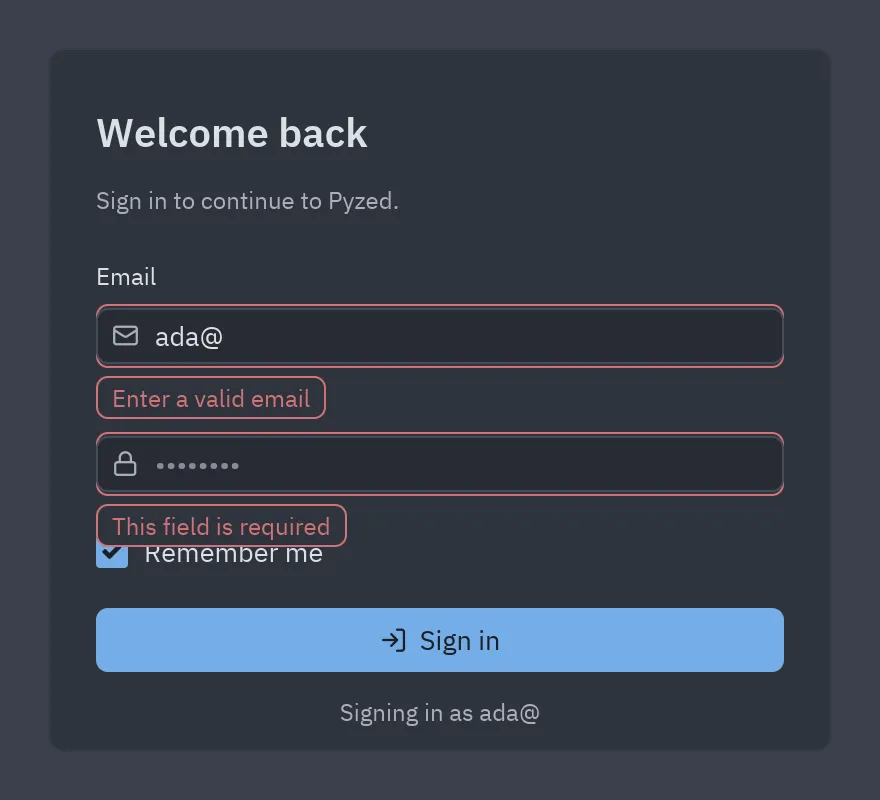
The running form checks a control’s rules as the user types, and shows the message in a bubble under the control, which gets a red border:
Validating in code
Section titled “Validating in code”def sign_in_click(form): if not form.validate(): # checks every visible, enabled control and shows the errors return auth.sign_in(form.data["email"], form.data["password"])| Code | Does |
|---|---|
form.validate() |
Checks every bound control’s rules (hidden and disabled ones are skipped) and returns True when all pass. |
form.valid |
True while no control shows an error. |
form.errors |
{"email": "Enter a valid email", ...}: the controls that show an error. |
form.email.validate() |
Checks one control; True when it passes. |
form.email.error |
The control’s message, or None. Assign a text to show your own error (form.email.error = "Already registered"), None to clear it. |
A server-side check therefore looks like any other:
async def sign_in_click(form): if form.validate() and not await api.email_free(form.data["email"]): form.email.error = "That email is already registered"Translatable texts
Section titled “Translatable texts”Any text property that starts with @ is a translation key: a label whose text is @login.title shows
pz.t("login.title") in the app’s language. @@ writes a literal @. List items (a drop-down’s options, a tab
bar’s tabs) translate one by one, and so do the form’s title and a rule’s message.
The catalogs live in a locales/ folder next to the form, or in any folder above it up to the project root
(pyproject.toml or .git), one file per language:
{"login": {"title": "Iniciar sesión", "email": "Correo", "sign_in": "Entrar"}}The designer and the running form load them on their own. See Translations for plurals, fallbacks and switching the language at run time.
Preview in another theme or language
Section titled “Preview in another theme or language”View → Preview theme… and View → Preview language… pick a theme and a language for the canvas, without touching the form: the form keeps its own theme and the app its language, and the first entry of each picker goes back to them.
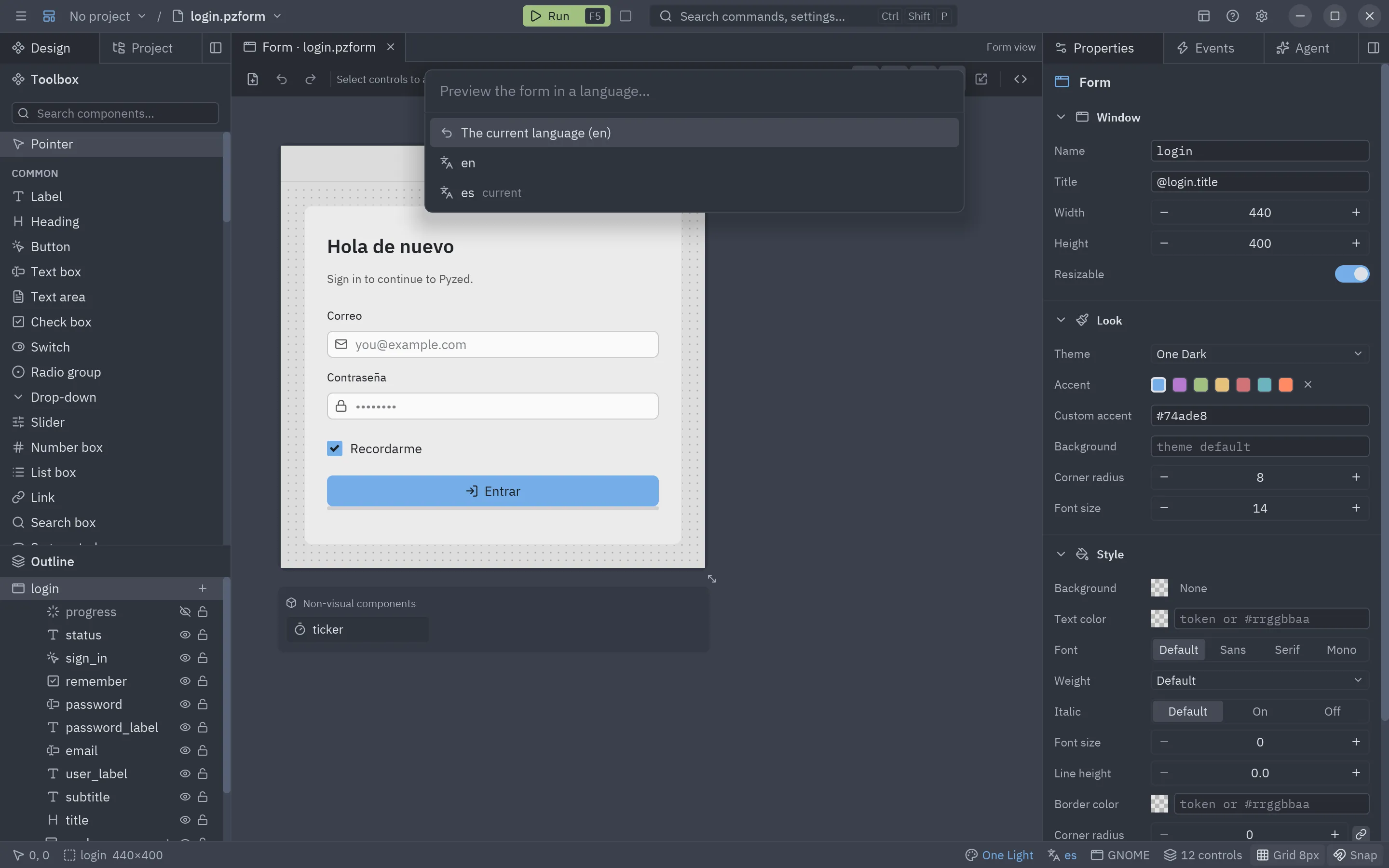
While a preview is on, the status bar shows it (click it to pick another), and Run (F5) starts the
form with the same theme and language, so you can try the whole flow in Spanish or in a light theme. The running
form reads them from the PYZED_PREVIEW_THEME and PYZED_PREVIEW_LANGUAGE environment variables, which also work
from a terminal:
PYZED_PREVIEW_LANGUAGE=es PYZED_PREVIEW_THEME="One Light" uv run python main.pyCopying controls between forms
Section titled “Copying controls between forms”Copy (Ctrl+C) puts the selected controls on the system clipboard, with their bindings and rules, so you can paste them into another form, in another tab or another Pyzed Design window. See Toolbox and canvas.