
The interface
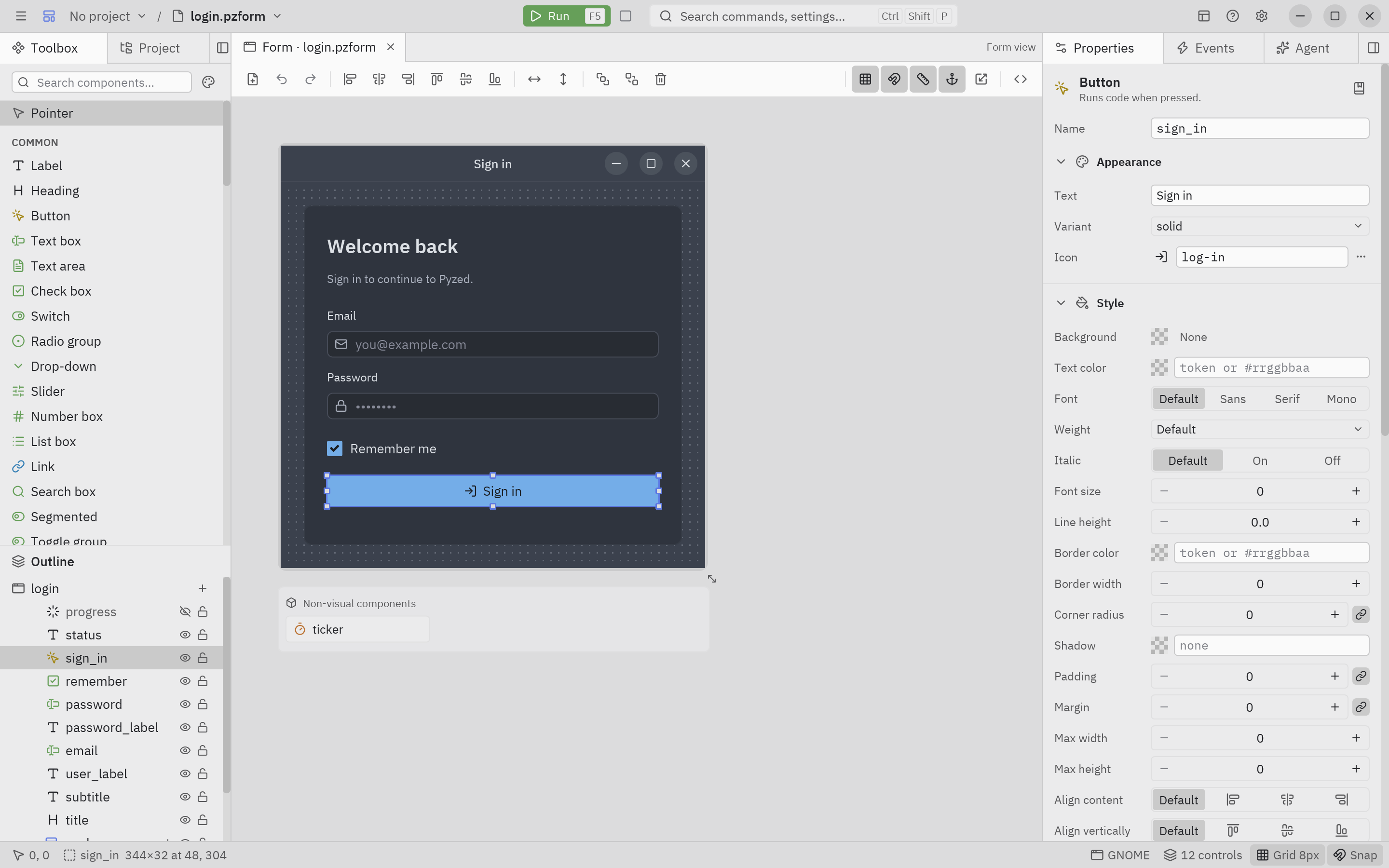
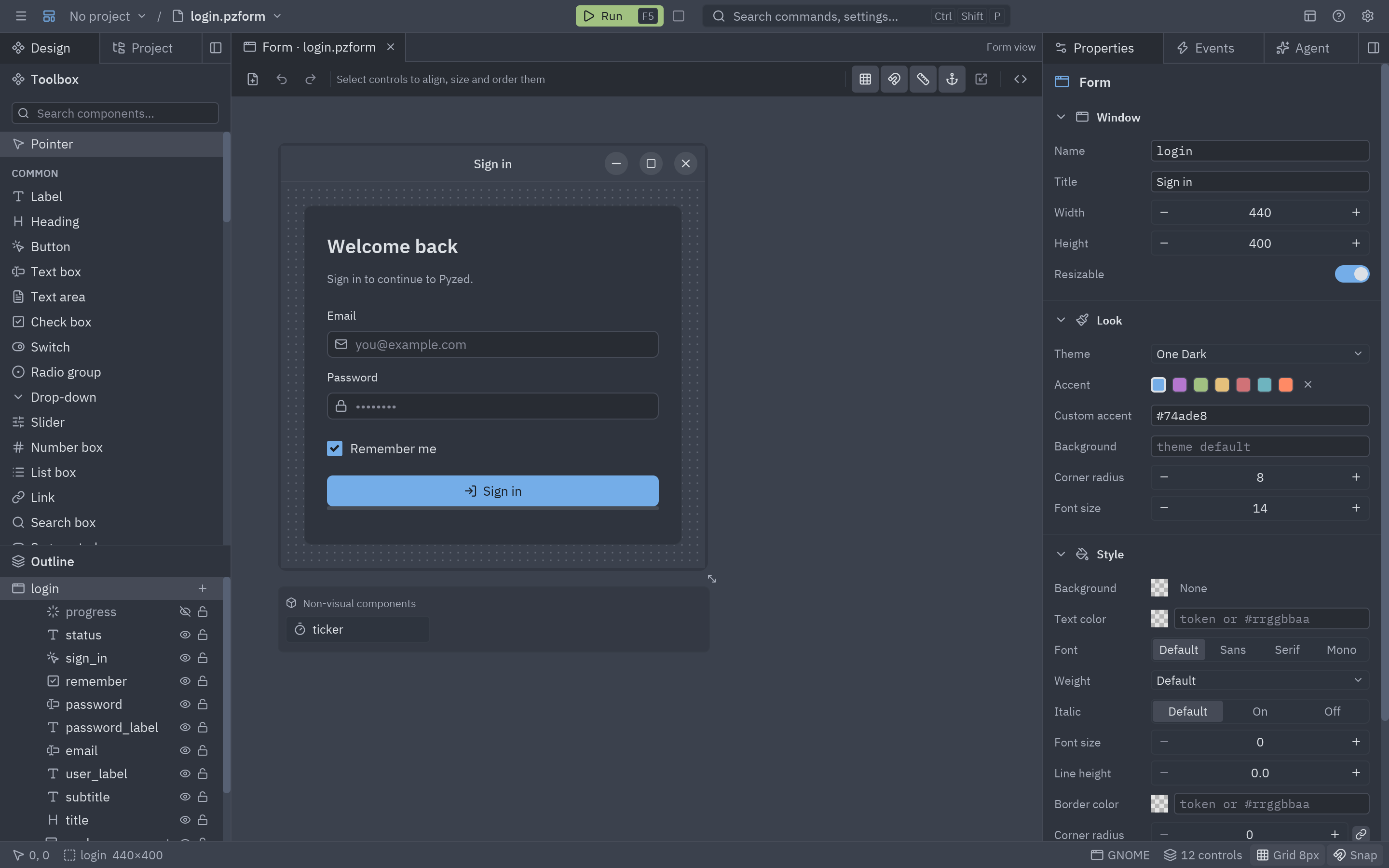
Pyzed Design is one window split in a few areas, and every area has a single job. Once you know their names, the rest of this manual reads easily. The layout borrows from editors many people already know: the panels and the title bar are inspired by the Zed code editor, the form canvas and the property grid by Visual Basic and Qt Designer, and the node and scene ideas by Godot and Unreal Engine.
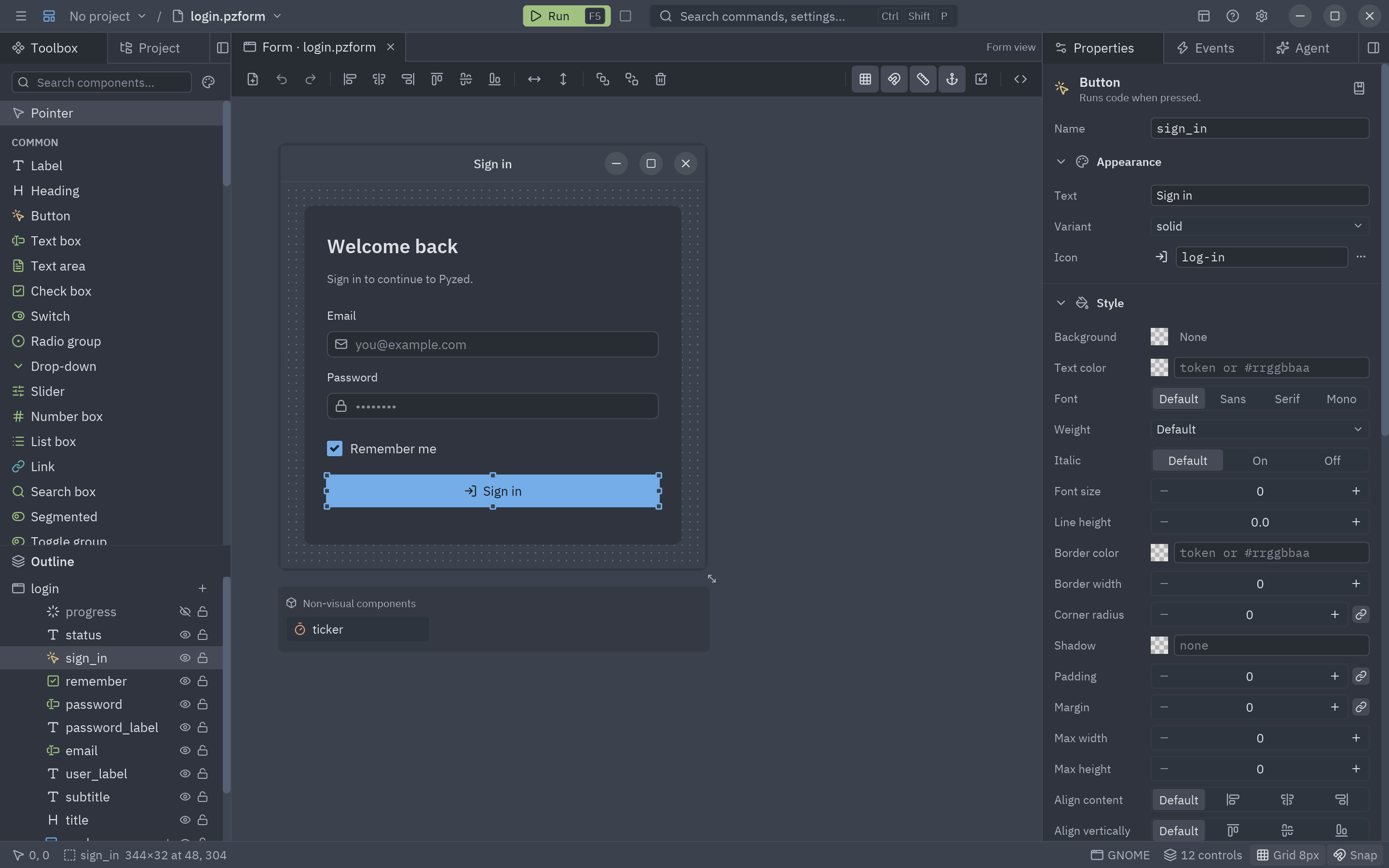
flowchart TB
    T["① Title bar: ☰ menu · project / file · Run ▶ Stop · 🔍 Search · View · Help · ⚙"]
    subgraph W[" "]
        direction LR
        L["② Left dock<br/>Toolbox · Project · Dependencies"]
        subgraph C["③ Center"]
            direction TB
            D["Document tabs"]
            TB["Toolbar"]
            F["Canvas (or the graph of a shader)"]
        end
        R["④ Right dock<br/>Properties · Events · Agent"]
    end
    B["⑤ Bottom dock: Code · Console"]
    S["⑥ Status bar"]
    T --> W --> B --> S
① The title bar
Section titled “① The title bar”The strip at the very top. From left to right (Run, Stop and the search field sit in the middle):
| Item | What it does |
|---|---|
| ☰ | The main menu: New, Open, Go to file, Save, Settings, recent files, and the Run commands. |
| Environment | Shown under WSL: the Linux distribution the project runs in (Ubuntu…), like Zed’s remote indicator. |
| Project name ⌄ | The active project (or No project). Click it for the project picker: the projects open in this window and the recent ones; see Several projects in one window. |
| Branch / worktree | The project’s git branch (click it to switch branch) and, in a linked worktree, its name. |
| / file name ⌄ | The document in front. Click it to open another form, component or shader. |
| ● | Shown when the document has unsaved changes. |
| Component / Shader badge | Says which view you are in when it is not a form. |
| ▶ Run (F5) | Runs the form, previews the component, or opens the shader in its own window. |
| ■ Stop (Shift+F5) | Closes what Run opened. Disabled when nothing is running. |
| 🔍 Search (Ctrl+Shift+P) | Opens the command palette: commands, panels, editor settings, key bindings and recent files. |
| View (panels icon) | Docks, panels, grid and guides, previews of other themes, languages and window frames. |
| Help (? icon) | Shortcuts, the built-in reference, the welcome window, updates and About. |
| ⚙ (Ctrl+,) | Settings. |
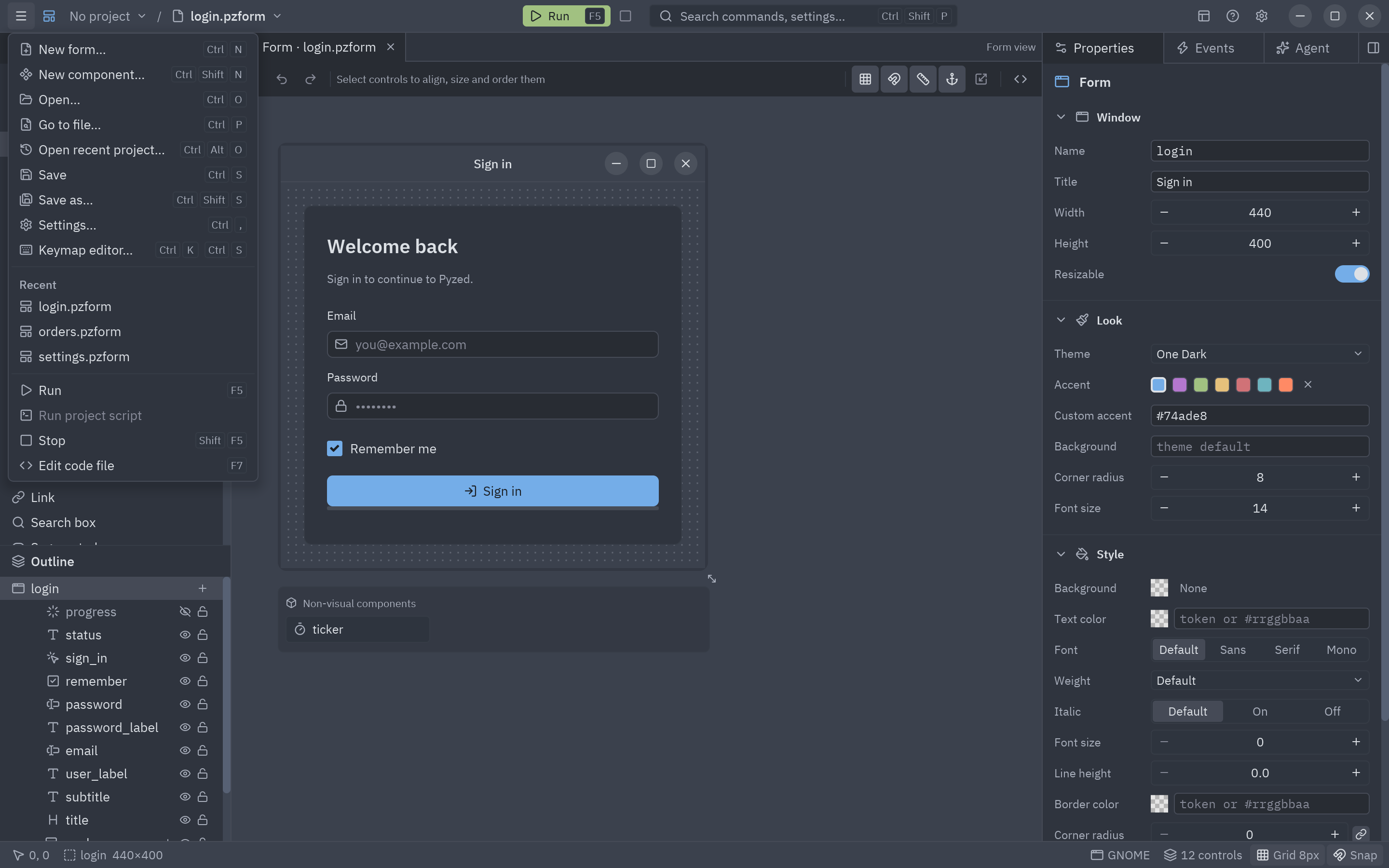
Every menu entry is listed with its keys in Menus and commands. Anything you can click in a menu is also in the command palette (the search field, or Ctrl+Shift+P): type a few letters of its name and press Enter.
The window frame
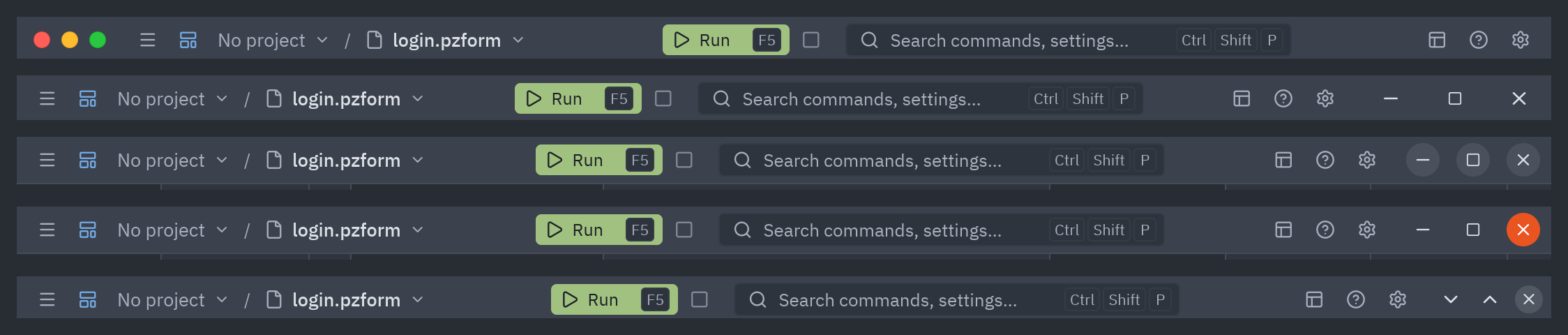
Section titled “The window frame”By default Pyzed Design draws its own window frame: the title bar above also holds the minimize, maximize and close buttons, in the style of your system, and the borders of the window resize it. Drag the title bar to move the window; double-click it to maximize. This gives a compact, uniform window on every platform.
② ④ ⑤ Docks and panels
Section titled “② ④ ⑤ Docks and panels”Panels live in docks around the center: left, right, bottom and a top dock that is empty until you move a panel there. Each dock shows one tab at a time. Every place takes any tab: a panel can sit next to the form tabs in the center (the code editor beside your forms, for example), a form can go into a side dock, and any tab can float in a window of its own, alone or stacked with others.
| Panel | Dock | What it is for | Manual |
|---|---|---|---|
| Toolbox | Left | Everything you can place, above the Outline (the tree of what is placed); icons are colored by role. In a shader it becomes the Shading sidebar and the shader’s variables. | Toolbox and canvas |
| Project | Left | The files of the project as a tree, with search, git status and a right-click menu. | Projects |
| Dependencies | Left | Packages, ruff and ty of the project (only with a project open). | Projects |
| Properties | Right | Everything about the selection: text, size, colors, data, behavior. | Properties |
| Events | Right | The events of the selection and the Python handler wired to each. | Events |
| Agent | Right | An AI agent that builds forms and components and writes their code. | AI agents |
| Code | Bottom | The Python editor, while a handler or a file is open. | Code editor |
| Console | Bottom | What a running form prints, the events it handles, and its errors. | Running and the console |
What you can do with them:
- Switch with the tabs at the top of a dock.
- Drag any tab, a panel’s or a form’s: along its row to reorder it, onto another row to stack it there, over a dock or the center to move it there, or out of the window to open it in a window of its own. While you drag, a copy of the tab follows the pointer, the place it would go to lights up, and over a row a bar marks where it would land. Drop more tabs on a window to stack them there, and drag them back over the main window to put them back.
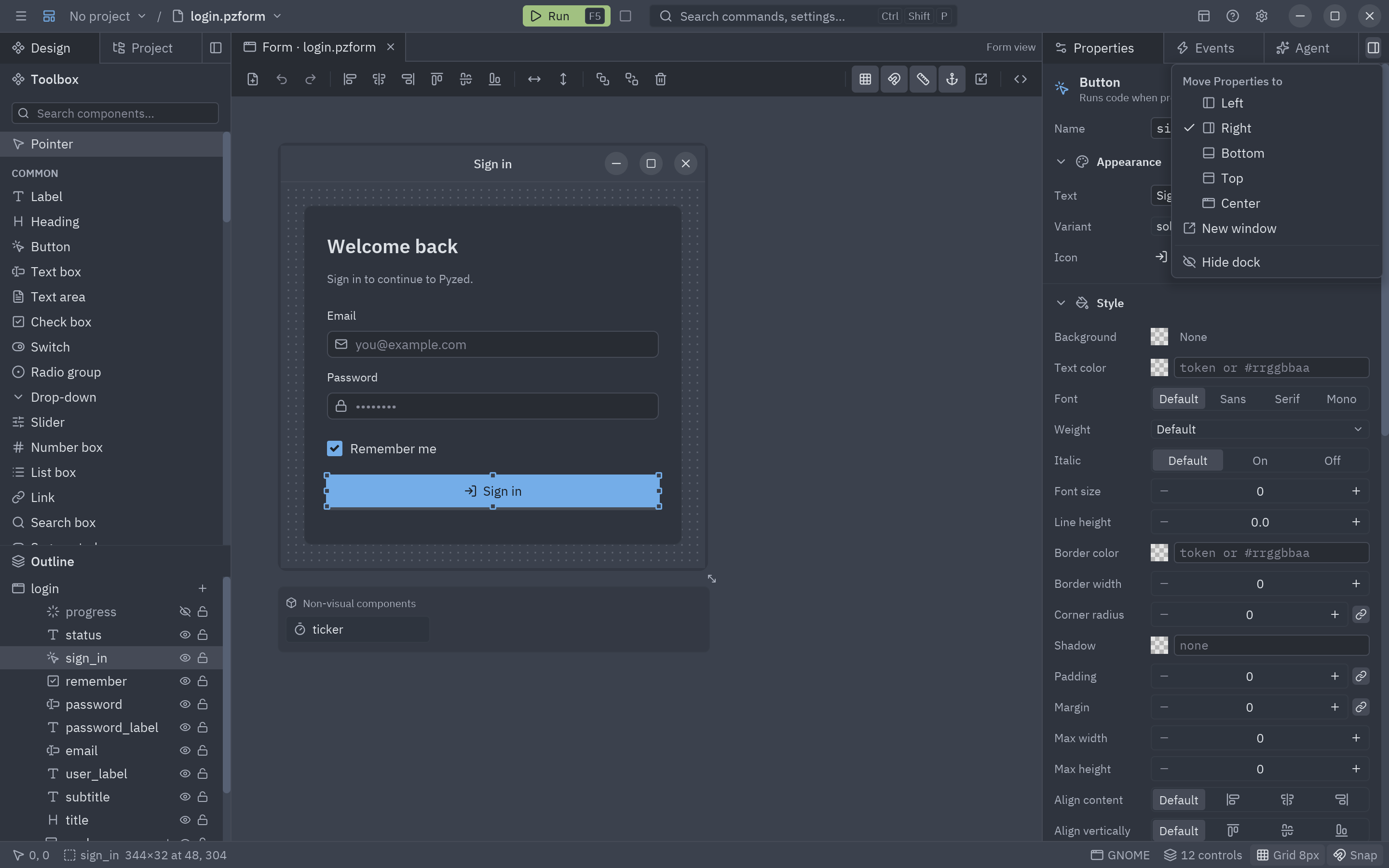
- Move a panel from the menu instead: the dock button at the end of the tab bar opens Move panel to left, right, bottom, top or Center, or New window. A panel’s tab outside the docks has a × that sends it back to its dock. In a window of its own, the same button offers Dock everything here back, and closing the window does the same: forms go back to the main window and panels to their docks.
- Resize a dock by dragging its edge that faces the canvas.
- Hide a dock with its ×, or toggle it: Ctrl+B (left), Ctrl+Alt+B (right), Ctrl+J (bottom).
- Save the layout with View → Save layout as… and switch between layouts from View → Layouts. Pyzed comes with Default, Coding (code next to the properties), Focus (only the canvas and the right dock), Events and code and Code with the forms (the code editor as a tab beside the forms, the events on the left); Delete this layout removes one of yours.
- Reset everything with View → Reset panel layout. Where each panel is, the tab order, the size of each dock and the panel windows (with their size and position) are saved with your settings and reopen next time.

③ The center: tabs, toolbar and canvas
Section titled “③ The center: tabs, toolbar and canvas”Document tabs and windows
Section titled “Document tabs and windows”Every open file is a tab: Form · login.pzform, Component · rating.pzcomp, a shader, a Python file, the reference
or the release notes. The end of the tab row says which view is in front (Form view, Component view…).
- Click a tab to switch; each document keeps its own selection and undo history.
- Drag a tab along the row to reorder it, or over a dock to work on that form beside the one in the center.
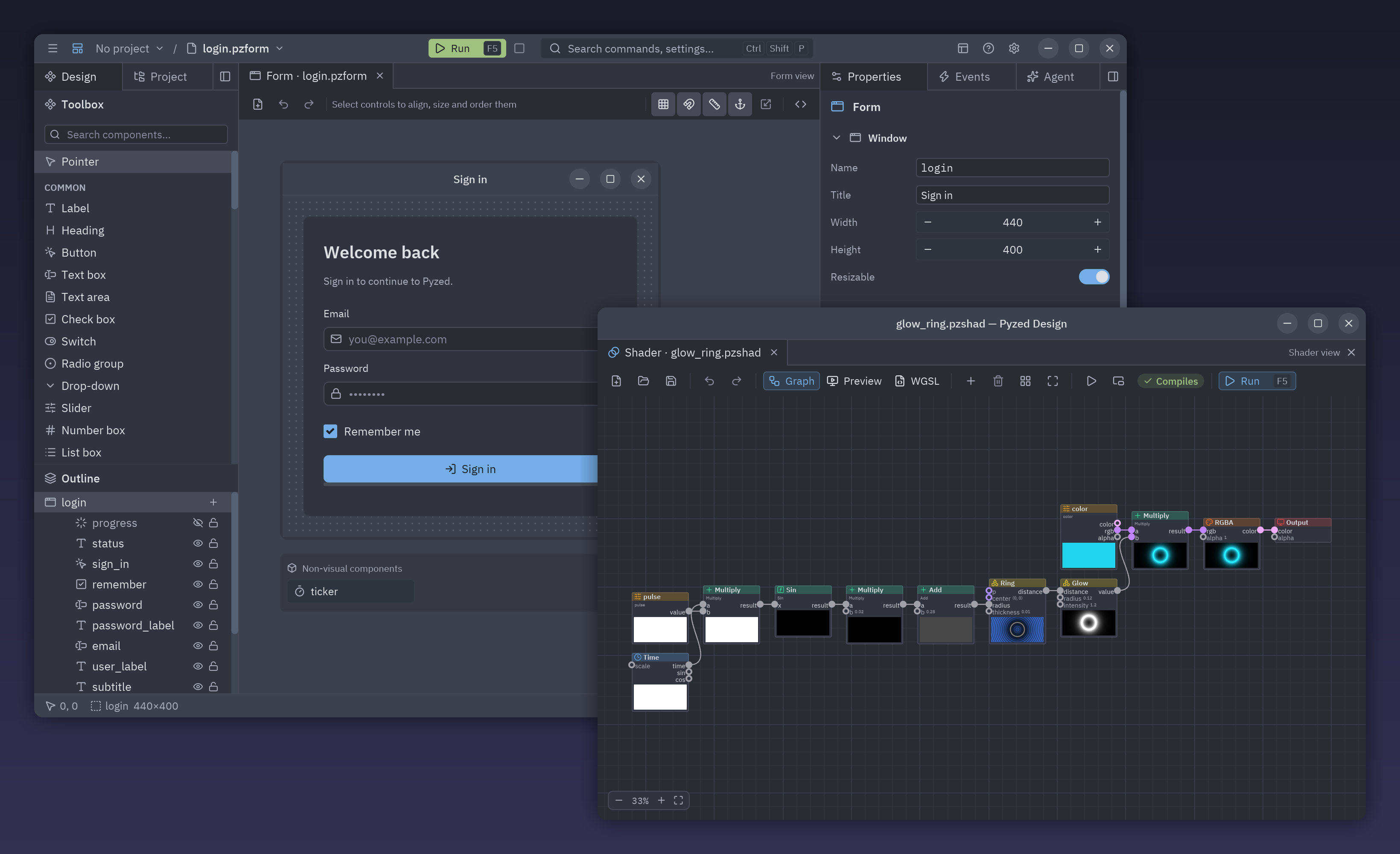
- Drag a tab out of the window to give it a window of its own, with its own tabs, toolbar and canvas. Drag it onto another Pyzed Design window to stack it there. View → Move tab to new window and Move tab to main window do the same with the keyboard (handy on Wayland, where apps can’t know where their windows are).
- Panels can share this row too: drop the Code or Console tab here and it sits among the forms.
- The panels follow the form you used last, wherever it is. Closing a document window brings its tabs back to the main window.
Toolbar
Section titled “Toolbar”Under the tabs of a form or component: New form, Open, Save, New component; Undo and Redo; the align, distribute, same size and center tools; Bring to front, Send to back and Delete; and at the end Grid, Snap, Smart guides, Resize contents with their anchors, Fit selection to grid and Edit code file (F7). Tools that don’t apply to the selection are grayed out, and every tooltip shows its shortcut. A shader has its own toolbar; see the Shader view.
Canvas
Section titled “Canvas”The form exactly as it will look when it runs, inside a window frame, over a dot grid. Click to select, drag to move, pull the handles to resize. Everything about it is in Toolbox and canvas.
⑥ The status bar
Section titled “⑥ The status bar”The bar at the bottom tells you where you are and toggles a few things with a click:
| Item | Meaning |
|---|---|
120, 48 |
Where the pointer is on the form, in pixels. |
sign_in 344×32 at 48, 304 |
The selected control, its size and position (or the form’s, or how many are selected). |
| Placing Button… | Shown while you place a control from the toolbox. |
| Theme / language | Shown while you preview another theme or language; click to change it. |
| macOS, Windows 11… | The window frame the canvas shows; click to pick another. |
| 12 controls | How many controls the document has. |
| Grid 8px · Snap | Click to toggle the grid and snapping. |
Ln 12, Col 8 · ty · ruff |
While coding: the cursor and the state of the language servers. |
| Update to X.Y.Z | A new version is ready; see Updates. |
Hide it with View → Status bar.

sign_in button selected.The welcome window
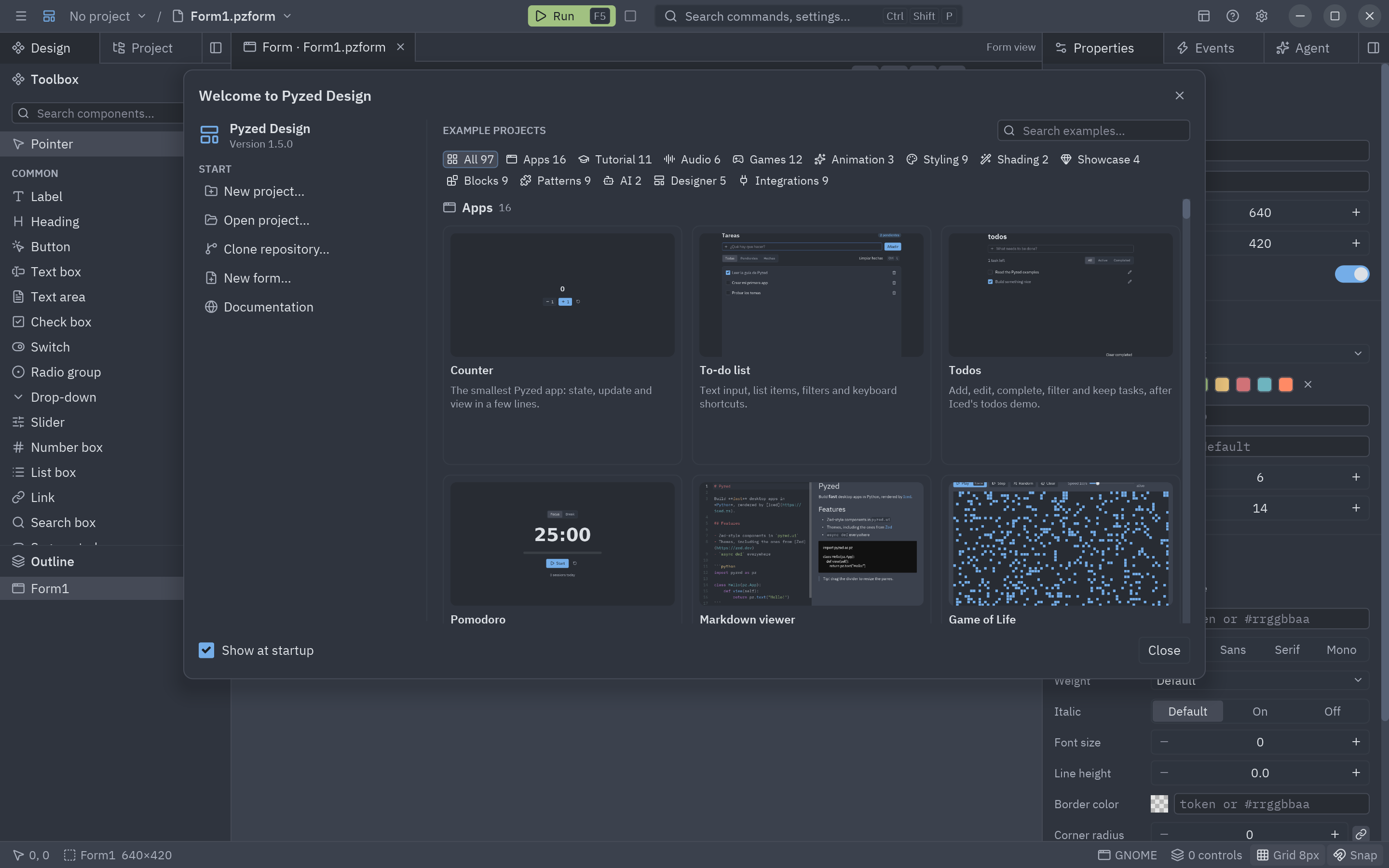
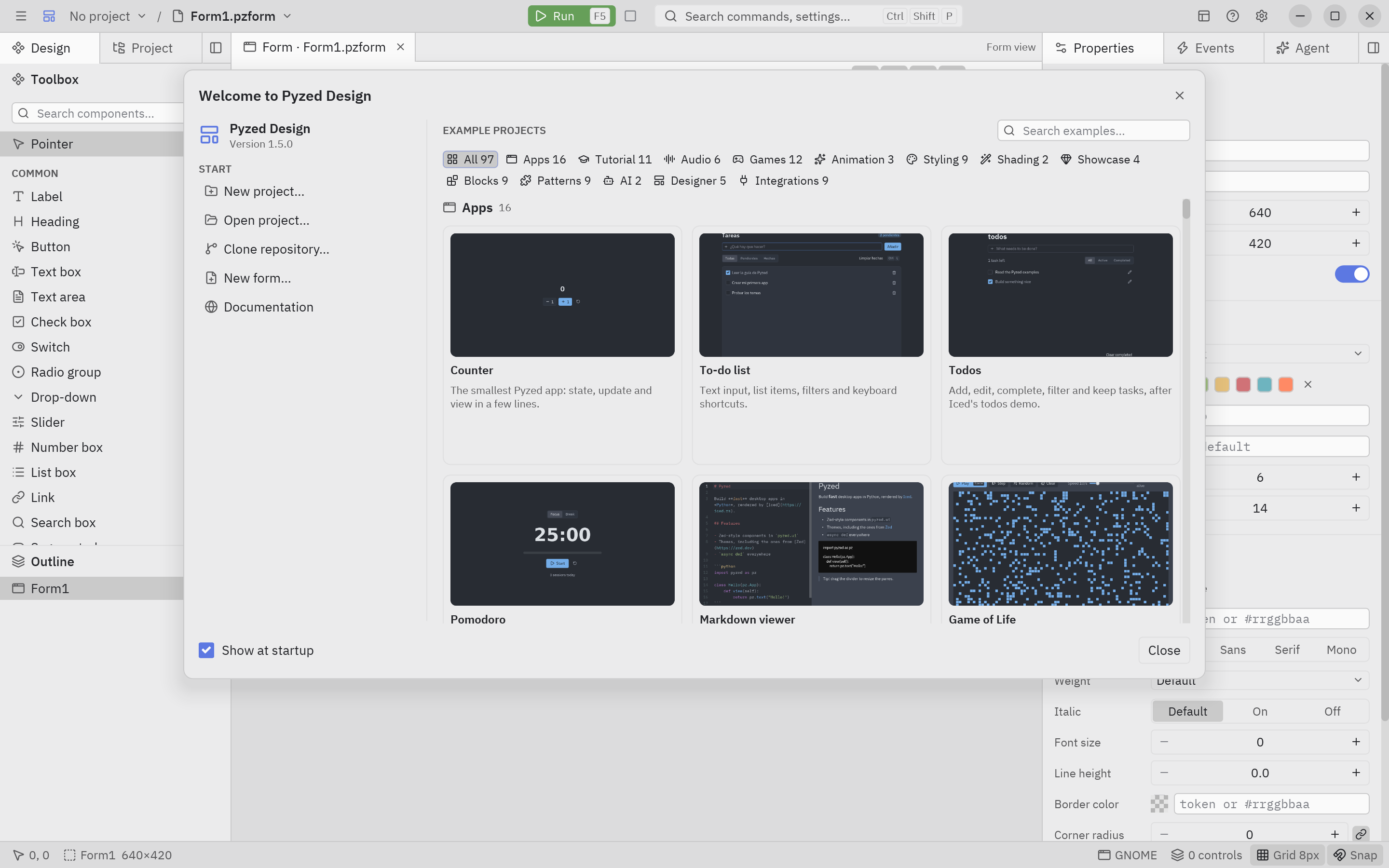
Section titled “The welcome window”When Pyzed Design starts without a file, the welcome window greets you: start or open a project, reopen a recent one, or make a project from one of the examples (apps, games, showcase demos, blocks and integrations). Open it again from Help → Welcome. Everything about it is in Welcome and examples.
Notifications
Section titled “Notifications”Short messages appear in a corner for a few seconds: saved, copied, a wire that can’t connect, a command that failed… Click the × to dismiss one; at most four show at once.
Opening pages and signing in
Section titled “Opening pages and signing in”Links in the editor (Help → Documentation, the reference, sign-in pages of the AI agents) open in your default
browser. When Pyzed Design runs inside WSL on Windows, they open in the Windows browser, with no console window
flashing, unless you set the BROWSER variable to choose another.