
Files, templates and scripting
Document tabs
Section titled “Document tabs”Every open file is a tab above the toolbar: Form · login.pzform or Component · rating.pzcomp (with an accent
icon). A dot marks unsaved changes, and the end of the tab bar says which view you are in: Form view or
Component view.
- Click a tab to switch. Each document keeps its own selection and undo history; the code editor is applied and closed when you leave a tab (if the code does not parse, the switch waits until you fix it).
- The × on a tab closes it. With unsaved changes, a dialog offers Save, Don’t save and Cancel.
- Opening a file that is already open switches to its tab, keeping its unsaved changes. An untouched empty untitled form is replaced instead of piling up tabs.
- Double-clicking a placed designed component opens its file in a tab.
- Drag a tab along the row to reorder it. Drag it out of the window to open it in a window of its own, with its own tabs, toolbar and canvas; drag a tab onto another Pyzed Design window to stack it among that window’s tabs. Move tab to new window and Move tab to main window (View menu, command palette) do the same without the mouse, also on Wayland, where apps cannot tell where their windows are.
- The panels (Properties, Outline, Code, Events…) stay in the main window and follow the document you used last. A window that is not the active one shows its form as it is; its first click only makes it active, so a click never changes a form you were not looking at. Closing a document window moves its tabs back to the main window.
The window title shows the active document, after a ● when it has unsaved changes.
New form
Section titled “New form”New form (Ctrl+N, the New… toolbar button or the ☰ menu) opens the New dialog. At the top, Form or Component picks what to create (New component, Ctrl+Shift+N, opens it on Component).
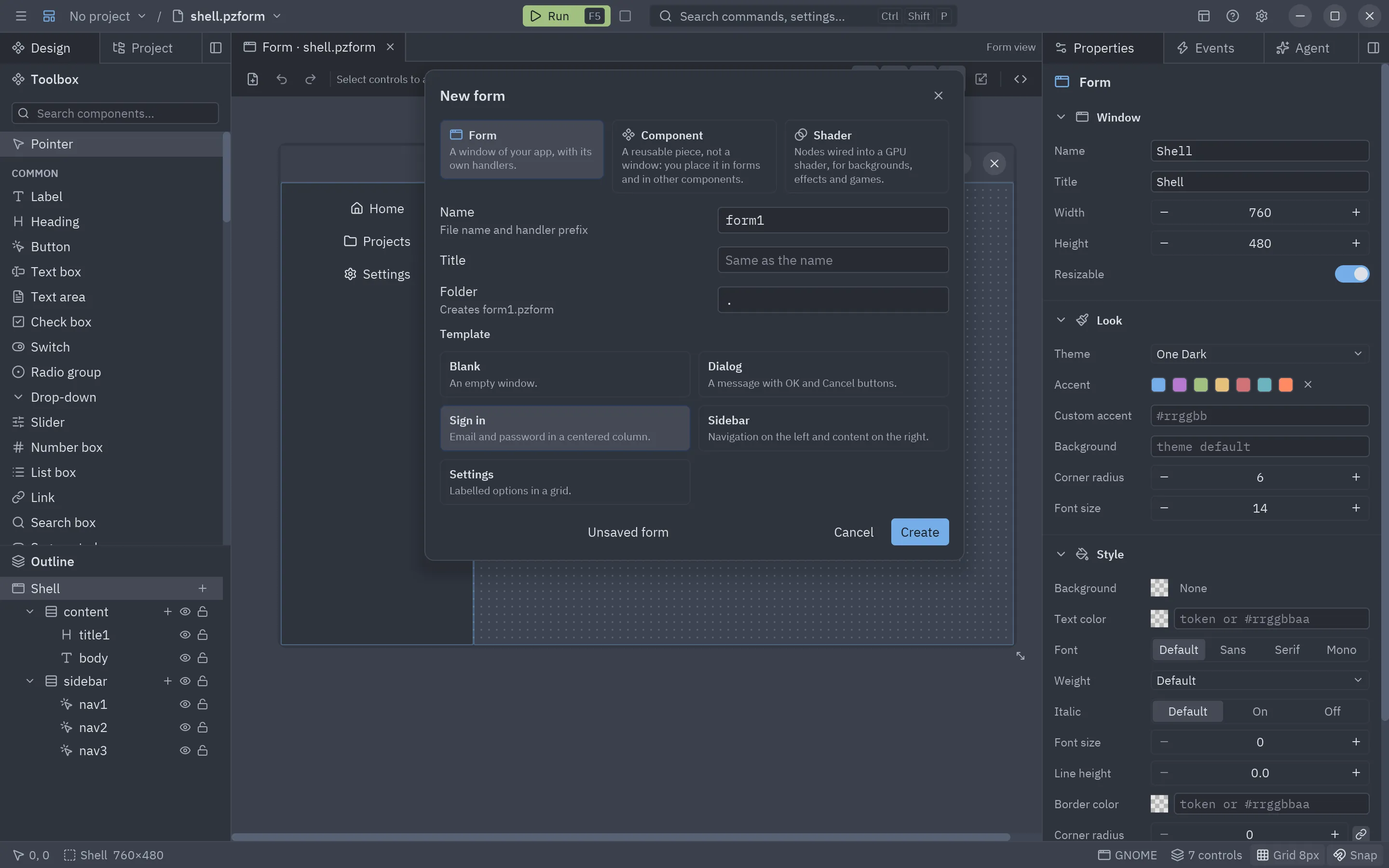
| Field | Meaning |
|---|---|
| Name | The file name and the prefix of the form’s handlers. A free default (form1, form2…) is proposed. |
| Title | The window title (the name when empty). |
| Folder | Where the files go: the current document’s folder, or the project’s ui/ folder. The dialog shows the path it will create, and warns if it exists. |
| Template | The starting point (below). |
| Template | Gives you |
|---|---|
| Blank | An empty window. |
| Dialog | A heading, a message and a row of Cancel and OK buttons anchored to the bottom, both already wired to close the window. |
| Sign in | Email, password, “remember me”, a sign-in button and a status label in a centered column. |
| Sidebar | Navigation buttons in a column on the left and a content column on the right. |
| Settings | Labelled options (text box, drop-down, switch, slider) in a two-column grid, with a Save button. |
Create writes the .pzform and its .py and opens them. Unsaved form opens the template without writing
anything: it is saved (asking for a path) the first time you save. New forms take the grid size from
Settings.
Open, save and save as
Section titled “Open, save and save as”- Open… (Ctrl+O, or click the file name in the title bar) lists every Pyzed file of the
project (or the working folder), skipping
.git,.venv,node_modules,build…: forms (.pzform), components (.pzcomp), shaders (.pzshad) and animation libraries (.pzanim). Type to filter the list, type a path and press Enter, or press Browse… for the system’s file dialog. Forms, components and shaders open in their view; an animation library opens as JSON in the code editor, with a note listing its clips. - The installers make the system open these four kinds of file in Pyzed Design when you double-click them (and
pyzed design path/to/fileopens any of them, or a script in the code editor). - Recent files are listed at the end of the ☰ menu (the last five).
- Save (Ctrl+S) writes the document and its code file. An untitled document asks for a path first. Saving also refreshes the form running from F5.
- Save as… (Ctrl+Shift+S) asks for a new path, relative to the working folder; the suffix is added when you leave it out.
The files
Section titled “The files”A form is two files side by side, both meant to be committed:
login.pzform ← layout: JSON, diffs nicelylogin.py ← event handlers: plain PythonThe .pzform file stores the form settings and, for each control, its type, position, size, properties, anchors
and which handler each event calls:
{ "format": "pyzed.form/1", "form": { "name": "login", "title": "Sign in", "width": 440, "height": 400, "theme": "One Dark", "events": { "load": "form_load" } }, "controls": [ { "name": "sign_in", "type": "button", "x": 48, "y": 304, "width": 344, "height": 32, "props": { "text": "Sign in", "variant": "solid", "icon": "log-in" }, "events": { "click": "sign_in_click" }, "anchor": ["left", "top"] } ]}The editor edits the .py file with ast: it finds, adds, renames and replaces handler functions without
touching the rest of the file, so your imports, helpers and comments stay as you wrote them. You can edit the code
file in any other editor too; the form only needs the handler functions to exist.
A designed component is also two files, rating.pzcomp (layout) and rating.py (the class); see
Component view.
Adding your own components
Section titled “Adding your own components”Register a component and it shows up in the toolbox, with its properties in the grid and its events in the Events panel:
from pyzed import uifrom pyzed.designer import Component, Prop, register
register(Component(    type="rating", label="Rating", icon="star", category="Custom", size=(120, 24),    props=(Prop("value", "number", 3, min=0, max=5),),    events=("change",),    render=lambda control, ctx: ui.label("★" * int(control.props["value"])),))
render is used both in the editor (inert) and at run time; use ctx.on(control, "change", "value") for
callbacks so the same code works in both. Every pz.Component subclass of your project appears in the toolbox
too (see Components), and so do the components you draw in the
component designer.
They are loaded whenever a project opens (at start, from the project picker or from a recent folder) and when you
open a form of another folder. Pyzed imports a module for its components only if its top level just defines
things: a module that calls pz.run(...) outside if __name__ == "__main__": is skipped. A control whose
component cannot be found (its module fails to import, or the form comes from a newer Pyzed) shows as a yellow
Component not found box with its type: the rest of the form still opens, and its properties and events are
kept when you save.
Your own templates
Section titled “Your own templates”The New form templates are data, not code. Each one is a folder:
toolbar/├── template.json {"label": "Toolbar", "icon": "panel-top", "description": "A row of buttons on top.", "order": 10}├── form.pzform the form to start from: draw it in the designer and save it here└── handlers.py.tmpl optional: the code of the events the form wires (Python){title} in the form’s texts becomes the new form’s title, and a size asked for in the dialog resizes the form
following the anchors. The built-in ones live in pyzed/designer/templates/. Load a folder of yours with:
from pyzed.designer import new
new.load_templates("my_templates")   # every subfolder with a template.json
A template can also be a Python function that fills an empty form:
def toolbar(form):    ...  # add controls to the empty form
new.register_template(new.Template("toolbar", "Toolbar", "panel-top", "A row of buttons on top.", toolbar))
Registered templates appear in the New form dialog after the built-in ones.
Scripting forms
Section titled “Scripting forms”Everything the editor does is available from Python, which is handy for generating forms or for tests:
from pyzed import designerfrom pyzed.designer import Document
doc = Document(designer.Form(name="hello", title="Hello", width=320, height=140))doc.add("input", 16, 16, 200, 28)doc.add("button", 224, 16)doc.select_all()doc.align("middle")handler = doc.wire("button1", "click")doc.set_handler_source(handler, "def button1_click(form, event):\n    form.button1.text = form.input1.text\n")doc.save("hello.pzform")
designer.run("hello.pzform")
designer.new_form(path, template="dialog") creates a form and its handlers module from a template (in a project,
project.find().new_form("settings") puts it in ui/). designer.open_window(form_or_path, data=...) returns
the command that opens a form from any app, and also accepts a designer.Form built in code (with
handlers={"name": function}). The full API is in the designer reference.
How it is built
Section titled “How it is built”classDiagram
class Form { controls; events; theme; grid }
class Control { name; type; x; y; width; height; props; events; anchor }
class Component { type; props; events; render() }
class Document { form; code; selection; history; add(); align(); wire() }
class History { push(); undo(); redo() }
class Designer { pyzed App: docks and gestures }
class FormRuntime { dispatch(); view() }
Form "1" *-- "*" Control
Control ..> Component : type
Document --> Form
Document --> History
Designer --> Document
FormRuntime --> Form
model.py: the form and its controls, saved as JSON.components.py: the component library and therendershared by the editor and the runtime.geometry.py: snapping, alignment, distribution, resizing, anchors and smart guides (pure functions).layout.py: where every control goes, flex and grid containers included.history.py: undo/redo as snapshots; repeated edits of one field merge into one step.code.py: finds, adds, renames and replaces handler functions withast.document.py: every editing command, with no UI, so it is fully testable.commands.py: every command in one table, read by the menus, the palette, the keyboard and the shortcut list.docks.py,panels.py,surface.py,dialogs.py,console.py,project_panel.py: the views.app.py: theDesignerapp wiring clicks and keys to the document.scene.py,scene_code.py,scene_runtime.py,scene_panel.py: the component designer.runtime.py:FormAppandFormWindow, which draw a form and call its handlers.lsp.py,intellisense.py,code_panel.py,settings.py: the code editor and its language servers.preferences.py,locale.py: the editor’s settings and its translations, read fromlocales/<language>.json.new.py: the New form templates, read from the folders intemplates/.