
Exporting your app
File → Export app… (Ctrl+Shift+E) turns the open project
into an app that people run without installing Python: a .exe on Windows, a .app on macOS, an executable on
Linux. Like Godot’s export window, one dialog holds everything: the app’s name and details, the platforms, the
packager, the icon and the splash screen.
Export in three steps
Section titled “Export in three steps”- Open a project (Project → Open) and press Ctrl+Shift+E.
- Fill in General (at least the name) and, if you like, the Icon and the Splash screen.
- Press Build for … (the name of your system). The output of the build streams into the Console; when it is done a notification says where the app is and how big it is, and Show in folder opens it.
Later builds do not need the dialog: Run → Build app for this computer (Ctrl+Shift+B)
builds with the same settings. The result goes to dist/ in the project folder (dist/Shop/, dist/Shop.exe or
dist/Shop.app).
General
Section titled “General”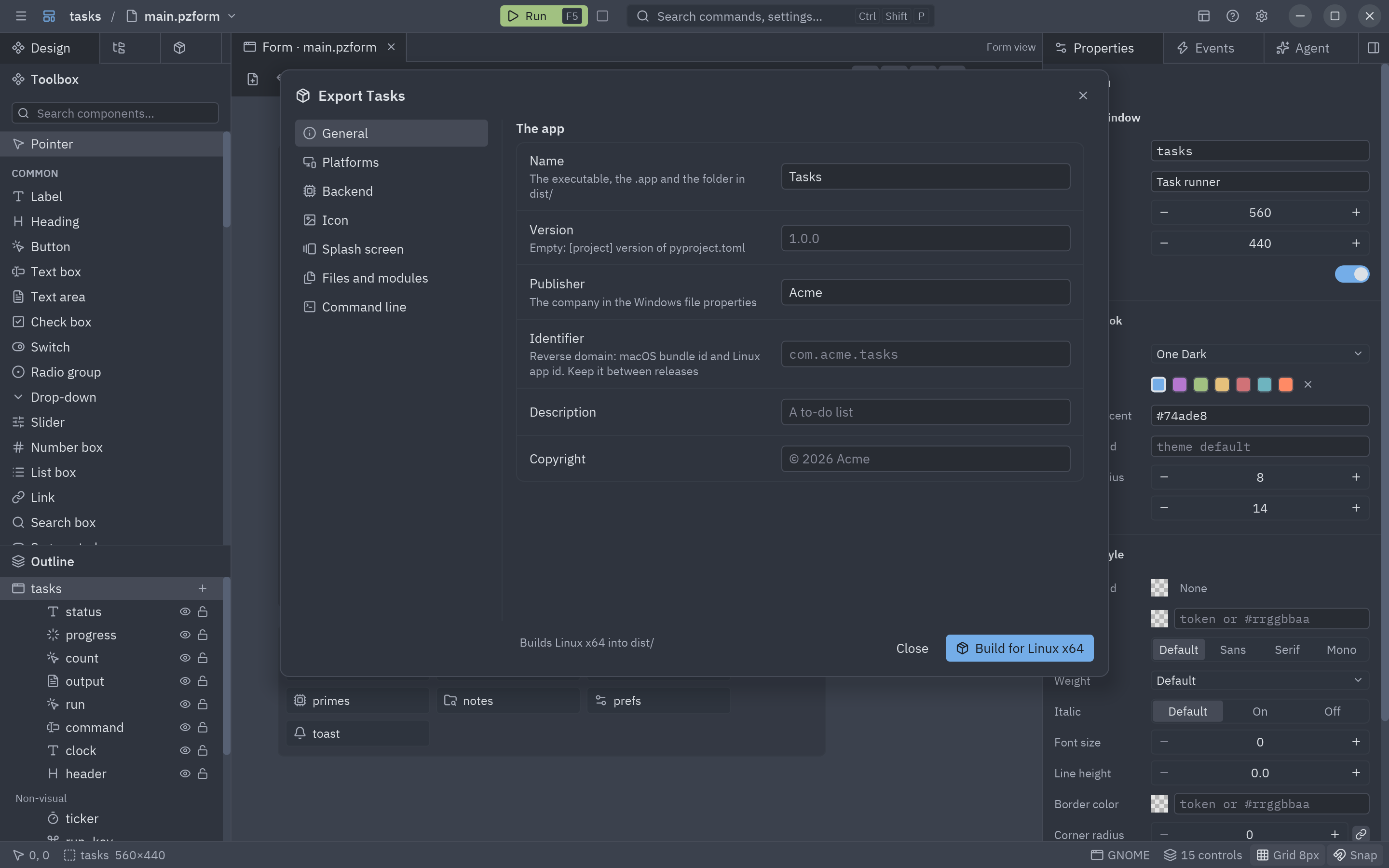
| Field | Used for |
|---|---|
| Name | The executable, the .app and the folder in dist/. Empty: the project’s name. |
| Version | The Windows file version and the macOS bundle version. Empty: [project] version. |
| Publisher | The company in the Windows file properties. |
| Identifier | A reverse domain such as com.acme.shop: the macOS bundle id and the Linux app id. macOS keeps the app’s settings and permissions under it, so do not change it between releases. |
| Description, Copyright | The Windows file properties and the macOS Info.plist. |
Platforms and architectures
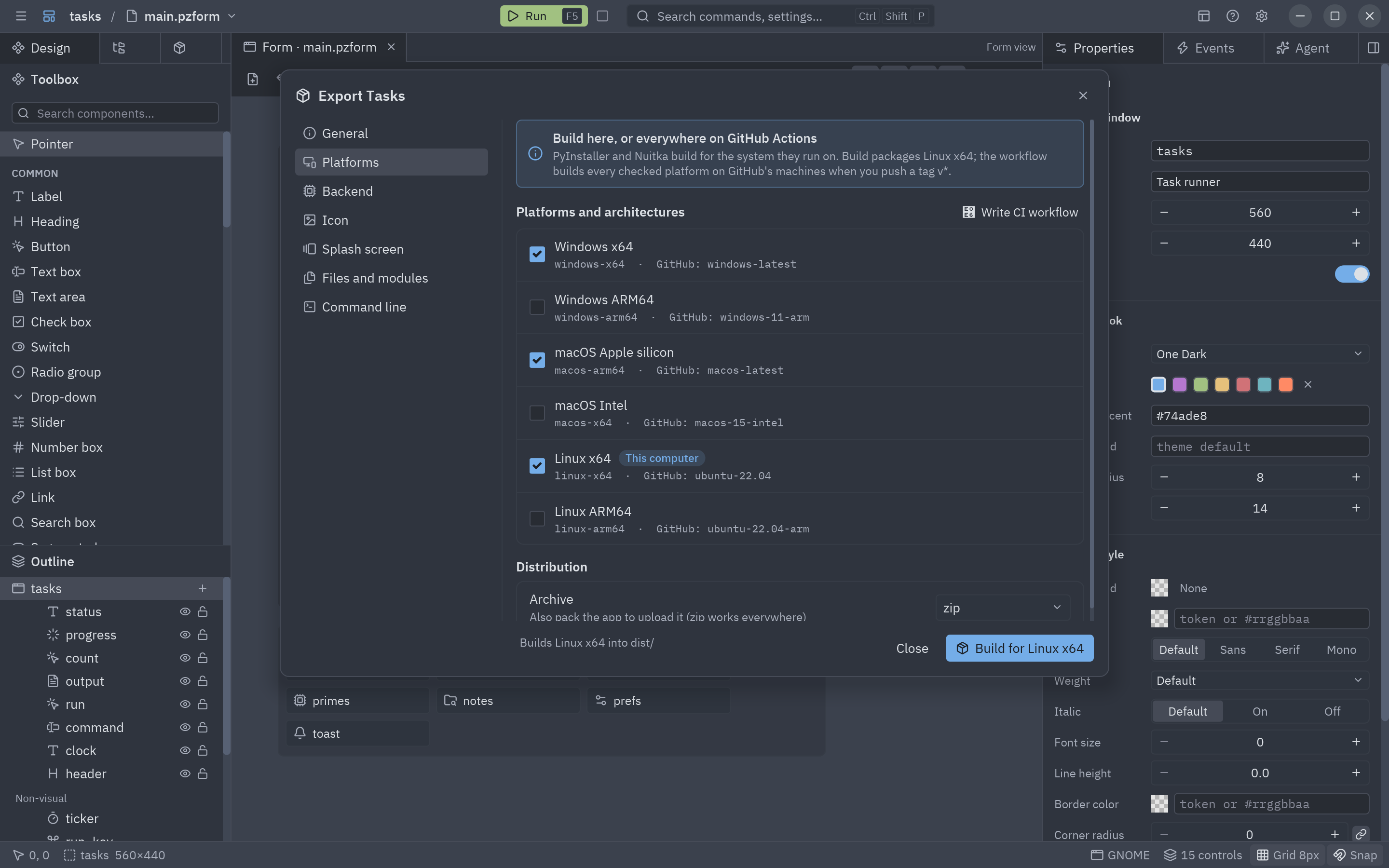
Section titled “Platforms and architectures”PyInstaller and Nuitka build for the system they run on: a Windows computer makes the Windows app, a Mac the macOS app. The list shows the six targets Pyzed supports, with This computer on yours:
| Target | System | GitHub machine that builds it |
|---|---|---|
windows-x64 |
Windows 10 and 11 on Intel and AMD | windows-latest |
windows-arm64 |
Windows 11 on ARM (Snapdragon) | windows-11-arm |
macos-arm64 |
Macs with Apple silicon (M1 and later) | macos-latest |
macos-x64 |
Intel Macs | macos-15-intel |
linux-x64 |
Linux on Intel and AMD | ubuntu-22.04 |
linux-arm64 |
Linux on ARM (Raspberry Pi 4/5, ARM servers) | ubuntu-22.04-arm |
Check the platforms you want and press Write CI workflow: it writes .github/workflows/build.yml, which builds each
checked target on GitHub’s own machines every time you push a version tag (git tag v1.0.0 && git push --tags). See
Build in CI. The Linux machines are the oldest Ubuntu GitHub offers on purpose: an app built
against an older system runs on more distributions.
Archive also packs the app in a zip (or tar.gz) named like shop-windows-x86_64.zip, the name the
self-updater looks for, ready to attach to a GitHub Release.
Backend: PyInstaller or Nuitka
Section titled “Backend: PyInstaller or Nuitka”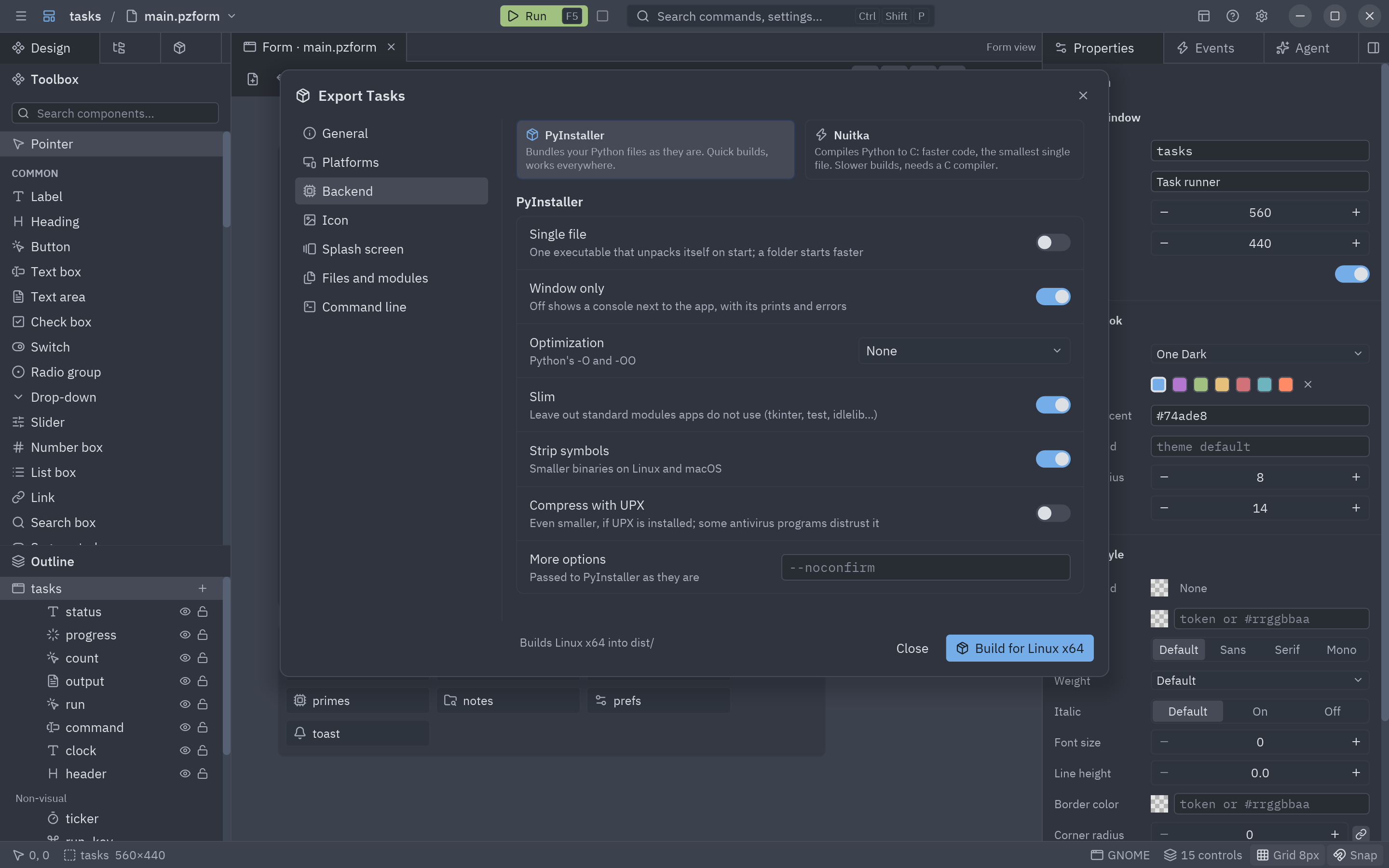
| PyInstaller | Nuitka | |
|---|---|---|
| How | Bundles your .py files as they are, next to Python |
Compiles your code and its dependencies to C, then to machine code |
| Build time | Seconds | Minutes (faster with ccache installed) |
| Speed | Normal Python | Compiled: faster pure-Python code |
| Size of a single file | Larger | About 15% smaller (better compression) |
| Size of a folder | Smaller | Larger (compiled code takes more room than .pyc) |
| Needs | Nothing (uv installs it) | A C compiler |
Both run inside the project’s environment with uv run --with …, so you install neither yourself. Nuitka needs a C
compiler: gcc on Linux (sudo apt install gcc and friends), the Xcode command line tools on macOS
(xcode-select --install), and on Windows Visual Studio’s Build Tools, or Nuitka downloads one the first time.
| Option | What it does |
|---|---|
| Single file | One executable that unpacks itself to a temporary folder when it starts. A folder starts faster and can update itself. |
| Window only | No console next to the app. Turn it off while you look for an error: the console shows prints and tracebacks. |
| Optimization | Python’s -O (drops assert) or -OO (also docstrings). Leave it at None if a library uses docstrings at runtime. |
| Slim | Leaves out standard modules apps do not use (tkinter, test, idlelib, lib2to3, ensurepip…). |
| Strip symbols | Removes debug symbols from the libraries: smaller on Linux and macOS. |
| Compress with UPX | Compresses the binaries with UPX if it is installed. Some antivirus programs flag UPX-packed files, so it is off by default. |
| More options | Anything else, passed to the backend as is (for example --lto=yes for Nuitka). |
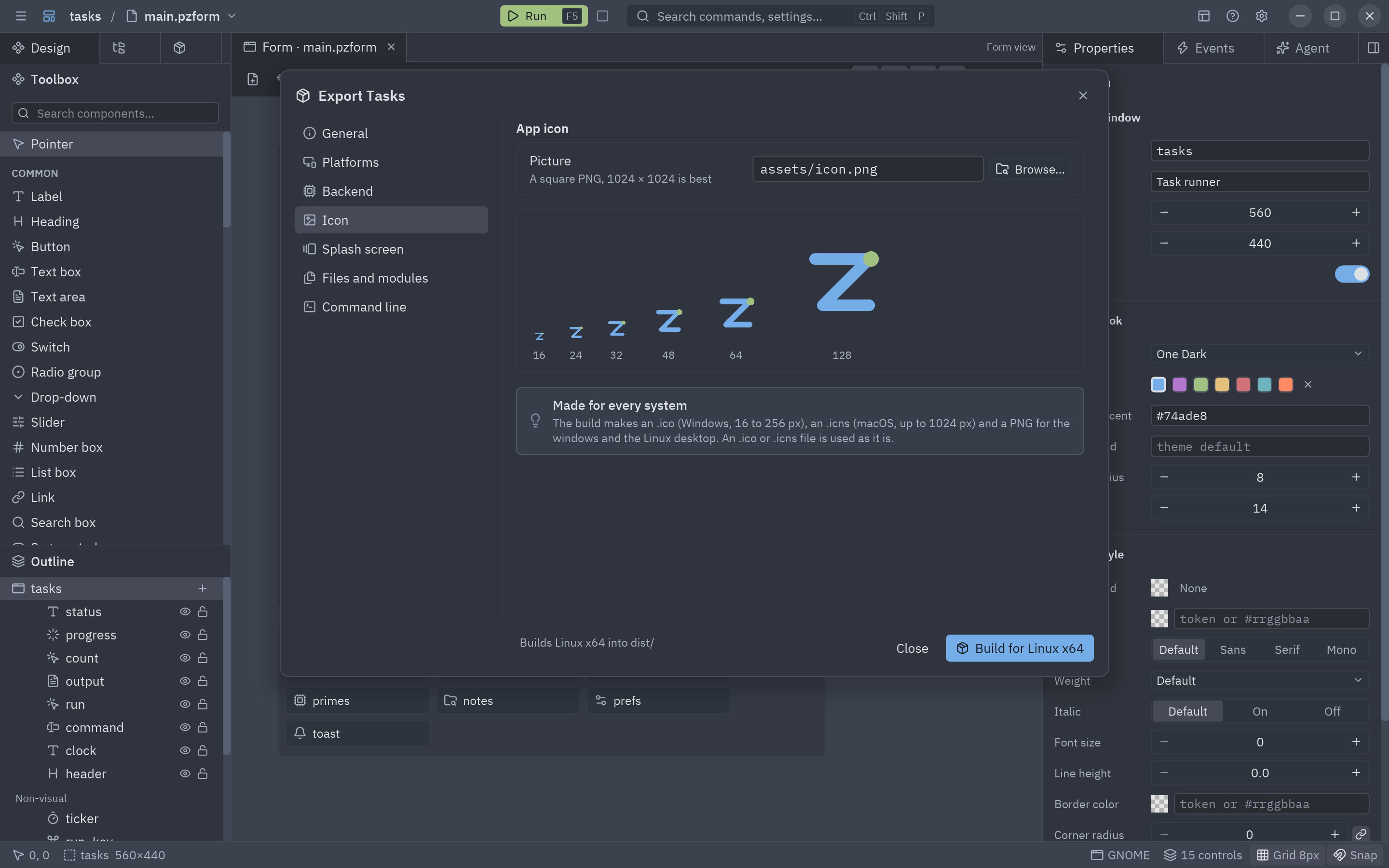
Choose one square picture, ideally a 1024 × 1024 PNG with a transparent background. The build makes every file the systems want from it, with no extra tool:
app-icon.icowith 16 to 256 pixel images, for the Windows.exe, Explorer and the taskbar;app-icon.icnsup to 1024 pixels (Retina), for the macOS bundle, Finder and the Dock;app-icon.png(256 pixels), shipped with the app as the icon of its windows: the title bar and the taskbar on Windows and Linux.
The preview shows how it looks small: if the 16 pixel version is a blur, simplify the drawing. An .ico or .icns file
is used as it is, for its own system. In code, any window can have its own icon with Window.icon (see
Icons and metadata).
Splash screen
Section titled “Splash screen”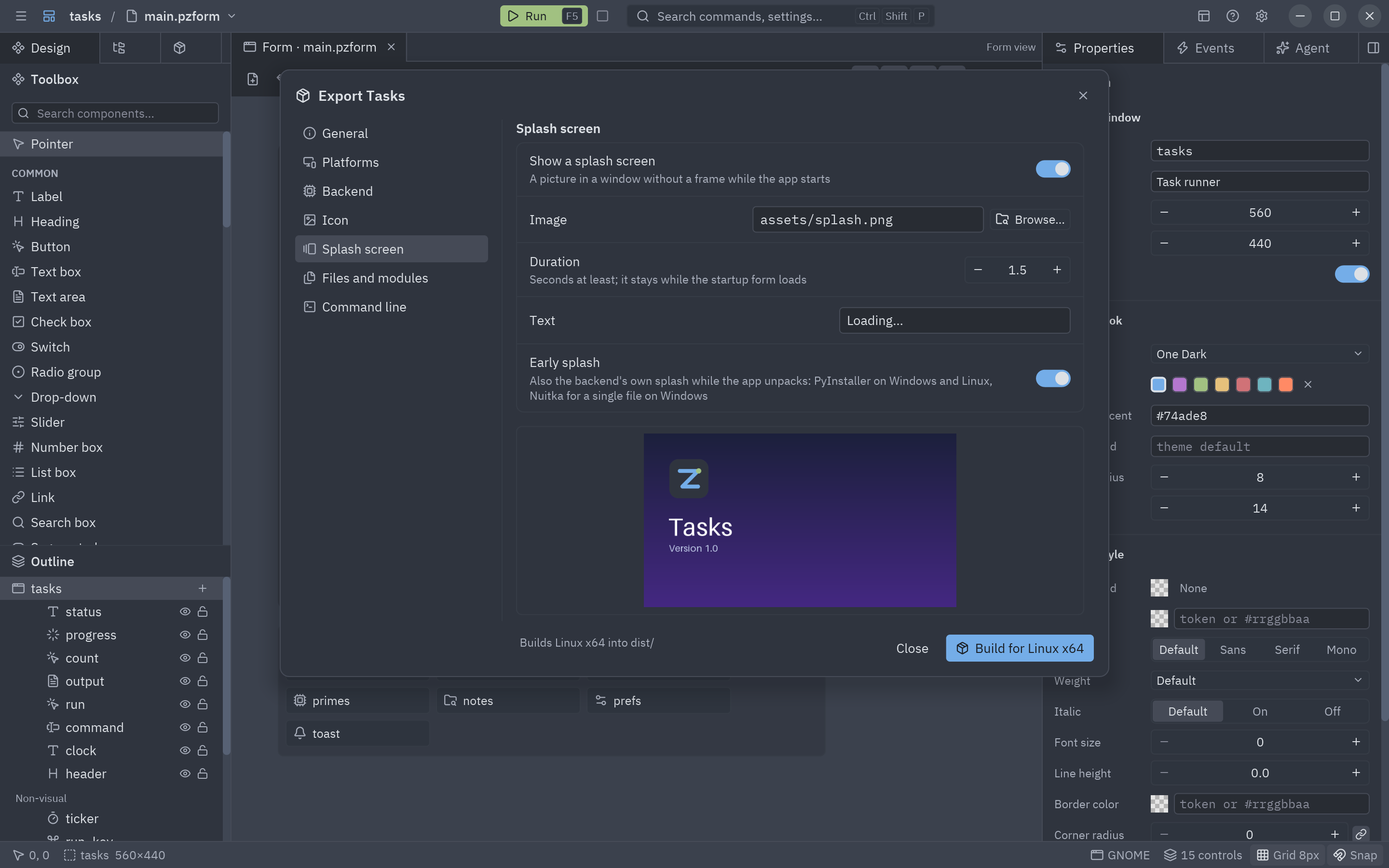
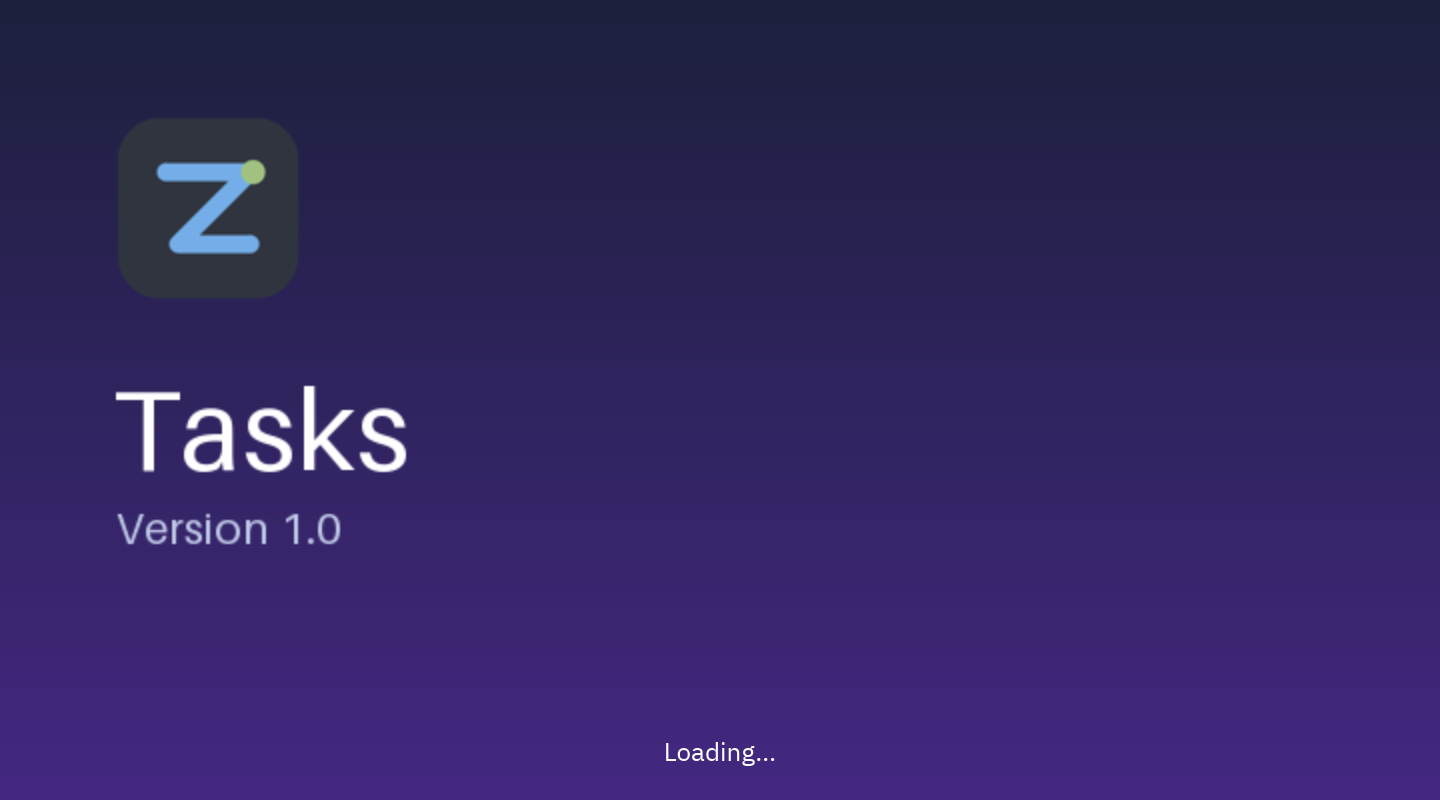
A splash screen is a picture in a window without a frame, centered on the screen, while the app starts. It stays up
for Duration seconds at least; then the startup form opens and the splash closes. If the form takes longer to load
(a big database, a slow load event), the splash stays until it is ready, so people never stare at an empty desktop.
Text is written over the bottom of the image (for example Loading…).
Early splash also asks the backend for its own splash, which the bootloader shows even before Python starts,
while a single-file app unpacks itself. PyInstaller has one on Windows and Linux (it draws with Tk, so the project’s
Python needs tkinter; uv’s Pythons have it), Nuitka for single files on Windows. When both are on, the early splash
gives way to the Pyzed one as soon as the app runs.
Make the image the size you want the window (it is scaled down to fit 900 × 600 if larger); a PNG or JPEG of about 600 × 360 works well.
Files and modules
Section titled “Files and modules”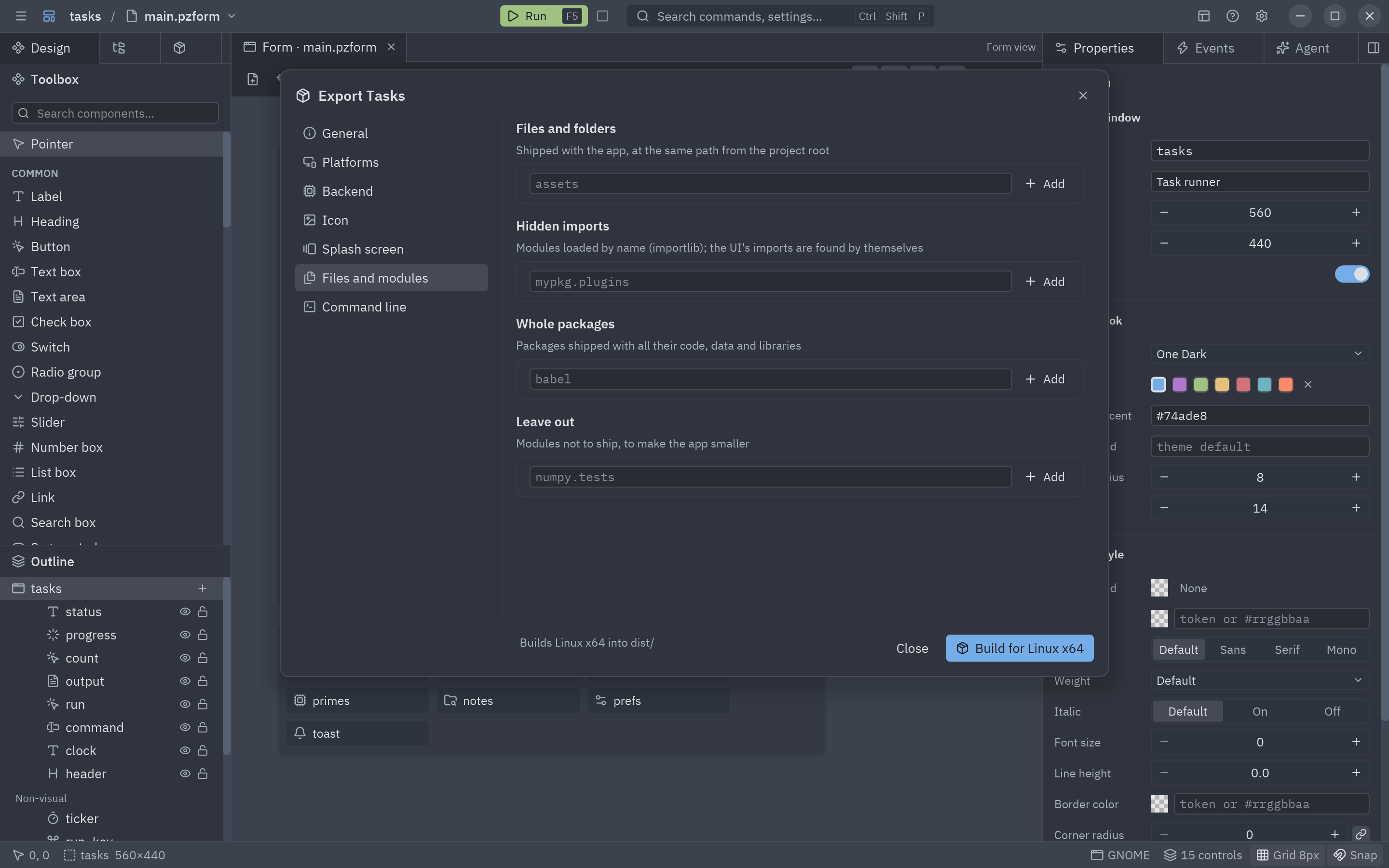
The build already finds the UI folder, the backend in src/ and every module the forms’ code imports. Add here what it
cannot see:
| List | For |
|---|---|
| Files and folders | Data the app opens: images, a database, a config file. Same path from the project root, inside the app. |
| Hidden imports | Modules loaded by name (importlib.import_module("plugins.csv")). |
| Whole packages | Packages with data files or plugins that need everything shipped (babel, certifi…). |
| Leave out | Modules not to ship, to make the app smaller (numpy.tests). |
Command line
Section titled “Command line”![The Command line section: uv run pyzed build and the [tool.pyzed.build] table](/pyzed/_astro/export-command.Dv3Q3xcl_Z2f8CtN.png)
The last section shows the same build as a terminal command, the table it writes to pyproject.toml and a button that
copies the full PyInstaller or Nuitka command line, to adapt it or report a problem.
- How building works: every setting, and what ends up in the app.
- Build in CI for the platforms you do not have.
- Signing and installers: Windows, macOS, Linux.
- Something wrong? Troubleshooting.