
Running and the console
Run and Stop
Section titled “Run and Stop”Run (F5, the green button in the title bar, the ☰ menu or the console) opens the document in a new window with all its logic; Stop (Shift+F5, the square next to Run) closes it.
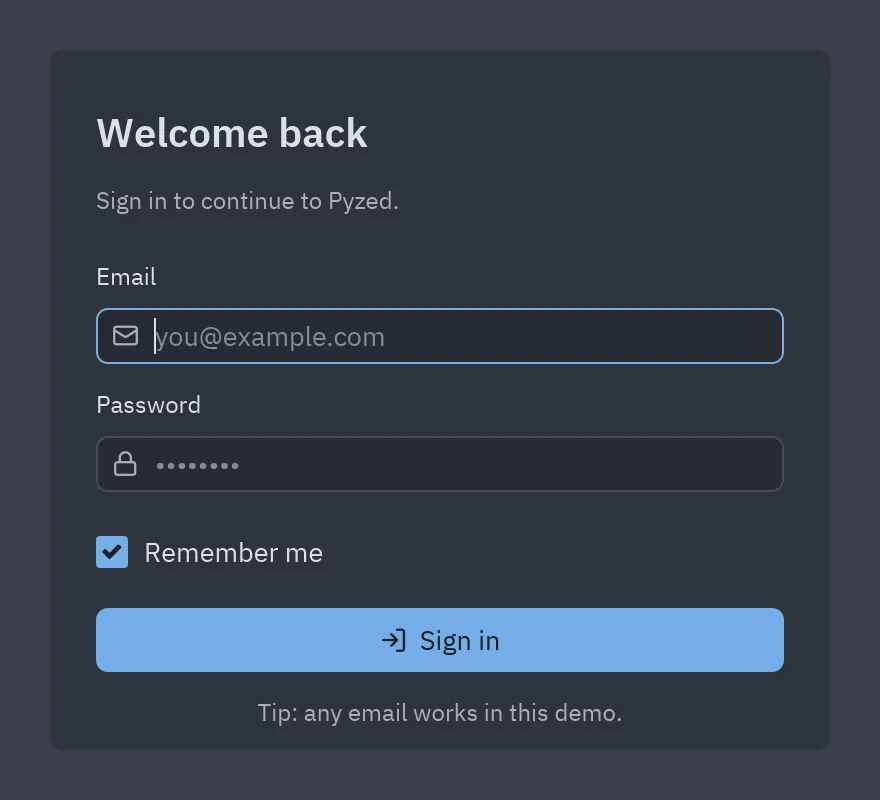
What Run does depends on the document and on where the editor runs:
flowchart TD
    F5([F5]) --> P{Code parses?}
    P -- no --> E[Notification: fix the code first]
    P -- yes --> K{Component?}
    K -- yes --> CP["Component preview window<br/>with an event log"]
    K -- no --> U{Editor inside the<br/>project's environment?}
    U -- yes --> IN["Runs in the editor's process<br/>the current document, saved or not"]
    U -- no --> UV["Saves, then<br/>uv run pyzed run --reload"]
    IN --> C[Console]
    UV --> C
- In the editor’s process (you started the editor with
uv run pyzed design, or there is no project): the form runs as it is in the editor, including unsaved changes, with its code file compiled fresh. Running again closes the previous window first. - With
uv run(the standalone Pyzed Design, or an editor installed withuv tool, which does not have the project’s dependencies): the form is saved and started in its own process withuv run pyzed run --reload, so every package of.venvis available. - A component opens in a preview window that lists the custom events it raises.
With Save before running on (Settings → Running), Run always saves first.
The console
Section titled “The console”The Console panel (bottom dock, Ctrl+Shift+Y or View → Console) shows what the running form does, without leaving the editor:
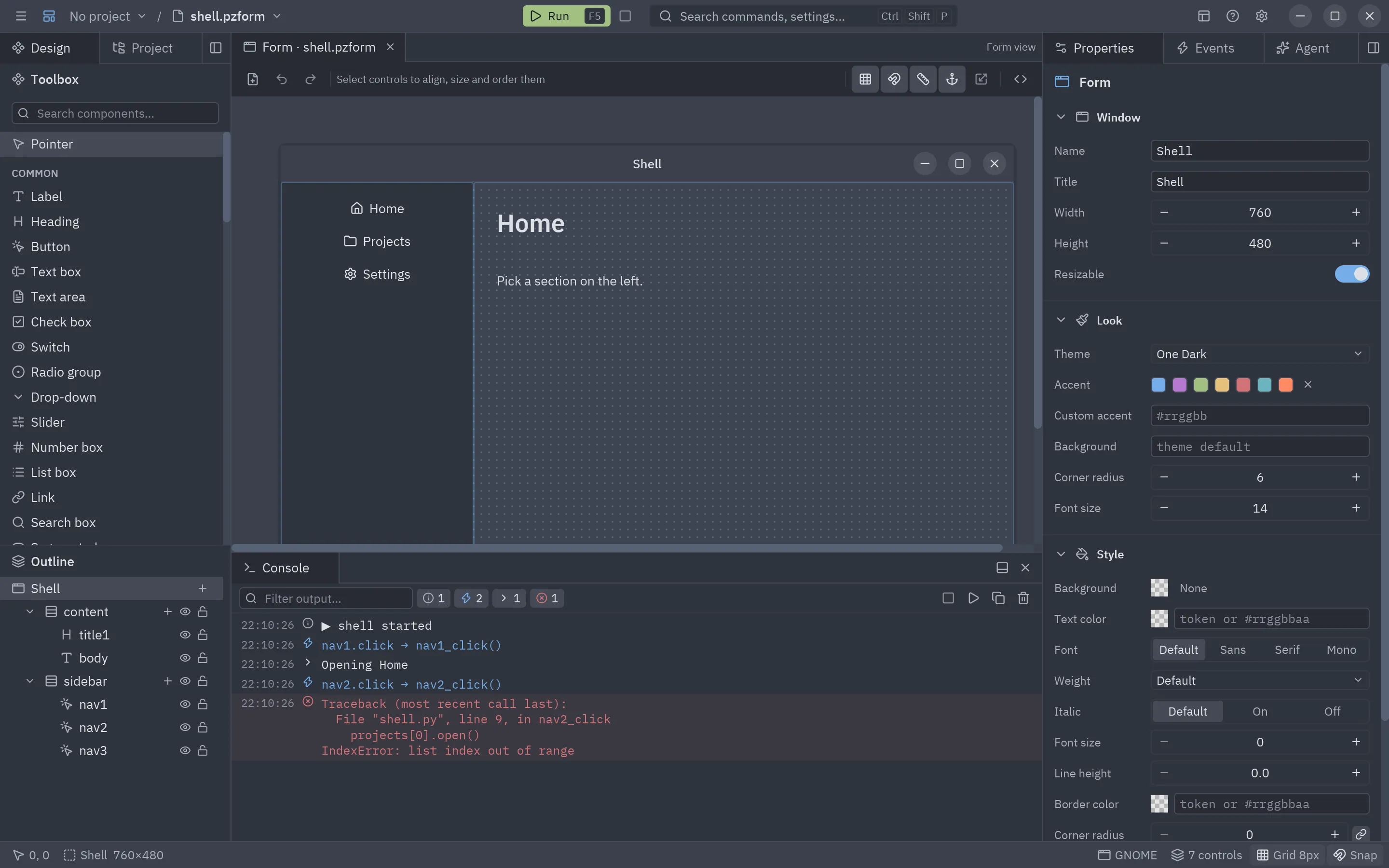
| Line | Comes from |
|---|---|
▶ login started / ■ login stopped |
A run starting and ending (with (uv run) when it runs in its own process). |
| Event (accent, lightning icon) | Each event the form handles, with its value and the handler it calls: sign_in.click → sign_in_click(). tick, mouse_enter and mouse_leave are left out so they do not flood it. |
| Output | Whatever the handlers print. |
| Error output (yellow) | What they write to stderr. |
| Error (red) | The full traceback of a handler that raised, starting at the handler. |
The toolbar of the console:
- Filter box: shows only the lines containing the text.
- Level toggles, one per kind of line present, with its count: click one to hide or show those lines.
- Copy puts the whole log on the clipboard; Clear empties it.
- A Running badge while a form runs, Stop and Run.
The list keeps scrolling to the newest line while you are at the bottom; scroll up to read older lines in peace. Output still reaches the terminal the editor was started from.
When Run opens the console is decided by Settings → Running → Open the console on Run, and whether events are logged by Log events in the console. The console stays in its dock until you hide it, once it has something to show or you opened it from the View menu.
Selecting and copying lines
Section titled “Selecting and copying lines”Click a line to select it, Shift+click to select a range and Ctrl+click (Cmd on macOS) to add or remove one; Ctrl+A selects every line shown, Ctrl+C copies the selection and Escape clears it. A selected error shows its whole traceback under it.
A right click on a line opens its menu:
| Item | What it does |
|---|---|
| Copy line / Copy N lines | The selected lines, with their time and level. |
| Copy text only | Just the text of the lines (and their traceback). |
| Copy all / Select all | Every line the filters show. |
| Go to file.py:12 | Opens the file of a traceback line in the Code panel, on that line (also with a double click). |
| Show the error… | The error in the error dialog, with the traceback selectable. |
| Hide error lines | Turns off that level’s toggle. |
| Show in Logs / Clear | Opens the Logs panel, or empties the console. |
The Logs panel
Section titled “The Logs panel”View → Logs (Ctrl+Shift+U) opens the Logs panel, the editor’s own log: everything Pyzed Design does and every error it meets, while the console is about your running form. Like any panel, it can go to another dock or a window of its own.
Each line has its time, a level and a type:
| Type | What it logs |
|---|---|
| Designer | The editor starting and closing, settings changed, and its unexpected errors with their traceback. |
| Commands | Every command run from a menu, the command palette or a shortcut. |
| Documents | Forms and components opened and saved. |
| Project | The project and its uv commands. |
| Run | Runs starting and stopping, the events and the errors of the running form. |
| Code, Agent, Layout, Updates | The code editor, the AI agents, panels moved or shown, and updates. |
| System | Python warnings. |
The toolbar filters by text, by type (the All types dropdown) and by level (debug, info, event, warning, error: debug lines are hidden until you turn their toggle on). Lines are selected, copied and opened from their menu exactly as in the console, and the menu adds Only Designer (or the line’s type). The folder button opens the folder with the log files.
The same lines (events and up) are written to logs/pyzed-design.log in the Pyzed config folder (the file is
renewed past 1 MB, keeping the last three): attach it to a bug report. Settings → Logs and errors → Write a log
file turns it off.
When errors or warnings have been logged, the status bar shows their count at the left; click it to open the panel.
When the editor itself fails
Section titled “When the editor itself fails”A bug in Pyzed Design never closes it:
- An action that fails (a click, a key, a menu command, a background task) opens an error dialog with the error, where it happened and the traceback, which you can select and copy. Its buttons Copy error (everything, ready to paste in an issue), Go to file.py:12 (opens the line it comes from, when it is a file you can open), Show in Logs and Close. More errors while it is open are counted in it.
- A panel that fails to draw shows an error card in its place, with Copy error and Details, and the rest of the window keeps working; the canvas, the dialogs and the whole window are protected the same way.
Every one of them is in the Logs panel with its traceback. Settings → Logs and errors → Show a dialog on errors
turns the dialog off (the errors are still logged). For your own apps, the same pieces are in the library:
ui.error_boundary, ui.error_dialog and ui.ErrorInfo.
Errors in the running window
Section titled “Errors in the running window”A handler that raises does not close the window: an Event handler error callout appears at its bottom with the last line of the error, and the traceback goes to the console. Fix the code, save, and try again (see below).
Live updates on save
Section titled “Live updates on save”While a form runs, Save (Ctrl+S) updates the open window without restarting it: the layout, the properties and the code are replaced, while what the user typed or picked in each control (texts, check boxes, selections, slider values) stays. If the new version fails to load, the window keeps running the old one and shows the error.
A form started with uv run (or with pyzed run app.pzform --reload from a terminal) watches its files instead,
so saving from any editor updates it too. From code, use designer.run(path, reload=True) or set
PYZED_RELOAD=1.
pyzed run login.pzform # run a form without the editorpyzed run login.pzform --reload # ...and update it on every savepyzed run ui/rating.pzcomp # preview a designed component