
The Shader view
The designer has a third kind of document: shaders. Instead of writing WGSL, you wire nodes on a graph, as
in Godot’s visual shaders or Blender’s shader editor. Every node shows a live preview of what it makes, the
Output node is the finished shader, and the graph is saved as a .pzshad file that pz.shader draws on
the GPU.
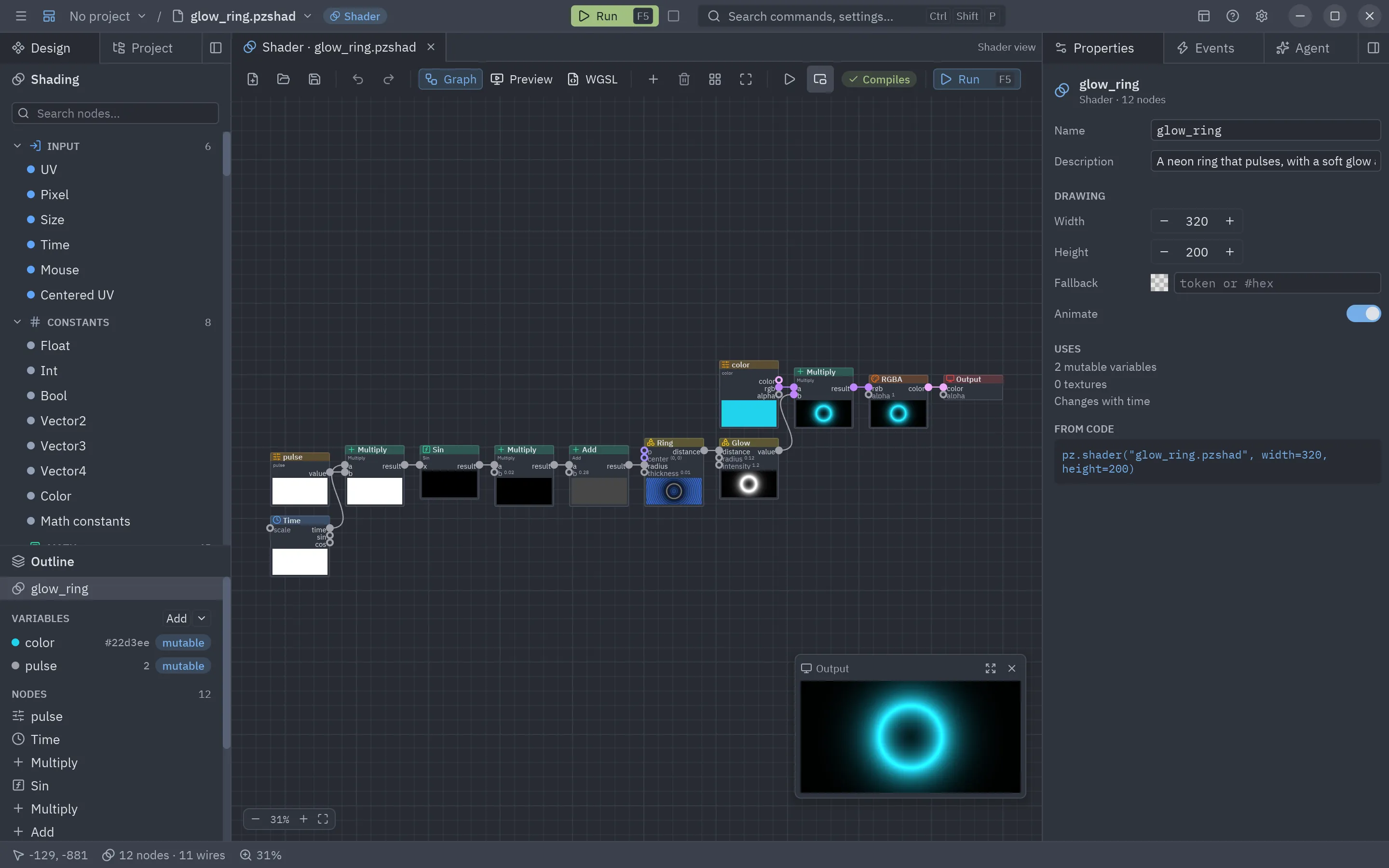
There is no WGSL to write and no Rust: the designer compiles the graph to WGSL as you edit it, checks it with the GPU compiler, and points at the node when something is wrong.
Creating one
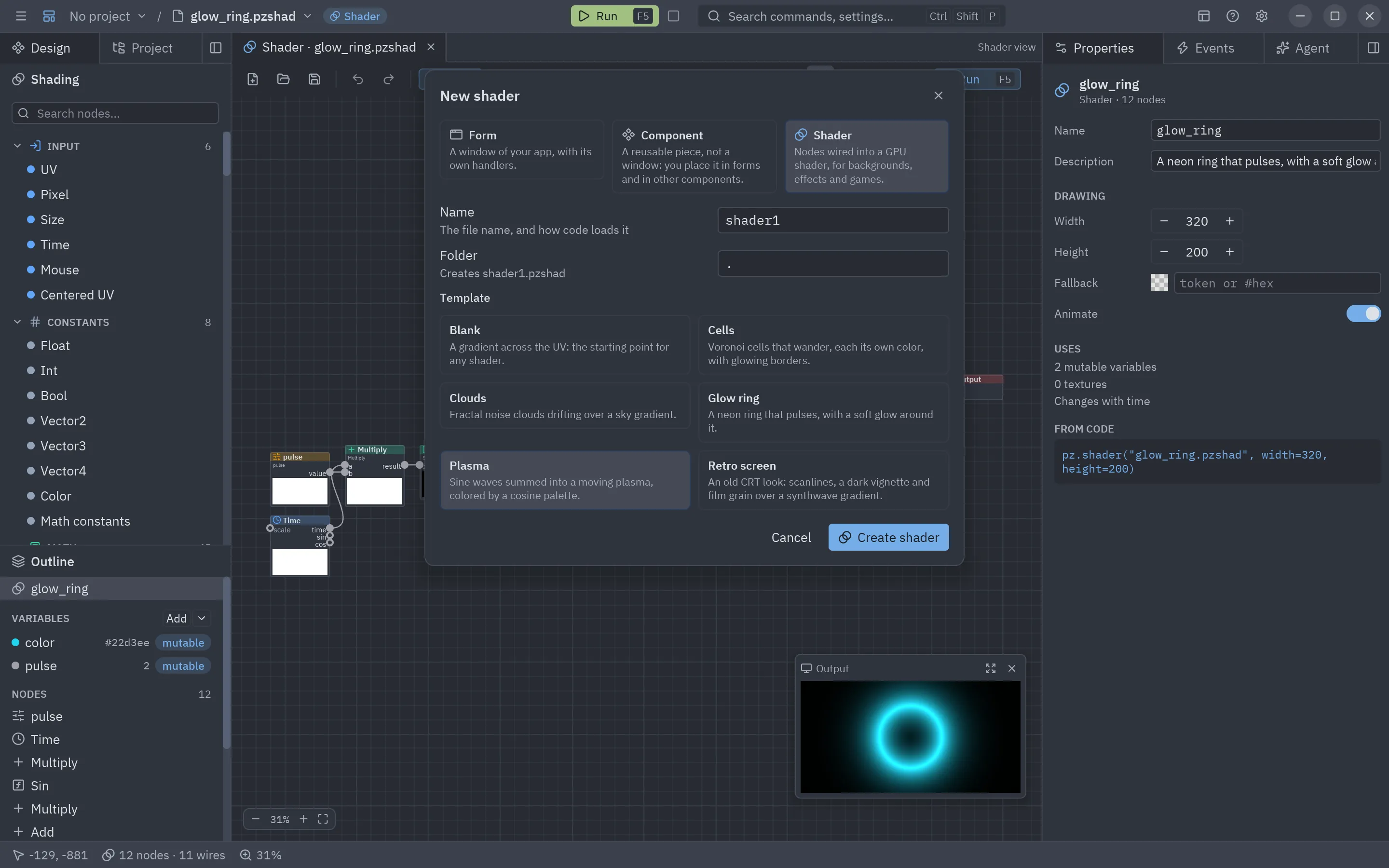
Section titled “Creating one”Press New (Ctrl+N) and pick the Shader card. Give it a name and a folder and pick a template: Blank
(a gradient), Plasma, Clouds, Glow ring, Cells or Retro screen. Create shader saves it
and opens it. You can also open a .pzshad file directly:
pyzed design effects/fire.pzshad # created on first save if it does not existpyzed run effects/fire.pzshad # the shader filling a windowThe Shader view
Section titled “The Shader view”A shader opens in the Shader view, with three tabs in its toolbar:
| Tab | What it shows |
|---|---|
| Graph | The nodes on a canvas you pan and zoom. Each node has a preview of its first output; the small Output window in the corner shows the finished shader. |
| Preview | The finished shader, large, over a checkerboard (so transparency shows), with a slider for every variable. |
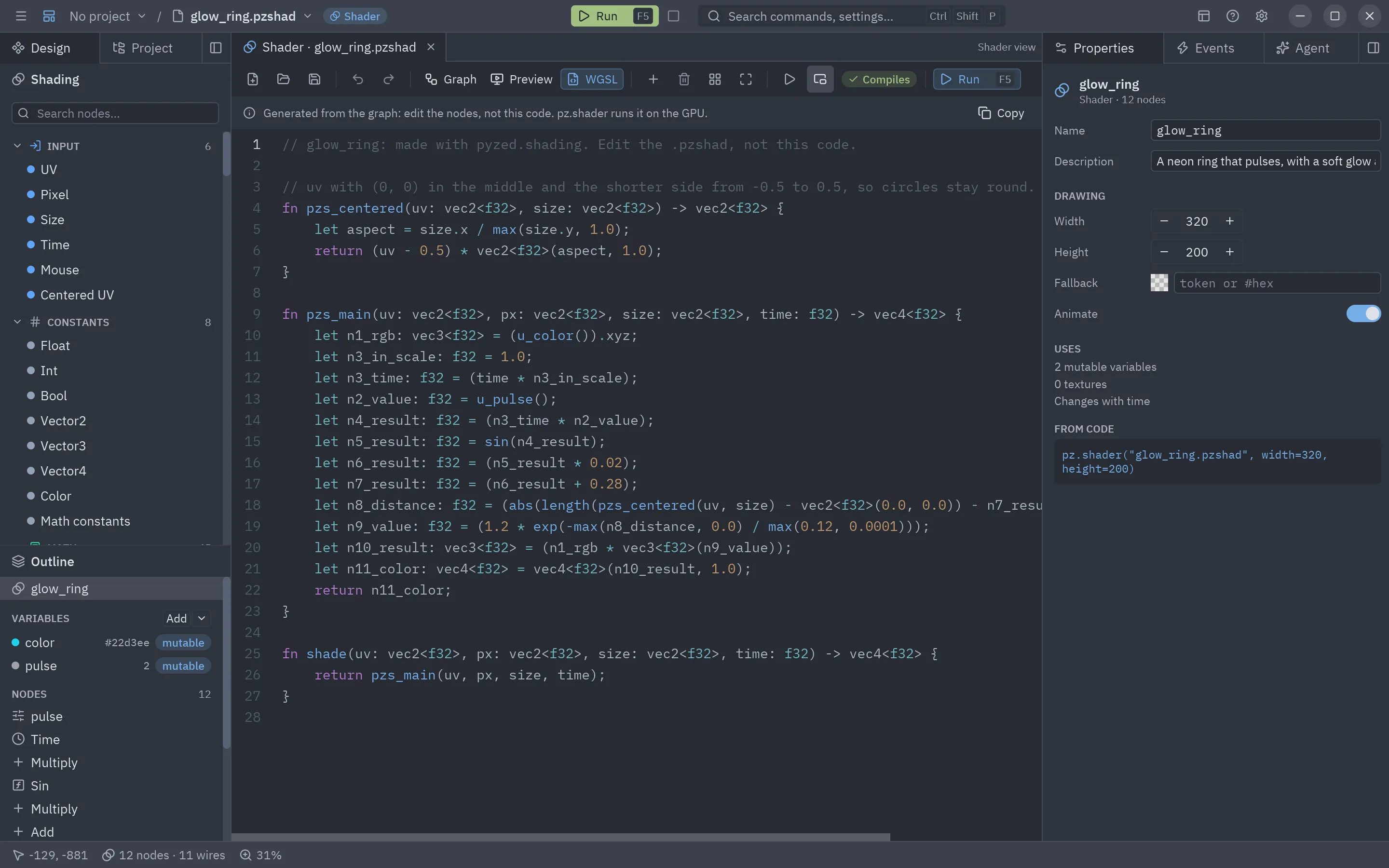
| WGSL | The code the graph compiles to, read only, with the compiler’s messages on their lines. Copy puts it on the clipboard. |
The toolbar also has Add a node (Shift+A), Delete, Arrange nodes in columns (Ctrl+L), Fit everything (F), Stop time (to freeze every preview at one moment), Small preview and Run (F5), which opens the shader in a window of its own that follows your edits. A badge says Compiles or how many problems there are; hover it to read them.
Working on the canvas
Section titled “Working on the canvas”| Gesture | What it does |
|---|---|
| Drag from an output to an input | Wires them. The wire takes the color of the value’s type. |
| Drag a wire onto a node | Connects it to the first input (or output) that takes it. |
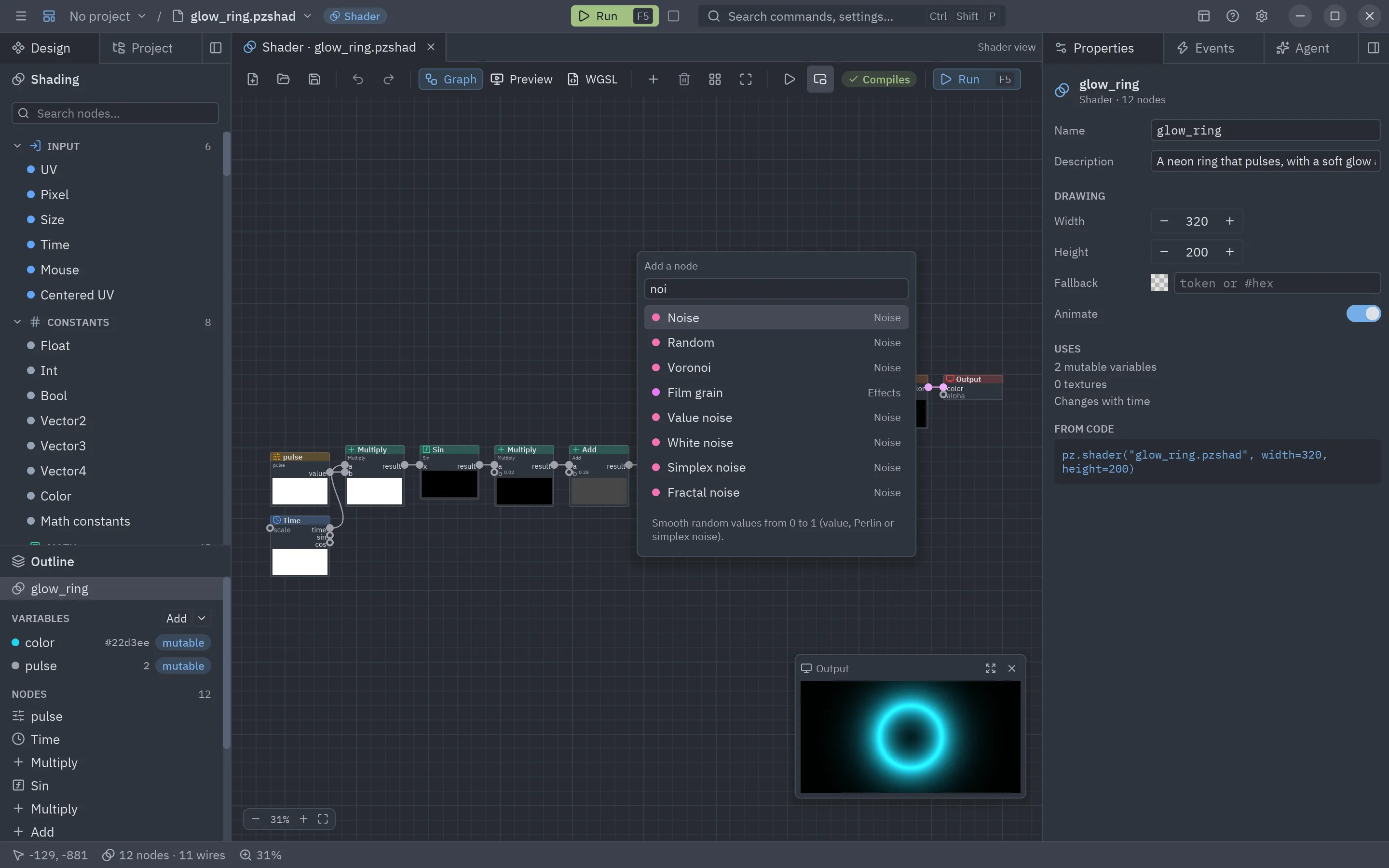
| Drop a wire on empty space | Opens the node search; the node you pick is added there, already wired. |
| Drag from a connected input | Picks the wire up again, to move it or drop it (disconnect). |
| Double-click or right-click the canvas | The node search, where the pointer is. |
| Drag a node | Moves it (and the rest of the selection). |
| Drag on empty space | Selects the nodes in the box. |
| Wheel | Zooms around the pointer. |
| Middle button, or Space + drag | Pans. |
| Right-click a node | Duplicate, copy, show or hide its preview, disconnect all, delete. |
| Double-click a node | Shows its settings; on a Shader function node, opens that .pzshad. |
The keyboard works as on forms: Ctrl+Z / Ctrl+Shift+Z, Delete, Ctrl+C / Ctrl+X / Ctrl+V (nodes travel between shaders and windows), Ctrl+D, Ctrl+A, arrows to nudge, P to show or hide the selected nodes’ previews, Ctrl+0 for 100% and Ctrl+= / Ctrl+- to zoom.
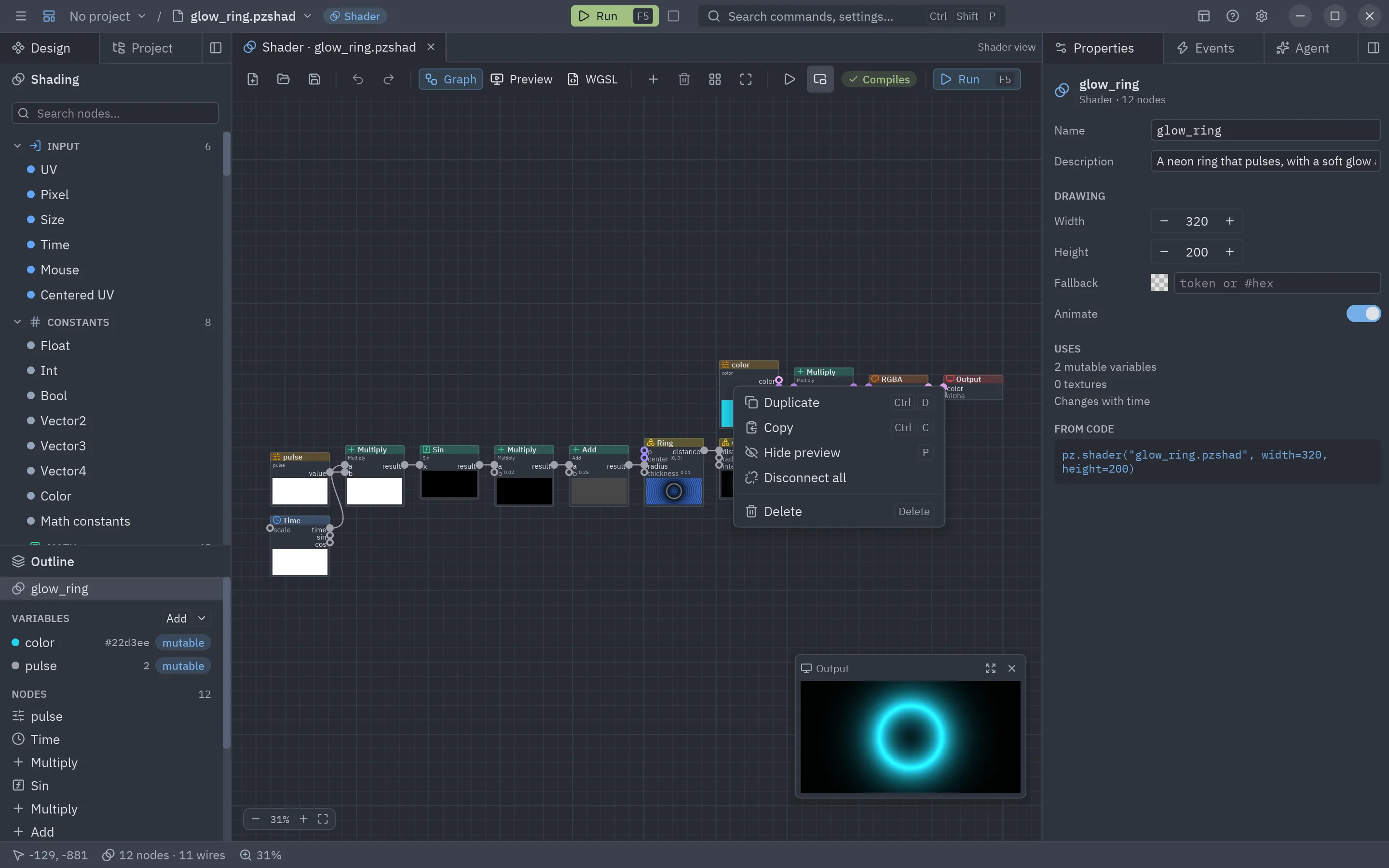
Inline values
Section titled “Inline values”An input that is not connected shows its value right on the node: a number field, a switch or a color swatch.
Inputs such as uv, p or px default to a context value (the pixel’s UV, its centered position, its
pixel coordinates); the Properties panel switches them between that and a fixed value.
The Shading sidebar
Section titled “The Shading sidebar”The left dock’s Toolbox panel has the Shading sidebar instead of the form toolbox. Its entries are grouped by category; click one to add it in the middle of the graph, or drag it onto the graph. The search field matches titles, categories and keywords in English and in the designer’s language.
| Category | Nodes |
|---|---|
| Input | UV, Pixel, Size, Time, Mouse, Centered UV |
| Parameters | Parameter (reads a variable) |
| Constants | Float, Int, Bool, Vector2/3/4, Color, Math constants |
| Math | Add, Subtract, Multiply, Divide, Modulo, Power, Min, Max, Step, Atan2, Snap; Abs, Floor, Fract, Sqrt, Sin, Cos, Exp, Log and the other one-value functions; Mix, Clamp, Smoothstep, Remap, Multiply add |
| Vector | Compose, Decompose, Swizzle, Dot, Cross, Length, Distance, Normalize, Reflect, Polar |
| UV | Tiling and offset, Scroll, Rotate, Twirl, Pixelate, Barrel, Kaleidoscope, Flip, Repeat |
| Noise | Value, Perlin and Simplex noise, Fractal noise (fBm), Voronoi, White noise, Random |
| Patterns | Checker, Stripes, Grid, Dots, Linear and Radial gradients, Waves (sine, triangle, square, sawtooth) |
| Shapes | Circle, Box, Ring, Segment, Polygon, Star (signed distances), Union, Subtract and Intersect (smooth too), Fill, Stroke, Glow |
| Color | HSV ↔ RGB, Hue shift, Saturation, Brightness and contrast, Luminance, Grayscale, Invert, Gamma, Posterize, Blend (12 layer modes), Palette, Gradient (color ramp), RGBA, Layer |
| Effects | Vignette, Scanlines, Film grain |
| Texture | Sample texture |
| Logic | Compare, Select (if/else), And/Or/Xor/Not |
| Variables | Set value, Get value (named values inside the graph) |
| Utility | Reroute, Expression (your own WGSL), Shader function (another .pzshad), Comment |
| Output | Output: the color of every pixel (and its alpha) |
Every node, with its ports, settings and an example, is described in the node catalog.
Ports are typed like Godot’s: float, int, bool, vec2, vec3, vec4 and texture. Most math nodes are
generic: they take the widest type wired to them (a float times a vec3 is a vec3), and values convert on
the way (a float fills every component, a vec3 becomes a color with alpha 1). A wire that can never work (a
texture into a number) is refused with a message.
Variables in the outline
Section titled “Variables in the outline”The Outline under the sidebar lists the shader’s variables, its named values (from Set value nodes)
and every node. Add creates a variable; its arrow picks the type (float, int, bool, vec2, vec3,
vec4, color or texture). Drag a variable onto the graph to add a node that reads it.
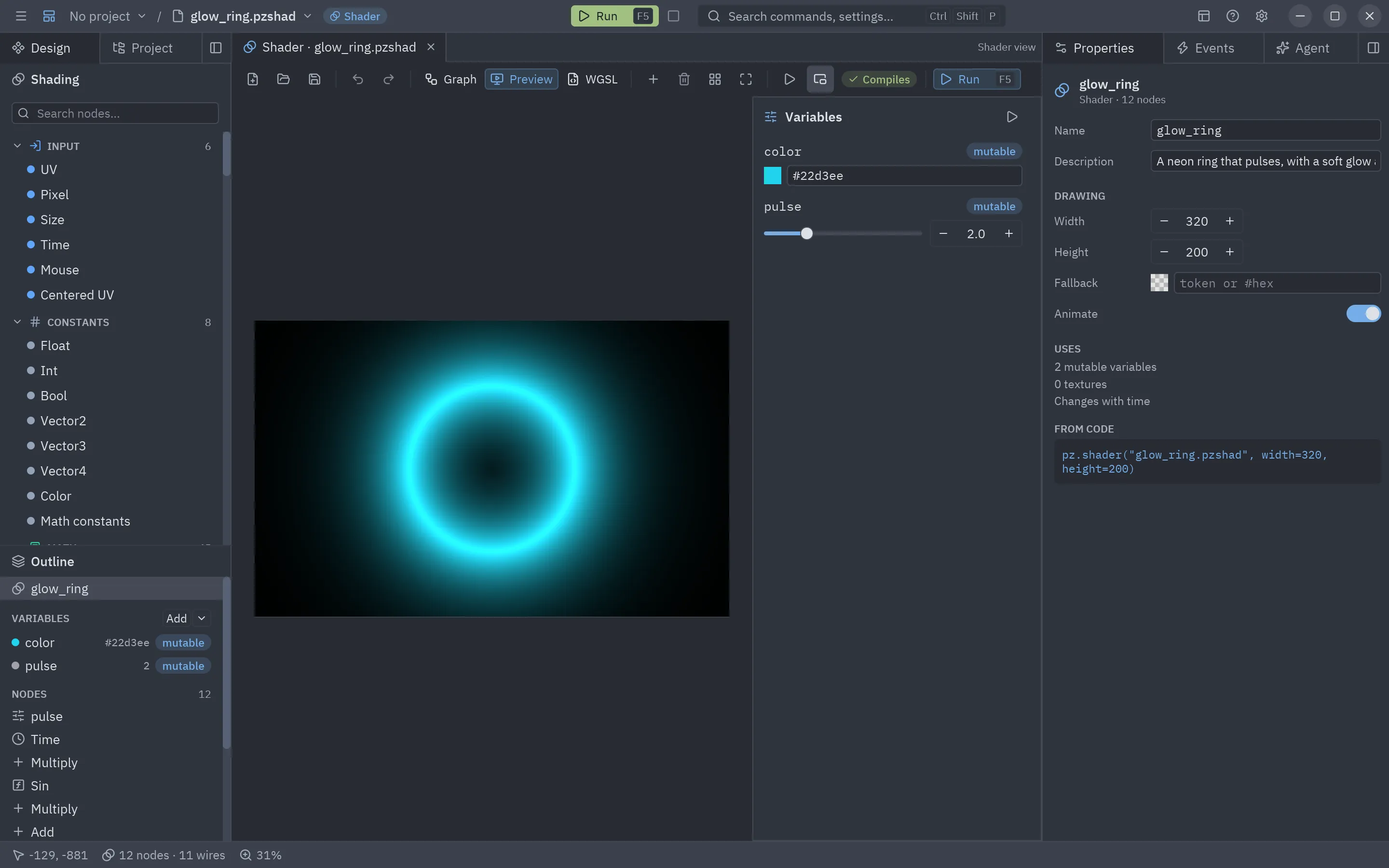
| Kind | What it is | From code |
|---|---|---|
| Mutable | A uniform: the GPU reads it every frame, so changing it costs nothing and needs no recompiling. | shader["speed"] = 2 or pz.shader("x.pzshad", uniforms={"speed": 2}) |
| Constant | Written into the generated code as a literal. Changing it builds the code again. | shader.set(steps=8) |
A variable has a value, a range (for the sliders) and a description. A texture variable is an image file; a
Sample texture node reads its color at a UV. Up to 32 mutable variables and 8 textures fit in one shader.
Properties
Section titled “Properties”The Properties panel shows what is selected:
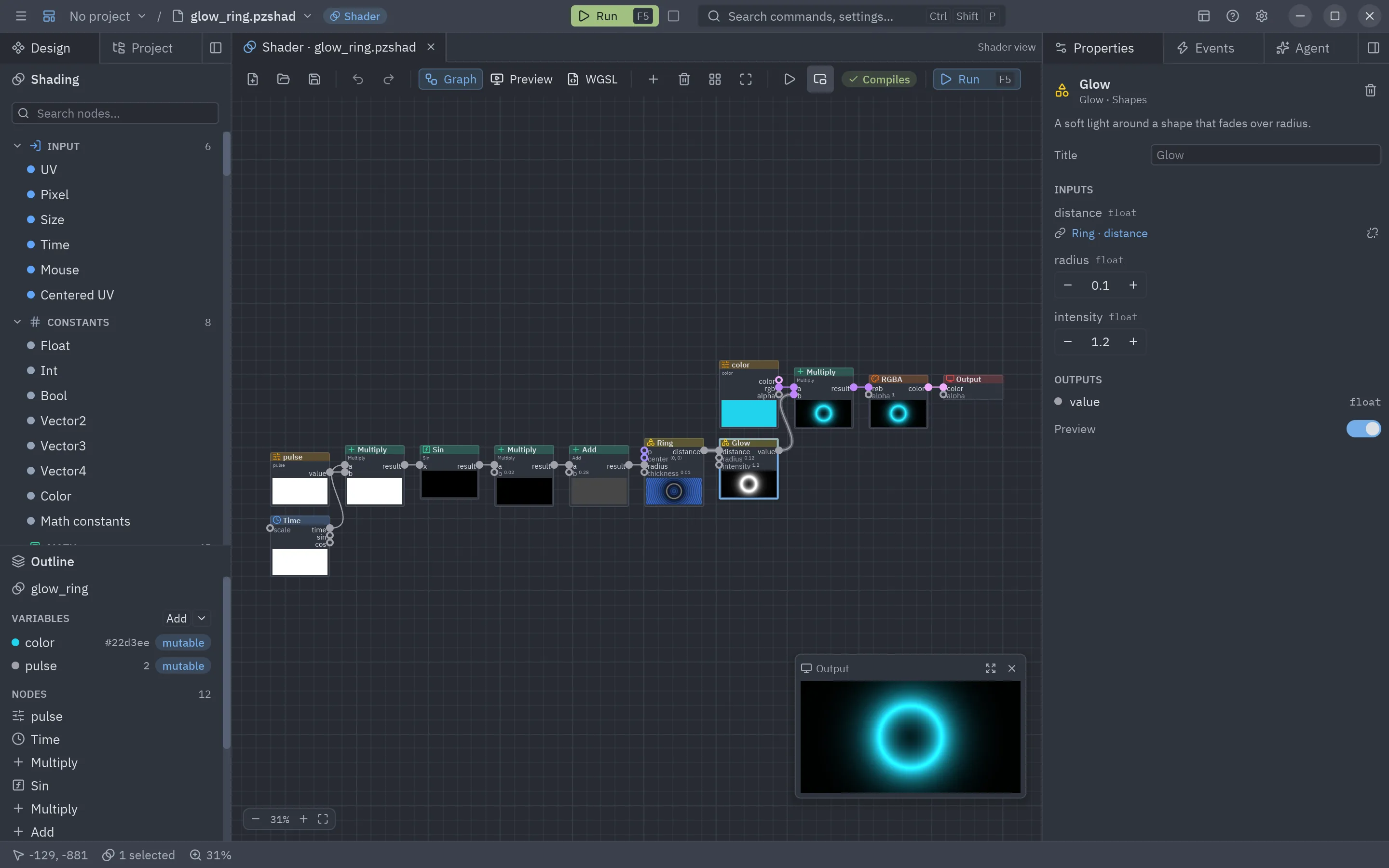
- A node: its description, title, its settings (operation, noise kind, blend mode, gradient stops, the code of an Expression…), each input with its type (a link to the node wired into it, or its value) and its outputs. Problems found by the compiler show here and on the node, in red.
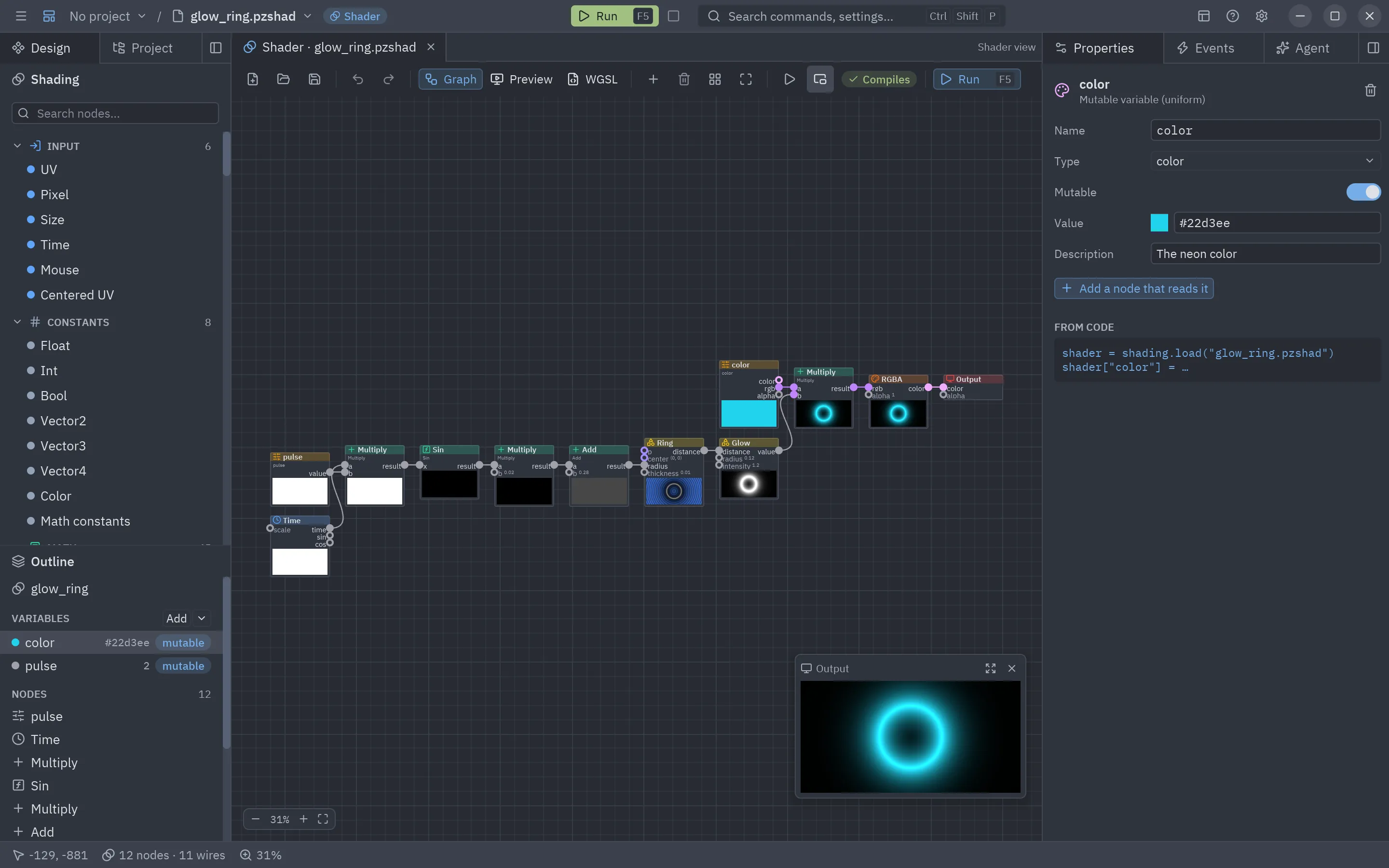
- A variable: name, type, mutable or constant, value, range and description, and the line of Python that changes it.
- Nothing: the shader itself: its name and description, the size of the Preview and Run windows, the fallback color drawn where there is no GPU, and whether it animates.
Reusing shaders
Section titled “Reusing shaders”A .pzshad is a file like a picture: use it anywhere.
- In code:
pz.shader("shaders/fire.pzshad", uniforms={"speed": 2}), or load it withpyzed.shading.loadand set its variables. See Shader graphs. - In forms: the toolbox’s Shader control (in Display) draws a
.pzshad. Its Shader file property is the path, and variables ({"speed": 2}) sets its variables, from the Properties panel or from a handler. - In other shaders: the Shader function node runs another
.pzshadas a function. Its mutable variables become the node’s inputs, and itsuvinput moves, tiles or warps it. - In games: the showcase backgrounds (nebula, synthwave, embers, color blobs, the radar)
are
.pzshadfiles inexamples/showcase/shaders; open one to see how it is built.
A running app reloads a .pzshad when the file changes, so saving in the designer updates it.