
Settings
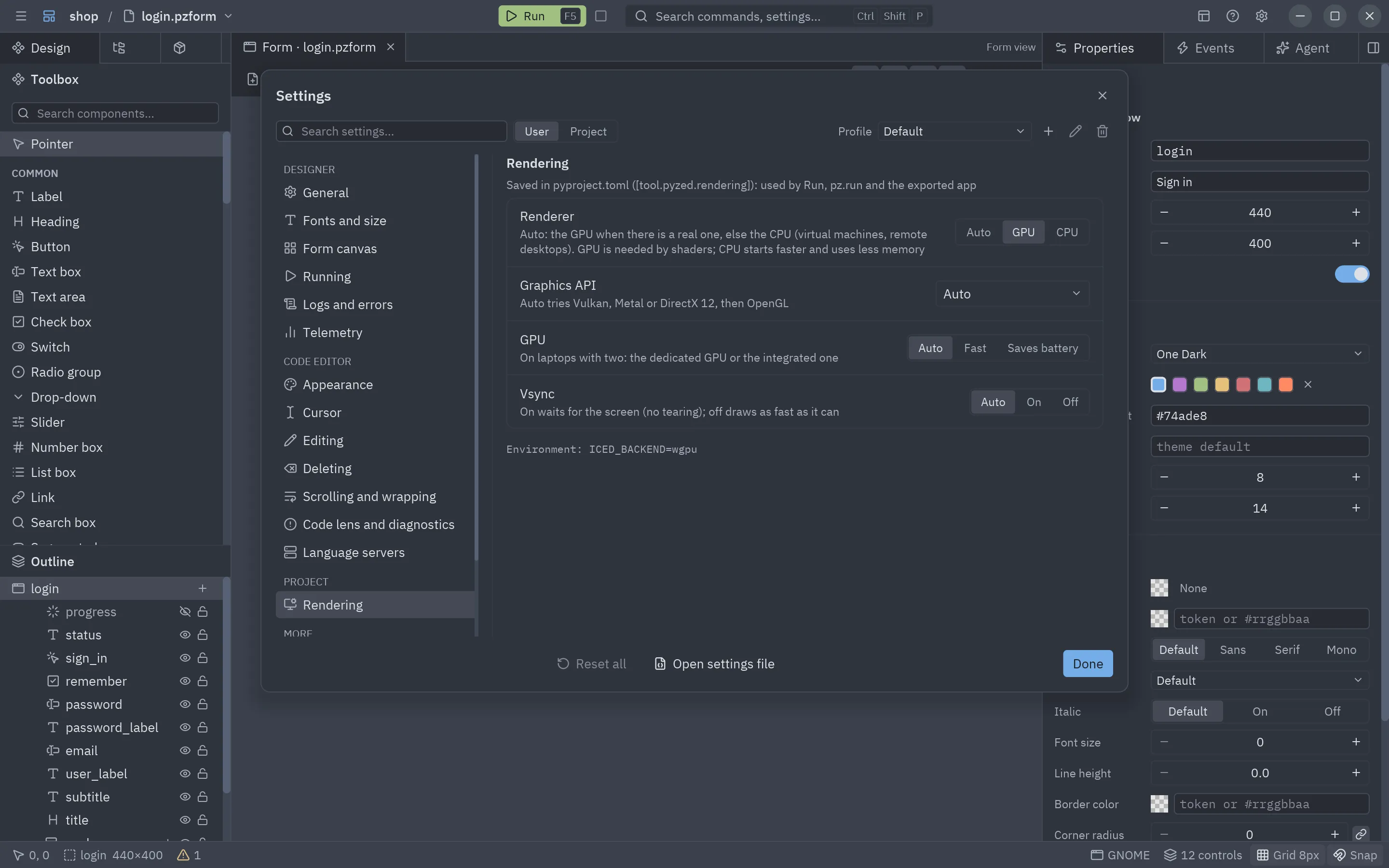
Settings (Ctrl+,, the gear at the right of the title bar, or the ☰ menu) holds every preference of the designer and of its code editor in one dialog. Changes apply at once and are saved right away; Done closes the dialog.
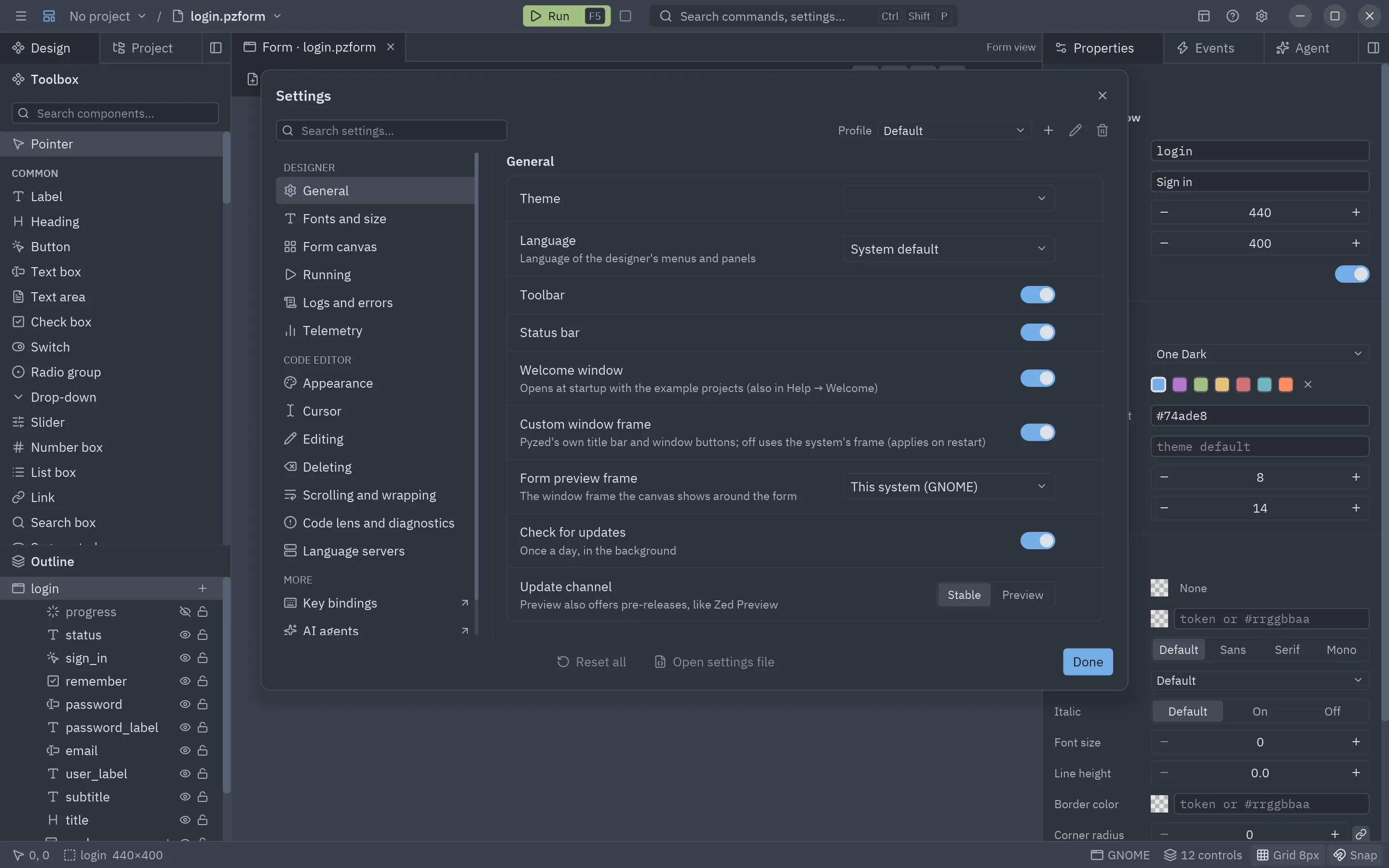
- The index on the left groups the pages: Designer (General, Fonts and size, Form canvas, Running, Logs and errors, Telemetry), Code editor (Appearance, Cursor, Editing, Deleting, Scrolling and wrapping, Code lens and diagnostics, Language servers) and, with a project open, Project (Rendering). A number next to a page counts its changed settings.
- Search settings… (focused when the dialog opens) finds a setting by its name or its help, in English or in your language, across every page.
- A dot after a setting’s name means it is not at its default; the ↺ button at its right puts it back.
- Reset all puts every setting of the profile back to its default. It asks for a second press, so one click can not lose your settings.
- Open settings file opens the JSON file the page writes to.
Profiles
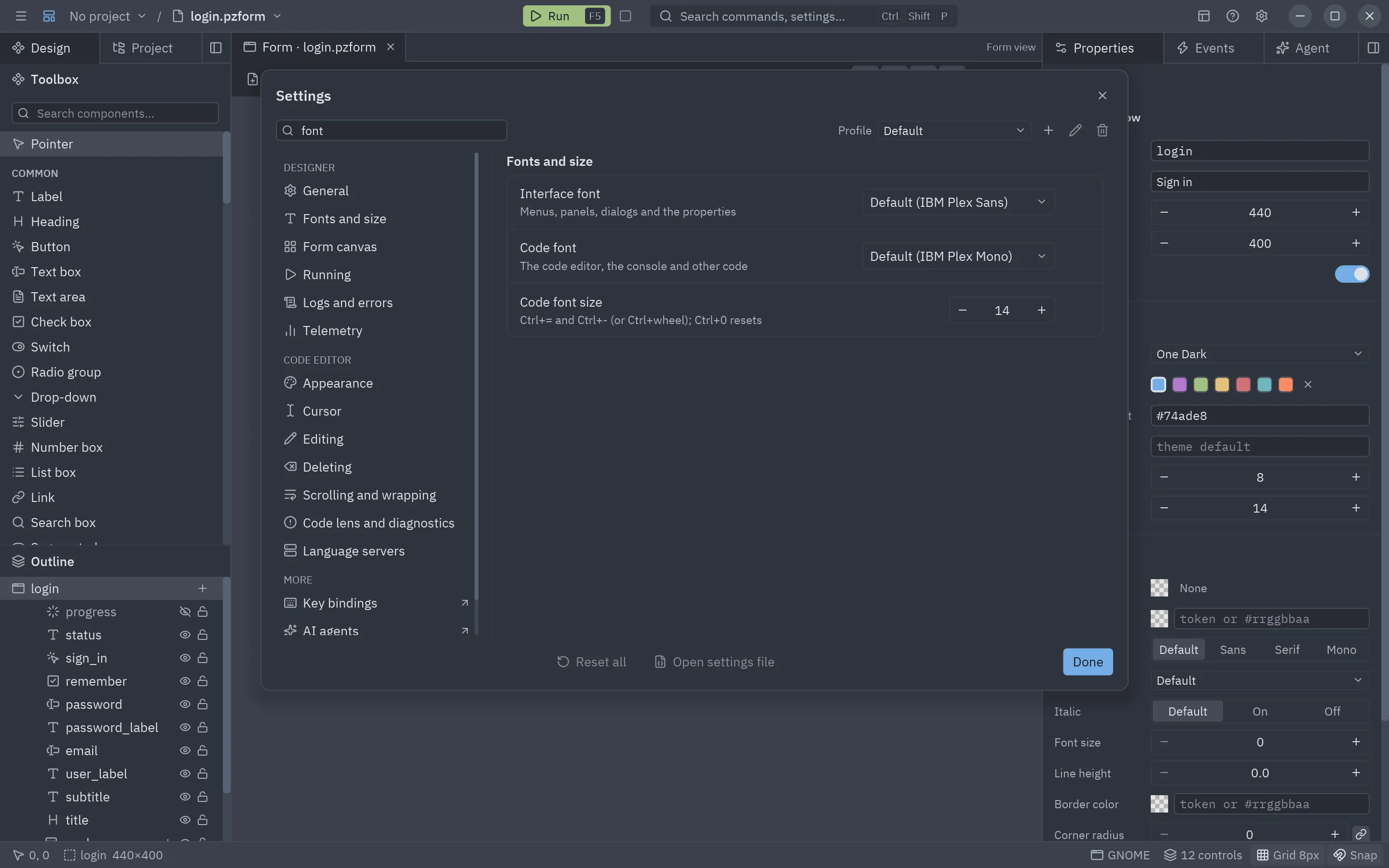
Section titled “Profiles”A profile is a whole set of preferences you can switch between, like VS Code’s profiles: one for everyday work, one with big fonts for presentations, one for a small laptop screen… The Profile list at the top right switches; switching applies the profile at once (theme, fonts, sizes, editor options).
| Button | What it does |
|---|---|
| + | A new profile, a copy of the one in use, with the name you type. |
| ✎ | Renames the profile in use. |
| 🗑 | Deletes the profile in use and goes back to Default. Default can not be renamed or deleted. |
Profiles only hold preferences: the panel layout, the recent files and the keymap stay the same whatever the profile.
Project settings
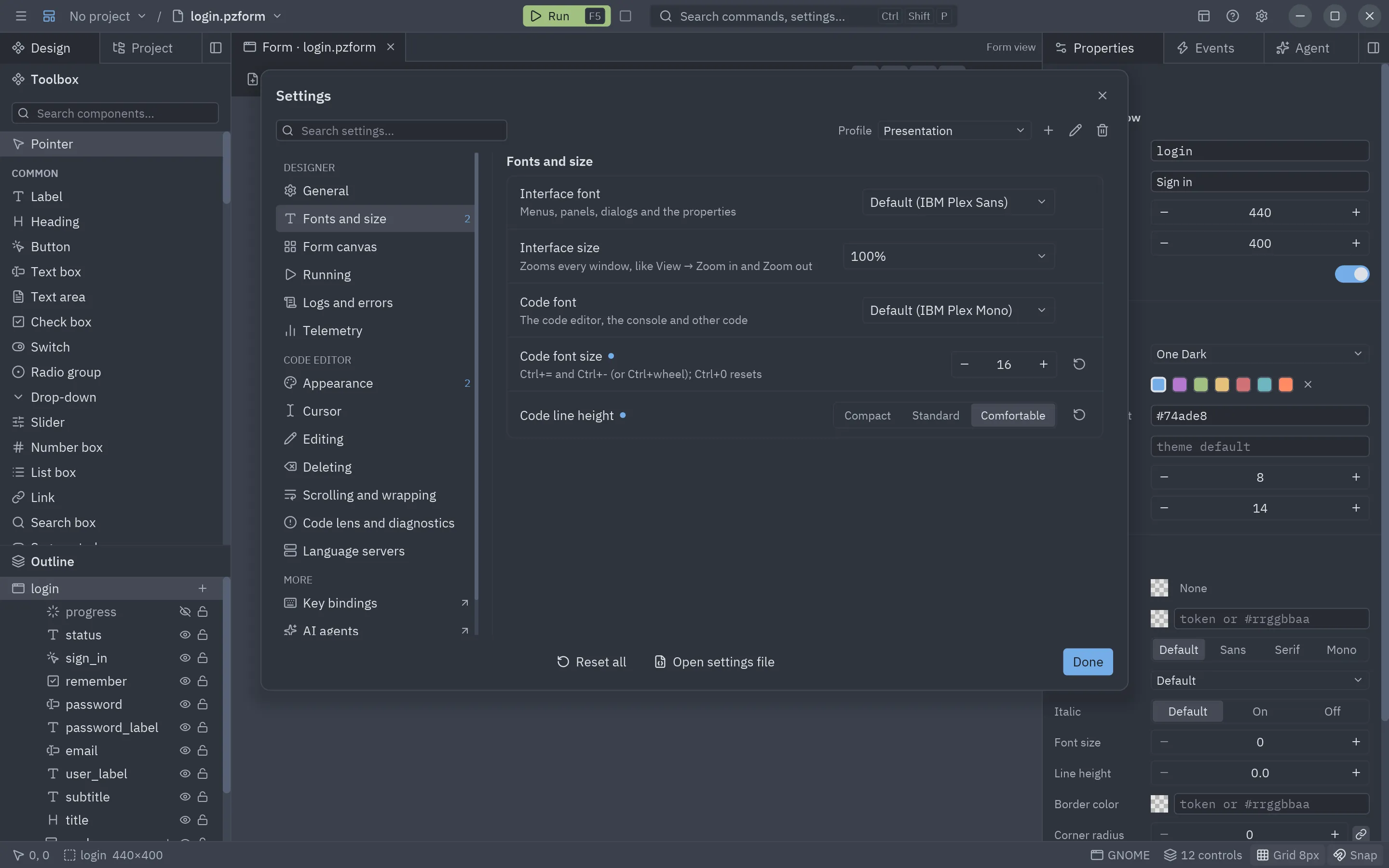
Section titled “Project settings”With a project open, User | Project at the top says where your changes go:
- User: your own settings, in the active profile. They apply to every project.
- Project: this project’s own settings, saved in
.pyzed/settings.jsoninside the project, like Zed’s.zed/settings.json. They win over the user’s while the project is open, and travel with it (commit the file so everyone who opens the project gets them).
In the Project scope, the dot marks the settings the project sets, and ↺ removes them so the user’s value applies again; Remove project settings removes all of them. In the User scope, a setting the project sets shows This project sets its own. A few settings belong to the user only (the welcome window, the window frame, updates, the log file).
{ "editor": { "tab_size": 2, "hard_tabs": false, "format_on_apply": true }, "designer": { "grid": 4, "snap": true }}Rendering
Section titled “Rendering”Project → Rendering chooses how the project’s app draws its windows. It is saved in the project’s
pyproject.toml, so it applies when the designer runs the project, when you run it with pz.run or
pyzed run, and in the exported app.
| Setting | Options | What it does |
|---|---|---|
| Renderer | Auto, GPU, CPU | Auto (the default) uses the GPU when there is a real one and the CPU renderer elsewhere (virtual machines, remote desktops). GPU always uses it: shaders need it. CPU (tiny-skia) starts faster and uses less memory, and works everywhere. |
| Graphics API | Auto, Vulkan, Metal, DirectX 12, OpenGL | The GPU’s API. Auto tries Vulkan, Metal or DirectX 12, then OpenGL. |
| GPU | Auto, Fast, Saves battery | On laptops with two GPUs: the dedicated one or the integrated one. |
| Vsync | Auto, On, Off | On waits for the screen (no tearing); Off draws as fast as it can (to measure performance). |
[tool.pyzed.rendering]renderer = "gpu" # "auto", "gpu" or "cpu"gpu_api = "vulkan" # "auto", "vulkan", "metal", "dx12" or "gl"power = "low" # "auto", "high" or "low"vsync = "off" # "auto", "on" or "off"In code, App.rendering does the same for one app, and wins over pyproject.toml:
class Game(pz.App): rendering = pz.Rendering(renderer="gpu", vsync="off")The settings become the environment variables Iced and wgpu read (ICED_BACKEND, WGPU_BACKEND,
WGPU_POWER_PREF, ICED_PRESENT_MODE); one you set yourself still wins. While a project sets its own renderer,
Run always starts the form in its own process, since the designer’s window already has one.
Appearance
Section titled “Appearance”| Setting | What it does |
|---|---|
| Theme | The editor’s theme (One Dark, One Light, Ayu, Gruvbox…). Forms keep their own theme. |
| Language | System default, English or Español: the language of the menus and panels. |
| Toolbar | Shows or hides the toolbar. |
| Status bar | Shows or hides the status bar. |
| Welcome window | Opens the welcome window at startup (on by default). |
| Custom window frame | On by default: Pyzed Design draws its own title bar and window buttons, in the style of your system. Turn it off to use the system’s frame (applies the next time it opens). |
| Form preview frame | The window frame the canvas shows around the form: this system’s, macOS, Windows 11, GNOME, Ubuntu or KDE Plasma. |
Fonts and size
Section titled “Fonts and size”| Setting | What it does |
|---|---|
| Interface font | The font of the menus, panels, dialogs and properties. Default is IBM Plex Sans; the list has the bundled fonts, the system’s and any loaded with pz.load_font. |
| Interface size | Makes the whole editor bigger or smaller, from 75% to 150%, panel windows included. View → Zoom in the interface, Zoom out the interface and Reset the interface zoom do the same in 5% steps; give them keys in the keymap editor. |
| Code font | The font of the code editor and other code. Default is IBM Plex Mono. |
| Code font size | 8 to 32 points, the same setting as in the code editor’s settings. |
| Code line height | Compact, Standard or Comfortable. |
Every change shows at once, without restarting, and is saved for the next time.
Form canvas
Section titled “Form canvas”| Setting | What it does |
|---|---|
| Show grid | The dot grid on the canvas (also G). |
| Snap to grid | Rounds positions and sizes to the grid. |
| Smart guides | Aligns to other controls while dragging. |
| Outline eye | Hidden when running (the default): the eye turns Visible off; the control is also left out of the canvas and shown while selected. Hidden in the editor only: the eye hides it on the canvas only and the running form still shows it. |
| Show all hidden controls | Draws every control whose Visible is off, dimmed. Off (the default), a hidden control appears only while it or something inside it is selected. |
| Grid size for new forms | The grid step (2 to 64) given to forms and components you create. Each form then keeps its own in Properties. |
Running
Section titled “Running”| Setting | What it does |
|---|---|
| Save before running | F5 saves the document first. |
| Open the console on Run | Brings the console to the front when a form starts. |
| Log events in the console | Writes every event the running form handles, with its value and handler. |
Logs and errors
Section titled “Logs and errors”| Setting | What it does |
|---|---|
| Show a dialog on errors | Opens the error dialog when something fails. Off, errors only go to the Logs panel. |
| Write a log file | Also writes the logs to logs/pyzed-design.log in the Pyzed config folder (applies on restart). |
The end of the index has links to the rest:
| Item | What it does |
|---|---|
| Key bindings | The keymap editor: change the keys of any action. |
| AI agents | The agent’s settings: model providers, keys and browser sign-in, default model, effort and permissions. |
| Reset panel layout | Puts every panel back in its default dock and size. |
Telemetry
Section titled “Telemetry”The designer can keep usage and performance numbers to help improve it, but only if you turn it on: it is off by default. In Settings → Telemetry, Collect usage and performance data records:
- how many times each command and editor action is used (
command.save,editor.select_next…); - how long the designer takes to start, to draw a frame and to run each command (count, total, maximum and a histogram);
- the number of sessions and their length.
It never records your code, texts, form or file names, or paths. The data is kept in telemetry.json in the
Pyzed config folder; View opens it and Delete empties it (and changes the random installation id).
Nothing leaves your computer unless you also set an Endpoint: then the designer posts the data there as JSON
when it closes, and starts counting again. A send that fails is retried the next time. PYZED_TELEMETRY=0 turns
telemetry off whatever the settings say.
{"schema": 1, "installation": "4f0c…", "app": "pyzed-designer", "version": "0.4.0", "os": "linux", "arch": "x86_64", "python": "3.13", "since": "…", "until": "…", "sessions": 3, "counters": {"command.save": 12, "editor.select_next": 7}, "timings": {"render": {"count": 840, "total_ms": 2210.4, "max_ms": 41.2, "buckets": [690, 120, 25, 5, 0, 0, 0, 0]}}}The buckets count durations up to 4, 8, 16, 33, 50, 100 and 250 ms, and longer.
Where they are saved
Section titled “Where they are saved”Everything the editor remembers goes to one file, designer.json, in Pyzed’s settings folder:
| Platform | Folder |
|---|---|
| Windows | %APPDATA%\pyzed |
| macOS | ~/Library/Application Support/pyzed |
| Linux | $XDG_CONFIG_HOME/pyzed or ~/.config/pyzed |
Set PYZED_CONFIG_DIR to use another folder (handy for a portable setup or for tests). The file has two
sections: "designer" (theme, language, canvas defaults, toolbar and status bar, run options, recent files, and
where each panel is docked, which docks are hidden and their sizes) and "editor" (the code editor). They hold
the active profile; "profile" names it and "profiles" keeps the others (only what differs from the defaults).
A project’s own settings are in its .pyzed/settings.json. The
AI agent keeps its settings in agents.json and its threads in agents/threads/ in
the same folder; API keys are never written there, they go to the system keychain. Invalid
values are ignored and the defaults used, so a hand-edited file can not break the editor.
{ "designer": { "theme": "One Light", "language": "es", "ui_font": "Inter", "ui_scale": 1.1, "grid": 8, "snap": true, "console_on_run": true, "docks": { "events": "left" }, "sizes": { "right": 360 }, "recent": ["/home/ada/shop/ui/main.pzform"] }, "editor": { "font_family": "JetBrains Mono", "font_size": 15, "tab_size": 4, "minimap": false, "cursor_shape": "block", "format_on_apply": true }}Translating the editor
Section titled “Translating the editor”The editor’s interface is translated with pz.t. English and Spanish are built in; add a
catalog under the designer key to translate it to another language. The Language setting offers the built-in
ones; for another language, let the editor follow the system or set "language" in the designer section of
designer.json.
Missing strings fall back to English, so a partial translation already works.