
Code editor
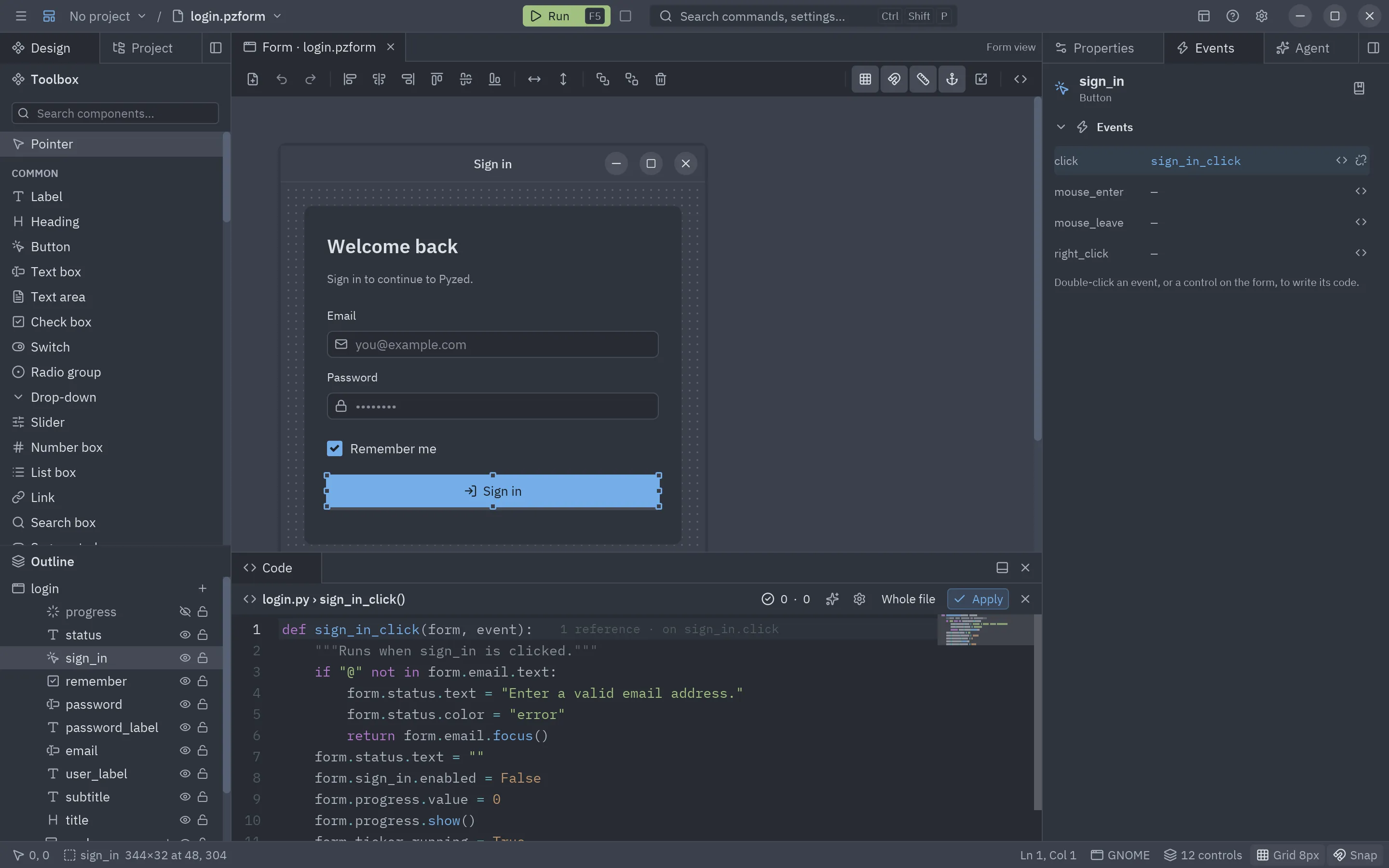
The Code panel (bottom dock) is a Python editor backed by two language servers from Astral: ty (types, completion, references) and ruff (linting and formatting). It shows up when you open a handler or a project file and goes away when you close it.
What it edits
Section titled “What it edits”The editor shows either one handler or the whole code file:
| Mode | How to get there | Title |
|---|---|---|
| One handler | Double-click a control or an event, Enter on a selected control, View code, a method in the Component panel. | login.py › sign_in_click() |
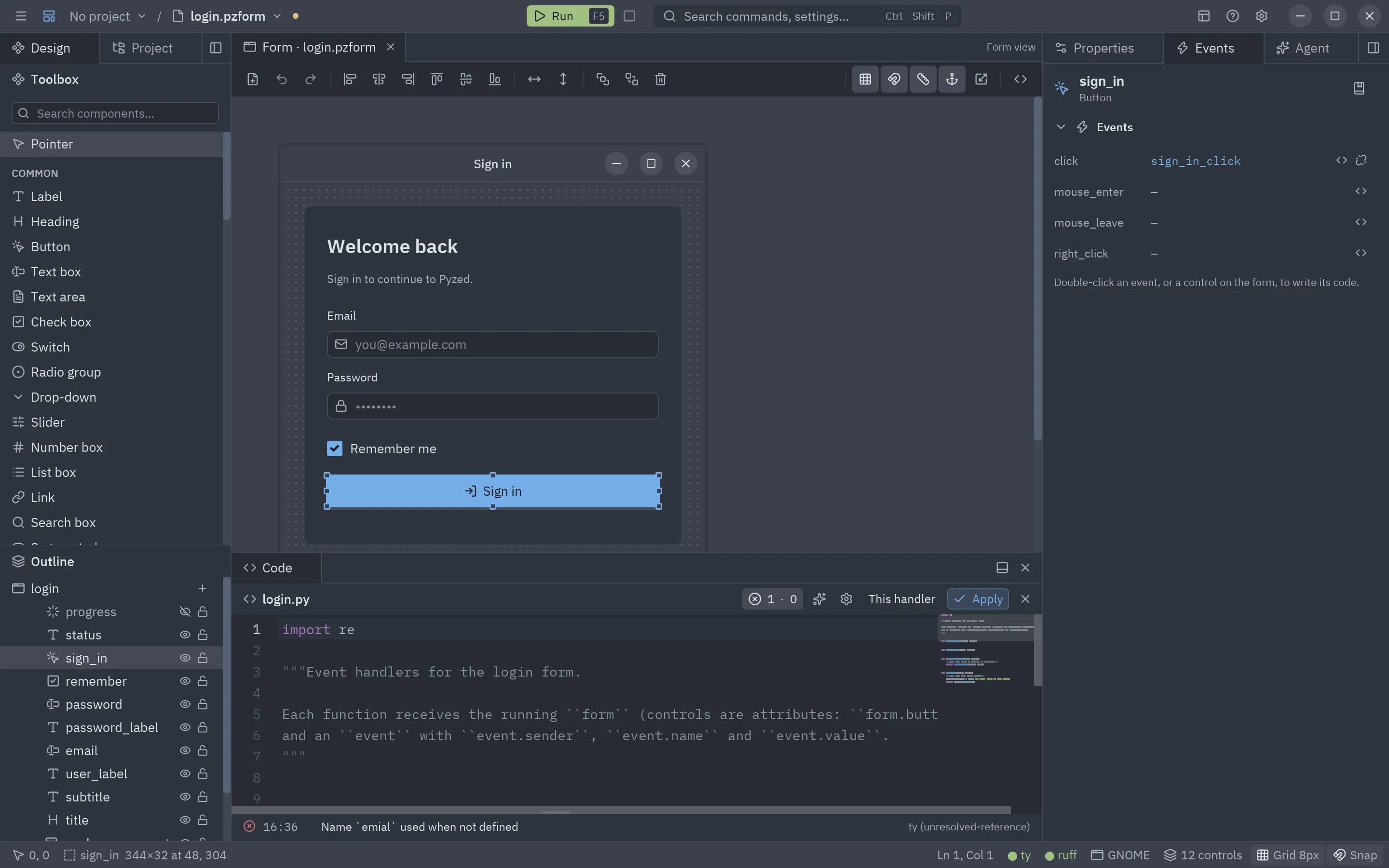
| Whole file | F7, Edit code file (toolbar, ☰ menu, palette), or Whole file in the header. | login.py |
| A project file | A click on a text file in the Project tab, or Ctrl+P. | src/shop/cart.py |
Whole file and This handler in the header switch between the two. In handler mode you only see the function, but the language servers always see the whole module with that handler swapped in, so the imports and helpers at the top of the file are known to completion and diagnostics.
The header
Section titled “The header”| Item | Does |
|---|---|
| Title | The code file and, in handler mode, the function. |
Problems (2 · 1) |
Errors and warnings of the code; click to show or hide the problems list. A check mark means there are none. |
| Gear | Opens the editor settings. |
| Whole file / This handler | Switches the mode. |
| Apply | Checks the syntax, writes the code to the document and, with Format with ruff on Apply on, formats it. |
| × | Closes the editor (the code is applied first). |
Your code is applied to the document on its own whenever you switch handlers, switch mode, change tab, save or run;
Apply is for checking it (and formatting it) right away. If the code does not parse, a red line under the
editor says where (Line 3: invalid syntax), and saving, running and switching wait until you fix it.
Writing code
Section titled “Writing code”- Syntax highlighting for Python, with the theme of the editor (or its own, see settings).
- Indentation: Tab inserts spaces (the Tab size), or a tab with Indent with tabs;
Enter keeps the indentation of the line (its spaces and tabs) and adds a level after a
:; Backspace in the indentation removes a whole level (one space with Backspace removes a whole level off). See Tabs or spaces. - Brackets and quotes: typing
(,[,{,"or'inserts its pair, wraps the selection if there is one, and typing the closing character steps over it instead of doubling it. - Gutter: line numbers (they follow wrapped lines) and the current line highlighted.
- Folding: chevrons in the gutter fold and unfold blocks (functions, classes,
ifs…); Ctrl+Shift+[ folds the innermost block around the cursor and Ctrl+Shift+] unfolds it. - Minimap: the code zoomed out on the right; click or drag it to scroll.
- Input methods: Chinese, Japanese and Korean input methods (IME) work: the text being composed is drawn at the cursor and the committed text goes in at every cursor.
- Whitespace: optionally draws spaces as
·and tabs as→. - Zoom: Ctrl+=, Ctrl+- or Ctrl+wheel change the font size; Ctrl+0 resets it. The size is saved.
- Scrolling: the mouse wheel scrolls the code (Shift+wheel sideways) and the scrollbars sit right of the minimap. The view also follows the cursor.
- Sticky scroll: while you scroll, the lines that open the blocks you are in (
class,def,for,if,with…) stay pinned at the top of the editor, the innermost one last, so you always know where you are. Click one to jump to it. Up to five lines are pinned; turn it off with Sticky scroll in the settings. - Long lines scroll sideways by default; Alt+Z (or Wrap long lines in the settings) wraps them at the editor’s width instead.
Keys in the editor
Section titled “Keys in the editor”| Keys | Action |
|---|---|
| Arrows, Home, End | Move the cursor. |
| Ctrl+← / → | Move by word. |
| Ctrl+Home / End | Start or end of the code. |
| Page Up / Page Down | One page up or down. |
| Shift + any of the above | Extend the selection. |
| Ctrl+A | Select everything. |
| Ctrl+C / X / V | Copy, cut, paste. |
| Tab | Indent (insert spaces). |
| Ctrl+Space | Open the completion list. |
| F12, Ctrl+click | Go to the definition. |
| Alt+← / → | Go back / forward after a jump. |
| Shift+F12 | Find every reference. |
| F2 | Rename the symbol. |
| Ctrl+. | Quick fixes and refactorings. |
| Ctrl+Shift+[ / ] | Fold / unfold at the cursor. |
| Ctrl+= / - / 0 | Font bigger, smaller, default. |
| Ctrl+Z / Ctrl+Shift+Z | Undo, redo (typing is grouped into one step). |
| Ctrl+F / H / G | Find, replace, go to line (see below). |
| Esc | Back to one cursor, close the completion list, or leave the editor. |
On macOS, Cmd works where these say Ctrl. The editor’s global commands (F5, Ctrl+S, Ctrl+Shift+P…) work while you type; the canvas shortcuts (Delete, arrows, Ctrl+D) do not, so typing never moves a control.
Tabs or spaces
Section titled “Tabs or spaces”Python refuses a block that mixes tabs and spaces, so the editor keeps to one of them:
- Indent with tabs (Editor settings → Editing) makes Tab, Enter and indent (Ctrl+]) write tab characters. Tabs are drawn Tab size columns wide, and Enter copies the spaces and tabs of the line above as they are, in either mode.
- Convert indentation to tabs and Convert indentation to spaces, in the command palette (Ctrl+Shift+P), rewrite the indentation of the file the code editor shows. The text inside multi-line strings is left as it is.
- Convert indentation on save does it every time a Python file (or the form’s code) is saved, so pasted code never breaks the file.
- The code the designer writes for you (a new handler or method) follows the file: in a file indented with tabs it is written with tabs.
Holding Backspace or Delete deletes at the pace set under Deleting: the first press always deletes; the next ones wait Delay before repeating and then come at most Deletions per second times a second. They can be slower than your system’s key repeat, not faster.
Find, replace and multiple cursors
Section titled “Find, replace and multiple cursors”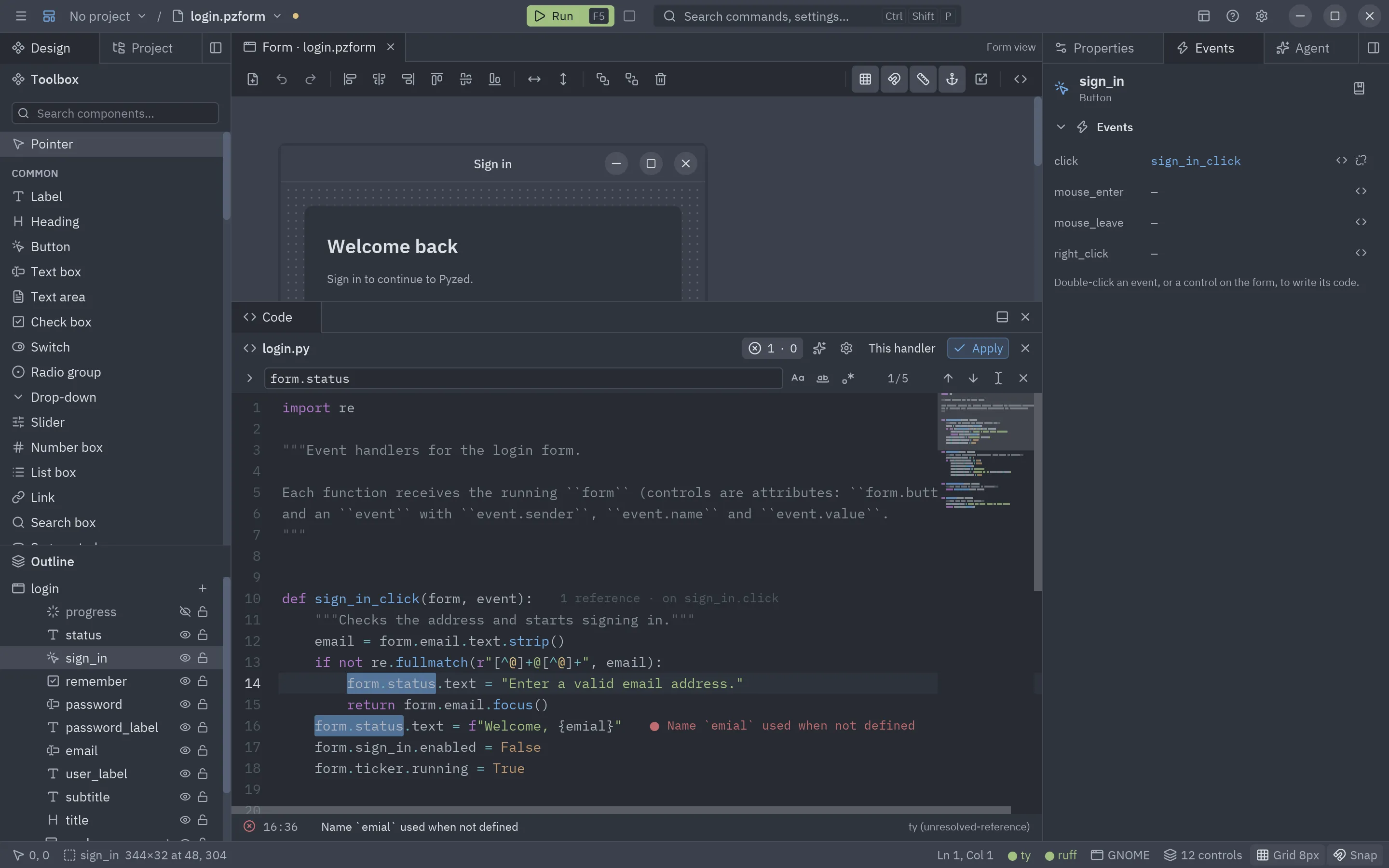
- Ctrl+F opens the find bar with the word under the cursor; matches are highlighted in the code and the bar counts them. Enter or F3 go to the next one, Shift+F3 to the previous one, and Alt+Enter puts a cursor on every match. The buttons match case, whole words or a regular expression.
- Ctrl+H also shows the replace field: Replace changes the current match, Replace all
every match in one undo step. With a regular expression,
\1in the replacement inserts a group. - Ctrl+G goes to a line (
42) or a line and column (42:8). - The editor has multiple cursors and the usual editing keys of modern code editors: Alt+click, Ctrl+Alt+↑/↓, Ctrl+D, Alt+Shift+↑/↓ to duplicate lines on every cursor, Ctrl+Shift+L, Alt+↑/↓ to move lines, Ctrl+/ to comment, Ctrl+Z / Ctrl+Shift+Z and more. See the full list in the code editor component or press F1 in the designer.
Completion
Section titled “Completion”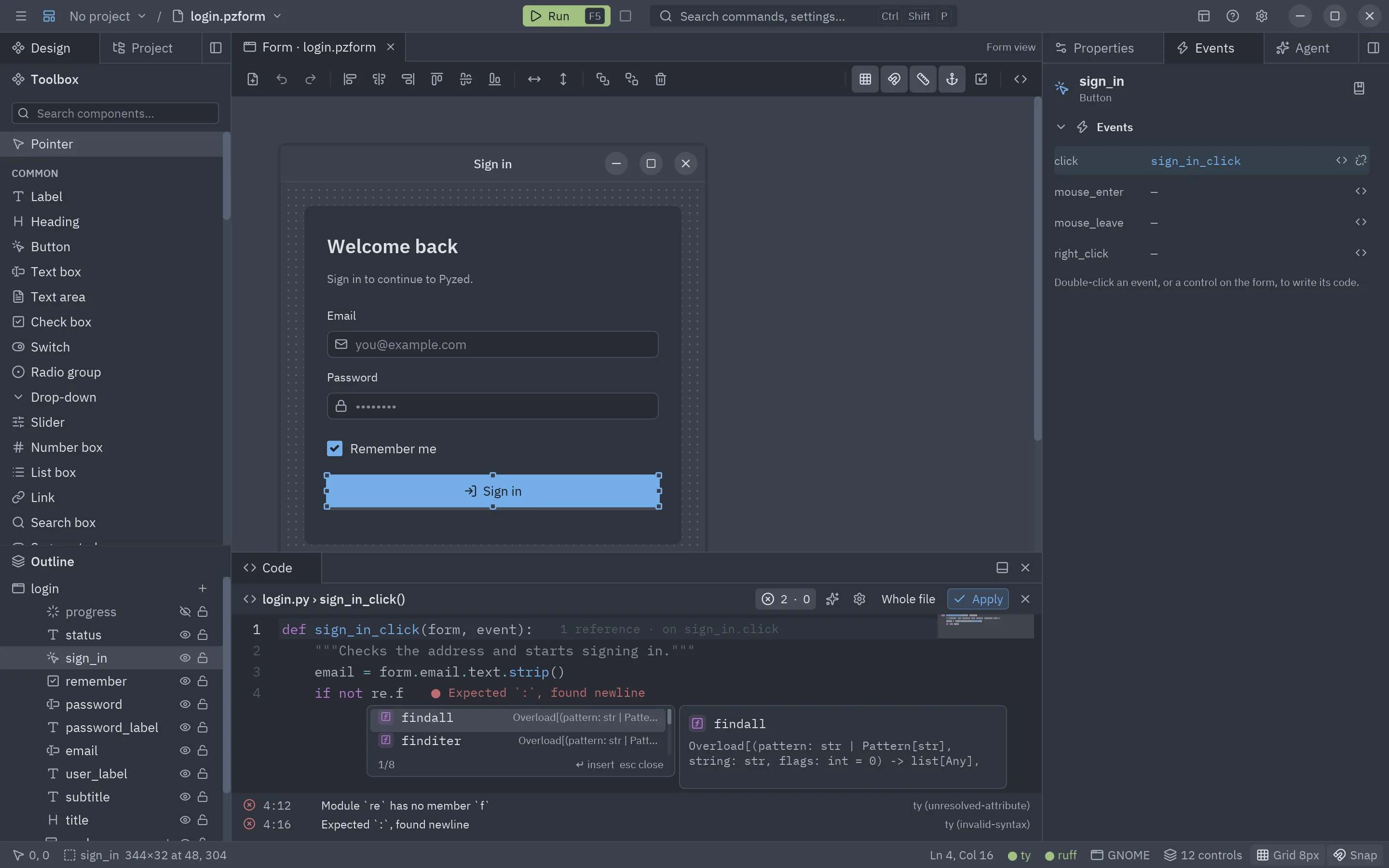
-
The list opens while you type a name or after a
.(not in comments or strings), and Ctrl+Space opens it anywhere. Turn off Autocomplete while typing to open it only with the keys. -
↑/↓ move (wrapping around), Page Up/Page Down jump nine rows, Enter or Tab insert, Esc closes; a click inserts too. The footer shows the position (
3/42). -
The mouse wheel scrolls the list without moving the highlighted entry, and a scrollbar on its right shows where you are. Long names and signatures are cut with
…to fit; the pane beside the list shows them whole. -
Typing keeps filtering the list: names that start with what you typed come first, then names that contain the letters in order (
gtxfindsget_text). -
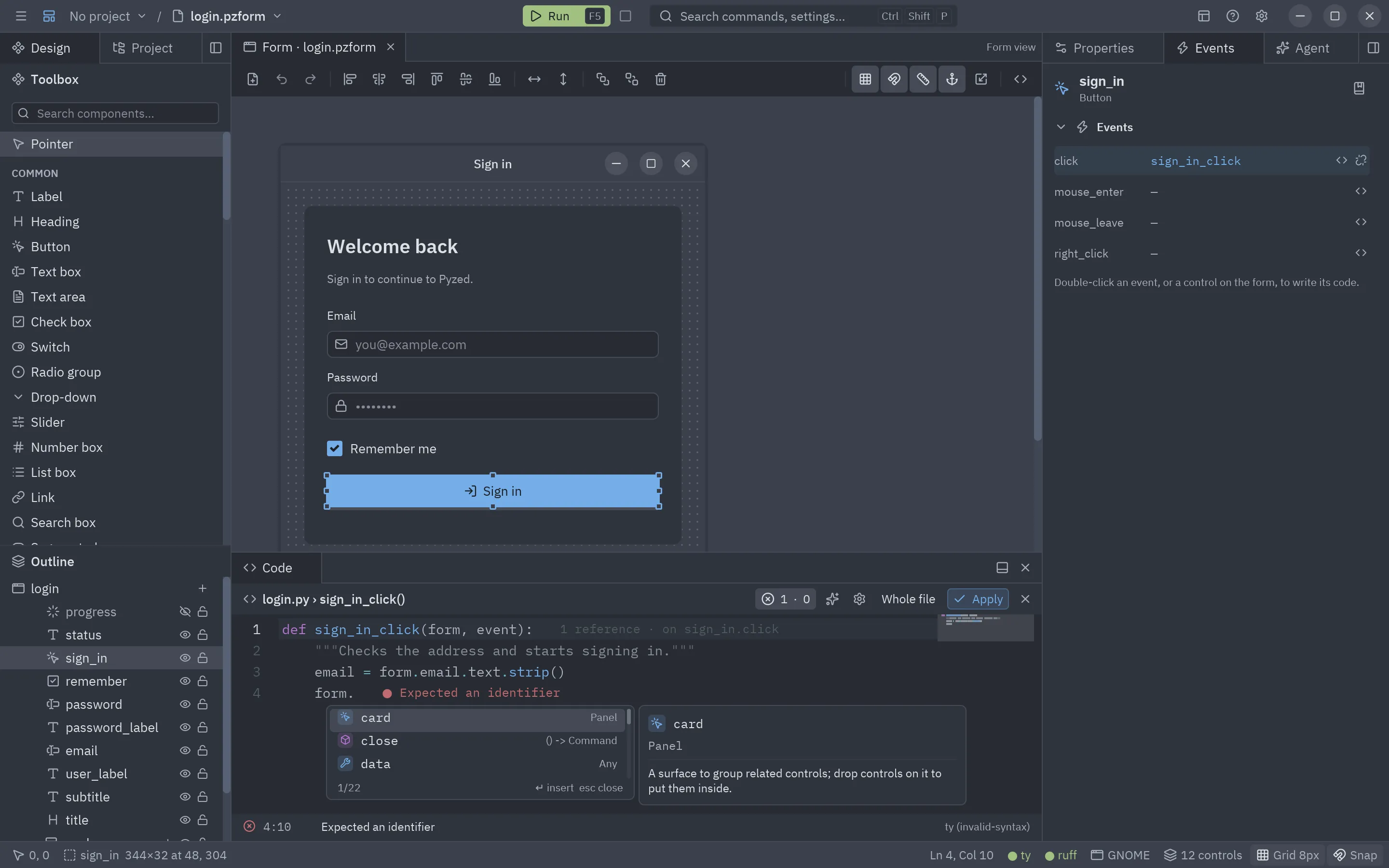
Each entry has an icon for its kind and, beside the list, a pane with its signature and documentation (the docstring, as Markdown).
Icon color Kind Purple Functions and methods Yellow Classes, enums, type parameters Blue Variables, attributes and properties Cyan Constants Red Modules Accent Controls of the form -
Private names (
_cache) are dimmed, carry a small lock and are listed after the public ones; dunders (__init__) come last. -
Auto-import: picking a name that is not imported yet also adds its
importat the top of the file, even in handler mode. -
The list opens below the word, or above it when there is more room there.
The form’s own names
Section titled “The form’s own names”A handler’s form and event have no type the servers could read, so the editor completes them itself:
| You type | You get |
|---|---|
form. |
Every control of the form, plus title, name, size, window and close(). |
form.email. |
The properties of that control, with their types, plus name, type, visible, enabled, show(), hide() and focus(). |
event. |
sender, name and value. |
Hover, navigation and refactoring
Section titled “Hover, navigation and refactoring”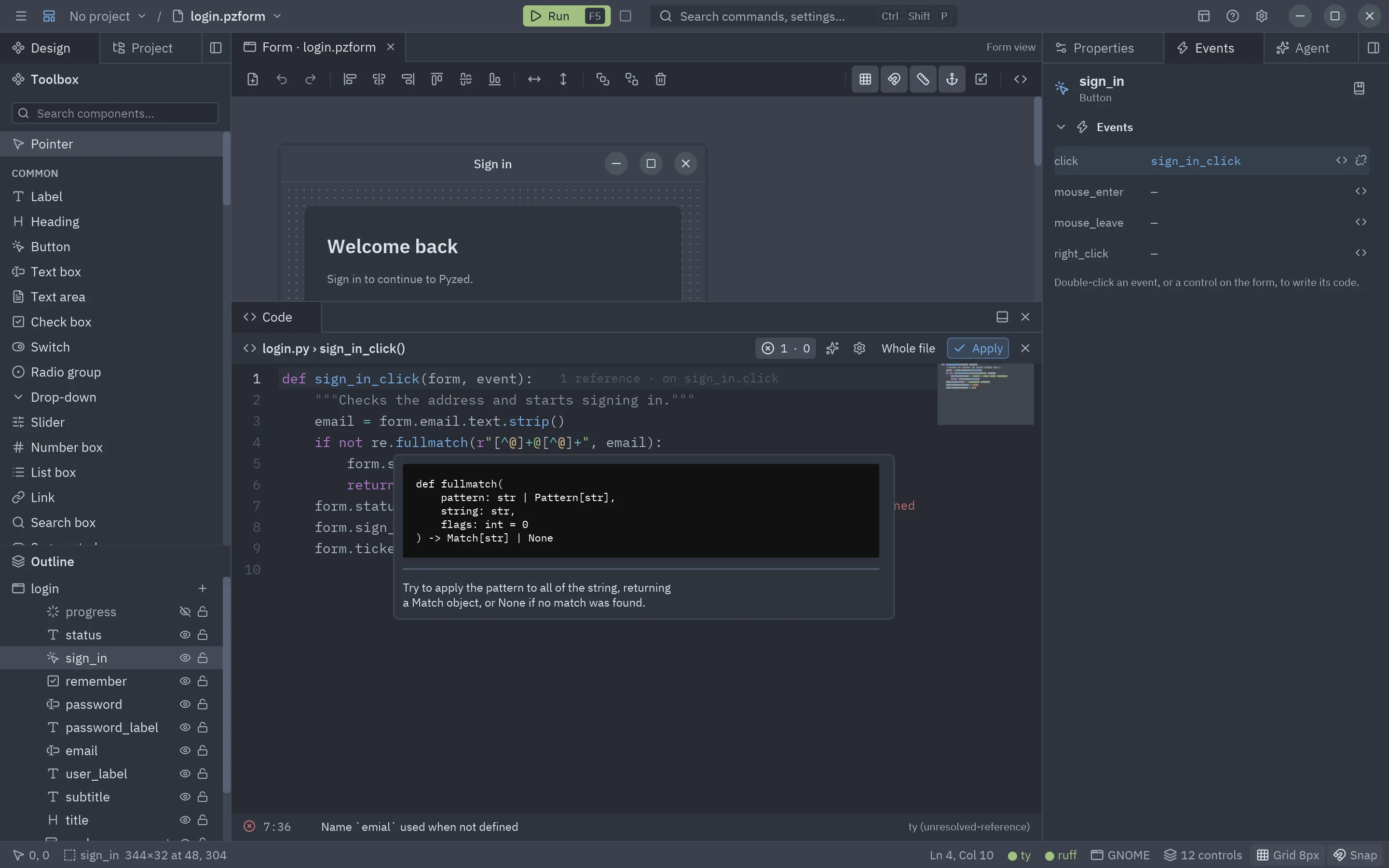
These work like in VS Code or Zed, with ty answering where it can and the editor filling in what only the designer knows (the controls of the form).
- Hover: rest the mouse on a name for half a second and a card shows its type or signature and its docstring
(as Markdown), plus the problems at that spot.
form.emailandform.email.textdescribe the control and its property. The card stays while the mouse is over it, so you can scroll it and select its text. Turn it off with Information on hover in the settings. - Go to definition: F12 or Ctrl+click on a name opens where it is defined: further down
the same code, another handler of the form (the editor switches to it), a file of your project or a library in
the
.venv(opened read-only in a tab). Ctrl+F12 goes to the definition of its type. Onform.email, it selects the control on the canvas. Without ty it still finds thedefandclassof the file. - Back and forward: Alt+← returns to where you were before the jump, and Alt+→ goes forward again.
- Find references: Shift+F12 lists every use of the name under the editor, with the file, line and text; click one to go there.
- Rename: F2 opens a field on the name; type the new one and press Enter. Every use
changes, in this file and in the other files of the project that use it (they open as unsaved tabs for you to
check and save). Renaming a handler keeps its events wired to it (
on sign_in.click), and one Ctrl+Z takes the rename back. - Quick fixes (Ctrl+., or Quick fix… in the hover card): the fixes ruff and ty offer
for the line, such as removing an unused import, plus:
- Import a name that is not defined, from the module that has it.
- Install a missing package: on
import httpxwith httpx not installed, Install httpx in the project (uv add) adds it topyproject.tomland the.venv, and the error goes away once it is installed. Known names are translated to their package (cv2→opencv-python,PIL→pillow,yaml→pyyaml).
- Organize imports (Alt+Shift+O) sorts and groups the imports with ruff, and Fix all auto-fixable problems (command palette) applies every safe ruff fix.
Contextual help
Section titled “Contextual help”Shift+F1 opens the built-in reference on the name under the
cursor: form.email or form.email.text opens the page of the control’s kind, form and event open the form
scripting pages, and library names (pz.text, ui.button, Theme) open their API page. With no match it searches
the reference for the name.
Diagnostics and code lens
Section titled “Diagnostics and code lens”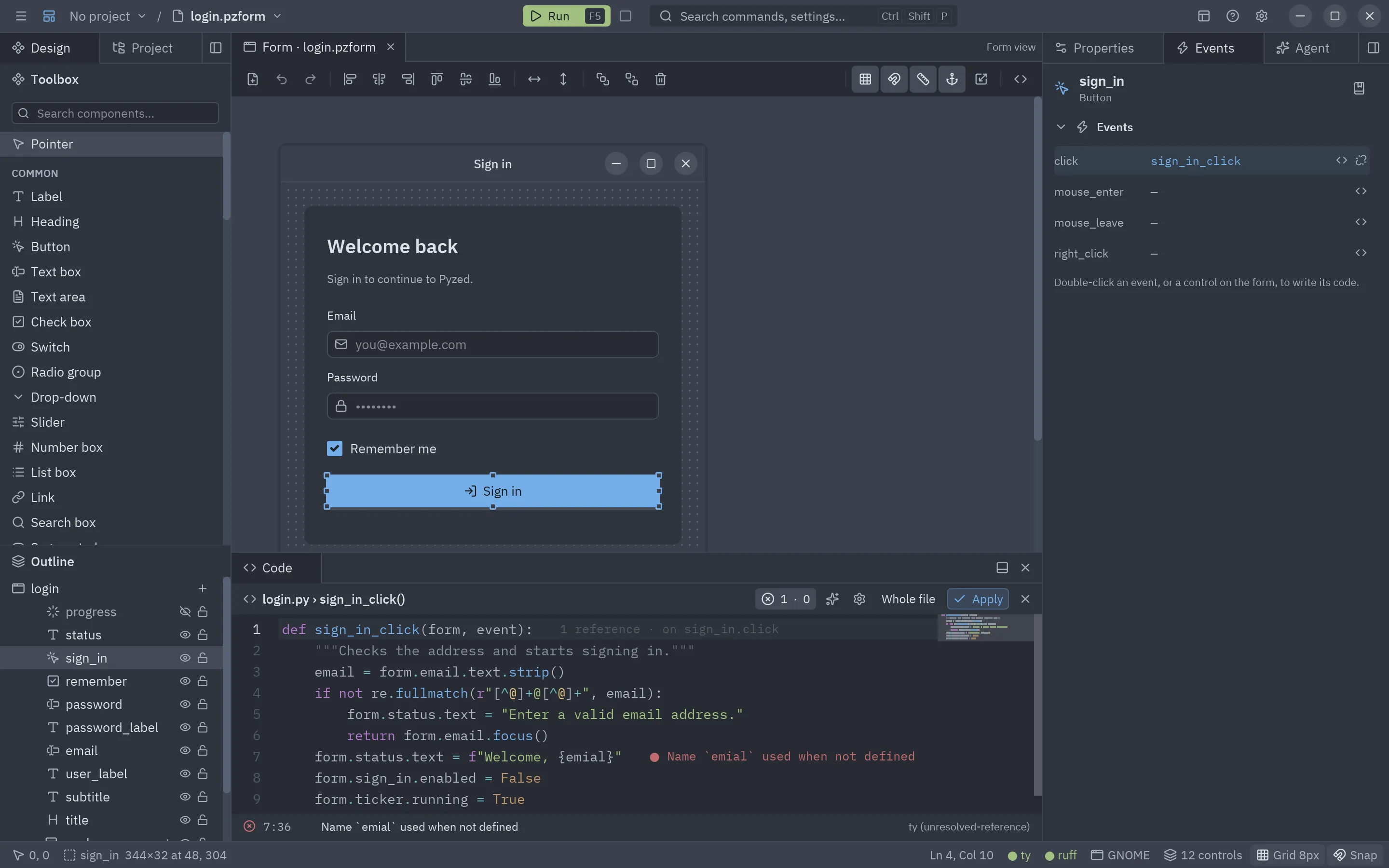
- Inline diagnostics (error lens): the most severe problem of each line is written at its end, in red for errors, yellow for warnings and blue for information.
- Problems list: under the editor, every problem with its line and column, message and source (
ruff (F401),ty). Click one to jump to it. The header button shows the counts and hides or shows the list. - Code lens at the end of each
defandclassline: how many references it has (from ty, or counted by name when ty is off), how many classes implement a class, and which events call a handler (on sign_in.click).
Language servers
Section titled “Language servers”The servers start in the folder of the nearest project marker above the code file (pyproject.toml, uv.lock,
setup.py, .git) and use its .venv (where uv sync installs your dependencies), or $VIRTUAL_ENV. The code’s
own folder and src/ are added as import roots, so a UI kept in its own folder still resolves both:
myapp/├── pyproject.toml ← uv add httpx├── .venv/ ← uv sync├── src/myapp/└── ui/ ├── login.pzform ├── login.py ← import httpx / from helpers import greet / from myapp import api └── helpers.pyWhen the project has no .venv yet (a form you just opened, or a project before its first uv sync), ty uses the
Python the designer runs on, so import pyzed and the standard library resolve instead of being reported as
missing. As soon as the .venv appears, or pyproject.toml or uv.lock change (adding a dependency in the
Project tab), the servers restart with it, so new packages resolve without reopening the
project.
The editor looks for ty and ruff in the project’s .venv first, then next to the editor, then on PATH.
Install them with uv add --dev ty ruff in the project, or with pip install "pyzed-ui[designer]" next to the
editor. Ruff reads its rules from [tool.ruff] in pyproject.toml.
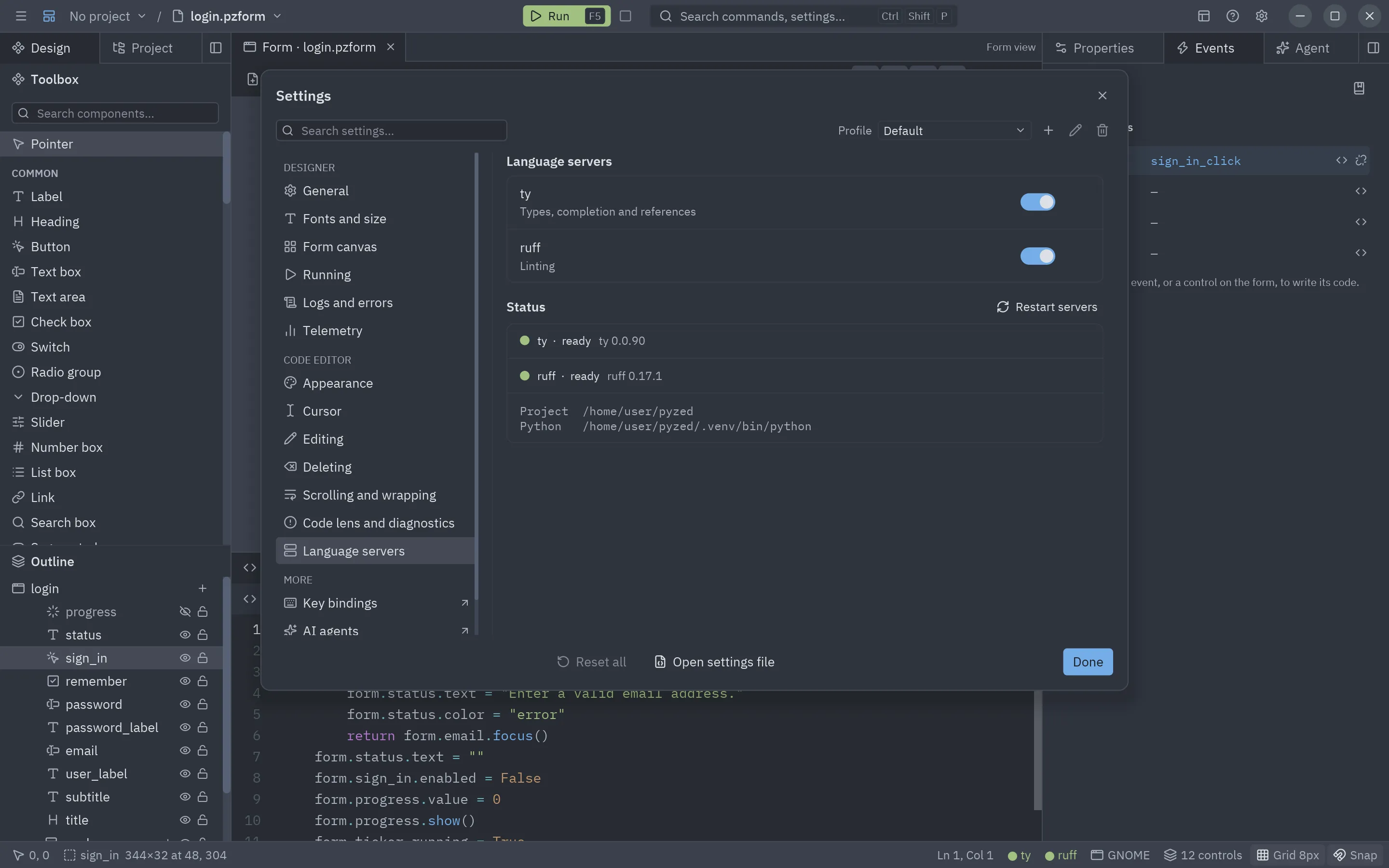
While the code editor is open, the status bar shows a dot per server: green when ready, yellow while starting, red when missing or failed. Hover it for details; click it to open the editor settings.
sequenceDiagram
    participant E as Code editor
    participant A as CodeAssist
    participant I as CodeIntel
    participant T as ty server
    participant R as ruff server
    E->>A: on_change(text), on_cursor(line, col)
    A->>I: update(module, handler, text)
    I->>T: didChange (whole module, handler swapped in)
    I->>R: didChange
    T-->>I: publishDiagnostics
    R-->>I: publishDiagnostics
    A->>I: complete(line, col)
    I->>T: textDocument/completion
    T-->>A: items (via pyzed.post, on the UI thread)
    A->>E: popup, inline errors, code lens
Editor settings
Section titled “Editor settings”The gear in the code panel header and the server dots in the status bar open them: they are the Code editor pages of the Settings dialog, with its search, its profiles, ↺ to put a setting back to its default, and the Project scope to give a project its own (its tab size, say).
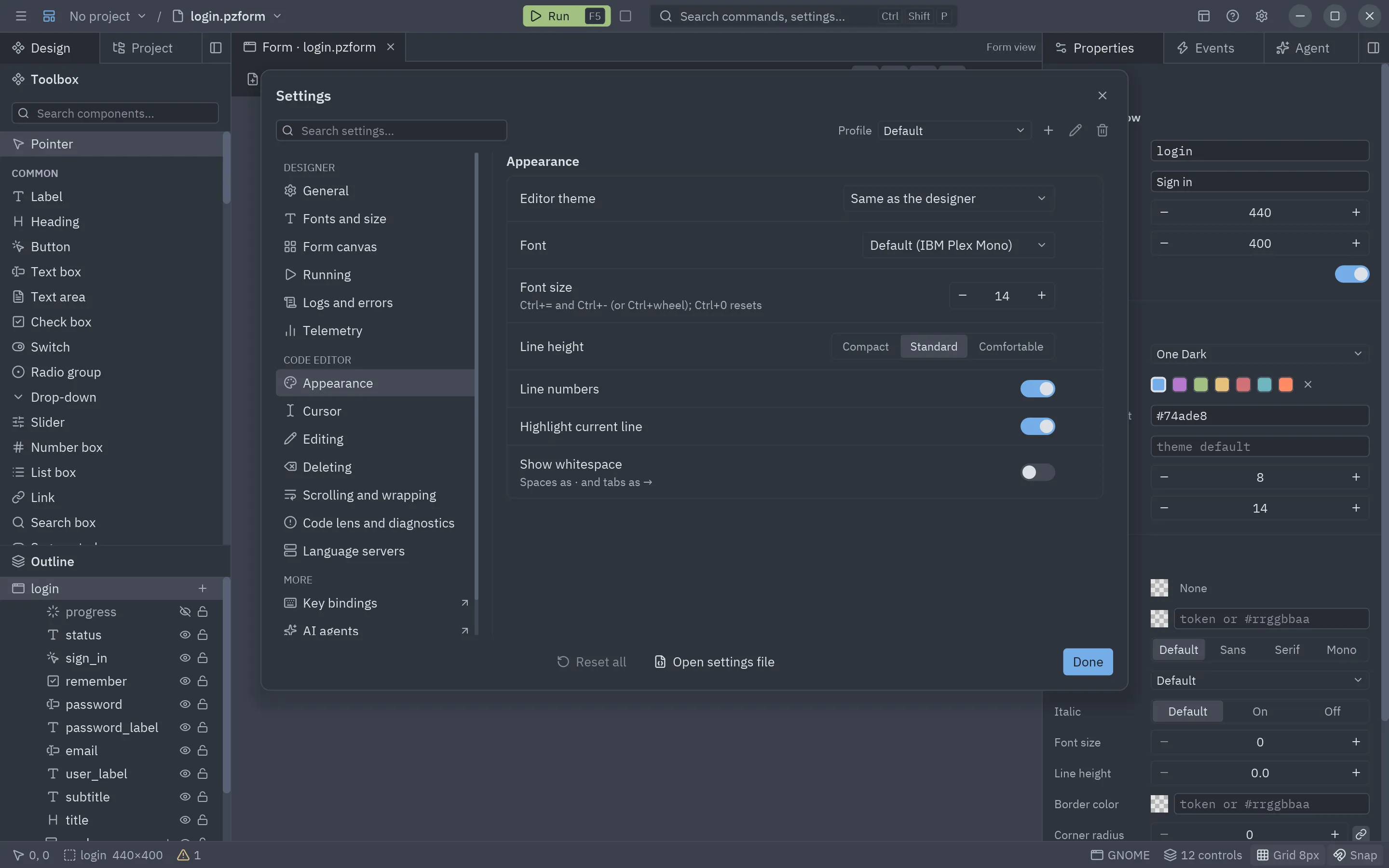
| Section | Setting | What it does |
|---|---|---|
| Appearance | Theme | Same as the designer, or any theme for the editor alone. |
| Font | Default (IBM Plex Mono) or any installed font; also in Settings → Fonts and size. | |
| Font size | 8 to 32 (also Ctrl+=/-/0 and Ctrl+wheel). | |
| Line height | Compact, Standard or Comfortable. | |
| Line numbers, Highlight current line | The gutter and the current-line band. | |
| Show whitespace | Spaces as ·, tabs as →. |
|
| Cursor | Shape | Bar, Block, Underline or Hollow. |
| Blink | Whether the cursor blinks. | |
| Width | 1 to 4 pixels, for the bar cursor. | |
| Editing | Tab size | 1 to 8 columns per level, and the width tabs are drawn with. |
| Indent with tabs | Tab, Enter and Ctrl+] indent with tab characters instead of spaces. | |
| Convert indentation on save | Saving a Python file rewrites its indentation with tabs or spaces, as set above. | |
| Backspace removes a whole level | Off: Backspace in the indentation removes one space at a time. | |
| Autocomplete while typing | Off: the list only opens with Ctrl+Space. | |
| Auto-close brackets and quotes | Pairs, wrapping the selection and stepping over the closer. | |
| Code folding | The chevrons and the fold keys. | |
| Match brackets | Outlines the bracket that pairs with the one at the cursor (Ctrl+M jumps to it). | |
| Highlight selection matches | Highlights the other places with the selected text. | |
| Format with ruff on Apply | Runs ruff format on the code when you press Apply. |
|
| Deleting | Delay before repeating | Milliseconds Backspace and Delete wait, held down, before they repeat (500 by default; 0 keeps the system’s). |
| Deletions per second | How fast they delete while held down (20 by default; 0 keeps the system’s pace). | |
| Scrolling and wrapping | Wrap long lines | Off by default: long lines scroll sideways. Alt+Z toggles it. |
| Scrollbars | Shows or hides the scrollbars. | |
| Minimap | The zoomed-out code on the right. | |
| Sticky scroll | Keeps the lines of the enclosing blocks pinned at the top while you scroll. | |
| Code lens and diagnostics | Code lens | References, implementations and wired events at the end of definitions. |
| Inline diagnostics | Problems at the end of the line. | |
| Information on hover | The card with the type, documentation and problems of the name under the mouse. | |
| Language servers | ty, ruff | Turn each server on or off. Each row shows its state and version. Below: the project root and the Python in use. |
| Restart servers | Restarts both; use it after uv sync or after installing them. |
Key bindings
Section titled “Key bindings”Key bindings in the index opens the keymap editor, where you can change the keys of every
action of the editor, the code panel and the rest of the designer. The changes are saved in keymap.json, in Zed’s
format.
In your own apps, ui.editor(keymap=...) takes keys → action (the same format as Zed’s keymaps, None to take a
default key away), and pyzed.ui.editor.keymap_for turns per-action changes into it.