
Styles and themes
A form’s look comes from three layers, from broad to specific:
flowchart LR
    T["Theme<br/>(One Dark, Gruvbox...)"] --> L["Form look<br/>accent · background · radius · font size"]
    L --> G["Global style<br/>the form's Style section"]
    G --> C["Control style<br/>each control's Style section"]
Each layer only overrides what it sets; empty fields fall through to the layer above.
Themes
Section titled “Themes”Pick the form’s theme in Properties → Look → Theme (select an empty spot of the canvas first). Every registered theme is listed: the built-in One, Ayu and Gruvbox families and any theme your project registers. Next to it:
- Accent: seven preset colors, or × for the theme’s own accent. Custom accent takes any
#rrggbb. - Background: a window background color (empty keeps the theme’s).
- Corner radius: the radius every control uses (0 for square corners).
- Font size: the base size of every text.
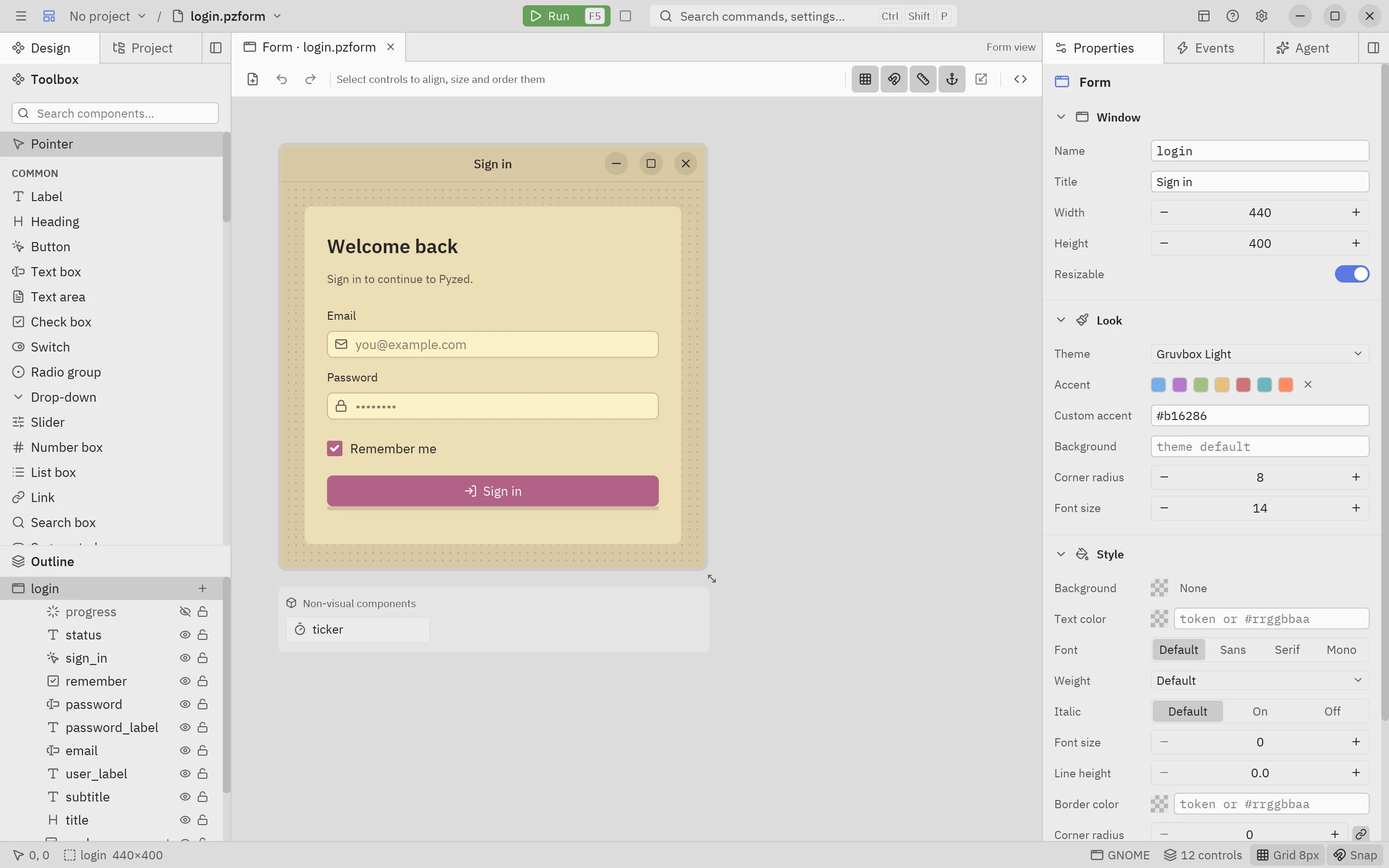
The form’s theme is independent from the editor’s theme (Settings → Appearance → Theme) and from the code editor’s theme (Editor settings → Theme): you can design a light form in a dark editor.
The Style section
Section titled “The Style section”Every control has a Style section in Properties, like CSS for that one control (see Styles):
| Field | Takes |
|---|---|
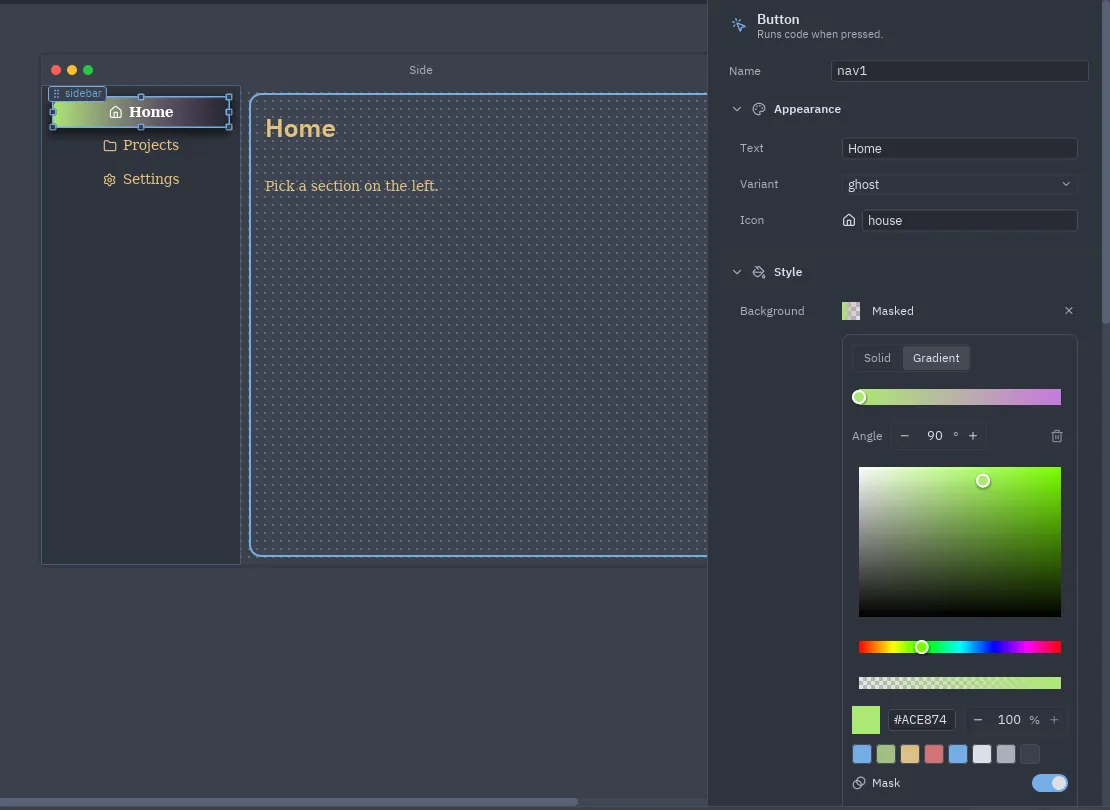
| Background | A color, a linear gradient or a masked fill: click the swatch or the summary to open the picker; × removes it. |
| Text color | A theme token (accent, text_muted, success…) or #rrggbb / #rrggbbaa. |
| Font | Default, sans, serif or mono. |
| Weight | Default, thin, light, normal, medium, semibold, bold, black. |
| Italic | Default, on or off. |
| Font size | Pixels; 0 keeps the component’s own size. |
| Line height | A multiple of the font size; 0 keeps it. |
| Border color, Border width | The control’s border. |
| Corner radius | One number, or four: top-left, top-right, bottom-right, bottom-left (two numbers repeat). |
| Shadow | A color, then Offset (x and y, −64 to 64) and Blur (0 to 96) appear. |
| Padding | Space inside: one number, two (vertical horizontal) or four (top right bottom left). |
| Margin | Space outside, same format. |
| Max width, Max height | 0 means no limit. |
| Align content, Align vertically | Where the content sits in the control’s box: start, center or end. |
| Clip | Cut what overflows the box. |
Empty fields keep the component’s own look. Reset style (at the end of the section, once something is set)
clears every override of that control. Half-typed values (#3b) are skipped while drawing instead of failing, so
you can type freely.
The color picker
Section titled “The color picker”Click a color’s swatch to open the picker, floating next to the panel; click outside it to close it.
- Saturation/value square, hue bar and alpha bar, the current color with a hex field (type
#rrggbbor#rrggbbaa) and its opacity in percent. - Swatches of the form’s theme: accent, success, warning, error, info, text, muted text and background.
- For a background, Solid / Gradient switches to a linear gradient: click the stops bar to add a stop with the color the gradient has there, drag a stop to move it, select it to recolor it, set the Angle (in 15° steps with the buttons) and remove the selected stop (a gradient keeps at least two).
- For a background, Mask fades the fill from opaque to transparent: its own stops bar with an Opacity per stop (up to 8 stops) and an angle.
The form’s global style
Section titled “The form’s global style”With nothing selected, the form’s Style section is the window’s global style:
- Text color, font, weight, italic, font size, line height apply to every text that does not set its own.
- Background, border color, corner radius and padding become the window’s.
It runs the same way (Window.style), and so do components made in the editor. A serif global font, for
example, changes every label, button and input of the form at once.
Colors as properties
Section titled “Colors as properties”Some components also have color properties of their own (a label’s Color, a panel’s Background, an icon’s Color). They take the same values: a theme token or a hex color, with a swatch that previews it in the form’s theme.