
The Component view
The designer has a second mode for building components instead of windows. You draw the component like a form, declare its properties and events in a panel, write the logic of its methods, and then place it in forms or inside other components. The idea is the same as scenes in Godot: every component has its own properties, methods and events, and can contain other components.
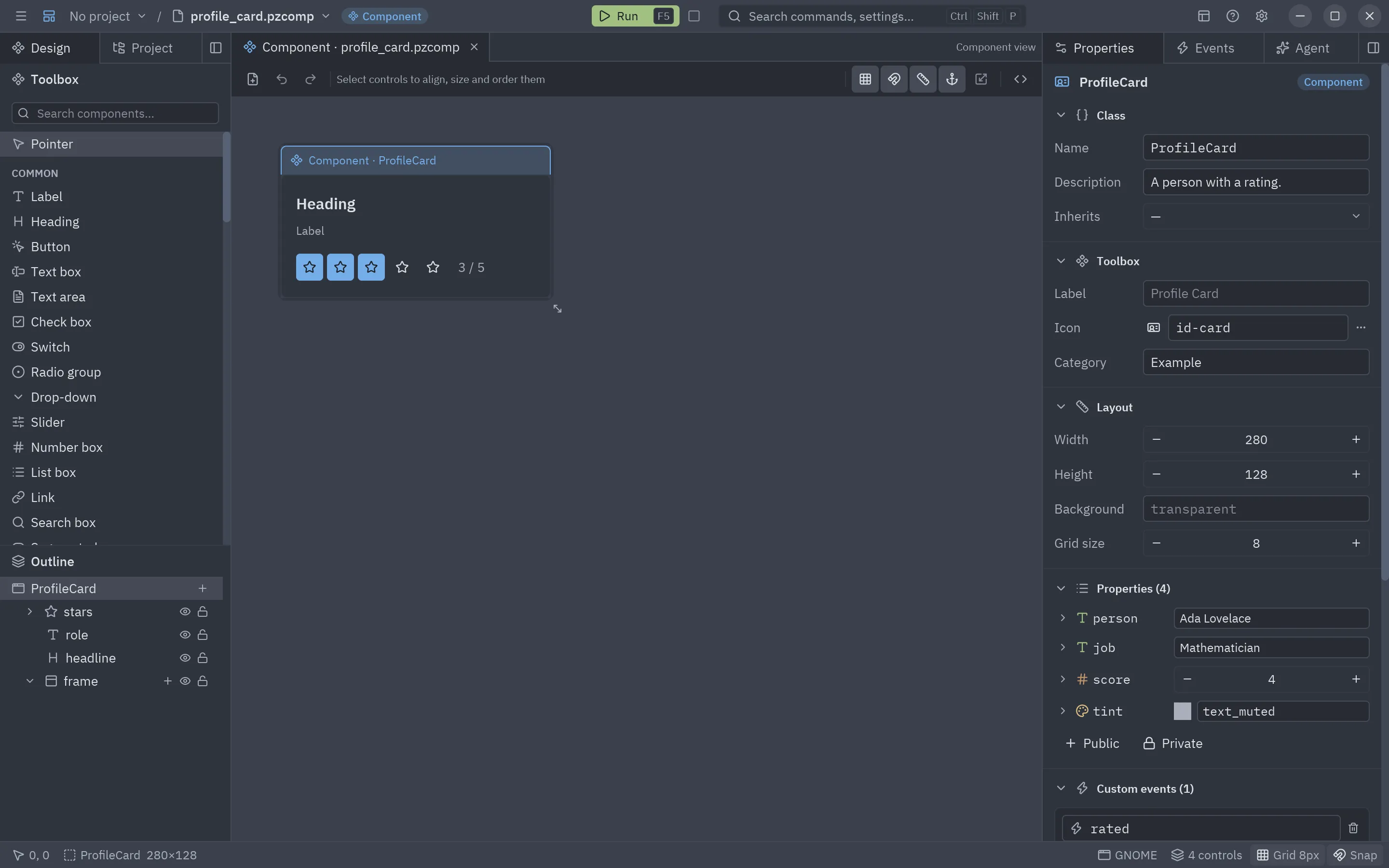
A designed component is a pz.Component. The designer writes an ordinary
class, so drawing it and writing it by hand are the same thing, and you can switch between them at any time.
Creating one
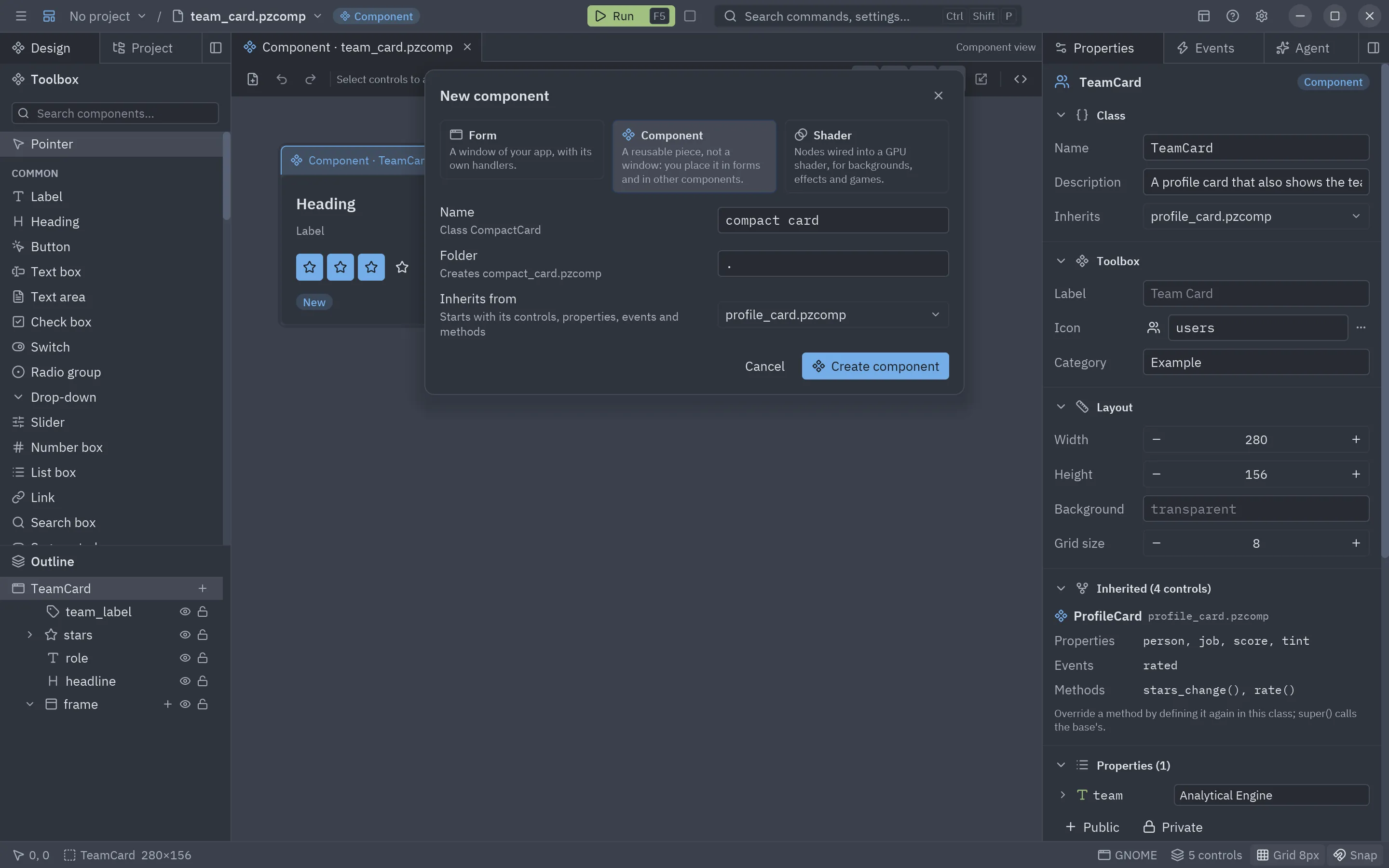
Section titled “Creating one”Press New component… at the end of the toolbox or in the ☰ menu (Ctrl+Shift+N), or New… (Ctrl+N, the first toolbar button) and pick the Component card. Give it
a name and a folder; Inherits from can start it from another component (see Inheritance).
Create component saves both files and opens it. You can also open a .pzcomp file:
pyzed design ui/rating.pzcomp # created on first save if it does not existA component is not a form: it has no window, title or menu, and it only exists inside a form or another component. The designer shows it that way: a Component badge in the title bar, and an accent frame with the class name on the canvas instead of window buttons.
Form view and Component view
Section titled “Form view and Component view”Every open file is a tab above the canvas. A .pzform opens in the Form view and a .pzcomp in the
Component view, where you work on the class: its properties, events, methods and child components. Double-click
a component placed on a form, or on another component, to open it in its own Component view tab:
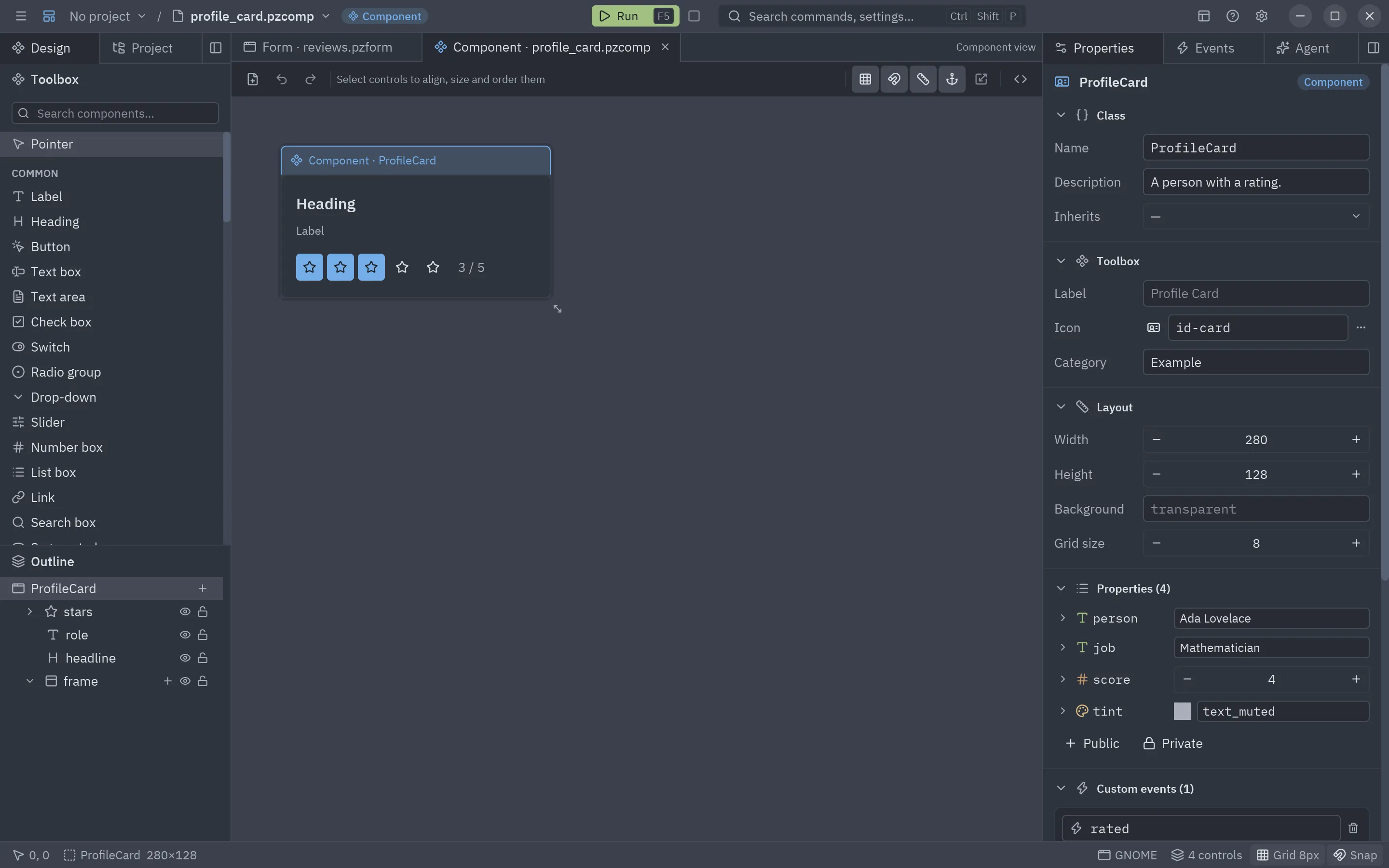
Switching tabs keeps each document as it was, undo history included. Closing a tab with unsaved changes asks whether to save them first.
A component is two files next to each other:
| File | What it holds |
|---|---|
rating.pzcomp |
The layout: the controls placed on it, its size, how it shows in the toolbox and its bindings (JSON). |
rating.py |
The class: its properties, custom events and methods. |
from typing import Annotated
import pyzed as pzfrom pyzed.designer import SceneComponent

class Rating(SceneComponent, scene="rating.pzcomp"):    """Five stars the user can click."""
    value: Annotated[int, pz.Range(0, 5)] = 3  # How many stars are lit    readonly: bool = False    clicks: int = pz.state(0, doc="Times the user picked a rating")    events = {"change": "A star was picked (event.value is the rating)"}
    def star1_click(self, event):        return self.pick(1)
    def pick(self, stars):        """Lights ``stars`` stars and tells the parent."""        if self.readonly:            return None        self.value = stars        self.clicks += 1        return self.emit("change", stars)
The Component panel
Section titled “The Component panel”With nothing selected, the Properties tab shows the component itself, in collapsible sections:
| Section | Fields |
|---|---|
| Class | Name (the Python class name, CamelCase), Description (the class docstring, shown as the toolbox tooltip) and Inherits (a designed component to extend, see Inheritance). |
| Toolbox | Label, Icon (a Lucide name, or pick it from the icon dialog) and Category: how the component shows in the toolbox of forms and other components. |
| Layout | Width, Height, Background (transparent when empty) and Grid size of the design surface. |
| Inherited | Only with a base: what comes from each base class, read only. |
| Properties | A row per property (type icon, name and value), and Public / Private buttons to add one. |
| Methods | The class’s code, grouped, a field to add a method and Edit the class. |
The custom events live in the Events tab, in a Custom events section below the Built-in events
(setup, mount, unmount): a card per event (name and description), and Event to add one. They are the
events the component raises with self.emit("change", value). The parent handles them with on_change=... in
code, or in the Events tab of a form, where they show apart from the built-in events of the control.
- Properties: like Unreal’s details panel, each property is one compact row: its type icon, its name (a lock
marks a private one) and its default value. Lists, dicts and instances list their items below it. The arrow
before the name opens its settings: Name, Type, Annotation, Access, Description, move and
Remove. A public property is a prop the parent passes (
Rating(value=4)); a private one is state, declared withpz.state. Both are attributes in the code:self.value,self.clicks. The type decides the editor the property gets, here and in the Properties tab of the forms that use the component (see Property types). - Methods: every method of the class, grouped in Lifecycle (
setup(),on_mount(),on_unmount(), added when you click them), Event handlers (the code of the controls’ events) and your own Methods (a name starting with_is marked private). Click one to open it in the code editor. Type a name and press + Method (or Enter) to add a reusable method; Edit the class opens the whole file.
Each change is written to the class right away, and what you write in the class shows up in the panel. If the code has a syntax error, the panel shows the last version that parsed, with a warning, until you fix it.
Property types
Section titled “Property types”As in the Godot inspector and Unreal’s details panel, the type of a property picks its editor, and each type has its own colored icon. Pick a common type in the Type list of the property’s settings, or write any annotation in Annotation:
| Type | Annotation in the class | Editor |
|---|---|---|
| str, int, float, bool | str, int… |
Text, number box or switch. |
| Color | pz.Color |
Color swatch with a theme token or #rrggbb. |
| Icon | pz.Icon |
Icon picker. |
| Multiline | pz.Multiline |
Text area. |
| File, folder | pz.FilePath, pz.FolderPath (or pathlib.Path) |
A path field with a button that opens the file or folder dialog. |
| Choice | Literal["fast", "slow"] |
Drop-down; the card has an Options field. |
| Range | Annotated[int, pz.Range(0, 5)] |
Number box with limits; the card has Min, Max and Step. |
| Optional | float | None, Optional[float] |
None with + to set a value, or the value’s editor with × to empty it. |
| Union | int | str |
A list of the types, then the editor of the picked one. |
| list, set, tuple | list[str], set[int], tuple[int, int] |
The item count with +, and a row per item ([0], [1]…) with its own editor. |
| dict | dict[str, int] |
The entry count with +, and a row per entry: its key and its value. |
| Class | Point, Point | None |
New Point creates an instance with its defaults; then a row per field. × empties it. |
| Any | Any, anything else |
A Python expression. |
Types nest: list[Point], dict[str, list[int]] or Optional[tuple[int, int]] show their items inside one
another. A class can be a dataclass or any class of the module with annotated fields, or another component.
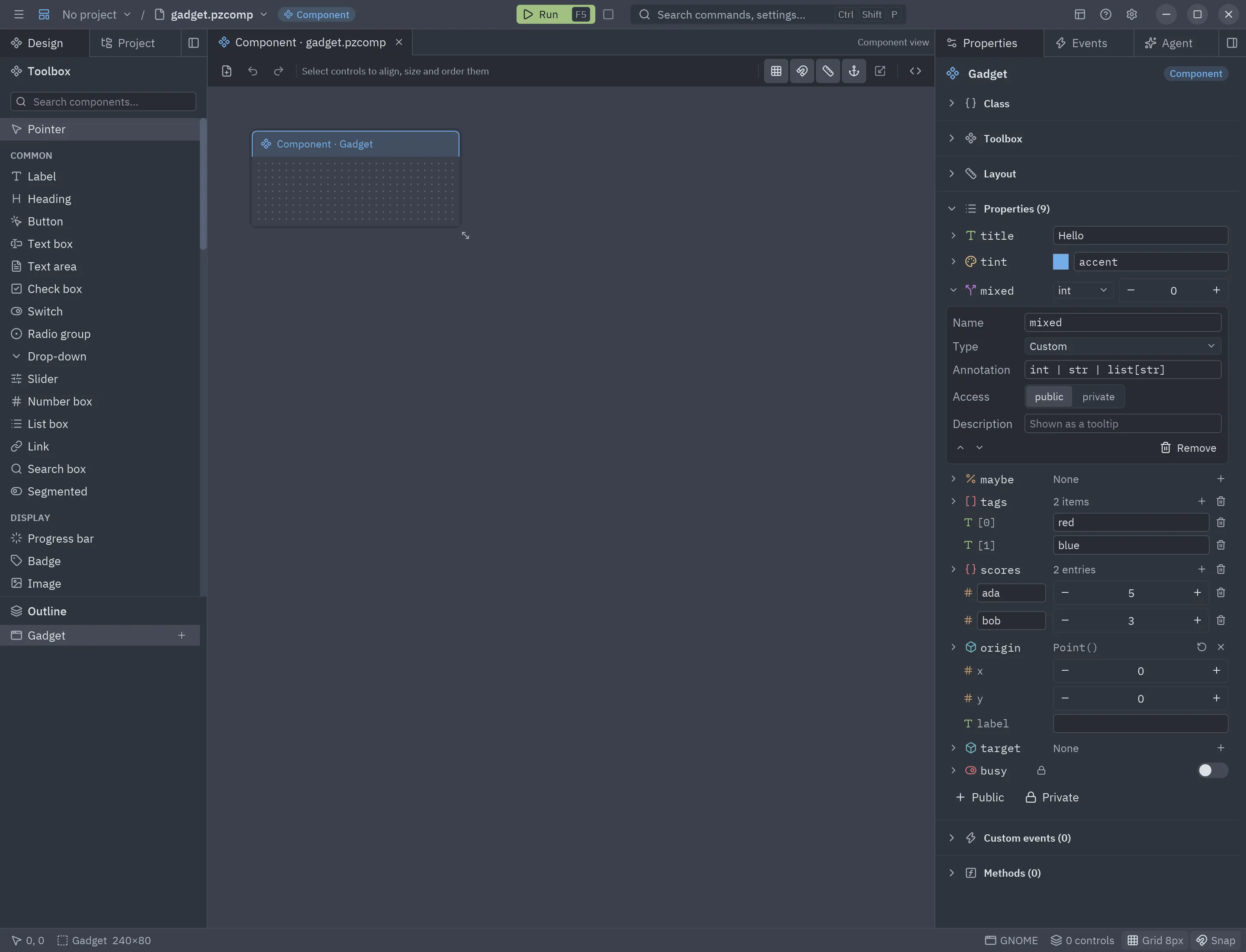
@dataclassclass Point:    x: int = 0    y: int = 0

class Gadget(SceneComponent, scene="gadget.pzcomp"):    mixed: int | str | list[str] = 0    maybe: Optional[float] = None    scores: dict[str, int] = {"ada": 5}    origin: Point = Point()
The Properties panel and the code are the same thing: what you change in the panel is written to the class at once,
even with the class open in the code editor (what you typed there and did not apply yet is kept), and what you
write in the class shows up in the panel. The designer adds the imports these types need (import pyzed as pz,
from typing import Annotated, Optional).
class Rating(SceneComponent, scene="rating.pzcomp"):    value: Annotated[int, pz.Range(0, 5)] = 3  # How many stars are lit

class ProfileCard(SceneComponent, scene="profile_card.pzcomp"):    tint: pz.Color = "text_muted"  # Color of the role line
Reusable code
Section titled “Reusable code”A component’s class is ordinary Python, so it can hold any code and not just event handlers: helper methods, private state, computed values, imports. A public method is part of the component’s API, and forms and parent components can call it:
class ProfileCard(SceneComponent, scene="profile_card.pzcomp"): def rate(self, stars): """Rates the person from code, as if the user clicked the stars.""" return self.stars.pick(stars)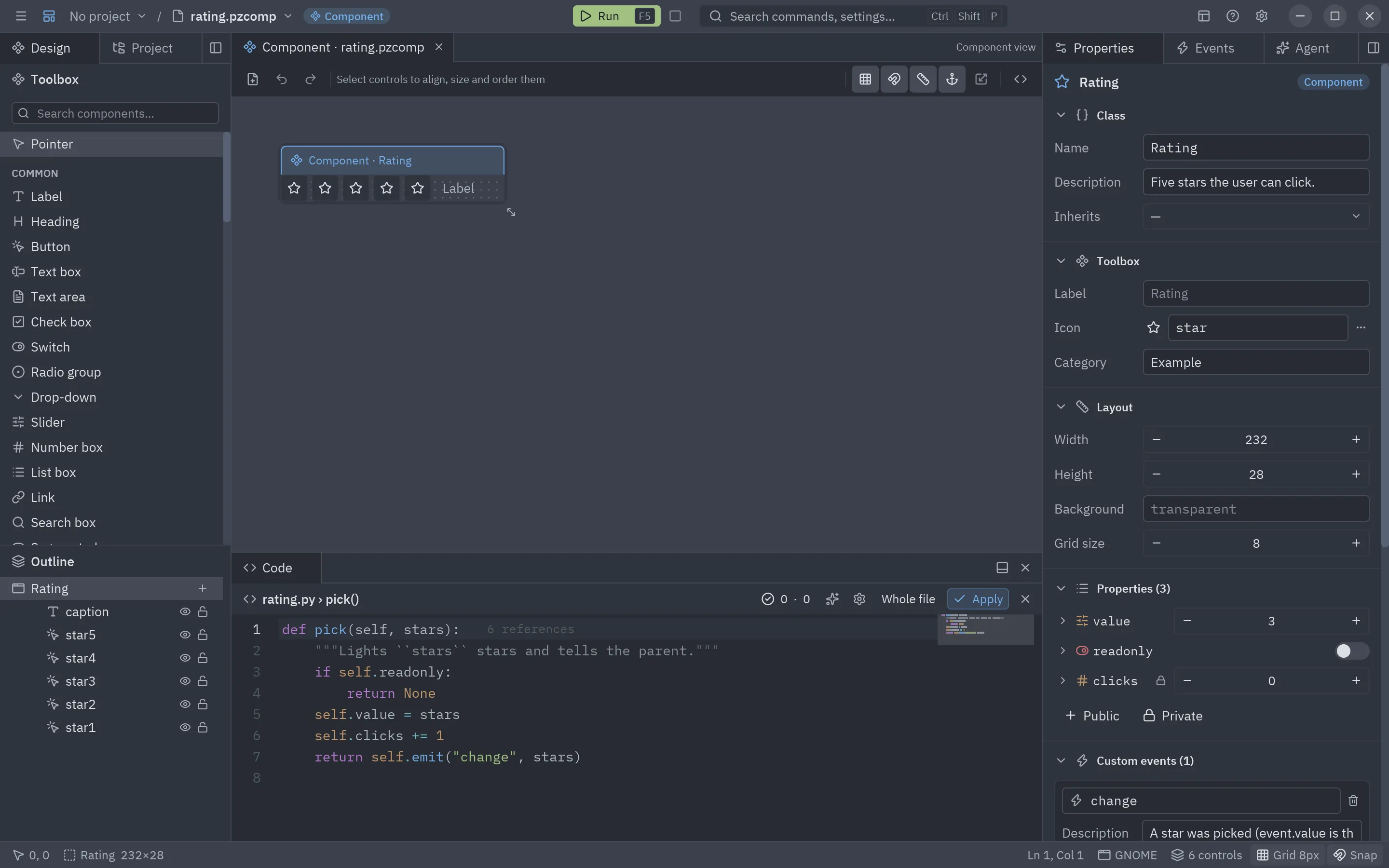
Events of the controls
Section titled “Events of the controls”Double-click a control, or use the Events tab, to write the code of its events, as in a form. In a component they
are methods: def star1_click(self, event). Controls are attributes of the component and their properties read
and write like attributes:
def clear_click(self, event): self.query.text = "" self.results.items = []Every instance has its own copy of the controls, so two ratings on one form keep their own state.
Bindings
Section titled “Bindings”Select a control and the Bindings section links its properties to the component’s. Pick a property in the list, or choose Expression… and write any Python expression over them:
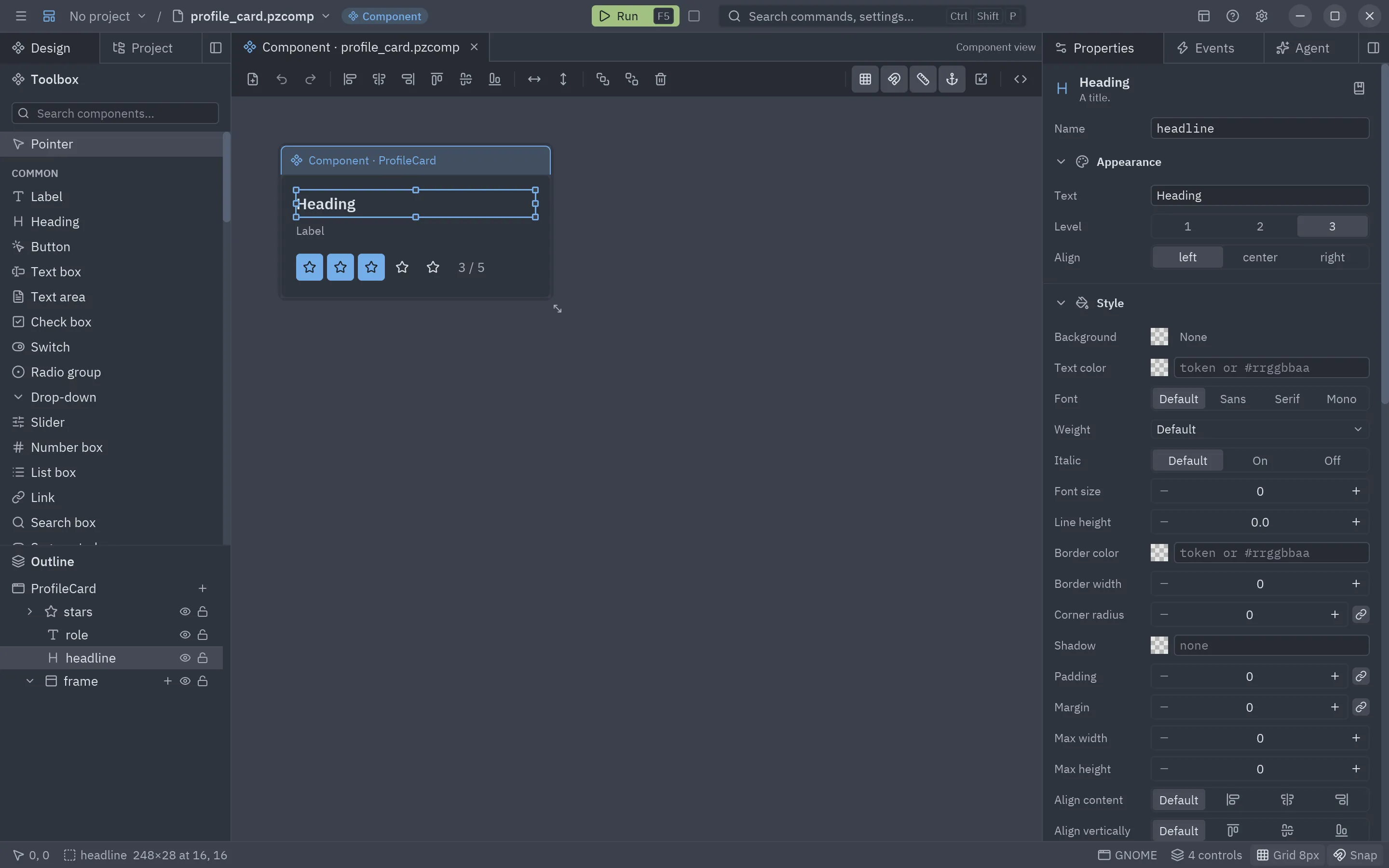
| Control property | Binding |
|---|---|
headline.text |
person |
caption.text |
f"{value} / 5" |
star3.variant |
"solid" if value >= 3 else "ghost" |
Bindings are evaluated on every render, so the controls always follow the properties.
Nesting components
Section titled “Nesting components”Saved components appear in the toolbox under their category, in forms and in other components. The designer
finds every .pzcomp of the project when it starts, and reloads a component when you save it. Place a Rating
inside a ProfileCard, bind its value to the card’s score, and forward its event:
class ProfileCard(SceneComponent, scene="profile_card.pzcomp"):    """A person with a rating."""
    person: str = "Ada Lovelace"    job: str = "Mathematician"    score: int = 4    events = {"rated": "The rating changed (event.value is the new score)"}
    def stars_change(self, event):        """The inner Rating raised change."""        self.score = event.value        return self.emit("rated", event.value)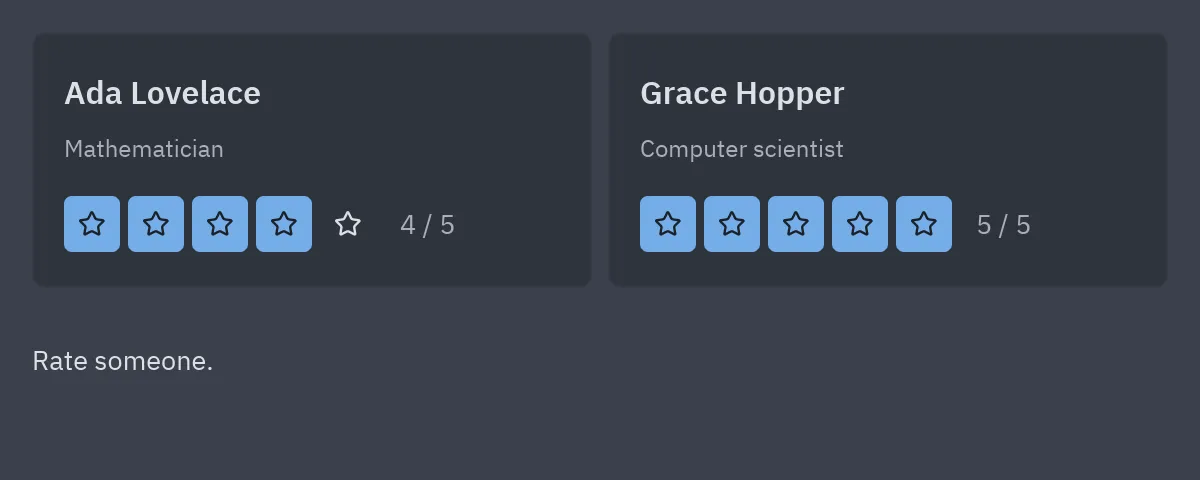
Child components in the outline
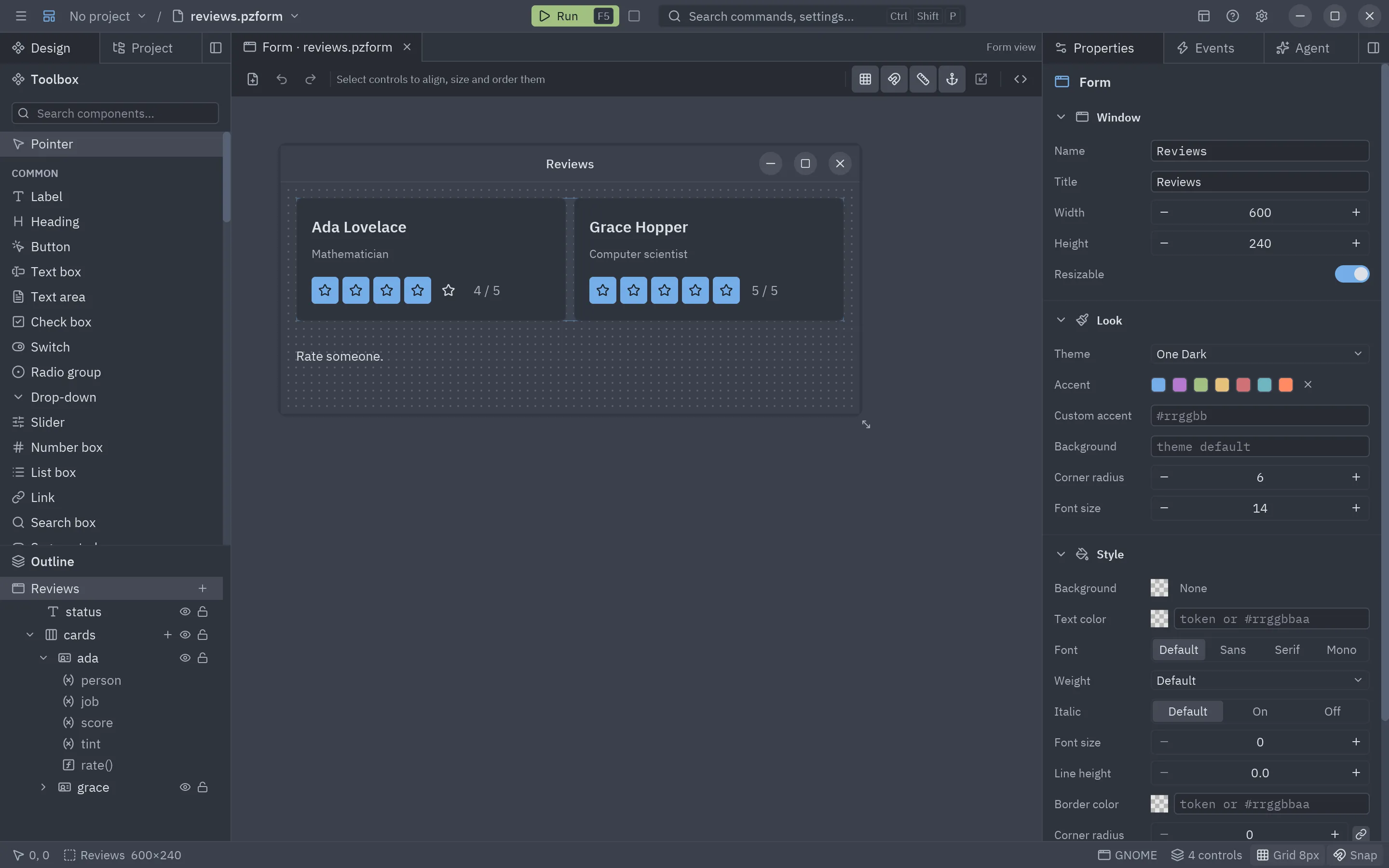
Section titled “Child components in the outline”A child component is an attribute of its parent, and its properties and methods are reachable from it:
self.stars.value, self.stars.pick(5). From a form it works the same way: form.ada.rate(5).
In the Outline, the arrow next to a placed component lists its public properties and methods. Click one to
insert it in the code editor at the cursor (self.stars.pick() in a component, form.ada.rate() in a form):
A property that a designed component changes itself, such as self.score above, keeps its value until the
parent passes a different one, like an exported variable in Godot. A form handler can set it too:
def ada_rated(form, event): event.sender.score = event.value form.status.text = f"{event.sender.person} now has {event.value} stars"Responsive components
Section titled “Responsive components”A component placed on a form, or inside another component, takes the size of its rectangle there, and its controls follow their anchors like on a form: anchored left and right, a control stretches with the component; anchored right, it moves with the right edge. Flex rows, columns and grids inside the component lay out at the new size too.
In the example, the frame of ProfileCard is anchored on all four sides and the headline, the role and the rating
on left, top and right. Reviews puts its two cards in a flex row with grow 1 each, so they share the width
of the window and shrink with it:
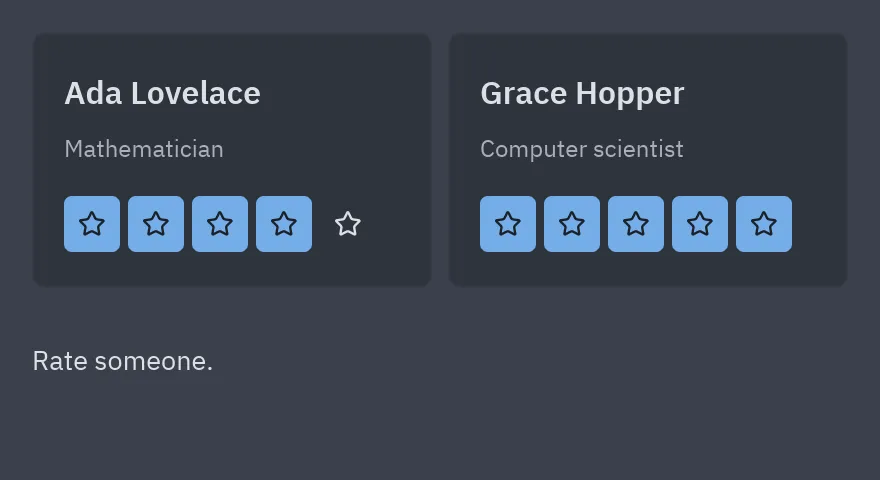
Used from code, a component is as wide as there is room for, up to its design width, and as tall as its design height.
Inheritance
Section titled “Inheritance”A component can inherit from another one to reuse its layout and its logic. Pick the base in Inherits from when you create it, or later in the Inherits field of the Class section. The class then derives from the base class:
from pyzed.designer import import_component
ProfileCard = import_component("profile_card.pzcomp")

class TeamCard(ProfileCard, scene="team_card.pzcomp"):    """A profile card that also shows the team."""
    team: str = "Analytical Engine"
    def stars_change(self, event):        """Does what a ProfileCard does, and the badge turns green with five stars."""        result = super().stars_change(event)        self.team_label.tint = "success" if event.value == 5 else "accent"        return result
import_component imports the class of a .pzcomp relative to the module, so the base and the new component can
live in any folder. What the new component gets:
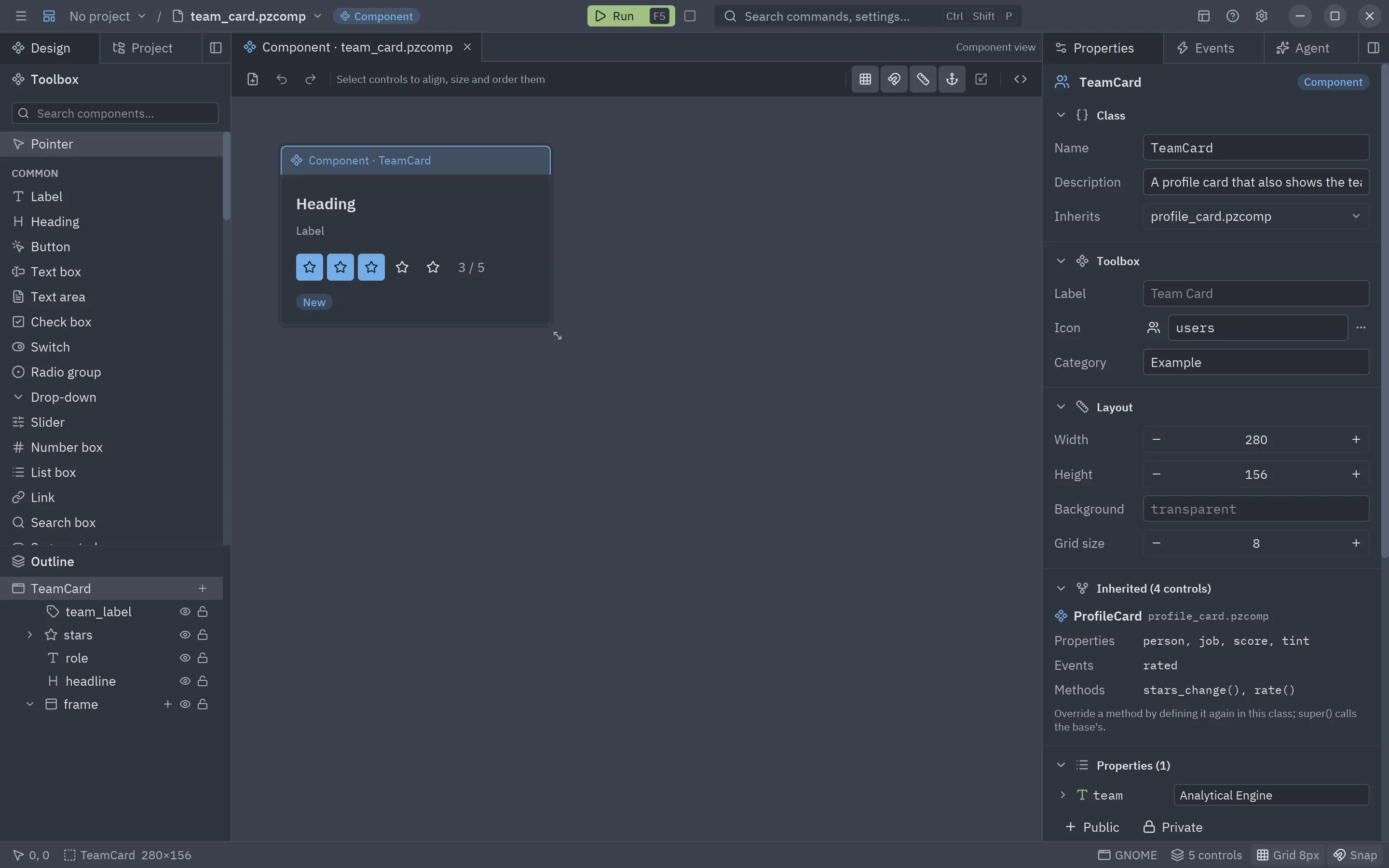
- Controls: the base’s controls show on the canvas, with yours on top. You can move or change an inherited
control (the change is saved in your
.pzcomponly), but not rename or delete it, because the base’s code uses it. Saving writes only your controls and the inherited ones you changed. - Properties, custom events and methods: everything of the base class, as in any Python subclass. Bindings can
use inherited properties. Define a method again to override it, and call
super()to run the base’s. - Changes to the base: saving the base reloads the components that inherit from it, so they pick up its new controls and code.
The Inherited section of the panel lists what comes from each base:
Running and using it
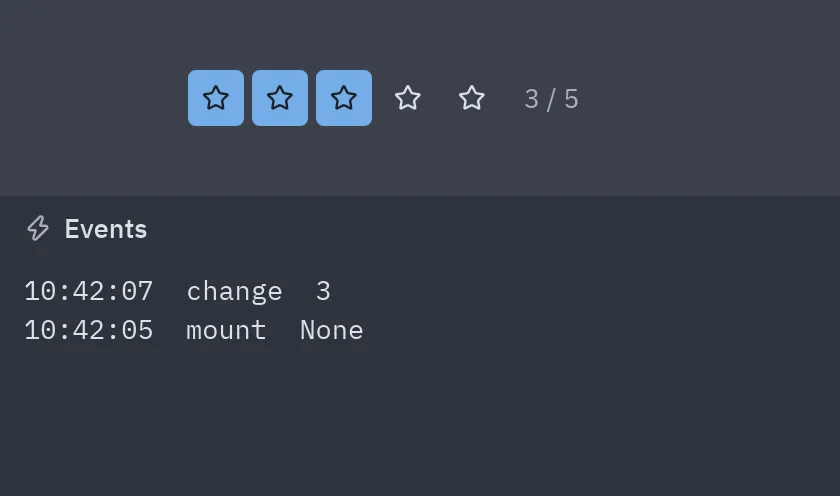
Section titled “Running and using it”Press F5 to open the component in a preview window. The window lists the custom events it raises, so you can
try it before using it anywhere. pyzed run rating.pzcomp does the same from a terminal.
In code, import the class and use it like any component:
from ui.rating import Rating
class Review(pz.App):    stars = 3
    def view(self):        return Rating(value=self.stars, on_change=lambda e: setattr(self, "stars", e.value))
Forms find the components of their project on their own when they run (pyzed run, designer.run).
Scripting components
Section titled “Scripting components”Everything the panel does is available from Python:
from pyzed import designer
doc = designer.new_component("Rating", "ui/rating.pzcomp", width=232, height=32, icon="star")doc.add("button", 0, 0, 28, 28)doc.add_member("value", "int", 3)doc.add_member("clicks", "int", public=False)doc.add_event("change", "A star was picked")doc.set_binding("button1", "variant", '"solid" if value >= 1 else "ghost"')doc.wire("button1", "click")doc.save()
big = designer.new_component("BigRating", "ui/big_rating.pzcomp", extends="ui/rating.pzcomp")big.save()
designer.discover("ui")  # import every designed component of a folder
See examples/designer/components
for the Rating, ProfileCard, TeamCard and Reviews example.