
Projects
A Pyzed app is a normal uv project: the interface lives in ui/, the backend in
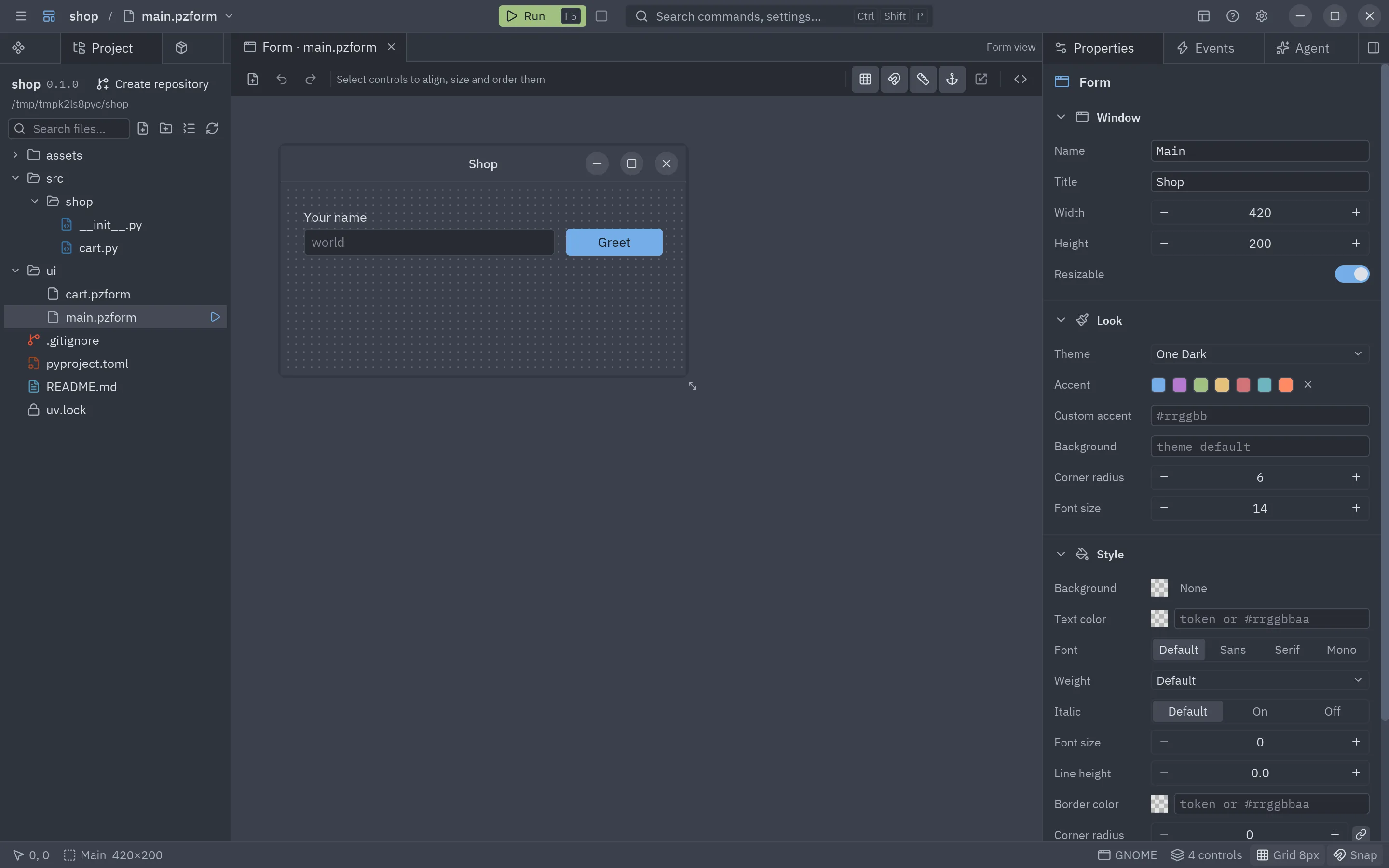
src/ and uv manages the dependencies. The Project panel (left dock, next to Toolbox) shows the project’s
files, like the explorer of a code editor, and the Dependencies panel next to it manages
packages, tools and checks, all without leaving the editor. The background, the layout of a project and the matching pyzed commands are in
Projects with uv.
How the editor finds your project
Section titled “How the editor finds your project”When the editor starts, it looks for a Pyzed project (a pyproject.toml with a [tool.pyzed] table) at the file
you opened or above it, or above the current folder. If it finds one it:
- opens it in the Project panel, makes its folder the working folder and remembers it among the recent projects;
- activates it, so forms and handlers can import
ui/helpers, thesrc/package and every dependency of its.venv; - discovers its components: every
.pzcompof the project joins the toolbox; - checks its tools in the background (uv, git, ruff and ty, with their versions);
- gets its environment ready, like Zed does when a project opens: if uv is missing it installs it with its
official installer, and if the project has no
.venvyet it runsuv sync, which also installs ruff and ty. A notification says when the project is ready.
The title bar then shows the project’s name, its git branch and, in a linked git worktree, the worktree’s name, each one apart, as Zed does.
Several projects in one window
Section titled “Several projects in one window”Click the project’s name in the title bar (or press Ctrl+Alt+O) to open the project picker:
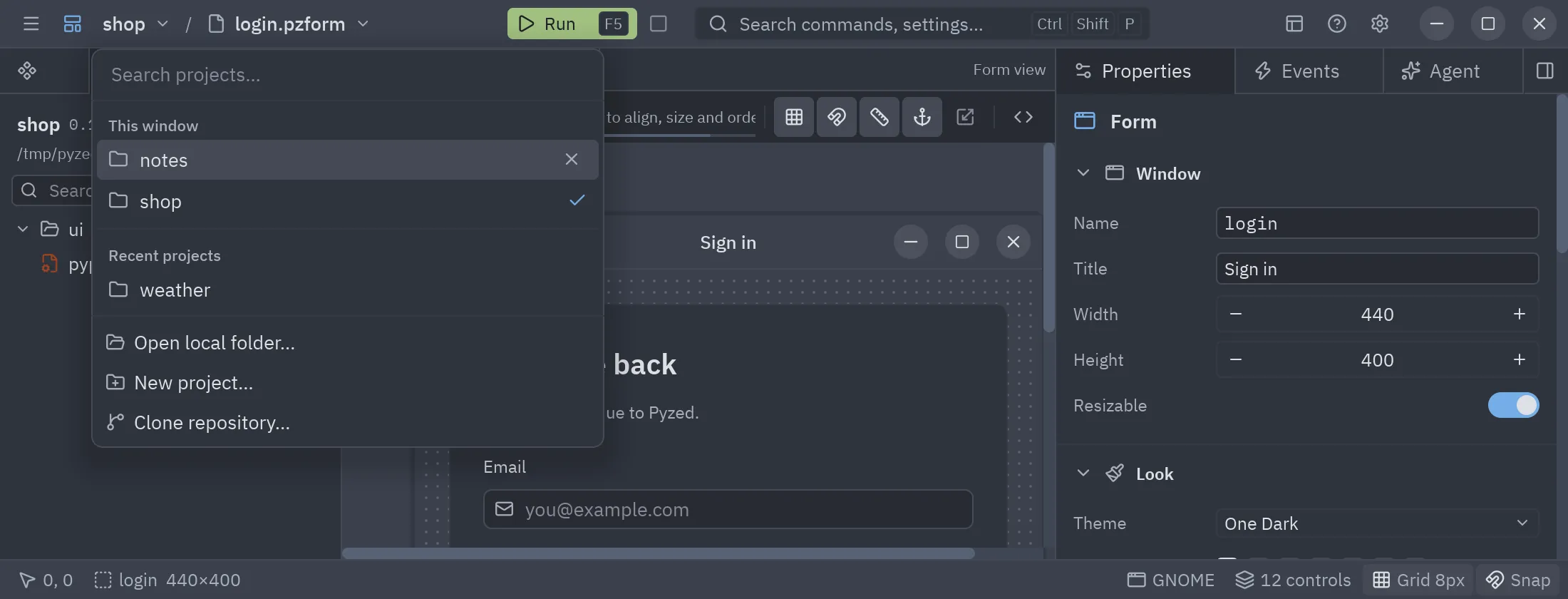
- This window lists the projects you opened in this window; the active one has a check mark. Click another to make it active: the Project panel, Run, the checks and the AI agent all follow it. The × of a row takes that project out of the window.
- Recent projects lists the ones you opened before. Click one to open it here.
- Type to filter both lists, move with the arrow keys and press Enter to open the highlighted one.
- Open local folder… and New project… at the bottom open those dialogs.
Forms always belong to the active project: a new form is saved in its ui/ folder by default.
The startup file
Section titled “The startup file”Every project has one file the app starts from: its main form (main in [tool.pyzed]) or, when it has one, its
script. The Project panel shows it under the project’s name (▶ Starts from ui/main.pzform) and marks it
with a ▶ in the tree. To change it:
- click that name: a picker lists the project’s forms first and then its Python scripts (the code files of forms and components are left out). Type to filter, click one or press Enter;
- or right-click a form or
.pyfile in the tree and choose Set as Startup File; - or, with a form open, run Use this form as startup file from the Run menu or the command palette (the palette also has Choose startup file…).
pyproject.toml is updated for you: a form becomes main (and the script is dropped), a script becomes
script. Run (F5) with nothing open starts the app from that file (a form opens as the main window,
a script runs with uv run), and so do pyzed run and pyzed build.
Clone a repository
Section titled “Clone a repository”Clone repository… (in the empty Project panel, the project picker and the welcome window) asks for a git URL and a folder, clones it with git and opens it, getting its environment ready like any project you open.
Environments and WSL
Section titled “Environments and WSL”The editor knows where each project lives. Under WSL the title bar starts with the Linux distribution (Ubuntu, for example), and the recent projects that live in a WSL distribution show its name next to them. uv, ruff, ty and git then run in Linux, web pages open in Windows’ browser, and the editor and the windows of your forms open as native Windows windows (see WSL: native Windows windows).
Pyzed Design running on Windows can also open a project that lives in WSL, like Zed’s WSL projects: open its
folder through \\wsl.localhost\<distribution>\... (or \\wsl$\...). The title bar shows the distribution,
and uv, git, ruff, ty and Run go through wsl.exe into Linux, with Linux paths. If the distribution has no uv,
opening the project installs it there, and the first uv sync creates a Linux .venv.
The AI agent is told the same with every message: the active project, its environment and branch, and the other projects open in the window, so it works on the right one.
No project open
Section titled “No project open”With no project, the panel offers New project and Open…, and lists your recent projects (click one to open it).
New project
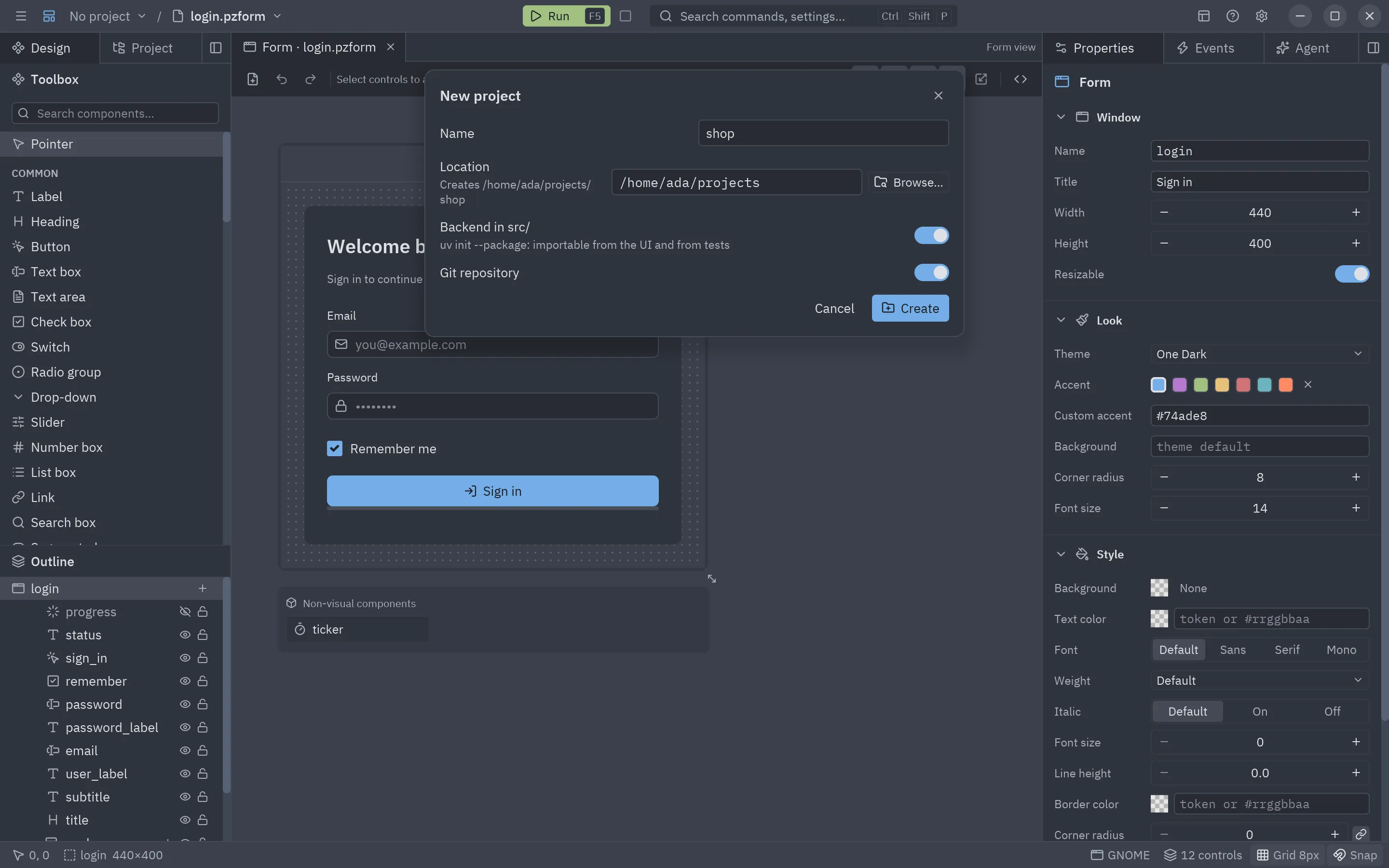
Section titled “New project”| Field | What it does |
|---|---|
| Name | The project’s name and folder name. |
| Location | The folder it is created in; the dialog shows the full path it will create. Browse… opens the folder browser: walk to a folder and press Choose this folder. |
| Backend in src/ | uv init --package: a src/<name>/ package importable from the UI and from tests. Off gives a flat layout (uv init --app). |
| Git repository | Runs git init and writes a .gitignore. |
Create runs uv in the background and then opens the new project and its main form. The target folder must be empty, or already be a project.
Open project
Section titled “Open project”Open… shows a folder browser instead of a text field:
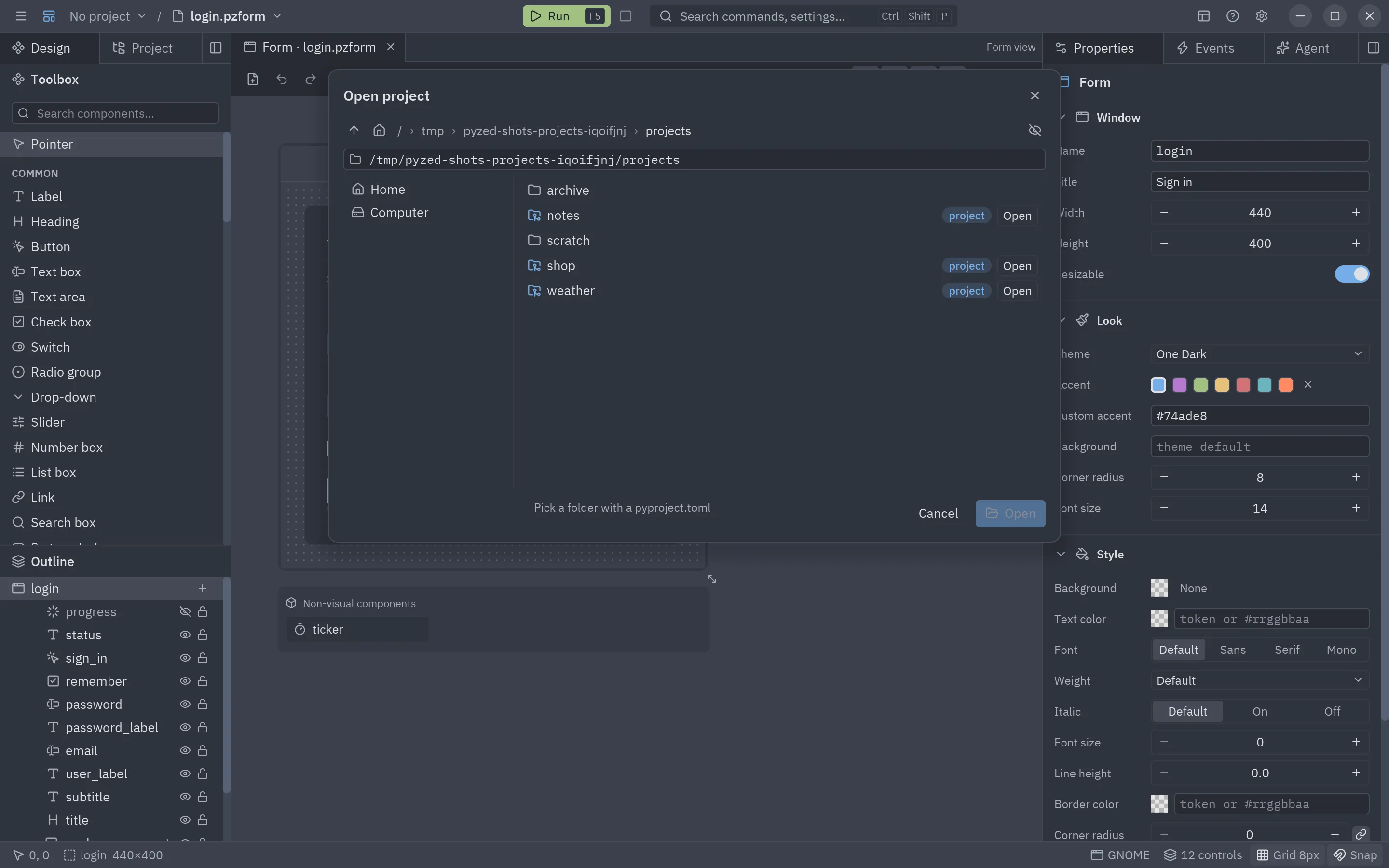
- The bar at the top goes to the parent folder (up arrow) or home, and every part of the path is clickable. The eye shows or hides hidden folders.
- The path field below it takes a folder typed or pasted; Enter goes there.
- On the left, the usual places (home, desktop, documents, downloads, the disks) and your recent projects (click one to open it).
- On the right, the folders of the current one; click a folder to go into it. Folders that are uv projects (they
have a
pyproject.toml) carry a project badge and their own Open button.
Open at the bottom opens the folder you are in when it is a project. If the project has a main form, it opens in a tab.
The project panel
Section titled “The project panel”Header
Section titled “Header”The project’s name, version and folder. On the right, the current git branch, or Create repository when
the folder is not a repository yet (it runs git init and writes a .gitignore), and a folder button
that opens another project.
While a command runs, a bar with a spinner says what is going on (Adding httpx, Syncing the environment…).
Commands run on a worker thread, so you can keep designing while uv downloads packages.
Under the header, the project’s files and folders as a tree. Folders open and close with
a click (the ui/ and src/ folders start open); files are colored by their git status (modified, new, deleted,
conflict) and folders take the color of what changed inside them. Virtual environments, caches and build output
(.venv, __pycache__, build, dist…) are left out; hidden files such as .gitignore stay.
Clicking a file opens it where it belongs:
| File | Opens |
|---|---|
.pzform, .pzcomp |
In a designer tab. |
The .py of a form or component |
Its form, with the whole code file in the code panel. |
Any other text file (.py, .toml, .md, .json…) |
In a tab of the code panel, to edit it right there. |
| Images and other binary files | In the system’s app for that file type. |
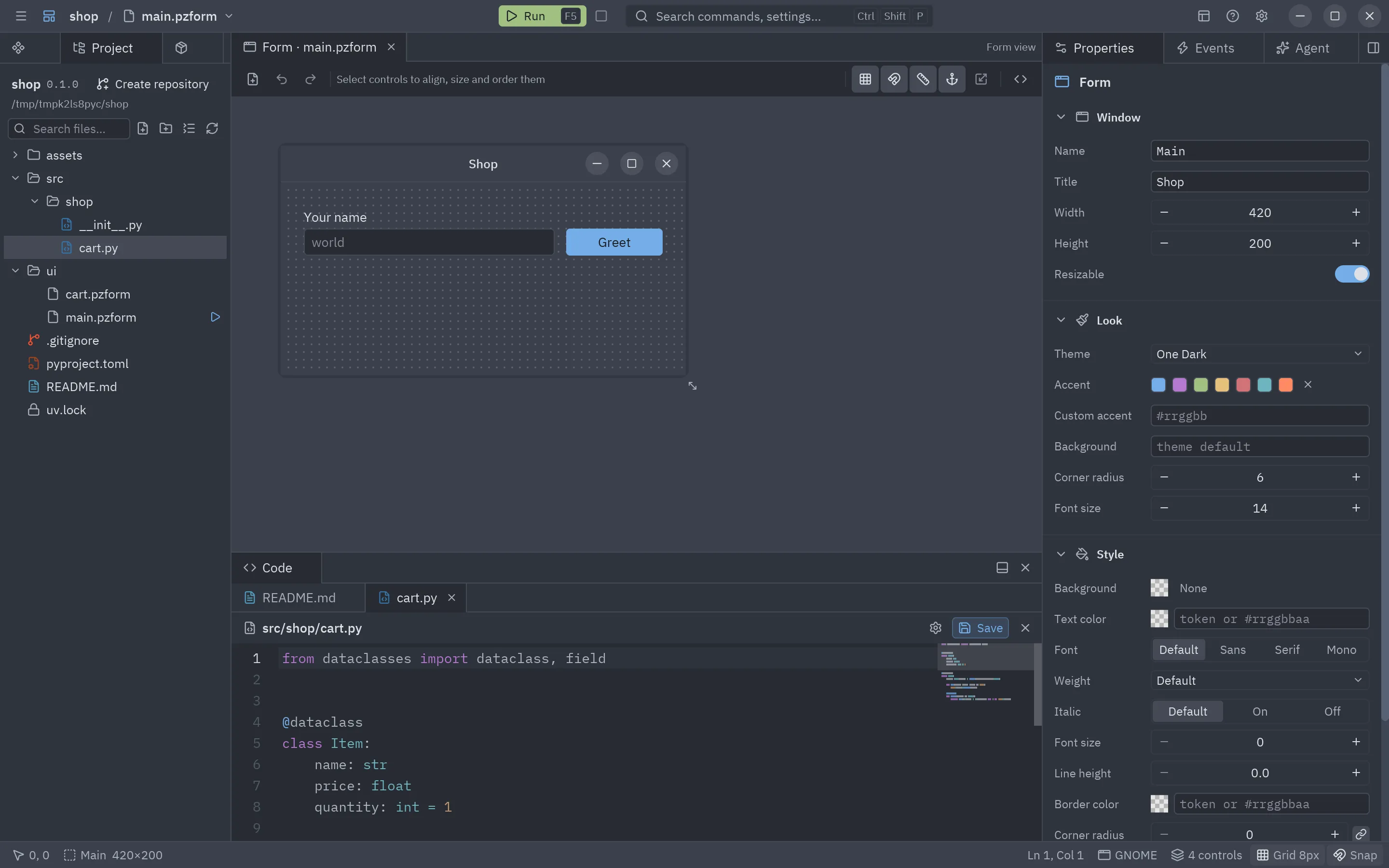
Each open file gets a tab in the code panel, after the form’s code when it is open. The editor has syntax highlighting for the file’s language, search and replace (Ctrl+F), go to line (Ctrl+G) and every editing shortcut; completion and diagnostics stay with the form’s code. A dot on a tab means unsaved changes: Save or Ctrl+S (while the file has the keyboard) writes it, and closing it asks first. Renaming or deleting a file in the tree updates its tab.
The toolbar above the tree has a search field for files and folders (it matches letters in order, like
Go to file, and file names count more than folders: crt finds ui/cart.pzform), New file, New
folder (in the selected folder), Collapse all and Refresh. The tree reloads by itself when you save and
after uv commands.
Right-click a file or folder (or the empty space below the tree, for the project folder) for its menu, the the usual file operations of a code editor:
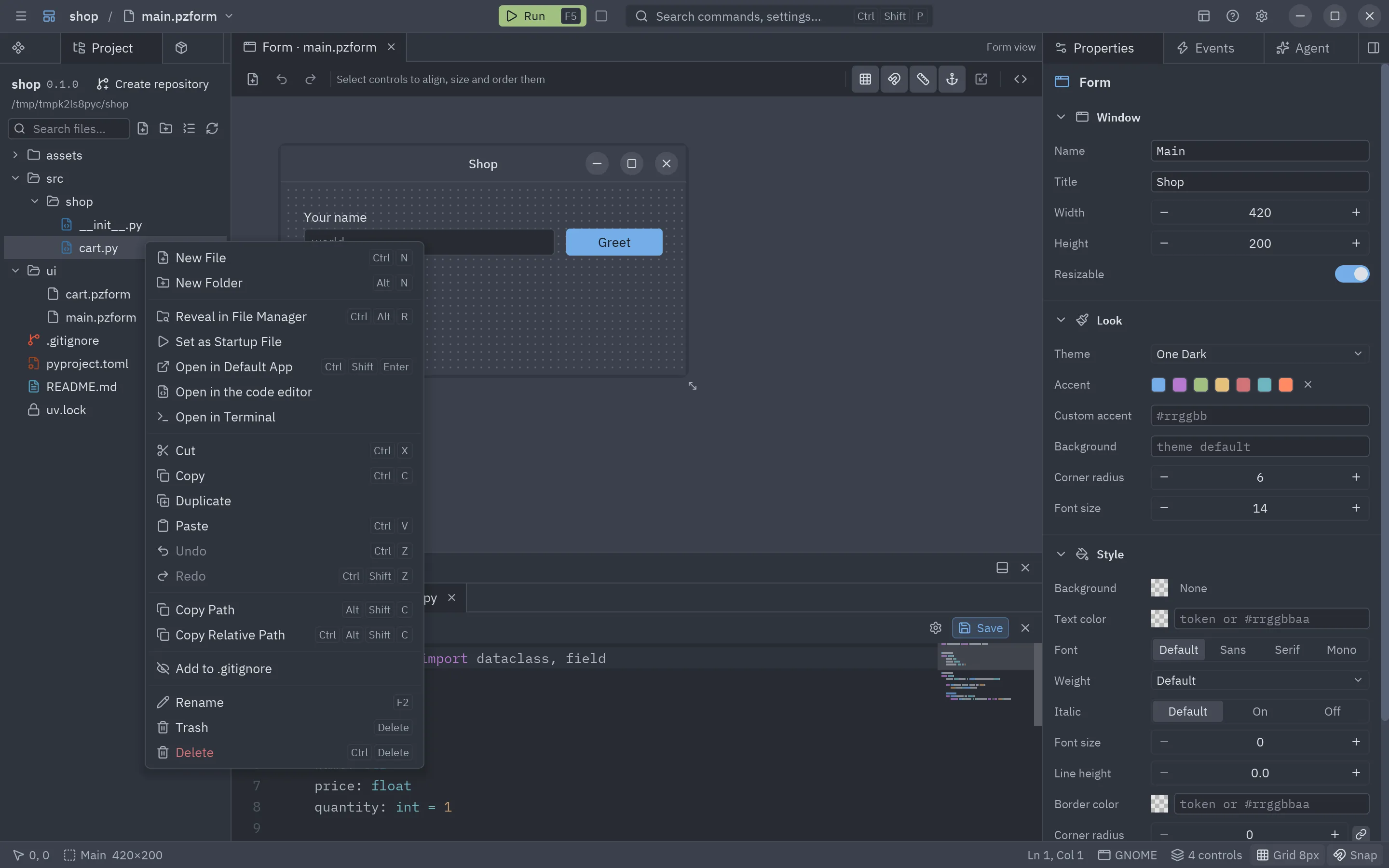
| Item | Keys | What it does |
|---|---|---|
| New File / New Folder | Ctrl+N / Alt+N | Creates one in that folder (a new file opens right away). |
| Reveal in File Manager | Ctrl+Alt+R | Shows it in Files, Finder or Explorer. |
| Open in Default App | Ctrl+Shift+Enter | Opens the file with the system’s app for its type. |
| Open in the code editor | Opens any text file as text (a form’s .py on its own too). |
|
| Open in Terminal | Opens the system’s terminal in that folder ($TERMINAL first on Linux). |
|
| Cut / Copy / Paste | Ctrl+X / C / V | Moves or copies it into the folder you paste on; a taken name gets copy. |
| Duplicate | Ctrl+D | Copies it next to itself and asks for the copy’s name. |
| Undo / Redo | Ctrl+Z / Ctrl+Shift+Z | Reverts or repeats the last new file or folder, rename, move or copy made here. |
| Copy Path / Copy Relative Path | Alt+Shift+C / Ctrl+Alt+Shift+C | Copies the full path or the path from the project folder. |
| Add to .gitignore / Add to .git/info/exclude | Ignores it in git, for everyone or only in your copy. | |
| Open File Permalink / Copy File Permalink | The link to it at the current commit on GitHub, GitLab or another remote (only with a remote). | |
| Rename | F2 | Renames it. |
| Trash | Delete | Moves it to the system’s trash, where you can restore it. |
| Delete | Ctrl+Delete | Deletes it for good after asking (a folder with everything in it). |
The keys work once you click in the tree, and also ↑ ↓ to move the selection, ← → to close and open folders and Enter to open the selected file. A file open in the code panel follows its renames and moves, and closes when it is deleted (unless it has unsaved changes).
Go to file
Section titled “Go to file”Ctrl+P (or File → Go to file…) opens a search over every file and folder of the project. Type part of a name and press Enter for the best match, or click a result; a folder is revealed in the Project panel.
The Dependencies panel
Section titled “The Dependencies panel”With a project open, the left dock gets a Dependencies panel next to Project (when the three titles do not fit, the panels not shown keep only their icon).
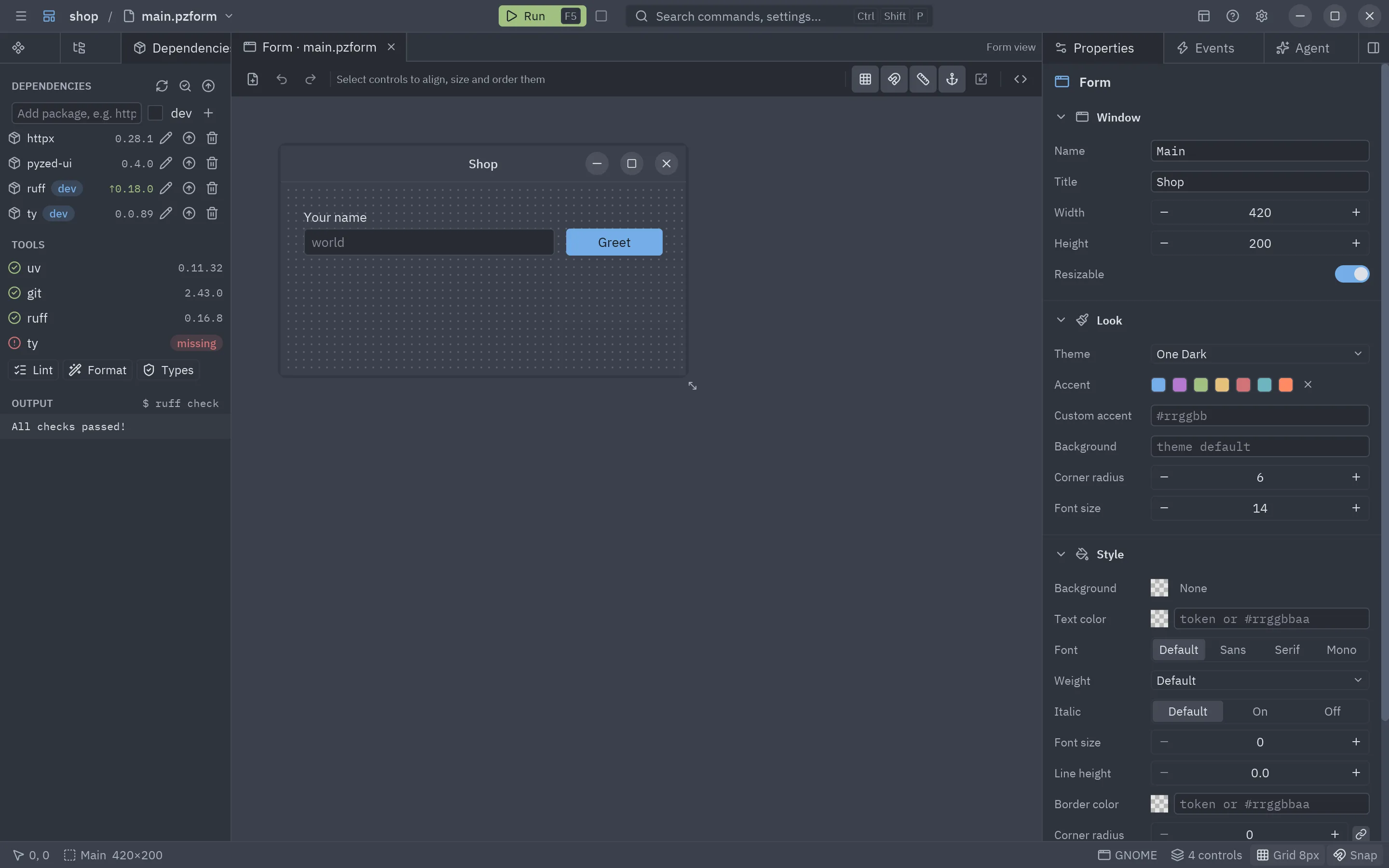
Dependencies
Section titled “Dependencies”| Control | Runs |
|---|---|
| Add package field + + (or Enter) | uv add <packages>. Type several separated by spaces, or a constraint such as httpx>=0.28. Tick dev for the dev group. |
| Pencil on a row | Opens Change: type a new requirement (httpx==0.27.2, httpx>=0.28,<1) and apply it. |
| Up arrow on a row | Upgrades that package within its constraint. |
| Trash on a row | uv remove from the group it is in. |
| Refresh in the section header | uv sync: makes .venv match uv.lock. |
| Search in the section header | Check for updates: looks up newer versions; rows with one show ↑version in green (hover it for the change). |
| Up arrow in the section header | Upgrades every package. |
Dependencies of other groups show their group as a badge.
Each row shows the version installed in .venv. It turns yellow when that is not what uv.lock says (hover it to
see both): press Refresh (uv sync). The panel reads pyproject.toml, uv.lock and .venv again on its own
when something else changes them, such as uv add in a terminal or the agent.
Warnings
Section titled “Warnings”When a project cannot run as the editor expects, a yellow box at the top of the Project and Dependencies panels says why, and opening the project shows it as a notification too:
- The project uses pyzed-ui 1.2.0 while the editor is newer: forms that use controls or properties added since
do not run. Update pyzed-ui raises its version to the editor’s (
uv add "pyzed-ui>=<editor version>", which locks and syncs); when that release is not published yet, it upgrades it as far as PyPI goes. - pyzed-ui is not a dependency of a Pyzed project: the same button adds it.
- The environment is not created or packages are not installed as uv.lock says: Sync runs
uv sync.
The × hides the box until the project is opened again. A project that takes pyzed-ui from a local checkout
([tool.uv.sources]) is not compared with the editor’s version.
uv, git, ruff and ty with the version found, or a red missing badge. Under them:
- Lint runs
ruff checkon the project. - Format runs
ruff format. - Types runs
ty check.
The Output section at the bottom shows the command that ran ($ ruff check) and the last lines of its output,
in red when it failed. A failed command also shows a notification with its last line.
Running forms of a project
Section titled “Running forms of a project”When the editor runs inside the project’s own environment (you started it with uv run pyzed design), Run
(F5) runs the form in the editor’s process. When it does not (the standalone app, or pyzed design
installed with uv tool), Run saves the form and starts it with uv run pyzed run --reload in the project,
so it has every dependency of .venv and updates on every save. Its output is piped into the
console either way.
Building the app
Section titled “Building the app”The Project panel does not package apps; use the command line in the project folder:
uv run pyzed build # a folder with the executable for this platformuv run pyzed build --onefile # a single fileuv run pyzed build --workflow # a GitHub Actions workflow for Linux, Windows and macOSSee Build and distribute.
The standalone app
Section titled “The standalone app”Pyzed Design is also published as a standalone app for Linux, Windows and macOS: the editor compiled with its
own Python and the uv binary, so nothing else needs to be installed. Projects created from it are normal uv
projects with their own .venv, and their forms always run through uv run.