
Code
Editor
Section titled “Editor”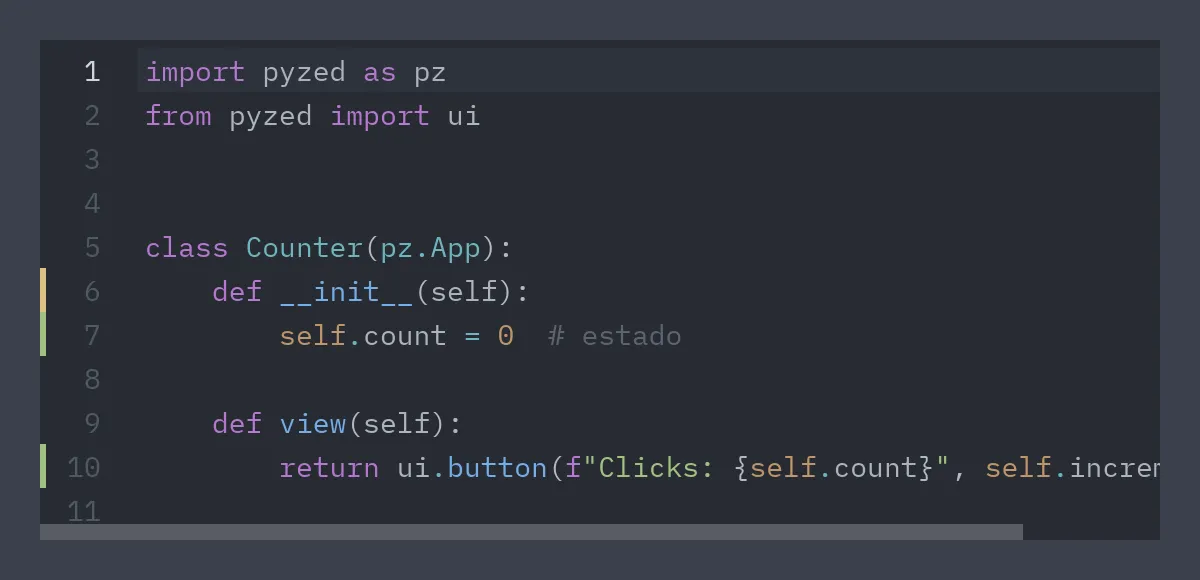
ui.editor( "counter.py", # buffer id code, # initial text path="counter.py", # infers the language markers={6: "modified", 7: "created", 10: "created"}, on_change=self.changed, # receives the full text on_cursor=self.cursor, # receives (line, column), 1-based)- Uncontrolled. The text, cursor, selection and undo history live in Rust, tied to the
id.textis only used the first time thatidappears. To replace the content, returnCommand.set_editor_text(id, text). - One buffer per file. Use the path as
id: when switching tabs, each file keeps its cursor and history. - Highlighting. Over 100 languages (syntect / two-face grammars) using the theme’s syntax
colors. The language is inferred from
pathor passed withlanguage="rs". - Git markers.
markersassigns"created","modified"or"deleted"to each line. - Cursor.
Command.set_editor_cursor(id, line, column)moves the cursor, even before the first draw.
def save(self):    Path(self.active).write_text(self.texts[self.active])    self.dirty.discard(self.active)
def changed(self, text): self.texts[self.active] = text self.dirty.add(self.active)- Long lines. With
wrap=False(default) the editor scrolls horizontally and the line numbers stay pinned on the left. Withwrap=Truelines wrap and the number appears on the first row of each line. - Active line. The cursor line is highlighted and scrolling follows the cursor (also with PgUp/PgDn).
Editing like a modern code editor
Section titled “Editing like a modern code editor”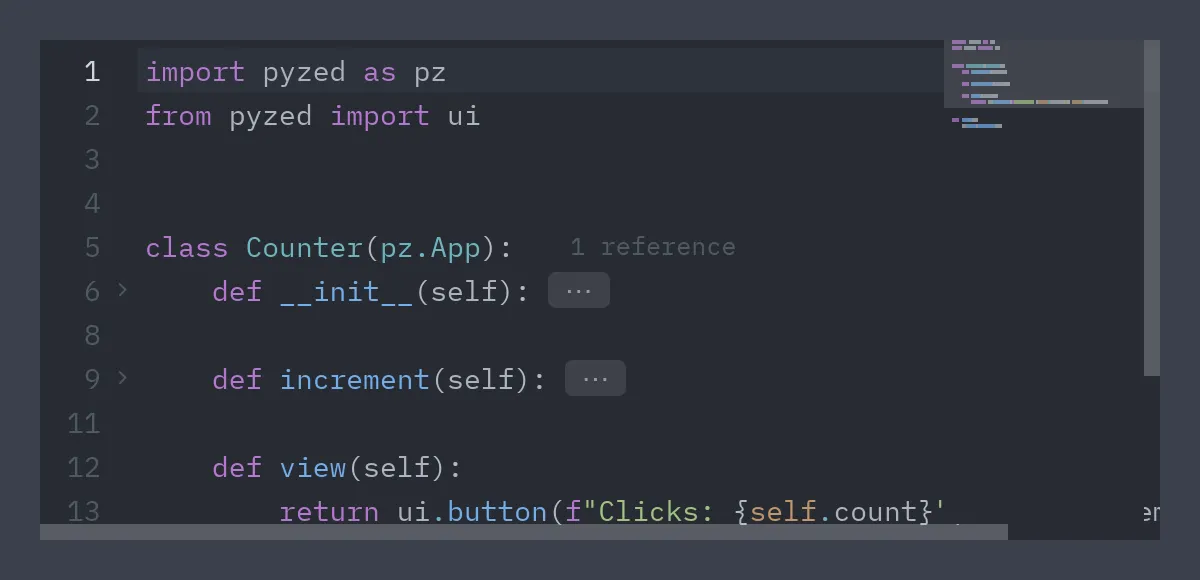
ui.editor(    "app.py", code, path="app.py",    minimap=True,                  # or a width in pixels    cursor_shape="block",          # "bar" (default), "block", "underline", "hollow"    on_zoom=self.zoom,             # 1, -1 or 0 from Ctrl+= / Ctrl+- / Ctrl+0 and Ctrl+wheel    font_size=self.font_size,)
def zoom(self, step): self.font_size = 14 if step == 0 else self.font_size + step- Auto-closing pairs (
auto_close=True, the default). Typing(,[,{,",'or`also inserts its closing pair and leaves the cursor in between. With a selection, the pair wraps it. Typing a closer that is already next steps over it, Backspace inside an empty pair deletes both, and Enter between brackets opens an indented line. Quotes are not paired inside words (don't), but they are after a string prefix (f",rb'). - Folding (
folding=True, the default). Blocks fold by indentation: hover the gutter to see the chevrons, and click one to fold its block. A folded line ends in⋯(click it to unfold). Ctrl+Shift+[ folds the innermost block around the cursor and Ctrl+Shift+] unfolds it.Command.fold_line(id, line)andCommand.fold_all(id)do it from code. Line numbers,markers,annotations,on_change,on_cursorandset_editor_cursorkeep using real lines; editing a folded line or moving the cursor into a fold unfolds it. - Minimap.
minimap=Truedraws the code zoomed out on the right with the visible area highlighted; click to jump, drag to scroll, or use the wheel over it. - Font zoom. The editor reports Ctrl+=, Ctrl+-,
Ctrl+0 and Ctrl+wheel to
on_zoom; changefont_sizein response. - Cursor.
cursor_shape,cursor_blink,cursor_width(of the bar) andcursor_color(the theme’s player color by default), like Zed’scursor_shapesetting.
Multiple cursors and Zed’s keys
Section titled “Multiple cursors and Zed’s keys”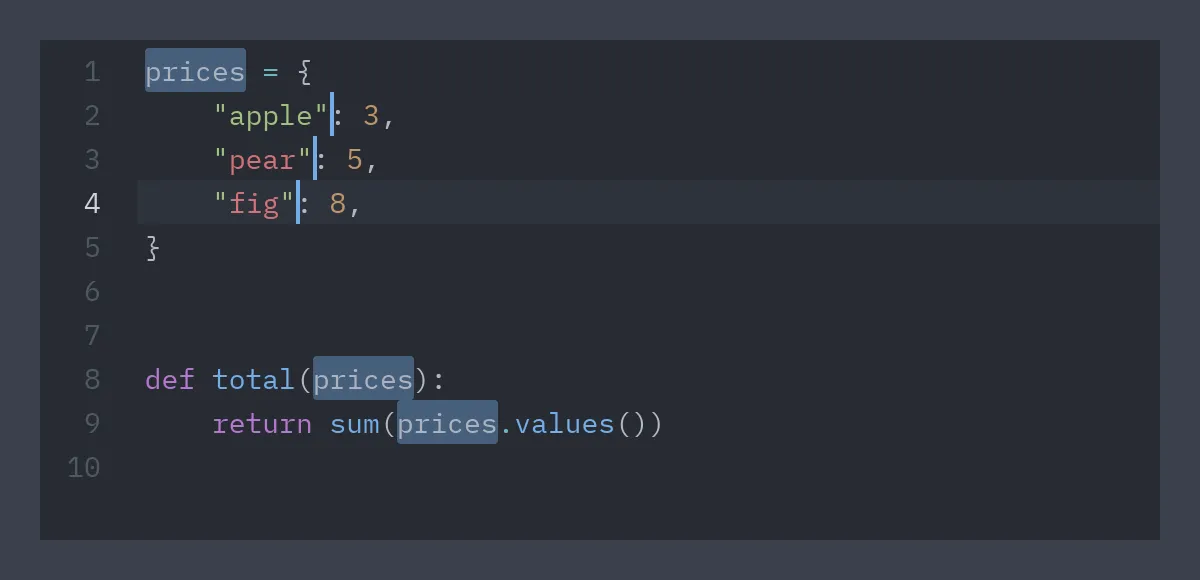
The editor uses Zed’s and VS Code’s default keys (Linux and Windows; Cmd instead of Ctrl on macOS):
| Keys | Action |
|---|---|
| Alt+click | Add a cursor (or remove the one under the click) |
| Ctrl+Alt+↑ / ↓ | Add a cursor above / below |
| Ctrl+D | Select the word under the cursor, then add the next match as a cursor |
| Ctrl+Shift+L | Select every match |
| Alt+Shift+I | One cursor on each line of the selection |
| Ctrl+U | Undo the last cursor change |
| Esc | Back to one cursor, then drop the selection |
| Ctrl+Z, Ctrl+Y or Ctrl+Shift+Z | Undo and redo (consecutive typing is one step) |
| Alt+↑ / ↓ | Move the lines up / down |
| Alt+Shift+↑ / ↓ or Ctrl+Alt+Shift+↑ / ↓ | Duplicate the lines of every cursor above / below |
| Ctrl+Shift+D | Duplicate the selection of every cursor right after it (the line when there is none) |
| Ctrl+Shift+K | Delete the lines |
| Ctrl+L | Select the line (again: the next one too) |
| Ctrl+Shift+J | Join lines |
| Ctrl+Enter / Ctrl+Shift+Enter | New line below / above, indented |
| Ctrl+] / Ctrl+[, Shift+Tab | Indent / outdent (Tab indents a selection of several lines) |
| Ctrl+/ | Toggle line comments (#, // or --, from language) |
| Ctrl+M | Jump to the matching (or enclosing) bracket |
| Ctrl+Backspace / Ctrl+Delete | Delete the word before / after |
| Home | First non-blank character, then the start of the line |
| Ctrl+↑ / ↓ | Scroll one line without moving the cursor |
| Ctrl+C / Ctrl+X | Without a selection, copy / cut the whole line; with several cursors, every cursor’s text |
| Ctrl+K Ctrl+0 / Ctrl+J / Ctrl+L | Fold everything / unfold everything / toggle the fold at the cursor |
Typing, deleting and moving apply to every cursor. Pasting text with one line per cursor gives each
cursor its line, as in Zed. The bracket next to the cursor and its match are outlined
(match_brackets), and selecting text highlights its other occurrences (selection_highlight).
Every action has a name (Zed’s, in snake case). on_action(name) is called after each one runs,
Command.editor_action(id, name) runs one from code (a menu, a command palette) and
Command.editor_actions() lists them:
ui.editor("main.py", code, path="main.py", on_action=self.ran,          highlights=self.found)       # [(line, column, end_line, end_column)], 1-based
def comment(self):    return pz.Command.editor_action("main.py", "toggle_comments")
def select_matches(self):    # One cursor per range; the first one is the primary cursor.    return pz.Command.select_editor_ranges("main.py", self.found)
def replace_all(self):    # One undo step; on_change gets the new text.    return pz.Command.replace_editor_ranges("main.py", [(r, "total") for r in self.found])
Names include undo, redo, add_selection_above, add_selection_below, select_next,
select_previous, select_all_matches, split_selection_into_lines, undo_selection, cancel,
move_line_up, move_line_down, duplicate_line_up, duplicate_line_down, delete_line,
newline_above, newline_below, indent, outdent, select_line, join_lines, toggle_comments,
move_to_enclosing_bracket, convert_to_upper_case, convert_to_lower_case and
sort_lines_case_sensitive.
Input methods
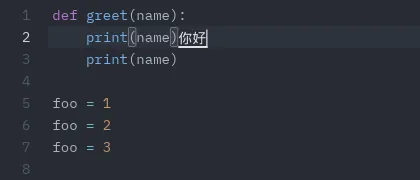
Section titled “Input methods”Chinese, Japanese, Korean and other languages typed through an input method (IME) work in the editor. While you compose, the IME’s text is drawn in a box at the cursor and the caret is hidden; the committed text goes in at every cursor, and consecutive commits are undone in one step, like typing. The IME follows the cursor as you move it.
Terminal
Section titled “Terminal”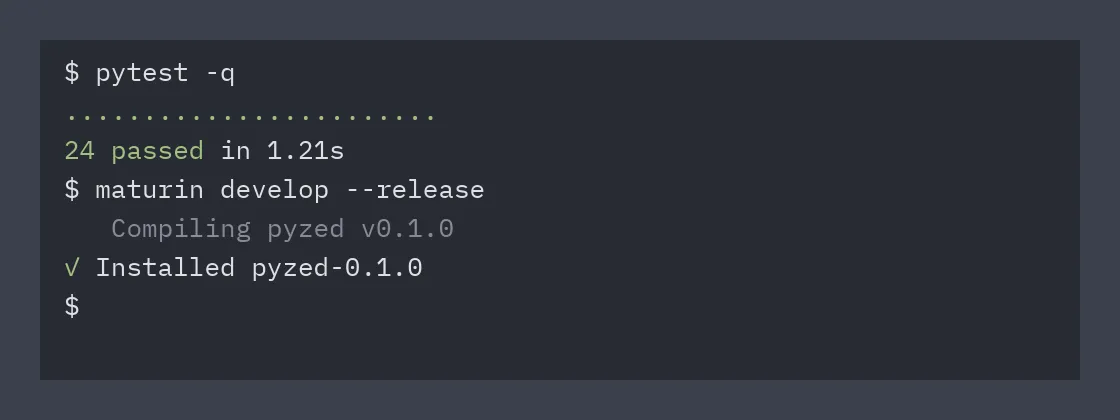
output = "$ pytest -q\n\x1b[32m24 passed\x1b[0m in 1.21s\n$ "ui.terminal(output, id="term")It is a read-only view that understands ANSI colors and stays scrolled to the bottom.
Feed it the output of a process you run yourself (for example with subprocess in a thread and
pz.post). It also accepts a list of lines made of (text, color) segments, where the color is
an ANSI name ("green", "red", "dim"…) or a theme token.
ui.ansi(text) converts to segments in case you want to draw them your own way.
Full reference: Code.