
Una app con varias vistas
Las apps reales tienen más de una pantalla: un inicio, una bandeja de entrada, ajustes. En Pyzed, “qué pantalla se
ve” es solo un dato del estado, como cualquier otro. Lo cambias y view() dibuja la otra pantalla. No hay un
router que aprender.
| Objetivo | Tiempo | Nivel | Necesitas |
|---|---|---|---|
| Una app con barra lateral, tres páginas y pestañas | 25 minutos | Intermedio · Python | Bases del diseño de pantallas |
Qué vas a aprender
Sección titulada «Qué vas a aprender»- Guardar la página actual en
self.pagey elegir la vista a partir de ella. - Construir una barra lateral con filas
ui.list_item, un estado seleccionado y un contador. - Usar
ui.segmentedcomo pestañas dentro de una página. - Mostrar migas de pan y saltar entre páginas con atajos (
on_key).
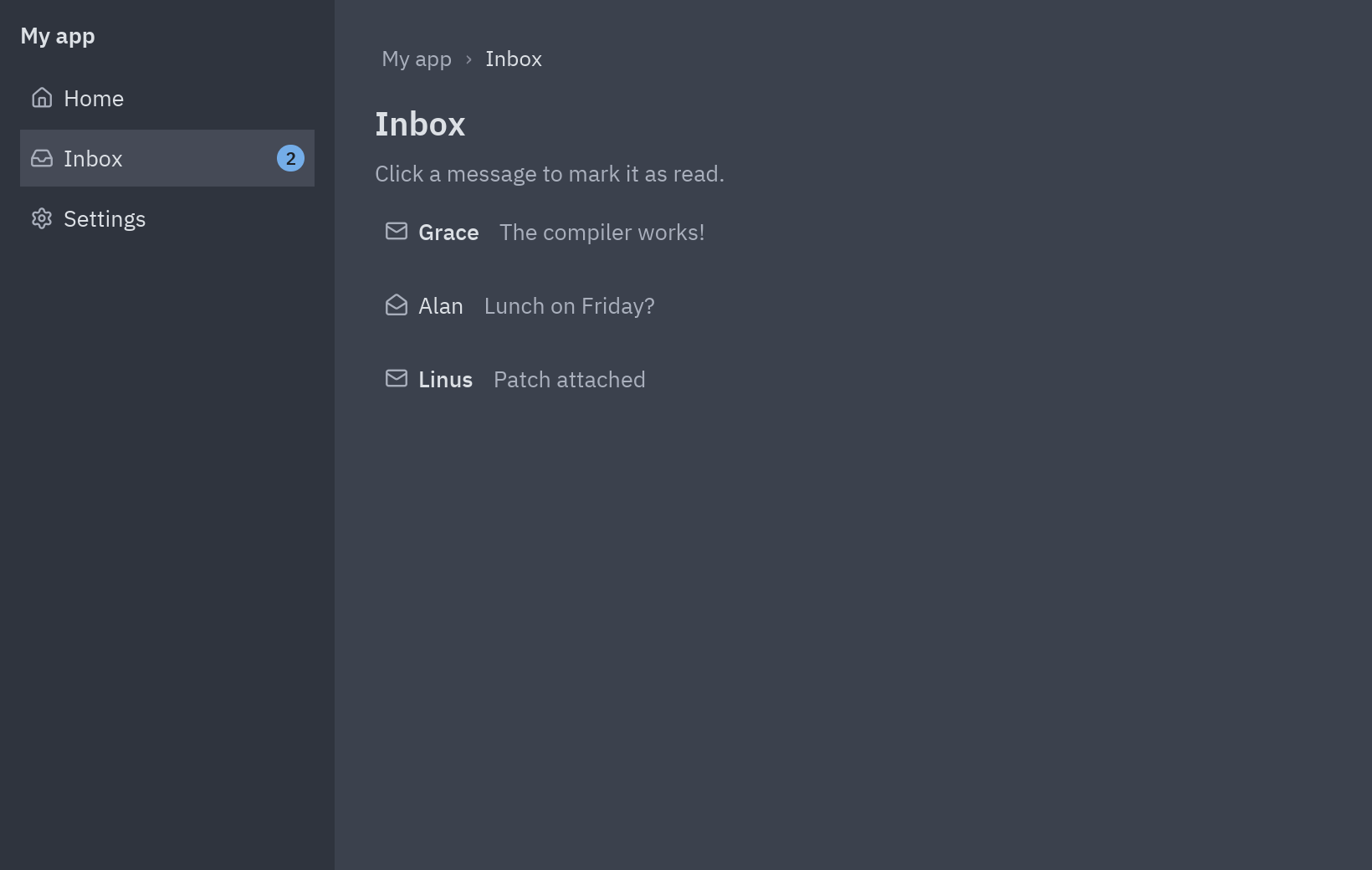
-
Un atributo decide la página.
PAGES = {"Home": "house", "Inbox": "inbox", "Settings": "settings"} # nombre → iconodef __init__(self):self.page = "Home"def go(self, page):self.page = page -
La barra lateral. Un
ui.list_itempor página.selected=resalta la actual yend=pone un contador a la derecha. Elname=namedel lambda guarda el nombre de cada página:items = [ui.list_item(name, lambda name=name: self.go(name), icon=icon,selected=name == self.page, height=34)for name, icon in PAGES.items()] -
Elige la página en
view(). Cada página es un método que devuelve widgets; un dict relaciona nombres con métodos:page = {"Home": self.home, "Inbox": self.inbox, "Settings": self.settings}[self.page]()return pz.row([self.sidebar(), pz.column([breadcrumbs, page], padding=24, width="fill")]) -
Pestañas dentro de una página. Un segundo atributo,
self.tab, y un controlui.segmentedpara cambiarlo. El contenido de abajo depende de él:tabs = ui.segmented(["General", "Notifications", "About"], self.tab,lambda tab: setattr(self, "tab", tab))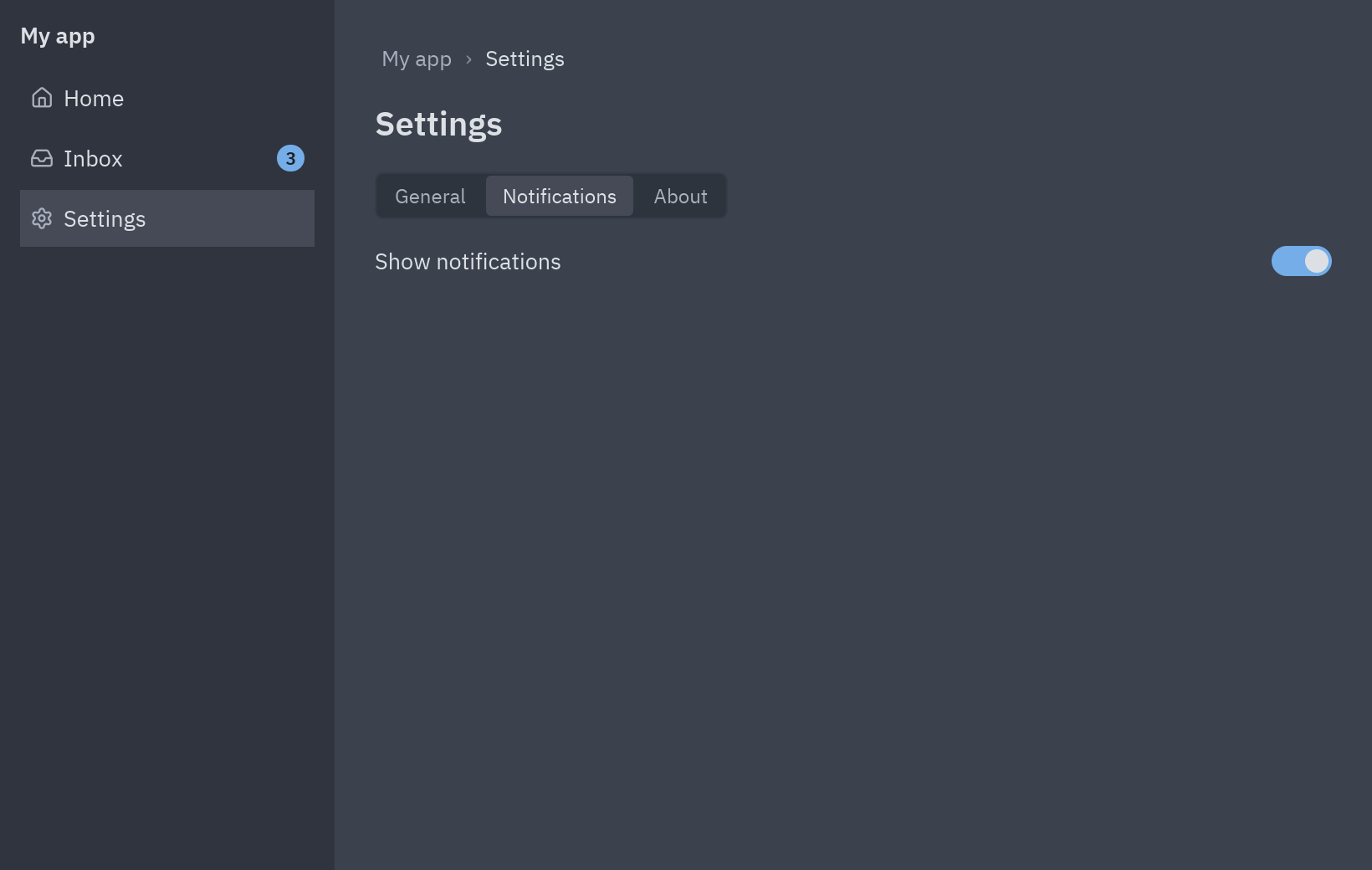
Settings: un control segmentado funciona como pestañas. -
Atajos.
on_keyrecibe cada combinación de teclas como texto. Ctrl+1, Ctrl+2 y Ctrl+3 abren las páginas:def on_key(self, combo):shortcuts = {f"ctrl-{i}": page for i, page in enumerate(PAGES, start=1)}if combo in shortcuts:self.go(shortcuts[combo])
Código completo
Sección titulada «Código completo»"""A multi-view app: a sidebar that switches pages, and tabs inside a page.
python examples/tutorial/navigation.py
- The current page is one attribute (``self.page``); ``view()`` draws the page it names.- The sidebar is a column of ``ui.list_item`` rows; the selected one is highlighted.- Inside "Settings", ``ui.segmented`` works as a row of tabs (``self.tab``).- ``ui.breadcrumbs`` shows where you are; Ctrl+1, Ctrl+2 and Ctrl+3 jump between pages.
Walkthrough: https://albakore.github.io/pyzed/tutorials/intermediate/navigation/"""
import pyzed as pzfrom pyzed import ui
PAGES = {"Home": "house", "Inbox": "inbox", "Settings": "settings"}MESSAGES = [("Grace", "The compiler works!"), ("Alan", "Lunch on Friday?"), ("Linus", "Patch attached")]
class Navigation(pz.App): title = "Navigation" size = (820, 520)
def __init__(self): self.page = "Home" self.tab = "General" self.notifications = True self.read = set()
# -- moving around ------------------------------------------------------------------ def go(self, page): self.page = page
def on_key(self, combo): shortcuts = {f"ctrl-{i}": page for i, page in enumerate(PAGES, start=1)} if combo in shortcuts: self.go(shortcuts[combo])
# -- the pieces --------------------------------------------------------------------- def sidebar(self): t = self.resolved_theme() unread = len(MESSAGES) - len(self.read) items = [ ui.list_item(name, lambda name=name: self.go(name), icon=icon, selected=name == self.page, height=34, end=ui.count_badge(unread) if name == "Inbox" and unread else None) for name, icon in PAGES.items() ] return pz.container( pz.column([ui.label("My app", weight="semibold"), pz.vspace(8), *items], spacing=2), padding=12, width=200, height="fill", bg=t.panel, )
def home(self): return pz.column([ ui.heading("Welcome back", level=2), ui.muted("Pick a page on the left, or press Ctrl+1, Ctrl+2 or Ctrl+3."), pz.row([ui.button("Open the inbox", lambda: self.go("Inbox"), variant="solid", icon="inbox"), ui.button("Settings", lambda: self.go("Settings"), icon="settings")], spacing=8), ], spacing=12)
def inbox(self): rows = [ ui.list_item(pz.row([ui.label(who, weight="medium" if i not in self.read else "normal"), ui.muted(text)], spacing=12), lambda i=i: self.read.add(i), icon="mail-open" if i in self.read else "mail", height=36) for i, (who, text) in enumerate(MESSAGES) ] return pz.column([ui.heading("Inbox", level=2), ui.muted("Click a message to mark it as read."), *rows], spacing=8)
def settings(self): tabs = ui.segmented(["General", "Notifications", "About"], self.tab, lambda tab: setattr(self, "tab", tab)) if self.tab == "General": body = ui.field("Theme", ui.select(["One Dark", "One Light"], self.resolved_theme().name, lambda name: setattr(self, "theme", name), width=180)) elif self.tab == "Notifications": body = ui.field("Show notifications", ui.switch(self.notifications, lambda on: setattr(self, "notifications", on))) else: body = ui.label("Version 1.0 · made with Pyzed") return pz.column([ui.heading("Settings", level=2), tabs, body], spacing=16)
def view(self): t = self.resolved_theme() page = {"Home": self.home, "Inbox": self.inbox, "Settings": self.settings}[self.page]() content = pz.column([ ui.breadcrumbs(["My app", self.page], on_press=lambda i: self.go("Home") if i == 0 else None), page, ], spacing=16, padding=24, width="fill") return pz.container(pz.row([self.sidebar(), content], height="fill"), width="fill", height="fill", bg=t.background)
if __name__ == "__main__": pz.run(Navigation)uv run --with pyzed-ui python examples/tutorial/navigation.pypython3 -m venv .venvsource .venv/bin/activatepython -m pip install pyzed-uipython examples/tutorial/navigation.pypy -m venv .venv.venv\Scripts\Activate.ps1python -m pip install pyzed-uipython examples\tutorial\navigation.pypython3 examples/tutorial/navigation.pypy examples\tutorial\navigation.pyEventos de este tutorial
Sección titulada «Eventos de este tutorial»| Widget | Evento | Handler |
|---|---|---|
ui.list_item de la barra lateral |
on_press |
lambda name=name: self.go(name) |
| La app | on_key |
ctrl-1, ctrl-2, ctrl-3 van a una página |
ui.breadcrumbs |
on_press |
recibe el índice de la parte: 0 vuelve al inicio |
ui.list_item del buzón |
on_press |
marca el mensaje como leído |
ui.segmented, ui.select, ui.switch |
on_select, on_select, on_toggle |
la pestaña, el tema, sí/no |
Prueba más eventos
Sección titulada «Prueba más eventos»Atrás y adelante con un historial, como un navegador:
def __init__(self):    ...    self.history, self.future = [], []
def go(self, page):    if page != self.page:        self.history.append(self.page)        self.future.clear()        self.page = page
def on_key(self, combo):    if combo == "alt-left" and self.history:        self.future.append(self.page)        self.page = self.history.pop()    elif combo == "alt-right" and self.future:        self.history.append(self.page)        self.page = self.future.pop()
Los ratones con botones de atrás y adelante los mandan como mouse_down con event.button: añade
.on(mouse_down=lambda e: ...) a la página.
Siguiente
Sección titulada «Siguiente»- Listas y tablas con datos.
- Varias ventanas: varias ventanas reales que comparten estado.
- El Dashboard y los Ajustes del Showcase usan la misma barra lateral.