
Styling forms in the designer
Forms made in Pyzed Design use the same themes and styles as code. You set them in the
Properties panel instead of writing Python, and they are saved in the .pzform file.
A form’s look is built in layers, from broad to specific; each layer only changes what it sets:
flowchart LR
    T["Theme<br/>One Dark, Gruvbox..."] --> L["Look<br/>accent · background · radius · font size"]
    L --> G["Global style<br/>the form's Style section"]
    G --> C["Control style<br/>each control's Style section"]
1. The form’s theme and look
Section titled “1. The form’s theme and look”Click an empty spot of the canvas to select the form, then open Properties → Look:
| Field | What it does | Saved as |
|---|---|---|
| Theme | Any registered theme: the bundled ones and those your code registers. | "theme": "Gruvbox Dark" |
| Accent | A preset color, × for the theme’s own, or Custom accent with any #rrggbb. Recolors primary buttons, focus, links and selection (with_accent). |
"accent": "#e11d48" |
| Background | The window’s background; empty keeps the theme’s. | "background": "#101418" |
| Corner radius | The radius every control uses; 0 for square corners. |
"radius": 0 |
| Font size | The base size of every text. | "font_size": 15 |
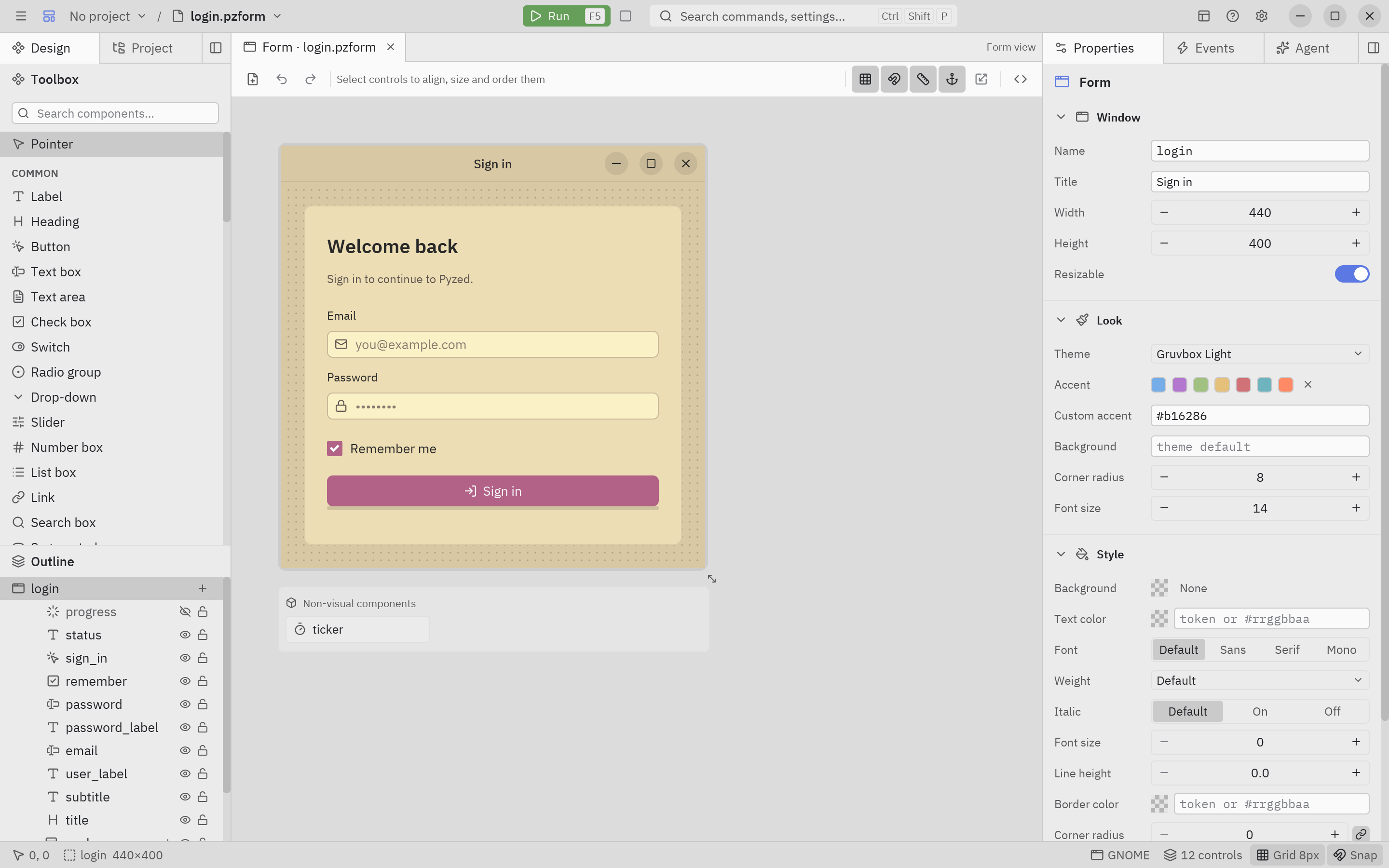
The form’s theme is independent from the theme of the editor itself (Settings → Appearance): you can design a light form in a dark editor.
2. The form’s global style
Section titled “2. The form’s global style”With the form selected, its Style section is the window’s global style (the same as App.style in code):
- Text color, font, weight, italic, font size, line height apply to every text that does not set its own. A serif font here changes every label, button and input of the form at once.
- Background, border color, corner radius and padding become the window’s.
3. A control’s style
Section titled “3. A control’s style”Select a control and use its own Style section: background (a color, a gradient or a masked fill, with the color picker), text color, font, weight, borders, corner radius, shadow, padding, margin and alignment. Empty fields keep the component’s own look, and Reset style clears them all. The Styles and themes page of the designer describes every field and the color picker.
Some controls also have variant, tint and size properties, the same as in code (see Styling components): try a button’s variant before styling it by hand.
What the .pzform file stores
Section titled “What the .pzform file stores”All of this is plain JSON in the form file, so it is easy to review in Git or to change by hand:
{ "format": "pyzed.form/1", "form": { "name": "Main", "theme": "Gruvbox Dark", "accent": "#fe8019", "background": null, "radius": 4, "font_size": 14.0, "style": { "font": "serif", "color": "text" } }, "controls": [ { "name": "save", "type": "button", "props": { "text": "Save" }, "style": { "radius": 0, "border_color": "accent", "border_width": 2 } } ]}style holds the same properties as style(), written as
Style.to_dict() does (a gradient becomes {"type": "linear", "angle": ..., "stops": [...]}).
Use your own theme in a form
Section titled “Use your own theme in a form”The Theme list shows every registered theme. To use one of your own:
-
Register it in the form’s code file (the
.pynext to the form, which Pyzed loads before the form runs):ui/main.py import pyzed as pzpz.themes.register(pz.Theme.generate("Acme", background="#16131f", text="#ece9f5", accent="#a78bfa"))def save_click(form, event):... -
Write its name in the form file (
"theme": "Acme"), or pick it in Properties → Look → Theme once the designer lists it. -
Run the form (Run, or
pyzed run). It uses the Acme theme.