
Adding a component to the editor
This guide walks through adding a new control to Pyzed Design, the visual editor in
python/pyzed/designer/, end to end. The running example is a Rating control: a row of stars that
raises a change event with the number of the clicked star.
How a component travels
Section titled “How a component travels”Everything the editor knows about a control comes from one Component record in
python/pyzed/designer/components.py. The same render function draws the control on the canvas (inert)
and in the running app (live), so what you design is exactly what runs.
flowchart LR
    UI["pyzed.ui function<br/>(ui/*.py)"] --> SPEC["designer.Component<br/>+ Prop, events"]
    SPEC -->|register| REG["registry<br/>categories()"]
    REG --> TB["Toolbox<br/>(panels.toolbox)"]
    TB -->|drag / Document.add| CV["Canvas<br/>RenderContext (inert)"]
    CV --> PG["Property grid<br/>Prop.kind editors"]
    CV -->|Document.save| PZ[".pzform<br/>props + events"]
    CV -->|Document.wire| PY["handlers .py<br/>control_event() stub"]
    PZ --> RT["FormApp / pyzed run<br/>LiveContext"]
    PY --> RT
| Stage | Code | What happens |
|---|---|---|
| Widget | python/pyzed/ui/ |
A plain function returns a Widget built from pyzed._core (Rust). |
| Toolbox entry | designer/components.py |
Component(...) describes the type, label, icon, category, size, props and events; register() adds it. |
| Toolbox | designer/panels.py |
toolbox() lists categories() with each entry’s icon and label (translated with tr) and its description as tooltip. |
| Canvas | designer/surface.py |
Draws every control with components.render(control, RenderContext(...)); callbacks are inert. |
| Property grid | designer/panels.py |
One editor per Prop, chosen by its kind, grouped by its group. |
| Saving | designer/model.py |
Control.to_dict() writes type, geometry, props and events into the .pzform JSON. |
| Handlers | designer/document.py, designer/code.py |
Document.wire(name, event) names the handler <control>_<event> and appends a stub to the .py file. |
| Running | designer/runtime.py |
LiveContext.on() stores the new value in the prop and calls the wired handler with (form, event). |
1. The pyzed.ui component
Section titled “1. The pyzed.ui component”Most designer controls wrap a function from pyzed.ui, so the control is also available to people who
write their UI in code. Put it in the module that fits (inputs.py, controls.py, display.py…) and follow
the conventions of the package:
- It is a plain function returning a
Widget; the value comes first, then the callback, then keyword-only options. - The last parameter is
theme: Optional[Theme] = None, resolved witht = _theme(theme); every color comes from the theme (t.color("accent"),t.text_muted,t.ghost_hover…), never a hard-coded hex. - Callbacks receive the new value; with no callback the control is read only.
- A one-line docstring that says what it draws, then what the callback receives.
def rating(    value: float,    on_change: Any = None,    *,    max: int = 5,  # noqa: A002 - mirrors ui.progress    size: float = 16,    tint: str = "accent",    theme: Optional[Theme] = None,) -> _core.Widget:    """A row of ``max`` stars with the first ``value`` lit, in the ``tint`` color.
    ``on_change`` is called with the number of the clicked star (1 to ``max``);    without it the stars are read only.    """    t = _theme(theme)    stars = []    for i in range(1, int(max) + 1):        lit = i <= value        star = _icon("star", size=size, color=t.color(tint) if lit else alpha(t.text_muted, 0.5))        stars.append(_core.button(star, (lambda i=i: on_change(i)) if on_change else None, padding=2,                                  bg="transparent", hover_bg=t.ghost_hover, radius=t.radius_sm))    return _core.row(stars, spacing=0, align="center")
controls.py already imports _core, _icon, alpha, Theme and _theme. Then export it from
python/pyzed/ui/__init__.py: add rating to the from .controls import (...) list and to __all__.
Every name in __all__ must be documented (see
Documenting a component).
When the widget needs Rust
Section titled “When the widget needs Rust”You only touch src/ when no existing building block can draw the control: a new Iced widget, a native
interaction or something that must be fast. pyzed._core exposes a small set of primitives (text, row,
column, container, button, text_input, slider, progress_bar, mouse_area, stack, svg,
code_editor…), and most ui components, like Rating, are compositions of them.
A native widget is wired in four places. This is how progress_bar does it:
-
A variant of
Kindinsrc/widget.rs, holding plain Rust data (the widget tree is immutable and lives in Rust):pub enum Kind {// ...ProgressBar { min: f32, max: f32, value: f32, width: Option<Length>,height: Option<Length>, style: ToggleStyle, radius: f32 },} -
A
#[pyfunction]builder insrc/widget.rs(orsrc/extra.rs) that converts Python values with the helpers insrc/style.rsand returnsnew(py, Kind::...). Callbacks are stored asPyMsg(PyMsg::maybe(&on_change)):#[pyfunction]#[pyo3(signature = (value, *, min=0.0, max=1.0, width=None, height=None, accent=None, bg=None, radius=2.0))]pub fn progress_bar(py: Python<'_>, value: f32, min: f32, max: f32, width: Any<'_>, height: Any<'_>,accent: Any<'_>, bg: Any<'_>, radius: f32) -> PyResult<Py<Widget>> {new(py, Kind::ProgressBar { min, max, value,width: style::opt_length(&width)?, height: style::opt_length(&height)?,style: toggle_style(&accent, &bg, &None, &None, &None)?, radius })} -
Registration in the module’s
register()function (widget::register, called fromsrc/lib.rs):m.add_function(wrap_pyfunction!(progress_bar, m)?)?;. It is thenpyzed._core.progress_bar. -
A match arm in
build()insrc/render.rsthat turns theKindinto aniced::Elementevery frame. Interactions become aMessage(Message::Py(msg),Message::Slide(msg, value),Message::Toggle…), whichsrc/app.rsturns into a call of the Python callback.
Rebuild with maturin develop --release, run cargo fmt and cargo clippy -- -D warnings, and wrap the
new primitive in a pyzed.ui function as above. How it works explains the
bridge in more detail.
2. The toolbox entry
Section titled “2. The toolbox entry”Built-in controls live in python/pyzed/designer/components.py: a render function and an entry in the
tuple that is registered at the end of the module.
The render function
Section titled “The render function”def _rating(c: Control, ctx: RenderContext) -> Any: p = c.props return _fill(rating(_num(p["value"]), ctx.on(c, "change", "value") if c.enabled else None, max=int(_num(p["max"], 5)), size=_num(p["size"], 16), tint=p["tint"], theme=ctx.theme), c)(from ..ui.controls import rating, or call it as ui.rating once it is exported.)
cis theControlbeing drawn.c.propsalready has every property:components.render()merges the component’s defaults under the saved values, sop["max"]never raisesKeyError, even for forms saved before the property existed.- Values from the property grid or the JSON can be strings or
None. Coerce them with the module’s helpers:_num(value, default),_lines(value)forlistprops,_align(value). - The function is given the control’s size: fill it (
_fill(widget, c)wraps the widget in awidth="fill", height="fill"container, aligned to the start and centered vertically). - Use
ctx.on(c, event, prop)for every callback. In the designer it returns an inert function. At run time (LiveContext) it stores the callback’s argument inc.props[prop]and then calls the handler wired toevent, with that value asevent.value. PassNonewhen the control is disabled (c.enabled). ctx.themeis the form’s theme;ctx.liveisFalseon the canvas (use it to draw design-time hints, as the layout containers do);ctx.key(c)is a stable id for widgets with internal state (text inputs, editors).- Do not draw the user’s style yourself:
components.render()applies the control’s Style section (designer/styling.py) on top of what you return.
The Component record
Section titled “The Component record”Component( type="rating", label="Rating", icon="star", category="Common", render=_rating, size=(132, 28), props=(Prop("value", "number", 3, min=0, max=10, group="Data"), Prop("max", "number", 5, min=1, max=10, group="Data"), Prop("size", "number", 16, min=8, max=48), Prop("tint", "choice", "accent", choices=TINTS)), events=("change",), description="A row of stars to rate something; change gives the number of stars.",),Add it to the for _component in (...) tuple, next to the controls of its category; the toolbox shows the
categories, and the components inside them, in registration order.
| Field | Meaning |
|---|---|
type |
Stable id saved in .pzform files and used to name new controls (rating1, rating2…). Never rename it once released: old forms would fail to load (KeyError: unknown component type). |
label |
Name in the toolbox and at the top of the property grid. |
icon |
A Lucide icon name, used in the toolbox and the outline (pyzed icons lists them). |
category |
Toolbox section: Common, Display, Containers, Layout, Navigation, Components, or a new one. |
render |
render(control, ctx) -> Widget, as above. |
size |
Default (width, height) when dropped on the form. |
props |
The properties shown in the property grid, in order (see below). |
events |
The control’s own events. The first one is the default event, opened by double-clicking the control. |
description |
One sentence, shown as the toolbox tooltip and under the label in the property grid. |
visual |
False for controls that draw nothing at run time (like timer): they get no mouse events. |
container |
"free", "flex" or "grid" when other controls can be dropped inside it (see designer/layout.py). |
child_layout |
Layout options given to new controls of this type, such as (("grow", 1),) for the spacer. |
Properties
Section titled “Properties”Prop(name, kind, default, label="", choices=(), min=None, max=None, step=1.0, group="Appearance"):
kind |
Editor in the property grid | Value |
|---|---|---|
text |
single-line text box | str |
multiline |
multi-line text box | str |
number |
number box with steppers (min, max, step) |
number, or None when the default is None |
bool |
switch | bool |
color |
color swatch and picker | theme token or hex string ("" for none) |
choice |
drop-down of choices |
str |
list |
list editor, one item per line | str with one item per line |
rows |
table editor, comma-separated rows, the first one the header | str |
icon |
Lucide icon picker | icon name ("" for none) |
groupplaces it in a section of the grid:Appearance(default),Data(the values a user changes, liketext,value,selected),LayoutorBehavior.- The grid shows
label, or the name with underscores as spaces (line_numbers→ Line numbers). - Name the prop that changes when the user interacts after what it holds (
value,checked,selected,text) and pass that name as the third argument ofctx.on, soform.rating1.valueis always current.
Events
Section titled “Events”- Name events with the existing verbs when they fit:
click,double_click,change,submit,release,tick.EVENT_DOCSincomponents.pyholds the docstring of the generated stub for each event name; add an entry if you introduce a new one. - Every visual component also gets
COMMON_EVENTS(mouse_enter,mouse_leave,right_click) automatically (Component.all_events); the runtime wraps the control in amouse_areawhen they are wired. Do not list them yourself.
Translations and hot reload
Section titled “Translations and hot reload”- The designer’s own texts are translated in
python/pyzed/designer/locales/es.json. Add the Spanish label and any new category or property title under"designer"(the English text is the key):"Rating": "Valoración". Property titles are shared, soValue,Max,SizeandTintare already there. - If users change a property by interacting (like Rating’s
value), add it to_VALUE_PROPSinpython/pyzed/designer/runtime.py("rating": ("value",)): hot reload then keeps what the user picked when the form or its code is saved.
3. What the editor saves and generates
Section titled “3. What the editor saves and generates”Placing a Rating, naming it and double-clicking it gives this in the .pzform file (only type, the
geometry, props and events depend on your component):
{ "name": "rating1", "type": "rating", "x": 16, "y": 48, "width": 132, "height": 28, "props": { "value": 3, "max": 5, "size": 16, "tint": "accent" }, "events": { "change": "rating1_change" }, "anchor": ["left", "top"], "visible": true, "enabled": true, "locked": false}and this stub in the form’s handlers module (Document.wire → code.ensure_function, with the docstring
from EVENT_DOCS):
def rating1_change(form, event): """Runs when the value of rating1 changes (``event.value``).""" passAt run time, handlers read and write the props as attributes: form.rating1.value,
form.rating1.max = 10, form.rating1.hide(). Because props are saved as plain JSON, keep their
values JSON-friendly (strings, numbers, booleans, None), and when you add a property later give it a
default that keeps old forms looking the same.
4. Tests
Section titled “4. Tests”Tests live in tests/ and run off-screen. test_every_component_has_defaults_and_renders in
tests/test_designer.py already renders every registered component with its defaults, so a broken
render fails right away. Add tests for what is specific to your control:
import pyzed as pzfrom pyzed import designer, uifrom pyzed.designer.document import Documentfrom pyzed.designer.runtime import FormApp

def test_rating_ui_component():    assert isinstance(ui.rating(3, lambda stars: None, max=5), pz.Widget)    assert isinstance(ui.rating(0), pz.Widget)  # read only

def test_rating_in_the_toolbox():    spec = designer.component("rating")    assert spec in designer.categories()["Common"]    assert spec.default_event == "change"    control = spec.create("stars", 0, 0)    assert control.props == {"value": 3, "max": 5, "size": 16, "tint": "accent"}    assert isinstance(designer.render(control, designer.RenderContext(pz.themes.ONE_DARK)), pz.Widget)

def test_rating_runs_its_handler(tmp_path):    doc = Document(designer.Form(name="review"))    doc.add("rating", 16, 16)    handler = doc.wire("rating1", "change")    doc.set_handler_source(handler, "def rating1_change(form, event):\n    form.rating1.max = 10\n")    path = doc.save(tmp_path / "review.pzform")    assert designer.load(path)["rating1"].events == {"change": "rating1_change"}    rt = designer.open_form(path).runtime    rt.ctx.on(rt.form["rating1"], "change", "value")(4)  # what a click on the 4th star does    assert rt.form["rating1"].props["value"] == 4    assert rt.form["rating1"].props["max"] == 10    assert rt.error is None

def test_rating_screenshot(tmp_path):    form = designer.Form(width=200, height=60)    form.add(designer.component("rating").create("stars", 16, 16))    FormApp(form).screenshot(tmp_path / "rating.png", scale=1)    assert (tmp_path / "rating.png").stat().st_size > 0
rt.ctx.on(control, event, prop)(value)simulates the user: it is exactly the callback the widget calls.Documentdrives the editor without a window:add,set_prop,wire,save,undo…FormApp(...).screenshot(path, scale=1)anddesigner.Designer(path).screenshot(...)render the running form and the whole editor off-screen.- The
conftest.pyfixture keeps the editor’s preferences out of your real config folder.
Run pytest tests/test_designer.py -q while you work and the whole suite before pushing.
Worked example: a Rating control
Section titled “Worked example: a Rating control”This is the complete example, as a single file you can run without touching the repository: it builds
the ui function, registers the toolbox entry, creates a form with Document, wires the event, runs the
form and takes screenshots. (In a pull request, the pieces go to the files shown in the steps above.)
"""A Rating control for Pyzed Design."""
from typing import Any, Optional
from pyzed import _corefrom pyzed.designer import Component, Prop, registerfrom pyzed.designer.components import TINTS, RenderContextfrom pyzed.designer.model import Controlfrom pyzed.icons import icon as _iconfrom pyzed.theme import Theme, alphafrom pyzed.ui.base import _theme

def rating(    value: float,    on_change: Any = None,    *,    max: int = 5,  # noqa: A002 - mirrors ui.progress    size: float = 16,    tint: str = "accent",    theme: Optional[Theme] = None,) -> _core.Widget:    """A row of ``max`` stars with the first ``value`` lit, in the ``tint`` color.
    ``on_change`` is called with the number of the clicked star (1 to ``max``);    without it the stars are read only.    """    t = _theme(theme)    stars = []    for i in range(1, int(max) + 1):        lit = i <= value        star = _icon("star", size=size, color=t.color(tint) if lit else alpha(t.text_muted, 0.5))        stars.append(_core.button(star, (lambda i=i: on_change(i)) if on_change else None, padding=2,                                  bg="transparent", hover_bg=t.ghost_hover, radius=t.radius_sm))    return _core.row(stars, spacing=0, align="center")

def _rating(c: Control, ctx: RenderContext) -> Any:    p = c.props    widget = rating(p["value"], ctx.on(c, "change", "value") if c.enabled else None,                    max=int(p["max"]), size=p["size"], tint=p["tint"], theme=ctx.theme)    return _core.container(widget, width="fill", height="fill", align_y="center")

RATING = register(Component( "rating", "Rating", "star", "Common", _rating, (132, 28), (Prop("value", "number", 3, min=0, max=10, group="Data"), Prop("max", "number", 5, min=1, max=10, group="Data"), Prop("size", "number", 16, min=8, max=48), Prop("tint", "choice", "accent", choices=TINTS)), ("change",), "A row of stars to rate something; change gives the number of stars.",))from pathlib import Path
import rating # noqa: F401 - registers the component
from pyzed import designerfrom pyzed.designer import Document
HERE = Path(__file__).resolve().parent
doc = Document(designer.Form(name="review", title="Review", width=360, height=150))doc.add("label", 16, 16, 320, 24).props["text"] = "How was your stay?"doc.add("rating", 16, 48)doc.add("label", 16, 88, 320, 24)doc.rename("label2", "status")handler = doc.wire("rating1", "change") # "rating1_change", with a stub in review.pydoc.set_handler_source(handler, ( "def rating1_change(form, event):\n" ' form.status.text = f"You gave it {event.value} stars"\n'))path = doc.save(HERE / "review.pzform") # writes review.pzform and review.py
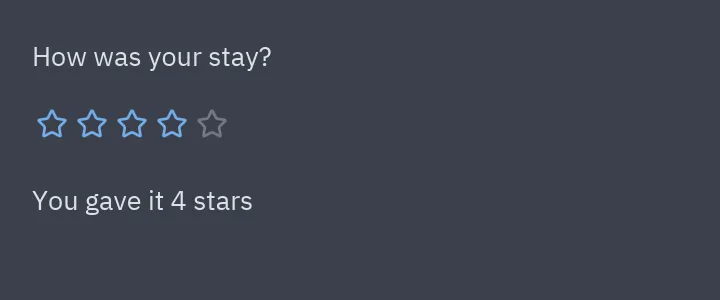
app = designer.open_form(path)rt = app.runtimert.ctx.on(rt.form["rating1"], "change", "value")(4) # a click on the fourth starassert rt.form["status"].props["text"] == "You gave it 4 stars"app.screenshot(HERE / "rating-run.png", scale=2) # the image at the top of this page
editor = designer.Designer(path)editor.doc.select("rating1")editor.screenshot(HERE / "rating-designer.png", size=(1280, 760), scale=2)python demo.py writes the form, its handlers and the two screenshots. To use the control interactively,
import rating before opening the editor or running the form:
import rating  # noqa: F401from pyzed import designer
designer.design("review.pzform")   # the editor, with Rating in the toolbox# designer.run("review.pzform")    # or run the form
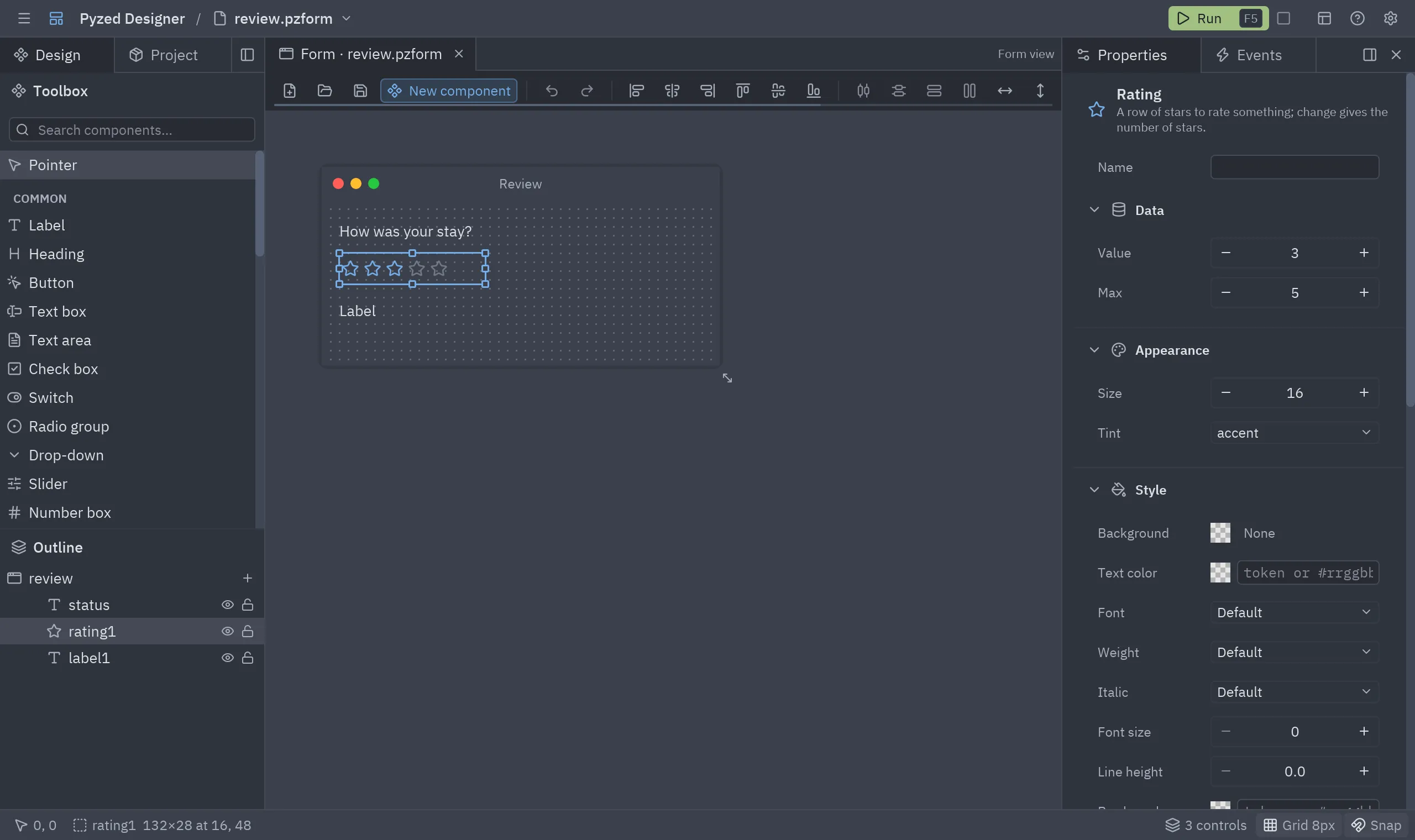
The selected Rating on the canvas, with its Data and Appearance properties in the grid:
Checklist
Section titled “Checklist”-
pyzed.uifunction with a docstring, exported inui/__init__.pyand__all__ - Rust changes (if any) formatted and clippy-clean, rebuilt with
maturin develop --release -
Componententry indesigner/components.py, with a stabletype, a Lucide icon and a one-sentence description - Callbacks through
ctx.on(c, event, prop); values coerced with_num/_lines - Spanish texts in
designer/locales/es.json; interactive props in_VALUE_PROPS - Tests in
tests/, andpytest testspasses - Documentation: see Documenting a component
- PR titled
✨ Add a Rating component